Apps
Why Do Mac Games Use More Storage Than Their Listed Installation Size?
You find a game you want to install on your Mac. Its store page says it needs 70 GB of storage, so you check your SSD and confirm that you have 90 GB available. The installation finishes, but your free space drops by much more than expected. A few weeks later, the game has grown even larger. You uninstall another game, but your Mac doesn't recover as much space as you expected. Where is all that storage going? The listed installation size usually describes the main game files or the space required for installation. It doesn't necessarily include every cache, saved game, downloaded asset, launcher file, or temporary update file created while you play. On macOS, some of these files are stored outside the game's main installation folder. Others can remain after you uninstall the game. Here's where to look and how to identify what's actually consuming your Mac's storage without accidentally deleting your progress.
 Diskfern Team10 min readUpdated
Short answer
A game's listed store size covers only base installation assets. As you play, macOS games accumulate shader caches in ~/Library, autosaves and world states, high-resolution gameplay replays, DLC texture packs, and launcher download caches. Furthermore, uninstalling a game from Steam or Epic Games only deletes the main executable folder, leaving gigabytes of caches, settings, and saves intact across your user Library.
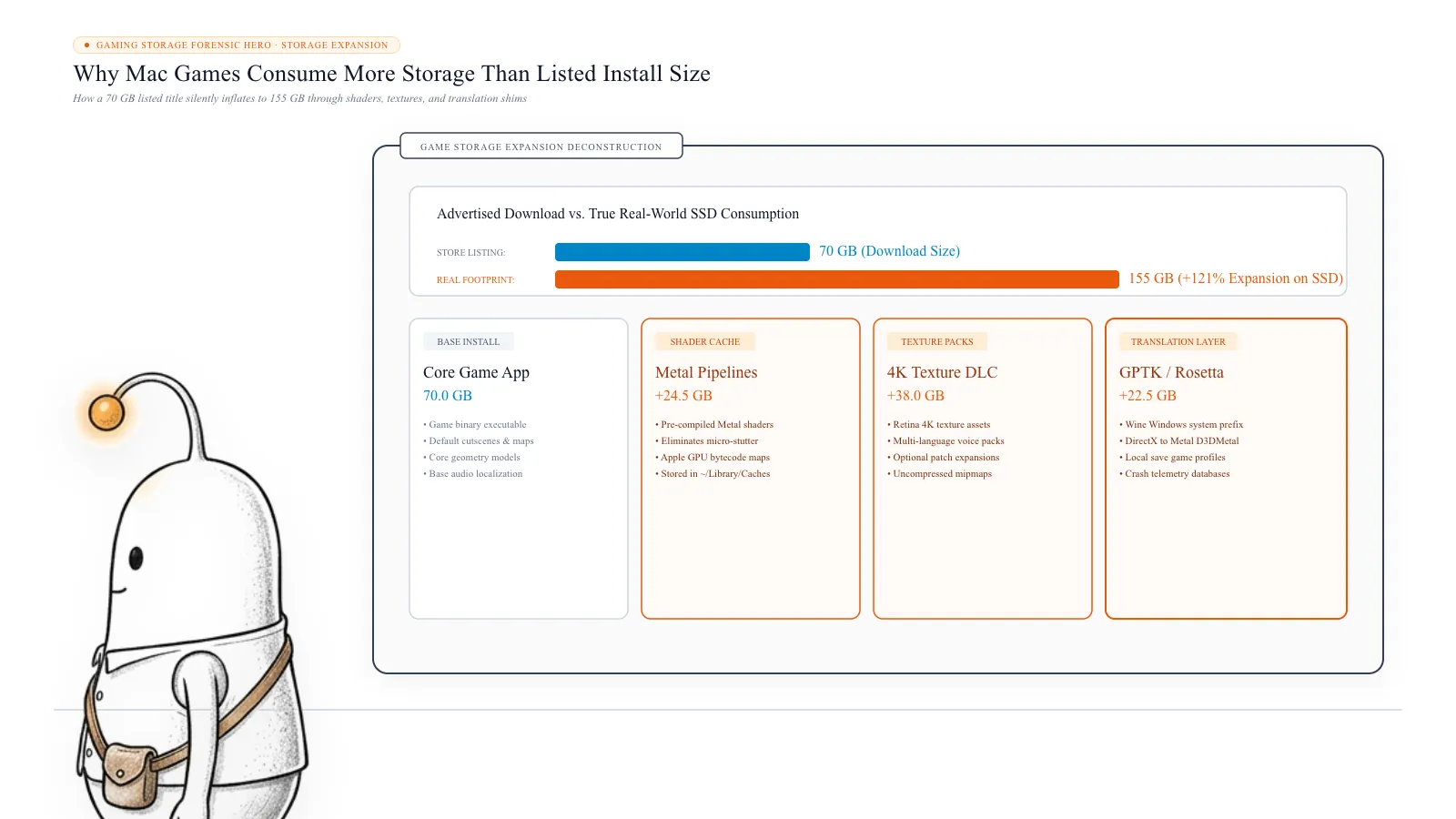
Why a Game's Listed Size Isn't Its Total Storage Usage
A game isn't just one application file. When you install and play a modern game, it can create or download several types of additional data:
- Shader caches used to improve graphics performance
- Saved games and autosave files
- Replays, screenshots, and recordings
- Downloaded maps, textures, and additional content
- Launcher downloads and temporary update files
- Configuration files, logs, and other application data
These files don't necessarily live alongside the main game. For example, a game installed through Steam may have its main files inside the Steam library, while its saved data and other application files are stored in your user Library.
That means looking at the game's installation folder alone won't always tell you its complete storage footprint. There's another important distinction: the space required to install a game can be different from the space it occupies after installation. An installer may download compressed files, unpack them, and replace older files during an update. For a period of time, the original files, downloaded update, and newly installed files can coexist. This can make the temporary storage requirement considerably larger than the final installed game.
1. Shader Caches Can Grow as You Play
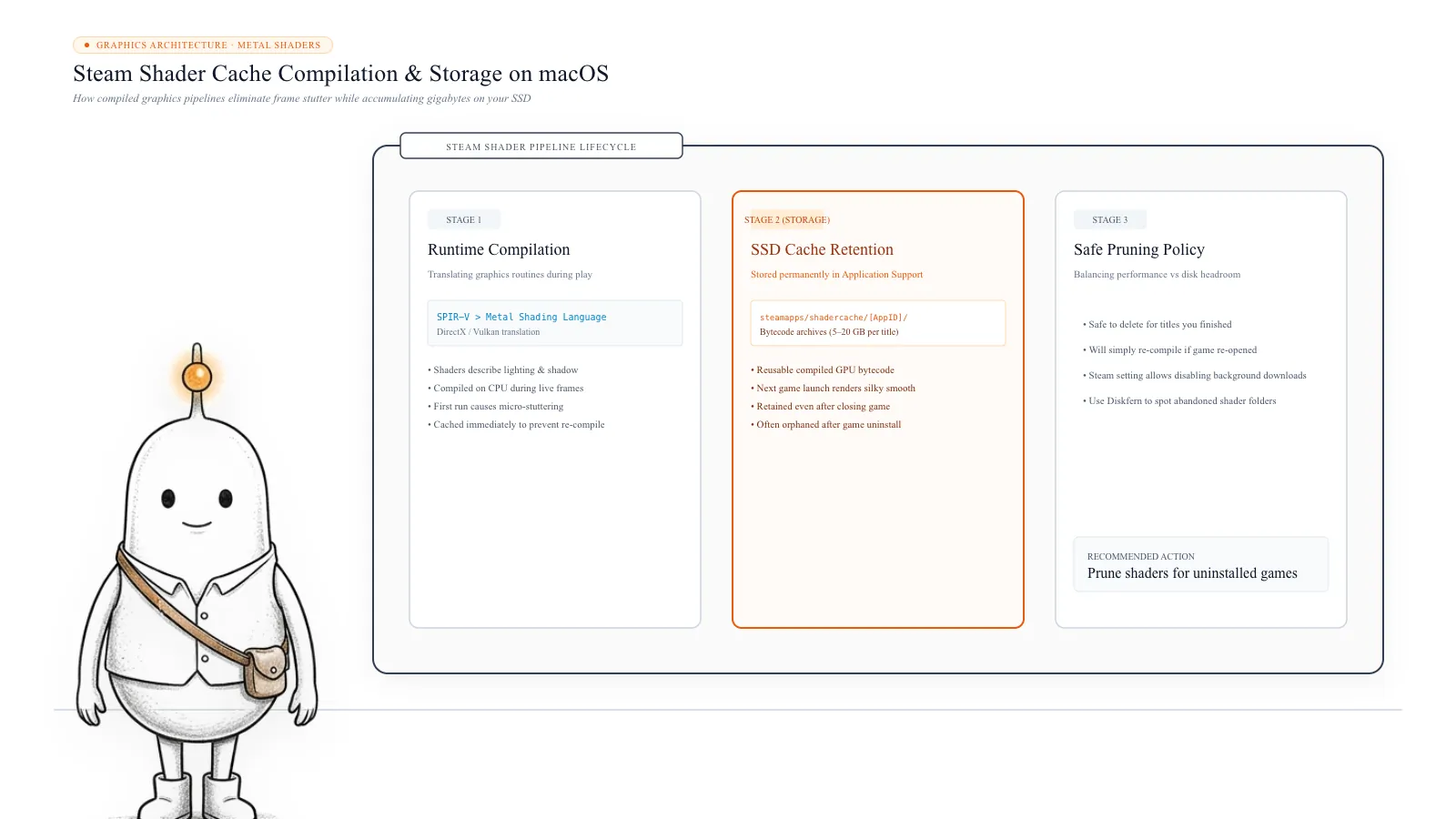
One of the less obvious sources of game storage is shader caching. Modern games use shaders to render lighting, shadows, textures, reflections, and other visual effects. Compiling shaders repeatedly can cause performance problems, particularly when a game encounters new graphics effects. To reduce repeated work, games and graphics systems can store compiled shader data locally.
These files are called shader caches. As you play, the game may encounter new environments, effects, or graphical combinations and generate additional cached data. Over time, the cache can grow beyond what you expected from the original installation.
Where are Steam shader caches stored on a Mac?
For a standard Steam installation, a useful location to inspect is: ~/Library/Application Support/Steam/steamapps/shadercache/ Not every game or graphics system uses this exact location. Some caches are managed by the game, graphics driver, launcher, or compatibility software. To check the size of the Steam shader cache, open Terminal and run the command below:
du -sh "$HOME/Library/Application Support/Steam/steamapps/shadercache" 2>/dev/nullThis only reports the folder's size.
Can you delete shader caches?
Shader caches are generally regenerable, but deleting them has a trade-off. The game or graphics system may need to compile shaders again. This can cause longer loading times or temporary stuttering the next time you play. Also, don't assume every folder with the word cache in its name contains disposable shader data. Inspect the folder's actual purpose before deleting anything.
2. Saved Games and Autosaves Accumulate Over Time
Game saves are another reason storage usage can grow. Many games automatically save your progress at checkpoints, after completing missions, or at regular intervals. Some games maintain multiple autosave slots. Others store manual saves, profile information, configuration files, and additional player data. A single save may be small, but a game that creates many saves or stores large world states can gradually use more space.
Where does macOS store game saves?
There isn't one universal location. Depending on the game and how it was installed, saves may be stored in:
- ~/Library/Application Support/
- ~/Library/Containers/
Some games use Documents, custom folders, or launcher-managed locations. For example, Steam documents its local cloud-file location as: ~/Library/Application Support/Steam/userdata/ This directory contains account-specific data and game-specific folders. It is not a universal location for every game's local saves.
Important: Don't delete a game's Application Support folder just because you have uninstalled the game. It may contain your progress, settings, or locally stored data that isn't backed up to the cloud. Before removing save files, verify that cloud synchronisation is enabled and that your latest progress has actually synced.
Read more: Steam Support: Steam Cloud: Where are cloud files stored locally?
3. Replays, Screenshots, and Game Recordings Can Consume Storage
Some games let you record gameplay, save replays, capture screenshots, or store match history. These files can be surprisingly large, particularly when recordings are saved at high resolutions. A few minutes of gameplay footage can consume more storage than hundreds of ordinary save files.
The exact location depends on the game and its recording features. Check:
- The game's screenshot and replay settings
- Its designated capture folder
- Steam screenshots and recordings
- Any external recording application you use
- The game's Application Support directory
Don't confuse replay data with shader caches. Replays may be personal recordings or gameplay history that cannot be recreated once deleted. If you no longer need a recording, delete it through the game or the application that created it.
4. Downloaded Game Assets and Additional Content Increase Storage
A game's initial installation may not contain everything you eventually download. Many games install additional content after the first launch. This can include:
- High-resolution texture packs
- Additional maps and levels
- Language packs
- Downloadable content
- Mods and community-created assets
- Optional game resources
Online games may also download new content through regular updates. For example, a game that starts with a relatively small installation can become substantially larger after several updates and content releases. Some launchers also keep downloaded update packages or incomplete downloads while an installation or update is in progress.
Steam's support documentation identifies automatic game patches, saved games, and custom-content downloads as possible reasons available storage can decrease after running a game. This is why comparing the original store-page requirement with the current folder size doesn't always produce the same result.
Read more: Steam Support: Why available disk space decreases after running a game
5. Game Launchers Store Their Own Data
The game itself isn't always responsible for all the additional storage. Launchers such as Steam, Epic Games Launcher, and other game-management applications maintain their own files. These may include:
- Download caches
- Temporary installation files
- Web caches
- Logs
- Game metadata
- Local account data
- Downloaded content
For Steam, the main macOS application support directory is: ~/Library/Application Support/Steam/ Steam's own documentation explains that removing the Steam application alone does not fully remove its associated data. It also warns that the SteamApps folder contains game downloads and potentially local save files.
The important point is that launcher data and installed game data are not necessarily the same thing. If you're trying to reclaim storage, use the launcher's own uninstall and storage-management features before manually removing its folders.
Read more: Steam Support: Removing and Reinstalling Steam on a Mac
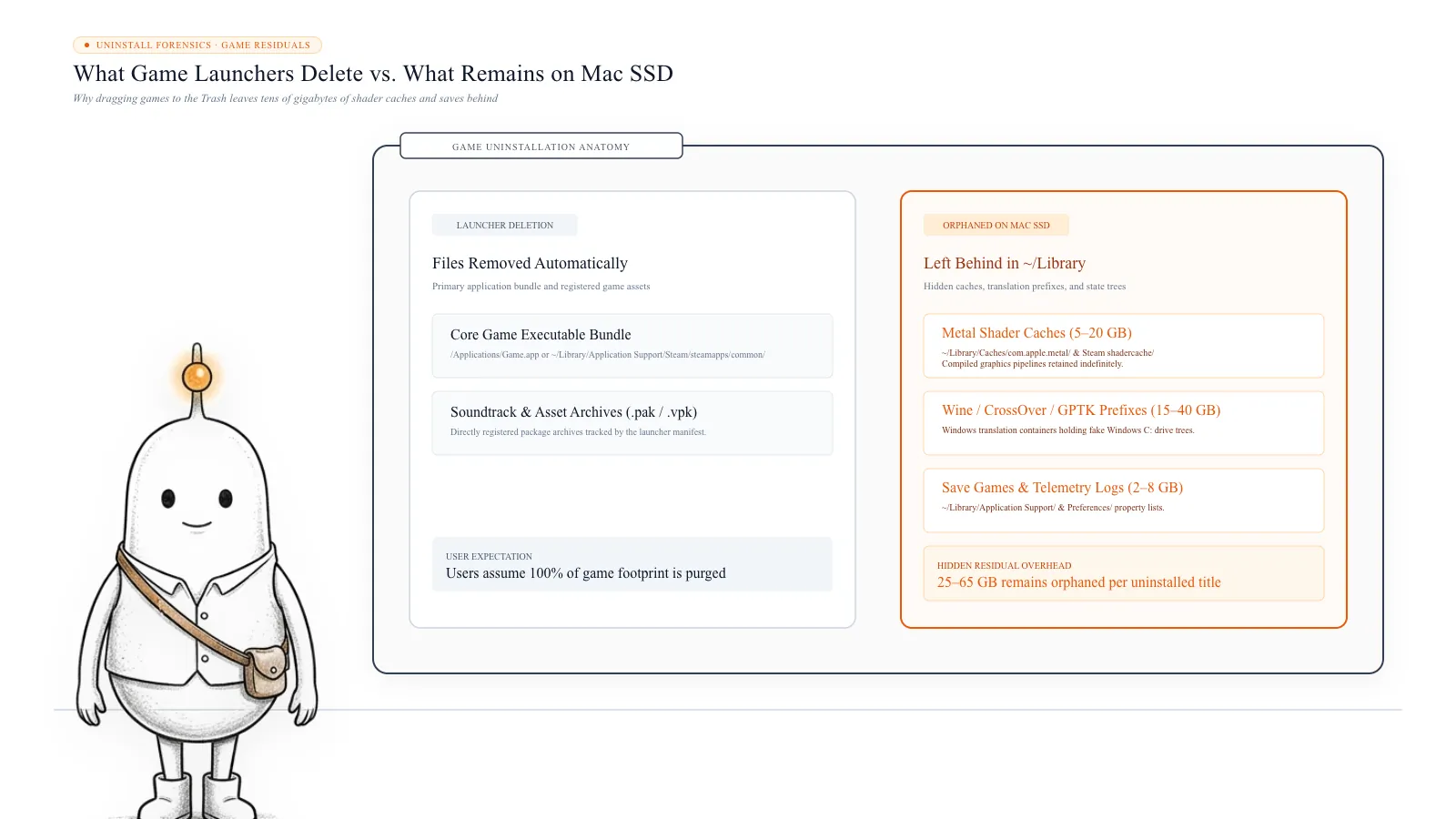
6. Uninstalling a Game Doesn't Always Remove Every Associated File
This is where many Mac gamers get confused. You uninstall a game, expect to recover all its storage, and discover that some space is still occupied. Why? Because an uninstall operation may remove the main game files without removing every piece of associated data. Depending on the game and launcher, other files may remain: shader caches, saved games, configuration files, screenshots and recordings, downloaded mods, launcher data, and application support files. Some of these files are intentionally preserved so you can reinstall the game later without losing your progress. Others may simply be managed separately from the main installation.
Where should you look for leftover game files?
Start with these common locations:
| Location | What you may find |
|---|---|
| ~/Library/Application Support/ | Game data, saves, launcher files |
| ~/Library/Caches/ | Regenerable application caches |
| ~/Library/Containers/ | Sandboxed application data |
| ~/Library/Logs/ | Game and launcher logs |
| ~/Library/Application Support/Steam/ | Steam data, libraries, and user data |
These are locations to inspect, not folders to delete wholesale. Apple explains that Application Support is intended for application-managed data, while Caches stores data that applications should be able to recreate.
How to Find Out Exactly How Much Storage Your Mac Games Use
Instead of guessing which game is responsible, measure the actual folders. You can start with macOS Storage settings and then inspect the underlying directories.
Step 1: Check macOS Storage
- Open the Apple menu.
- Select System Settings.
- Open General.
- Select Storage.
Review the Applications and System Data categories. Remember that game-related files may be included in System Data or other categories instead of Applications. Apple describes System Data as including application support files, caches, logs, and other resources.
Step 2: Find Your Steam Game Library
For a standard Steam installation, press Command + Shift + G in Finder and enter: ~/Library/Application Support/Steam/steamapps/common/ This is where the main game installation folders are commonly stored. To check the largest game folders using Terminal:
du -sh "$HOME/Library/Application Support/Steam/steamapps/common/"* 2>/dev/null | sort -hThe command reports folder sizes and sorts them from smallest to largest. If you have added other Steam library locations, inspect those too. The command above only checks the standard location.
Step 3: Check the Steam Shader Cache
Run the command below to determine whether Steam's shader cache is consuming a noticeable amount of storage:
du -sh "$HOME/Library/Application Support/Steam/steamapps/shadercache" 2>/dev/nullStep 4: Inspect Application Support
To identify large folders in your user Application Support directory, run the command below to list the 20 largest immediate subfolders. Look for game names, launcher names, or application identifiers. Don't delete unfamiliar folders simply because they are large. Identify the application and the type of data first:
du -sh "$HOME/Library/Application Support/"* 2>/dev/null | sort -h | tail -20Step 5: Compare Storage Before and After Uninstalling
If you want to understand whether an uninstall actually reclaimed storage, record the available space before and after the operation. Also check the relevant game and launcher folders. A change in macOS Storage categories may take some time to appear, so don't rely on the category label alone.
What Can You Safely Remove?
Not all game-related files are equally safe to delete. Here's a practical distinction:
| File type | General guidance |
|---|---|
| Shader caches | Usually regenerable, but may cause temporary stuttering |
| Temporary download files | Remove through the launcher where possible |
| Old crash logs | Usually safe to remove |
| Saved games | Keep unless backed up and no longer needed |
| Replays and recordings | Remove only if you no longer need them |
| Mods and custom content | Check whether you still use them |
| Application Support folders | Identify the contents before removing |
| Launcher data | Use the launcher's uninstall instructions |
The safest approach is to use the game or launcher to remove content whenever possible. Avoid deleting entire folders under ~/Library/Application Support/ or ~/Library/Containers/ without understanding what they contain. A folder that looks like leftover game data might still hold your saved progress.
Find Which Games and Caches Are Taking Up Space With Diskfern
When you have several games installed, checking every folder manually becomes tedious. You may have game installations in one location, launcher data in another, and caches scattered throughout your Library.
Diskfern helps you investigate storage through three views:
- Treemap: Find large files and folders visually.
- Sunburst: Explore how storage is distributed across nested directories.
- List: Sort files and folders by size and inspect their locations.
You can use these views to investigate large game directories, application support folders, and caches instead of relying only on macOS's broad System Data category. Start with a free scan and investigate the largest items before deciding what to remove.
A game's listed installation size is only part of the storage story. Shader caches, saved games, downloaded assets, and launcher data can all contribute to its real footprint. Before deleting anything, identify which files are installed content, which are regenerable caches, and which contain your progress. That way, you can reclaim storage without accidentally losing the game data you actually care about.
Read more: Reddit: Mac game storage audit and leftover files · Apple Support: Find and delete files on your Mac
What’s safe to delete?
Steam Shader Caches
Regenerable cache~/Library/Application Support/Steam/steamapps/shadercache/
Frees disk storage immediately. The game will automatically recompile shaders on next launch, which may cause temporary stutter.
How: Delete through Terminal or clear cache in launcher settings
Steam Download Cache & Temp Files
Safe to clear~/Library/Application Support/Steam/steamapps/downloading/
Removes incomplete or temporary update downloads without affecting finished games.
How: Steam Settings > Downloads > Clear Download Cache
Game Saves and Autosave Profiles
Preserve progress~/Library/Application Support/.../userdata/ or Containers/
Permanently deletes local game progression, saved checkpoints, and custom configurations unless synced to cloud.
How: Confirm Steam Cloud or iCloud sync is active before deleting
High-Resolution Gameplay Replays & Clips
Review before deleting~/Movies/ or Game Capture Folders
Removes recorded video files and highlight reels. Personal files cannot be recovered once removed.
How: Review recordings in Finder or the capture app before deleting
Cloud sync verification before deletion
Before deleting any folder under Application Support or Containers, verify that your game's cloud sync (Steam Cloud, Epic Games, or iCloud) has completed. Otherwise, local game progress cannot be restored.
Terminal commands to audit Mac game storage
Run these non-destructive commands in Terminal to check where game data is accumulating before making any changes.
- 1
Check the size of your Steam game library
$du -sh "$HOME/Library/Application Support/Steam/steamapps/common/"* 2>/dev/null | sort -hLists individual game installation folders sorted by size on disk.
- 2
Inspect the Steam shader cache directory
$du -sh "$HOME/Library/Application Support/Steam/steamapps/shadercache" 2>/dev/nullMeasures accumulated compiled shader data across your installed Steam games.
- 3
Review large user Application Support game folders
$du -sh "$HOME/Library/Application Support/"* 2>/dev/null | sort -h | tail -20Identifies heavy game-related application data, saves, and launcher caches.
The Diskfern way
How Diskfern helps
When Mac games and launchers scatter gigabytes across hidden Library folders, Diskfern gives you instant clarity with visual storage analysis.
- Launch Diskfern and run a free scan of your Mac storage drive.
- Switch to Treemap or Sunburst view to locate heavy game installations and launcher folders in ~/Library.
- Filter by size to spot accumulated shader caches, high-resolution gameplay recordings, and leftover files from uninstalled games.
Finding and reviewing is free. Moving items to the Trash from Diskfern is part of Pro.
Scan Game Storage FreeQuestions
Why does my Mac game take more space after playing it?
Games can generate shader caches, autosaves, screenshots, replays, logs, and downloaded assets while you play. Updates and additional content can also increase the installation size.
Does uninstalling a Steam game remove its shader cache?
Not necessarily. Game files, shader caches, and other application data can be managed separately. Check the relevant folders after uninstalling, and don't assume every associated file has been removed.
Are game shader caches safe to delete on a Mac?
Shader caches are generally regenerable, but removing them can cause longer loading times or temporary performance issues while the game rebuilds them. Make sure you're deleting an actual cache, not saved games or installed content.
Where are Steam games stored on a Mac?
For a standard Steam installation, the common game directory is: ~/Library/Application Support/Steam/steamapps/common/ Steam can also use additional library locations that you configured.
Where are Mac game save files stored?
It depends on the game. Saves may be in Application Support, Containers, Documents, Steam userdata, or another game-specific directory. Check the developer's documentation before deleting anything.
Why does System Data increase after installing games?
macOS includes various files that don't fit into its other storage categories under System Data. This can include application support files, caches, logs, and temporary resources. Some game-related data may therefore appear under System Data rather than Applications.
Do Mac games need extra storage when updating?
They can. An update may require downloaded packages, temporary files, and newly installed files to coexist while the launcher replaces the old version. The temporary space requirement can therefore exceed the final update size.

Written by
Diskfern Team
We explain Mac storage using product behavior and the sources listed below. Review your app settings and backups before removing data.
Sources
- Steam Support: Steam Cloud: Where are cloud files stored locally? · checked November 8, 2026
- Steam Support: Removing and Reinstalling Steam on a Mac · checked November 8, 2026
- Steam Support: Why available disk space decreases after running a game · checked November 8, 2026
- Apple Developer: macOS Library Directory Details · checked November 8, 2026
- Apple Support: Find and delete files on your Mac · checked November 8, 2026
- Reddit: Mac game storage audit and leftover files · checked November 8, 2026
Keep reading
Explore more guides on app caches and storage that quietly fills your Mac.
1TB SSD PS5 Can I Use On Mac?
Can you use a 1TB PS5 SSD on a Mac? Learn how external USB and internal M.2 NVMe formats compare, why formatting wipes games, and when exFAT works.
Why Is Adobe After Effects Filling Your Mac's SSD With Cache Files?
After Effects cache can consume hundreds of GB on your Mac. Find disk and media cache files, clear them safely, set limits, and move cache to an external SSD.
Why Is Logic Pro's Sound Library Taking Up 80GB+ on Your Mac?
Logic Pro and GarageBand sound libraries can consume tens of GB on your Mac. Find the library, remove unused sounds safely, or move it to an external SSD.
Why Does Dropbox Still Take Up Mac Storage With Online-Only Files?
Dropbox online-only files can still leave local cache data on your Mac. Find hidden Dropbox folders, inspect sync storage, and safely clear unnecessary cache.
Mac Storage Keeps Shrinking Automatically? Here is Why
Find out why your Mac loses storage even when you're not downloading anything: swap files, app caches, background logs, and how to safely diagnose the cause.

Get your space back. Start with a free scan.
Explore the files and folders Diskfern can read. Your files stay on your Mac, and nothing is removed until you say so.
macOS 14 Sonoma or later · Apple silicon and Intel