 Diskfern
Developer storage
Docker Taking Up Space on Mac? How to Clean It Up Safely
Docker Desktop stores its Linux environment in a virtual disk. Review Docker's own usage report before judging that file by its maximum size in Finder.
 Diskfern Team7 min readUpdated
 Short answer
Docker Desktop stores Linux data in a virtual disk. Review containers and volumes before pruning; stopped does not mean disposable. The maximum file size can exceed allocated space, and host reclamation may take time. Do not reduce the disk-image limit as routine cleanup: doing so deletes the current image and its data.
Is it safe to prune Docker images and containers?
Review first. docker system prune removes stopped containers, unused networks, dangling images, and build cache. A stopped container can contain work you need. Volumes are retained by default; --volumes also prunes eligible anonymous volumes. Read the confirmation and back up data before approving.
Why doesn't my disk space come back after pruning inside Docker?
Check allocated space, not just the file's apparent maximum size. Docker Desktop's Resources settings report both. After removing images, host space can take a few minutes to return. Deleting files inside a running container is different from removing images and may need Docker's documented reclamation procedure.
Maximum size is not allocated space
A large reported capacity does not mean every byte currently occupies your Mac's storage.
Should I reduce the disk-image limit or purge Docker data?
Those are destructive reset operations, not routine pruning. Reducing the maximum deletes the current disk image, losing its containers and images. Clean / Purge data also removes Docker data. Export needed databases and verify backups before choosing either operation.
Lowering the limit deletes the disk image
Do not use the disk-size slider to reclaim space without first preserving needed containers, images, and volume data.
What’s safe to delete?
Stopped containers
Review firstManaged by Docker
Containers can be recreated from their image; any un-persisted data inside them is lost.
How: docker container prune
Dangling / unused images
Review firstManaged by Docker
Re-pullable or rebuildable from a Dockerfile; takes time and bandwidth to redo.
How: docker image prune removes dangling images; check docker image ls before removing others.
Build cache
SafeManaged by Docker (BuildKit)
Rebuilt automatically; next build is slower once.
How: docker builder prune
Named volumes
Review firstManaged by Docker
Permanently deletes any data stored in them (e.g., a database's files) unless backed up.
How: Back it up, then remove that one volume with docker volume rm <name>.
Docker.raw / Docker.qcow2 virtual disk file
Don't touch directly~/Library/Containers/com.docker.docker
Destroys the Linux environment and data stored in its disk image.
How: Inspect usage with Docker. Do not manually delete it; resets and lower size limits also require backups because they lose data.
Don't delete Docker.raw manually
The file can hold databases and other persistent data. Manual deletion, disk-image replacement, and full resets can all lose that data.
Do it manually
No app needed. These steps use Finder, Terminal, and each tool’s own settings.
- 1
See what's using space inside Docker.
$docker system df - 2
Start with the lowest-risk cleanup: unused build cache.
$docker builder pruneOnly removes build cache; later builds may take longer. Remove unused images separately once you've reviewed them (docker image ls).
- 3
Review volumes before removing any. They can hold databases and other data that cannot be rebuilt.
$docker volume lsRemove a specific volume only after backing it up and confirming no project needs it.
- 4
Check actual allocation in Docker Desktop → Settings → Resources and allow time for host reclamation. Lowering the maximum or choosing Clean / Purge data destroys Docker data; preserve needed data first.
The Diskfern way
How Diskfern helps
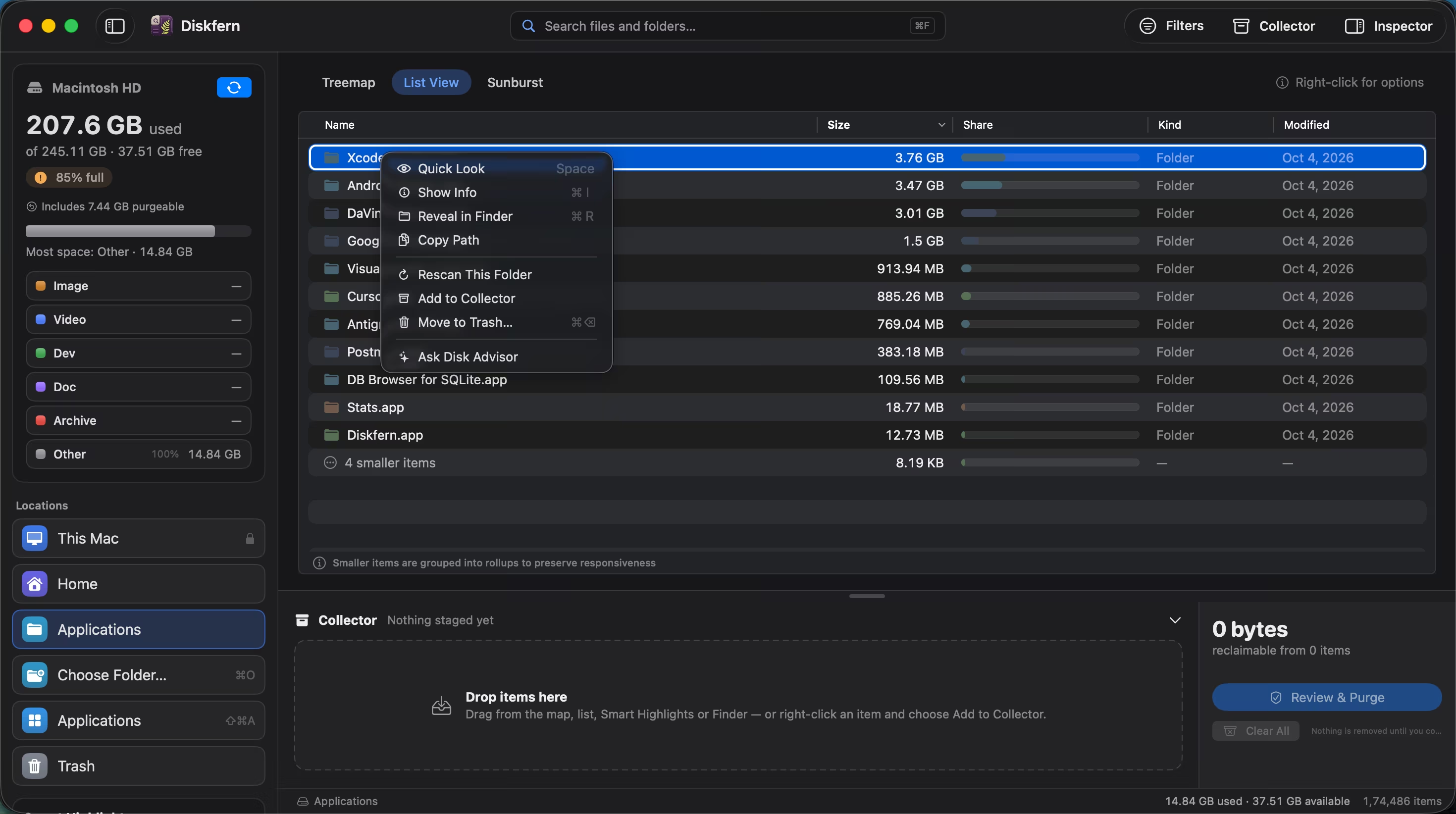
Diskfern's Smart Highlights recognize Docker, OrbStack, and Colima storage. Inspect the virtual disk, then use the owning tool to manage its contents.
- Scan your Mac with Diskfern.
- Open Smart Highlights and find the Docker / Colima / OrbStack category.
- Inspect the virtual disk's size and compare allocated usage in Docker Desktop.
- Use Docker's tools to review unused build cache and images. Back up needed container and volume data before removal or a reset.
Finding and reviewing is free. Moving items to the Trash from Diskfern is part of Pro.
See how big your Docker disk really isQuestions
What's the difference between Docker.raw and Docker.qcow2?
They are different virtual-disk file formats Docker Desktop can use depending on configuration and version. Both serve as the backing disk for Docker's internal Linux VM.
Does `docker system prune` delete my actual project files?
No. It only affects Docker's own images, containers, networks, and build cache. It does not affect files outside Docker's VM, such as your project source code.
Will I lose my databases if I prune Docker?
A database stored in a stopped container's writable layer is lost when that container is pruned. Volumes are retained by default; the --volumes flag includes eligible anonymous volumes, and explicit volume removal or disk resets can lose persistent data. Verify backups before proceeding.
Is OrbStack or Colima different from Docker Desktop for storage purposes?
They work similarly. Each runs its own Linux VM with its own virtual disk, but file locations and commands differ. Diskfern's Smart Highlights recognize all three.

Written by
Diskfern Team
We explain Mac storage using product behavior and the sources listed below. Review your app settings and backups before removing data.
Sources
- Docker Docs: System prune · checked October 19, 2026
- Docker Desktop for Mac: Disk image and host reclamation · checked October 19, 2026
- Docker Desktop: Resource settings · checked October 19, 2026
- Docker Desktop: Clean / Purge data · checked October 19, 2026

Get your space back. Start with a free scan.
Explore the files and folders Diskfern can read. Your files stay on your Mac, and nothing is removed until you say so.
macOS 14 Sonoma or later · Apple silicon and Intel