 Diskfern
System Data
Finally see what’s inside System Data
Replace one opaque storage bar with the actual folders and files behind it.
Short answer
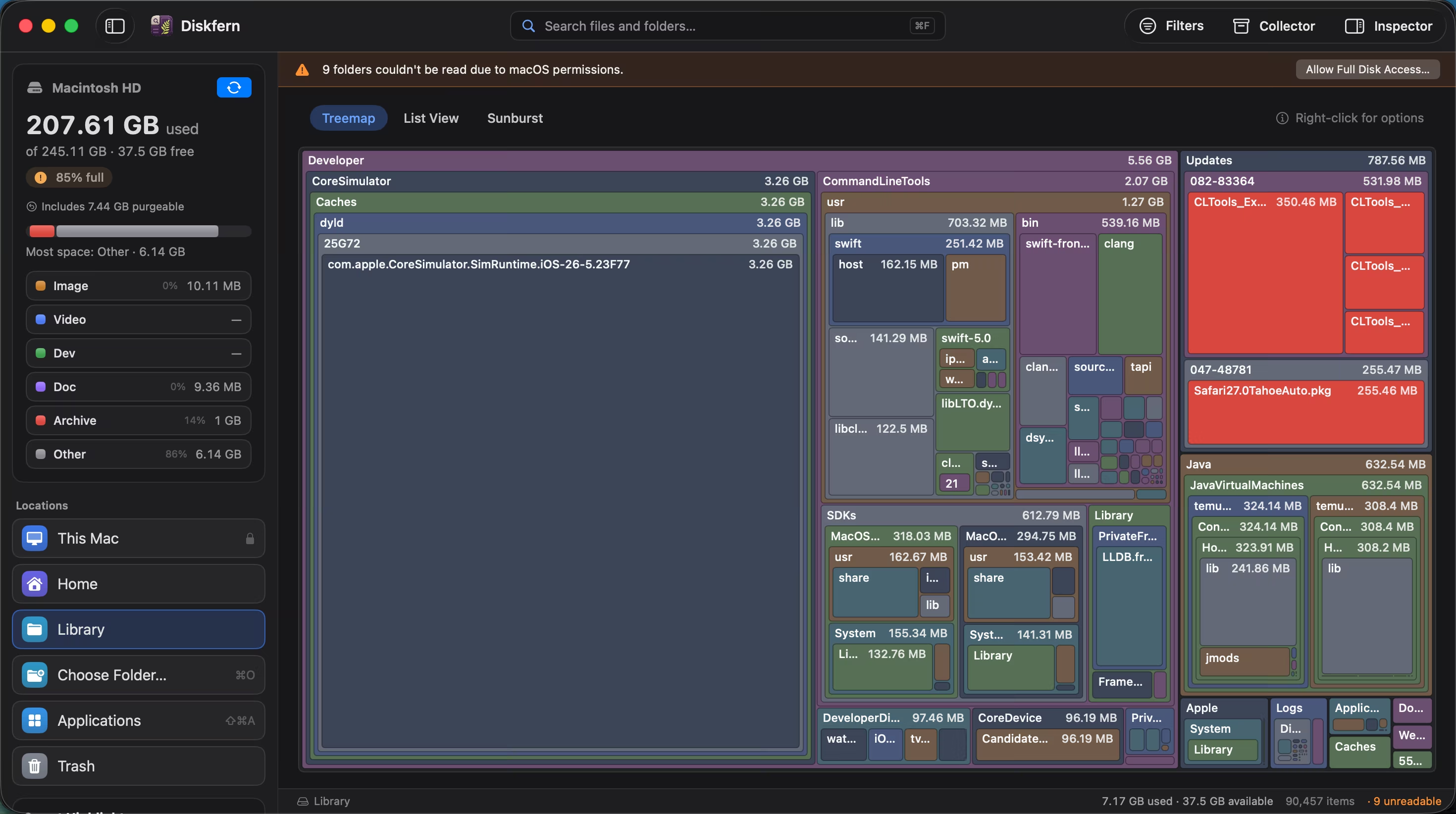
macOS groups many unrelated items under System Data. Diskfern maps readable folders so you can inspect caches, support files, and developer data. Permissions, protected locations, APFS snapshots, and purgeable-space accounting can prevent its totals from matching the macOS System Data category.
01
Turn a category into a map
Inspect readable top-level folders and their sizes instead of treating the macOS category as one disposable folder.
- Folder-level sizes
- Purgeable space context
- Unreadable areas are reported
02
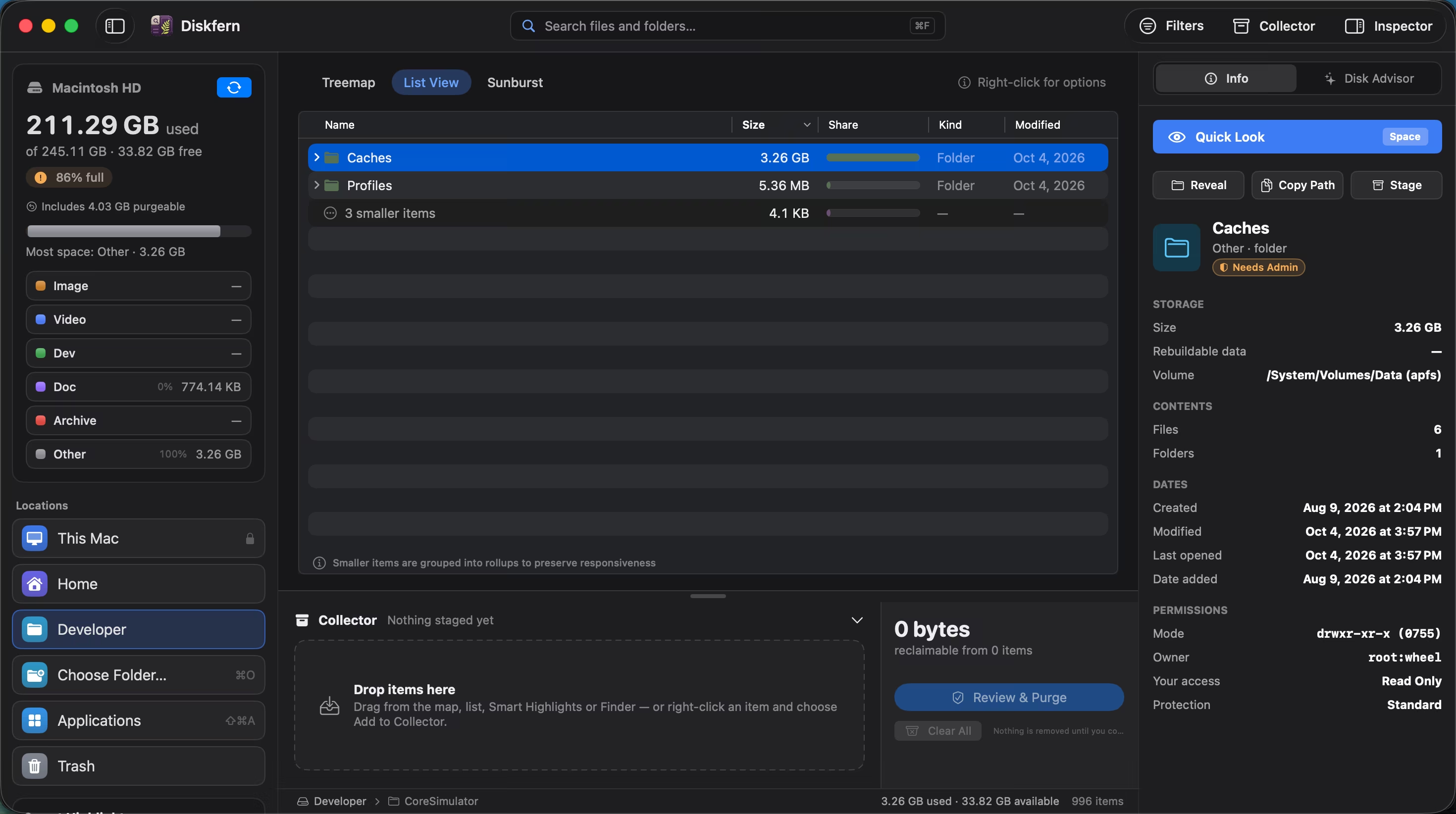
Separate useful from rebuildable
System Data can include essential files, personal support data, and caches.
- Safety labels
- Location and owner details
- Review before cleanup
03
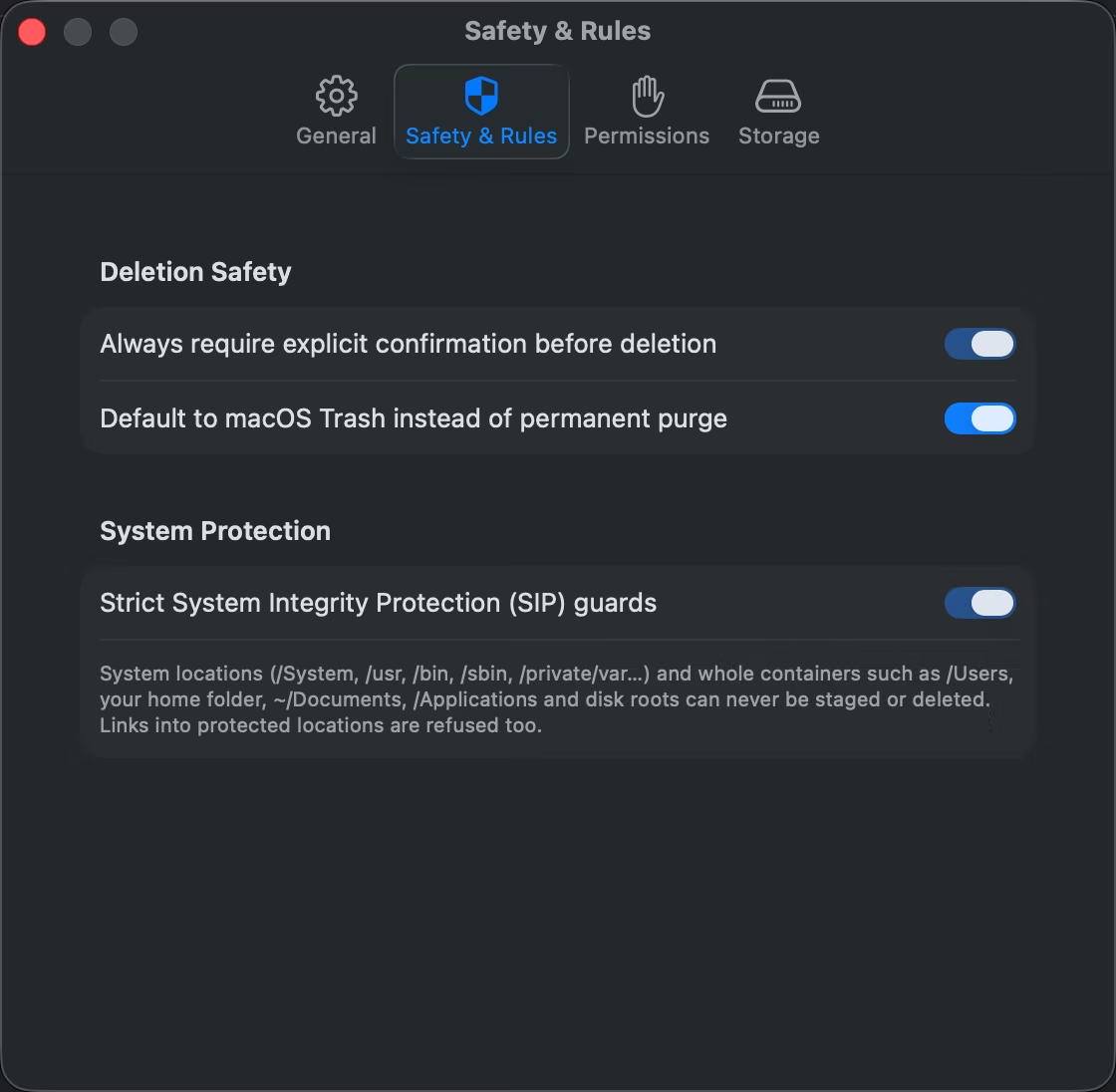
Keep macOS protections intact
Diskfern does not ask you to disable system protection or run destructive commands.
- No SIP workarounds
- Trash-first workflow
- Clear Full Disk Access explanation
Questions about System Data
Why is System Data so large?
It can include caches, support files, local snapshots, logs, developer data, and other items macOS does not put elsewhere.
Is all System Data safe to delete?
No. It is a broad category and must be inspected item by item.
Why is Full Disk Access needed?
macOS restricts visibility into protected locations. Full Disk Access improves visibility, but some locations remain unreadable. It does not bypass protections or reproduce macOS category accounting.
Does Diskfern change macOS settings?
No. You control permissions in System Settings.
Related guides

Get your space back. Start with a free scan.
Explore the files and folders Diskfern can read. Your files stay on your Mac, and nothing is removed until you say so.
macOS 14 Sonoma or later · Apple silicon and Intel