 Diskfern
Settings & safety
Safety you can see and control
Choose the default view, keep Trash-first cleanup, review permissions, and decide whether Diskfern remembers your scan.
Short answer
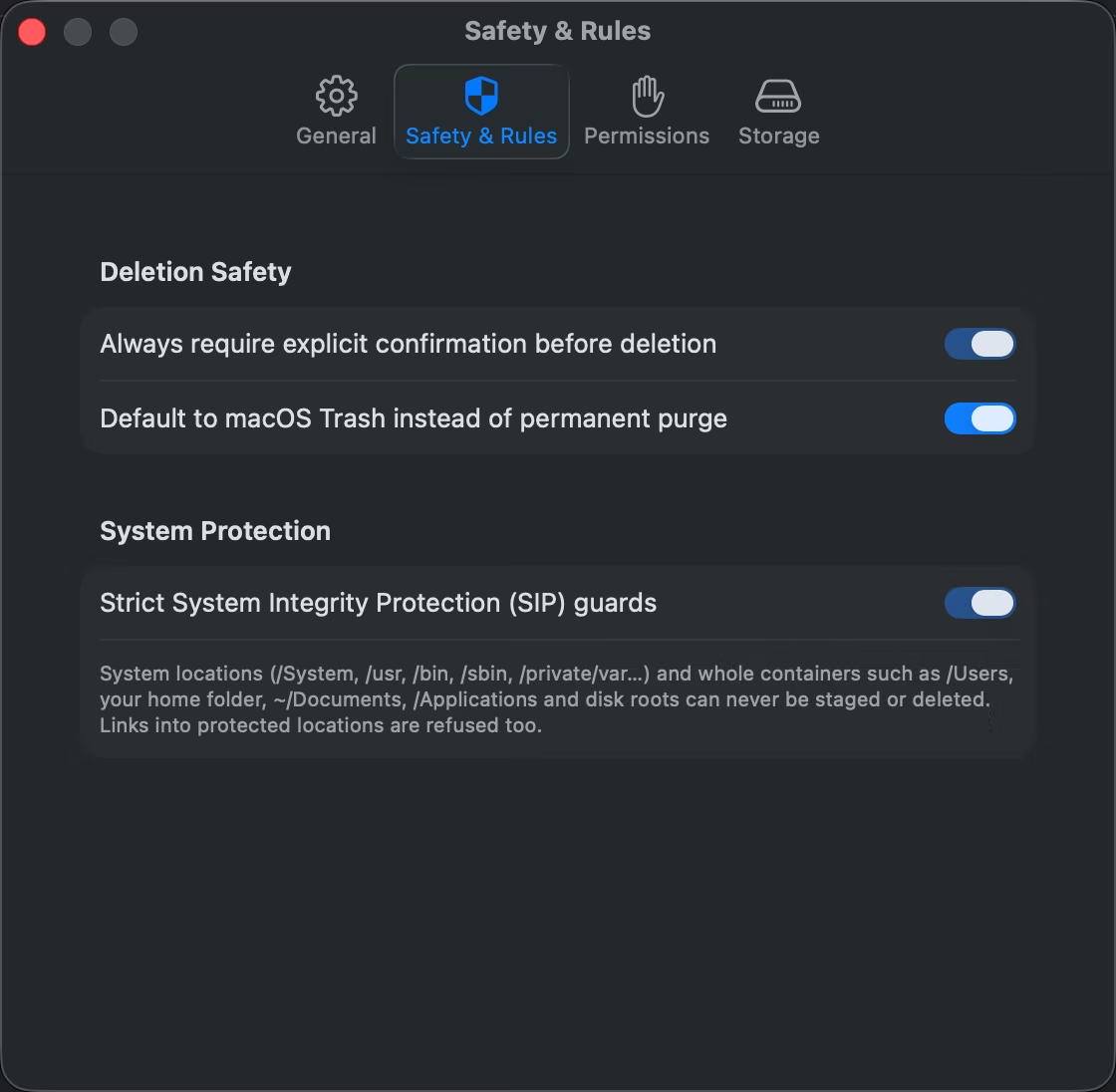
Diskfern groups its few meaningful preferences into General, Safety, Permissions and Storage. Confirmation and system-location safeguards are enforced rules. The Safety preference controls whether cleanup starts on Move to Trash.
01
Review the rules that stay on
Confirmation and protected-location safeguards stay on. You can choose whether cleanups start on Move to Trash; Direct Purge remains a separate permanent-removal choice.
- Explicit confirmation
- Trash-first default
- Strict system protection
02
Understand every permission
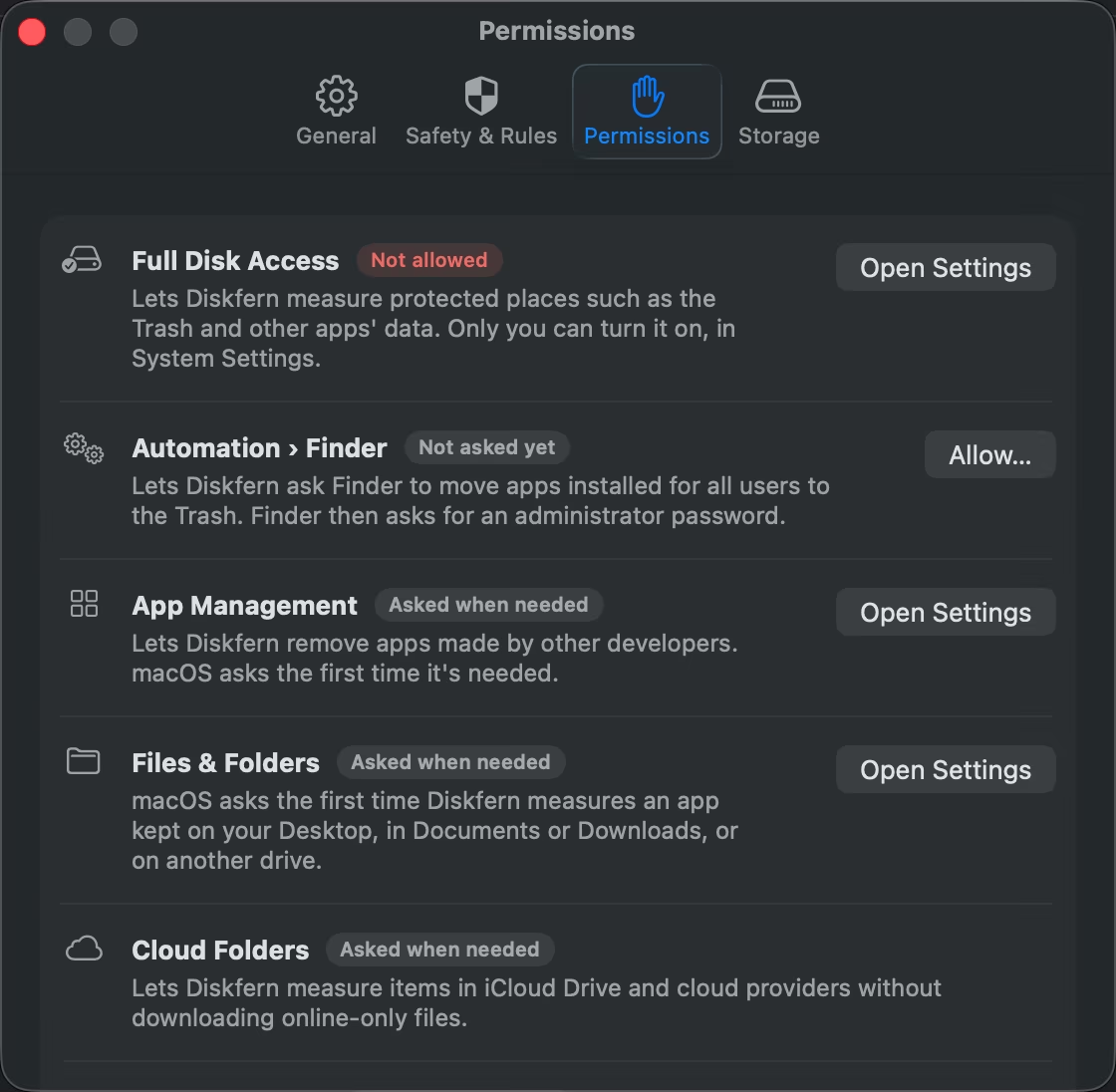
Diskfern explains what each macOS permission enables and continues working with reduced visibility when access is not granted.
- Full Disk Access status
- Files and Folders status
- Direct links to System Settings
03
Control saved scan data
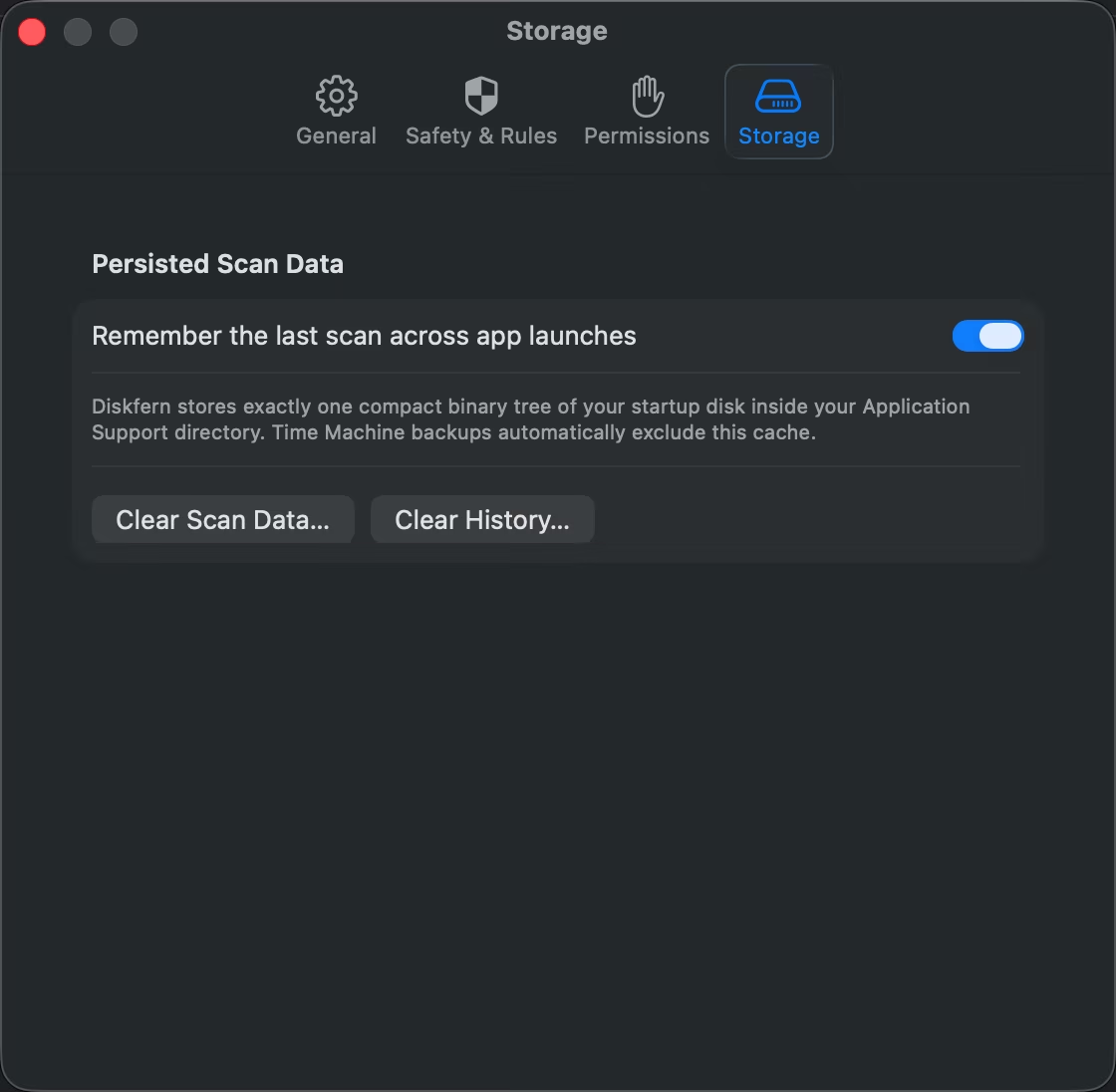
Choose whether the last scan is remembered, then clear scan data or history whenever you want.
- Remember last scan
- Clear scan data
- Clear history
Questions about Settings & safety
Do I have to grant Full Disk Access?
No. Diskfern still works, but macOS may keep some folders unreadable.
Can I make Trash the default?
Yes, and it is the safer default.
Can Diskfern disable SIP?
No. Diskfern does not disable macOS system protection.
Can I clear saved scans?
Yes, from Settings → Storage.

Get your space back. Start with a free scan.
Explore the files and folders Diskfern can read. Your files stay on your Mac, and nothing is removed until you say so.
macOS 14 Sonoma or later · Apple silicon and Intel