 Diskfern
System Data & macOS
Caches vs Application Support vs Containers vs Group Containers on Mac
Your Mac's ~/Library directory contains Caches, Application Support, Containers, and Group Containers. These folders are not interchangeable junk. Here is how they differ and what is safe to remove.
 Diskfern Team9 min readUpdated
 Short answer
Do not delete the parent Caches, Application Support, Containers, or Group Containers folders. ~/Library/Caches contains re-creatable temporary data that is often safe to clear per app. ~/Library/Application Support contains persistent settings, databases, and local assets that may remain valuable after the app is uninstalled. ~/Library/Containers isolates sandboxed apps and mixes user data with cache. ~/Library/Group Containers shares data across multiple apps and extensions and carries a wider blast radius.
Why ~/Library gets so large over time
The ~/Library folder inside your user home directory is where macOS and your installed applications store active operational data. Unlike your Documents or Downloads folders, which hold files you manually create and save, ~/Library is managed automatically by software. Over months of regular use, web browsers accumulate gigabytes of cached media, communication tools store searchable message histories, code editors save syntax indexes, and development tools build runtime simulators. macOS hides ~/Library by default. Its size depends on the apps and data on your Mac; a large folder is not evidence that its contents are disposable.
The three Library folders people confuse: ~/Library vs /Library vs /System/Library
macOS uses three distinct Library hierarchies, each with entirely different permissions, ownership, and safety profiles: 1. ~/Library (User Library): Located at /Users/<username>/Library. Contains preferences, caches, and application data belonging exclusively to your user account. Inspect individual app folders carefully; user ownership does not make all their contents disposable. 2. /Library (Local Library): Located at the root of your startup disk. Contains system-wide resources shared by all users on the Mac, such as system audio plugins, shared printer drivers, and global application support files. Some changes require administrator privileges. Use the owning app's documented uninstall or storage controls rather than deleting shared resources by hand. 3. /System/Library (System Library): The core operating system files, system frameworks, and Apple fonts. On modern macOS versions, this location resides on a cryptographically signed, read-only system volume protected by System Integrity Protection (SIP). You cannot and should not modify it.
Never touch /System/Library
The files in /System/Library are essential to macOS. They are protected by Apple's Signed System Volume (SSV) and are never a valid target for freeing up space.
~/Library/Caches: what it stores and when clearing it helps
Apple's developer guidelines specify that ~/Library/Caches should hold data that can be re-created or re-downloaded if removed. Browsers store cached images and scripts here; Spotify caches streamed music tracks; Xcode caches intermediate compiler data. Because these files are designed to be temporary, individual app cache folders are generally low-risk to remove. The benefit depends on its allocated size and whether the app immediately rebuilds it. Prefer app-provided cache controls and inspect unusually large caches rather than assuming a particular size proves a bug.
~/Library/Application Support: why deleting it can remove real app data
Unlike Caches, ~/Library/Application Support is intended for persistent, irreplaceable data that an app needs across sessions. For example, Google Chrome stores your bookmarks, extensions, and profile database here; Steam stores save games; local AI tools store model weights and chat databases. If you delete the Application Support folder for an active app, you will reset the application to a freshly installed state and likely lose local data. An uninstalled app's folder may still hold documents, licenses, shared data, or databases you want. Identify its contents, check vendor instructions, and preserve a backup before removing anything.
Do not wipe Application Support blindly
Never delete ~/Library/Application Support as an entire folder. Inspect specific subfolders and confirm their owner and contents. Removing an app from Applications does not make its support data disposable.
~/Library/Containers: what a sandbox container actually is
App Sandbox isolates participating apps, including apps distributed through the Mac App Store. Notarization is a separate security check and does not imply that an app is sandboxed. To enforce isolation, macOS creates a private container directory for each sandboxed application under ~/Library/Containers/<bundle-id>. Inside each container is a complete mirror of standard Library paths, including Data/Library/Application Support, Data/Library/Caches, and Data/Documents. A container is not junk; it is that app's entire sandboxed world. Removing a container will erase all settings and local documents created by that sandboxed app.
Other Library folders you should recognize
Beyond the big four, you will encounter several other notable folders in ~/Library: • ~/Library/Keychains: Contains your encrypted login credentials, Wi-Fi passwords, and security certificates. Never delete this folder. • ~/Library/Mobile Documents: The local sync repository for iCloud Drive documents and app data. Manage these files through Finder's iCloud Drive section, not by deleting folders in ~/Library. • ~/Library/Developer: Holds Xcode caches, DerivedData, device support files, and simulators. If you do not develop iOS or Mac apps, this folder will be small or absent. The available space varies; review rebuildable DerivedData and manage unused simulators through Xcode, preserving simulator data you still need. • ~/Library/Logs: Diagnostic output written by macOS and background daemons. Review old logs only when their space is significant, and keep logs needed for troubleshooting. • ~/Library/Saved Application State: Stores window layout and state so apps can restore their exact view on relaunch. Do not remove it as a generic cleanup step; follow the app vendor's troubleshooting instructions.
Safe does not necessarily mean worth deleting
A critical rule of Mac storage maintenance is distinguishing between data that is technically removable and data that is useful to remove. Preferences are persistent settings, not temporary caches. A large container can still contain valuable documents after an app is removed. Evaluate actual contents, allocated space, backup coverage, and the owning app's instructions before deciding whether cleanup is worthwhile.
A five-step process before removing anything from ~/Library
Follow this disciplined workflow before removing any folder from ~/Library: 1. Identify the owning app from the subfolder name or bundle identifier. 2. Verify whether that application is still installed and actively used. 3. Check if the app provides its own built-in data or cache clearing tools in its Preferences. 4. Back up needed data and remove only identified disposable items, preferably through the app's controls. Never delete parent Library folders. 5. Review results before emptying the Trash; a period without errors does not prove the data is unnecessary.
How Disk Advisor helps explain unfamiliar Library paths
Translating cryptic bundle identifiers like com.apple.bird or 2BUA8C4S2C.com.agilebits into real apps is difficult by hand. Diskfern's Disk Advisor inspects the selected Library directory, resolves bundle metadata, checks folder rebuildability, and explains what the folder is used for in plain English. Disk Advisor runs locally with Pro on macOS 26 or later with Apple Intelligence. It can help explain ownership clues, but cannot verify that every folder is safe to remove.
What’s safe to delete?
~/Library/Caches/<app-bundle-id>
Usually safeUser cache directory
Temporary app data is removed. The app will rebuild required cache files on next startup.
How: Close the app, then move its specific cache folder to the Trash.
~/Library/Application Support/<uninstalled-app>
Review firstOrphaned application data
Removes leftover data from an app you already removed from your Mac.
How: Confirm the folder's owner and contents, shared-app use, and backup coverage. Prefer the vendor's removal instructions.
~/Library/Application Support/<active-app>
Review firstActive application data
Can erase your saved settings, local database records, or offline document drafts.
How: Do not delete manually. Use the owning app's internal controls.
~/Library/Containers/<bundle-id>/Data/Library/Caches
Usually safeSandboxed app cache
Clears temporary cache for that sandboxed app without deleting documents or settings.
How: Move the specific Caches subfolder inside the container to the Trash.
~/Library/Containers/<bundle-id> (entire container)
Review firstSandboxed app home
Erases all settings, preferences, and local documents stored by that sandboxed application.
How: Do not remove solely because the app was uninstalled. Check for documents, shared data, and a usable backup first.
~/Library/Group Containers/<group-identifier>
High cautionShared app group directory
Can break shared data across multiple apps, extensions, widgets, or daemons from that developer.
How: Check all associated apps and their data, then follow vendor instructions. If ownership or consequences are unclear, leave it alone.
~/Library/Keychains
Don't touchSystem credentials and certificates
Destroys saved login credentials and security tokens.
How: Leave intact. Manage passwords in System Settings.
~/Library/Mobile Documents
Review firstiCloud Drive local sync
Deletes local and potentially cloud-synced iCloud documents across your Apple devices.
How: Manage files via Finder's iCloud Drive interface, not via ~/Library.
~/Library/Logs
Low prioritySystem and app diagnostic logs
Removes historical diagnostics that may be needed for support or troubleshooting.
How: Move old log files to the Trash if they occupy noticeable space.
/System/Library and /Library/CoreServices
Don't touchOperating system core files
Corrupts macOS. Protected by System Integrity Protection.
How: Never touch or attempt to modify system directories.
Never delete ~/Library as a whole
Deleting ~/Library or entire root directories will wipe all your personal settings, app configurations, and sandboxed documents. Only inspect and manage specific app subfolders.
Group container Team IDs
Folder names in ~/Library/Group Containers often start with a 10-character Apple Developer Team ID followed by a bundle identifier (such as 2BUA8C4S2C.com.1password). This identifies the developer whose apps share that data.
Keychains and passwords
~/Library/Keychains holds your local encryption keys and credential vaults. Never delete or stage files in this folder.
Do it manually
No app needed. These steps use Finder, Terminal, and each tool’s own settings.
- 1
Open Finder, click Go in the top menu bar, hold the Option key, and select Library.
Holding Option reveals the hidden ~/Library shortcut in the Go menu.
- 2
Switch to List View (Command-2) and press Command-J to enable Calculate all sizes.
This lets you see which specific Library subfolders are consuming the most space.
- 3
Inspect specific subfolders inside Caches, Application Support, or Containers.
Never delete the parent Caches or Application Support folder itself.
- 4
Remove only identified disposable data after checking the owning app's instructions and backing up anything needed.
An uninstalled app can leave documents or shared data behind. Leave unknown folders in place and use Finder for any approved local move to Trash.
- 5
Restart your Mac and verify all apps function properly before emptying the Trash.
If an app reports a missing file, open the Trash, right-click the item, and choose Put Back.
The Diskfern way
How Diskfern helps
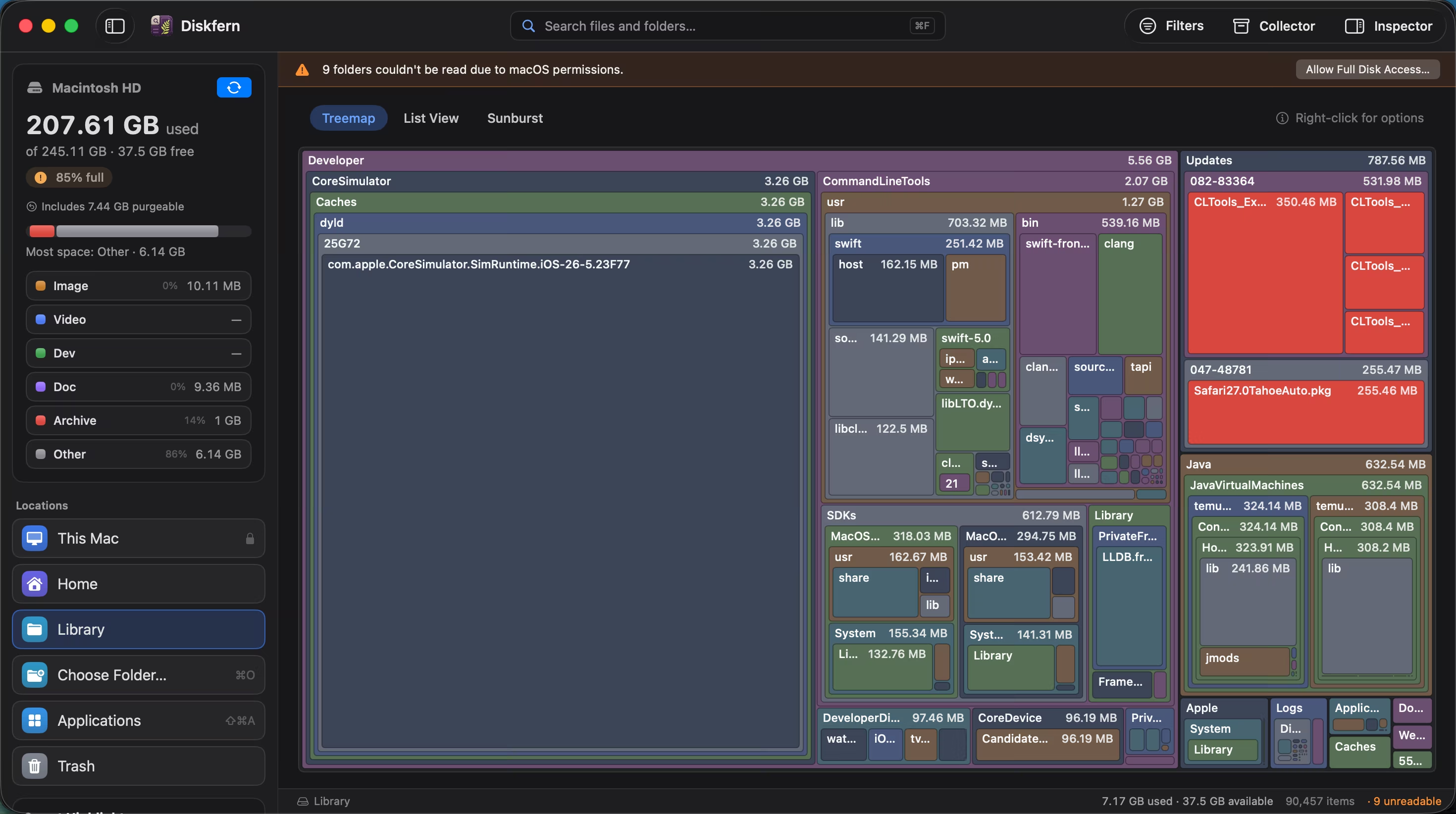
Diskfern visualizes readable folders in ~/Library and can help you inspect their contents before deciding what to remove.
- Run Diskfern to generate an interactive treemap or sunburst map of your home directory.
- Smart Highlights groups recognized caches, logs, and other storage categories for review. It does not certify that every support folder is an unneeded leftover.
- Inspect a container or group container for ownership clues and its safety classification; treat unfamiliar or shared data as requiring review.
- Stage selected items to the Collector and send them to the Trash with complete control.
Finding and reviewing is free. Moving items to the Trash from Diskfern is part of Pro.
Explore your Library safelyQuestions
Can I delete ~/Library/Application Support to free up space?
No. The Application Support folder contains critical persistent data, databases, and configuration settings for your installed applications. Removing an app does not prove its support data is disposable. Inspect individual subfolders, follow vendor guidance, and back up documents or databases before any removal.
What is the difference between Containers and Group Containers on Mac?
Containers hold the private sandbox data for a single application, including its private Caches and Documents. Group Containers hold shared data accessible by multiple companion apps, extensions, and widgets from the same developer, giving Group Containers a much wider blast radius.
Is it safe to clear ~/Library/Caches?
Yes, individual app subfolders inside ~/Library/Caches are generally safe to delete because apps are designed to recreate them as needed. However, clearing caches will only free temporary space, as active apps will rebuild their cache over time.
Why is ~/Library/Group Containers so big?
Group Containers hold shared assets, offline databases, and media caches for multi-process apps like Microsoft Office, Apple Notes, and messaging clients. These folders often store message attachments, downloaded fonts, or cached media that are shared across extensions.
Why is the ~/Library folder hidden by default in macOS?
Apple hides ~/Library to prevent users from accidentally modifying or deleting critical application settings and databases. You can reveal it in Finder by pressing Command-Shift-Period or holding Option while clicking the Go menu.

Written by
Diskfern Team
We explain Mac storage using product behavior and the sources listed below. Review your app settings and backups before removing data.
Sources
- Apple Developer: File System Basics · checked October 18, 2026
- Apple Developer: App Sandbox Design Guide · checked October 18, 2026
- Apple Developer: Sharing Data with App Groups · checked October 18, 2026
- Apple Support: If you need to view the ~/Library folder on Mac · checked October 18, 2026

Get your space back. Start with a free scan.
Explore the files and folders Diskfern can read. Your files stay on your Mac, and nothing is removed until you say so.
macOS 14 Sonoma or later · Apple silicon and Intel