 Diskfern
Files & photos
How to Find Large Files on Mac (Finder, Terminal, and Faster Ways)
A single forgotten video export or old VM image can quietly take up more space than a year of normal app caches.
 Diskfern Team6 min readUpdated
 Short answer
Finder can find large files using a size filter in a search window, and Terminal's `find`/`du` commands can do it with more control, but both are slow across a whole drive and don't show you a visual sense of scale. A disk-space analyzer that maps the whole drive, like a treemap, shows large files and folders at a glance and updates live as your disk changes.
How do I find large files using Finder?
Open a new Finder window, press Cmd+F, set the search scope to "This Mac," then add a criterion: File Size → is greater than → choose a size like 1 GB. This works but searches the whole drive without showing you folder structure, so large files inside folders you'd rather leave alone (like app bundles) can clutter the results.
How do I find large files using Terminal?
The find command combined with a size filter lists large files by path, and du -sh shows folder sizes. These give you precise control but no visual overview. On a drive with hundreds of thousands of files, text output is slow to scan and makes patterns easy to miss.
Terminal example
`find ~ -type f -size +1G` lists files over 1 GB in your home folder. Expect it to take a while on a large drive.
What's a faster way to find large files on a big drive?
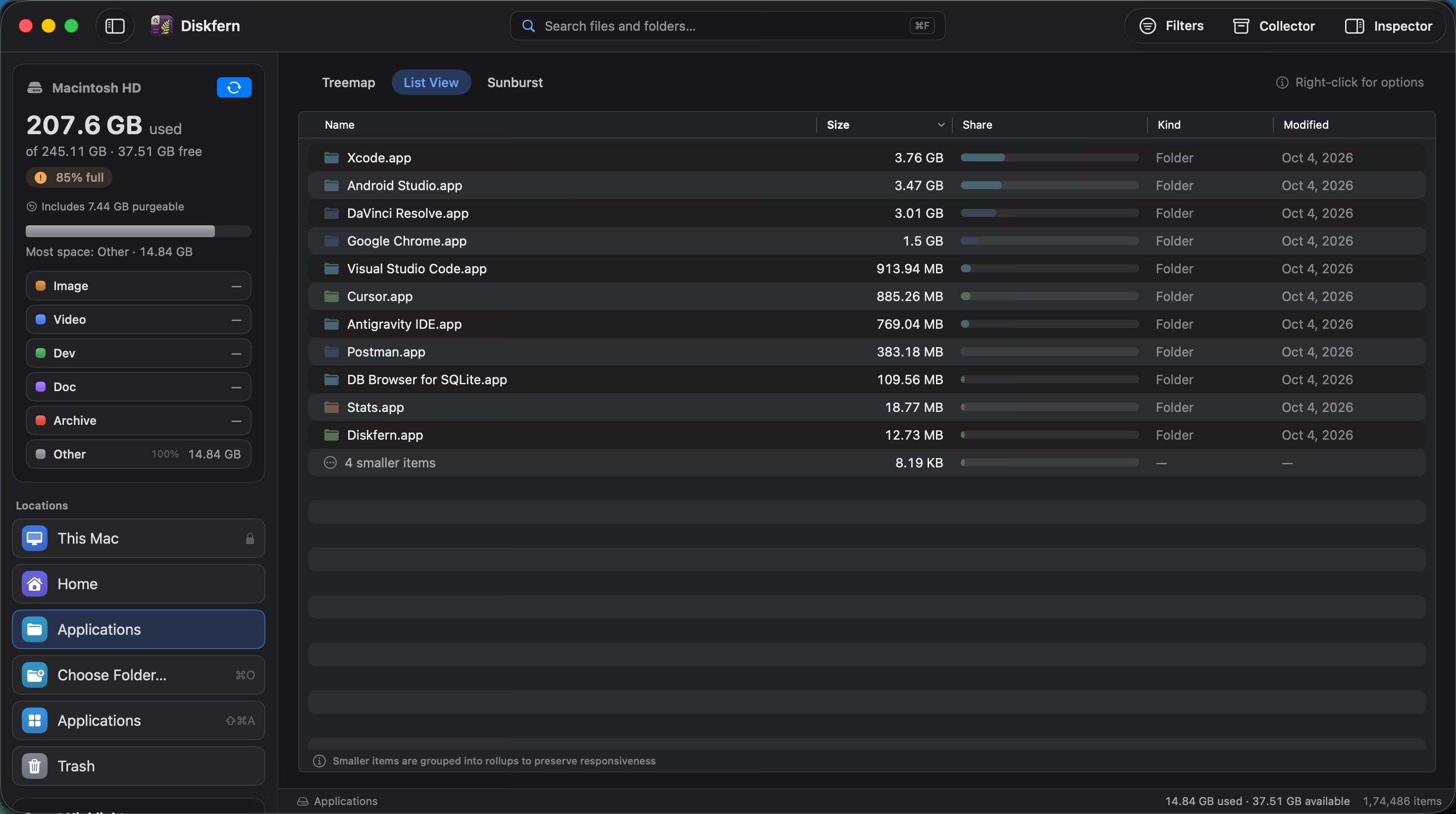
A disk-space analyzer that indexes the whole volume once and presents it as a treemap or sortable list is substantially faster to browse because you're looking at a visual map instead of reading file paths one at a time. Diskfern's treemap, for example, shows disk usage as proportionally sized tiles so the biggest items are immediately obvious, and its filters can narrow by size, kind, or age across millions of items at once.
What’s safe to delete?
Old video exports / screen recordings
Review first~/Movies, ~/Desktop, ~/Downloads
Permanently gone unless backed up elsewhere; check you don't need the source footage before deleting.
How: Review in Finder or Diskfern, then move to Trash.
Old virtual machine disk images
Review firstVaries by VM software (e.g., ~/Virtual Machines.localized)
Deletes the VM and its contents permanently; confirm you don't need it before removing.
How: Delete through the VM software's own manager, not by deleting the file directly while the VM app is running.
Duplicate large files
Review firstAnywhere
Frees space if truly duplicate; verify with SHA-256 checksums or exact file comparison before removing.
How: Compare file contents with checksums or inspection tools, then move the redundant copy to the Trash.
Large files inside app bundles (.app)
Don't touch/Applications
Can break the app. Remove the whole app via its uninstaller instead if you don't need it.
How: Use an app uninstaller to remove the whole app, never delete files inside a .app bundle by hand.
Large isn't automatically unnecessary
A large file might be exactly the project or archive you need. "Large" is a starting filter, not a verdict. Review it before deleting.
Do it manually
No app needed. These steps use Finder, Terminal, and each tool’s own settings.
- 1
Search for large files in Finder.
Cmd+F → set scope to "This Mac" → add criterion File Size → is greater than → 1 GB.
- 2
Or list large files via Terminal.
$find ~ -type f -size +1G 2>/dev/null - 3
Check folder sizes directly.
$du -sh ~/Movies ~/Downloads ~/Desktop - 4
Review each result before deleting; move confirmed items to the Trash rather than deleting permanently.
The Diskfern way
How Diskfern helps
Diskfern's treemap and filters are built specifically for finding large and forgotten files quickly, across the whole drive at once.
- Scan your Mac with Diskfern. A full startup disk scan maps about 2.9 million files.
- Open the treemap view to see the largest files and folders as proportionally sized tiles.
- Use size, kind, and last-opened filters to narrow the results. In measured benchmarks, list filters prepared results across 500,000 items in under one millisecond.
- Review flagged items and move anything you approve to the Trash.
Finding and reviewing is free. Moving items to the Trash from Diskfern is part of Pro.
See your largest files at a glanceQuestions
Does Spotlight search find large files well?
Spotlight is built for finding files by name or content, not for sorting by size across the drive. Finder's advanced search (File Size criterion) or a dedicated disk-space analyzer are better suited to this specific task.
Why does Finder's search feel slow for large-file searches?
Finder relies on macOS Spotlight index queries to filter by size, but querying, sorting, and displaying hundreds of thousands of results live across startup and external drives can feel sluggish compared to a dedicated visual disk space map.
Can I set a size filter to find files over 10 GB specifically?
Yes. In Finder's search criteria you can type a custom size and unit (KB, MB, GB). In Terminal, adjust the `+1G` portion of the `find` command to the size you want, such as `+10G`.
What's the safest way to delete a large file I find?
Move it to the Trash first rather than using a permanent-delete shortcut, so you can recover it if you change your mind, then empty the Trash once you're confident.

Written by
Diskfern Team
We explain Mac storage using product behavior and the sources listed below. Review your app settings and backups before removing data.
Sources
- Apple Support: Search for files and folders using Finder · checked October 3, 2026

Get your space back. Start with a free scan.
Explore the files and folders Diskfern can read. Your files stay on your Mac, and nothing is removed until you say so.
macOS 14 Sonoma or later · Apple silicon and Intel