 Diskfern
Smart Highlights
What you can safely remove, labelled
Turn a wall of folders into useful categories with clear Safe, Review first, and Protected guidance.
Short answer
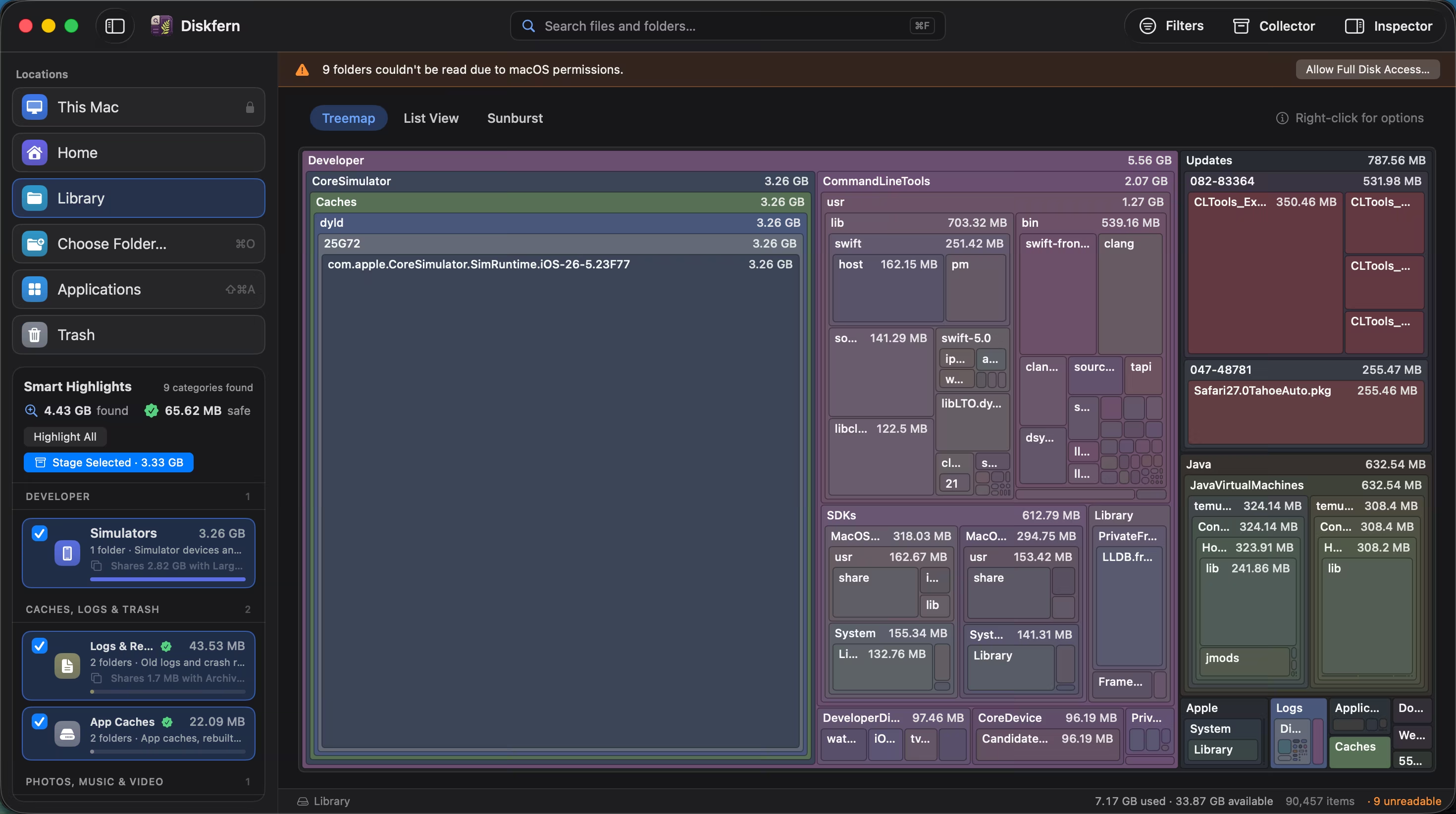
Smart Highlights identifies common storage such as caches, developer artifacts, downloads, and personal files. Each match carries a safety label so you can distinguish rebuildable clutter from content that deserves review.
01
Clarity, not a scary junk score
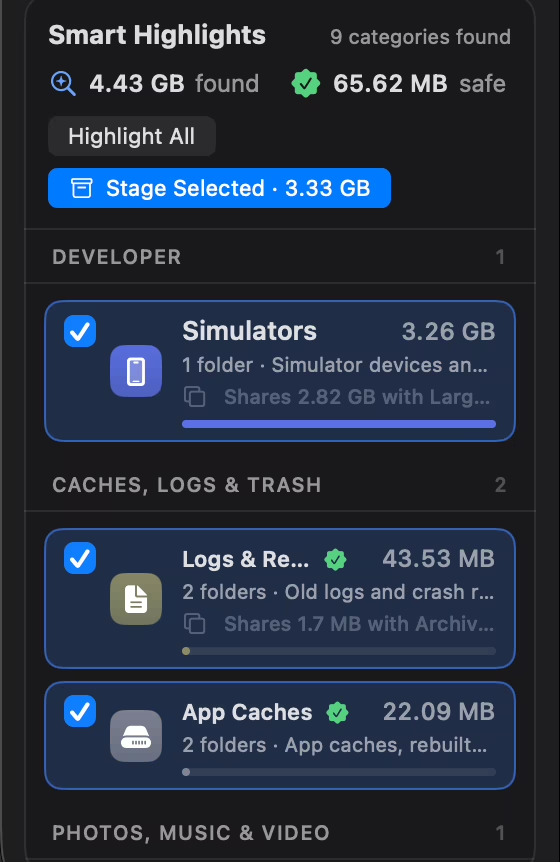
Every category explains what it found and why it received its label.
- Safe means rebuildable
- Review keeps personal choices with you
- Protected items stay unavailable
02
Patterns made for real Macs
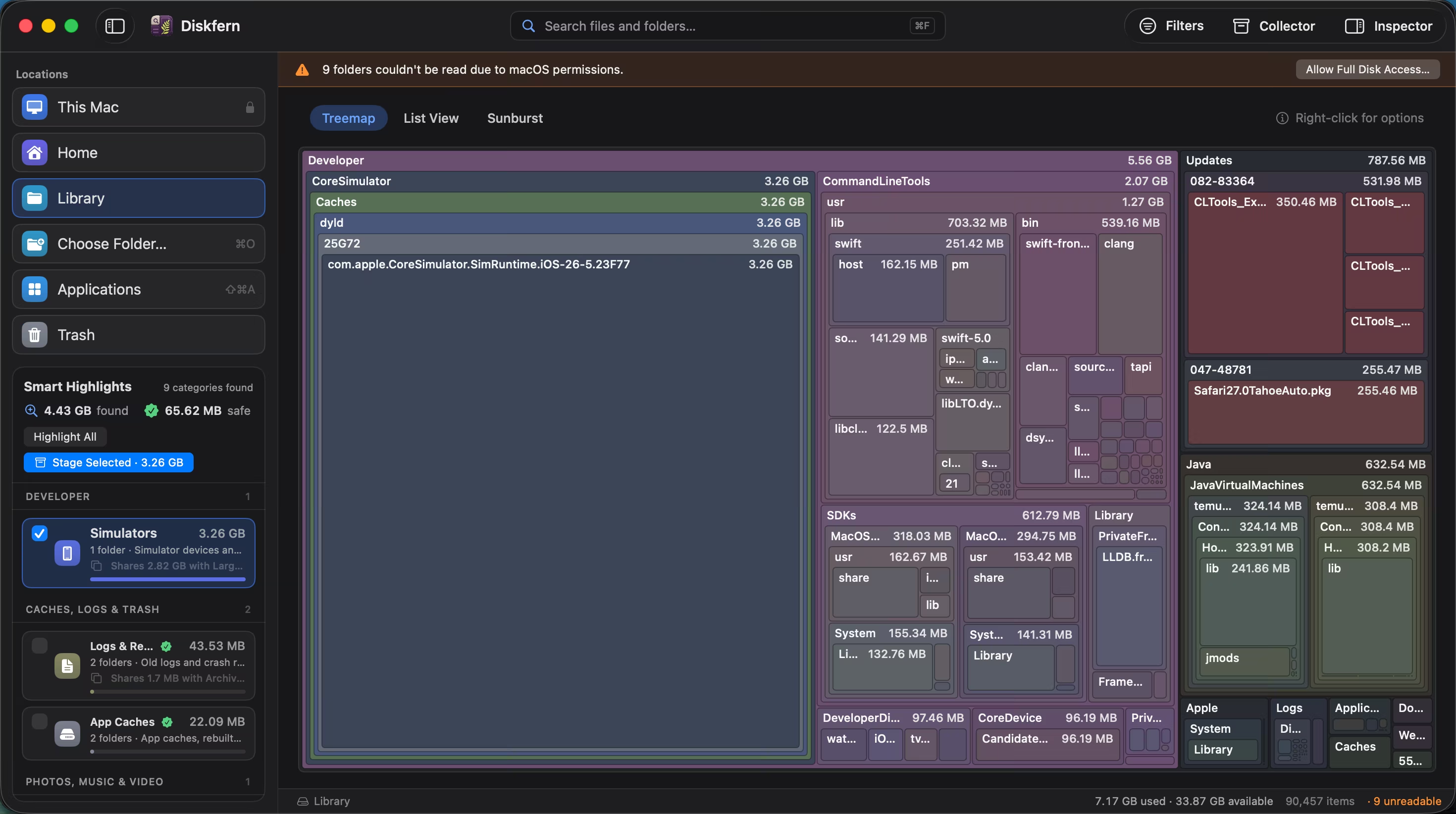
Highlights cover everyday files and the storage created by modern developer tools.
- Caches and installers
- Xcode and Android artifacts
- AI model and package caches
03
One-click Highlight All and Stage Selected
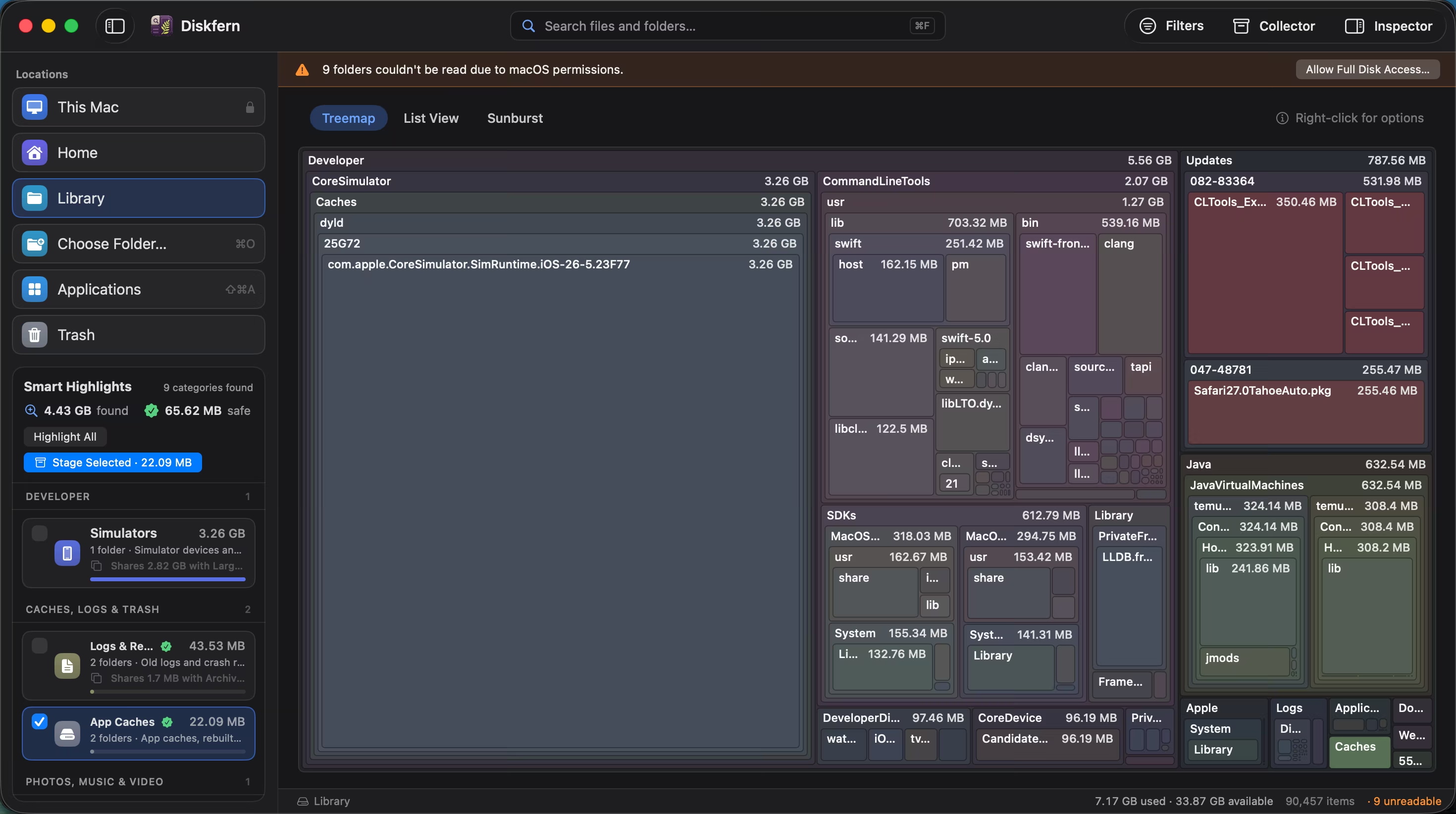
See dozens of categories found across developer storage, simulator caches, and system clutter. Hit 'Highlight All' to illuminate them across the visual map, or stage safe-to-clean clutter in one click with full review protection.
- One-click Highlight All
- One-click Stage Selected
- Total found vs safe-to-clean breakdown
Questions about Smart Highlights
Does Safe mean I must delete it?
No. Safe means the item can normally be rebuilt; the decision remains yours.
Are personal files selected automatically?
No. Personal files require review.
Can Diskfern remove protected system files?
Protected items are not offered for cleanup.
Are highlights free?
Finding and viewing highlights is free; cleanup tools are Pro.

Get your space back. Start with a free scan.
Explore the files and folders Diskfern can read. Your files stay on your Mac, and nothing is removed until you say so.
macOS 14 Sonoma or later · Apple silicon and Intel