 Diskfern
Developer storage
Hugging Face Cache on Mac: Find Models, Revisions and Safely Free Space
A large Hugging Face cache can contain models you still use, older revisions and transfer data. Find out what owns the storage before clearing the folder.
 Diskfern Team9 min readUpdated
 Short answer
The Hugging Face cache on Mac usually stores Hub files under ~/.cache/huggingface/hub, unless configured otherwise. Inspect repositories with hf cache ls, review revisions, and preview supported cleanup with --dry-run. Shared blobs and Xet data need different treatment; a large folder is not automatically disposable.
Where is the Hugging Face cache on Mac?
The default Hub cache location is ~/.cache/huggingface/hub. The surrounding Hugging Face home directory can also hold authentication information and other caches, so it is not a folder to erase wholesale.
HF_HOME, HF_HUB_CACHE, and sometimes XDG_CACHE_HOME change where data is stored. An application can also use an explicit cache directory. A Python project, notebook or inference tool may have downloaded models without you ever running the CLI directly.
Use the same environment that downloaded the files when checking its configuration. If you already use the Hub library from Python, this read-only command prints that environment’s configured Hub path:
python -c "from huggingface_hub.constants import HF_HUB_CACHE; print(HF_HUB_CACHE)"A standalone CLI and a project’s Python environment can differ. If the command cannot import the library, check the owning app’s configuration rather than assuming a new installation would reveal its cache.
What are blobs, snapshots and refs?
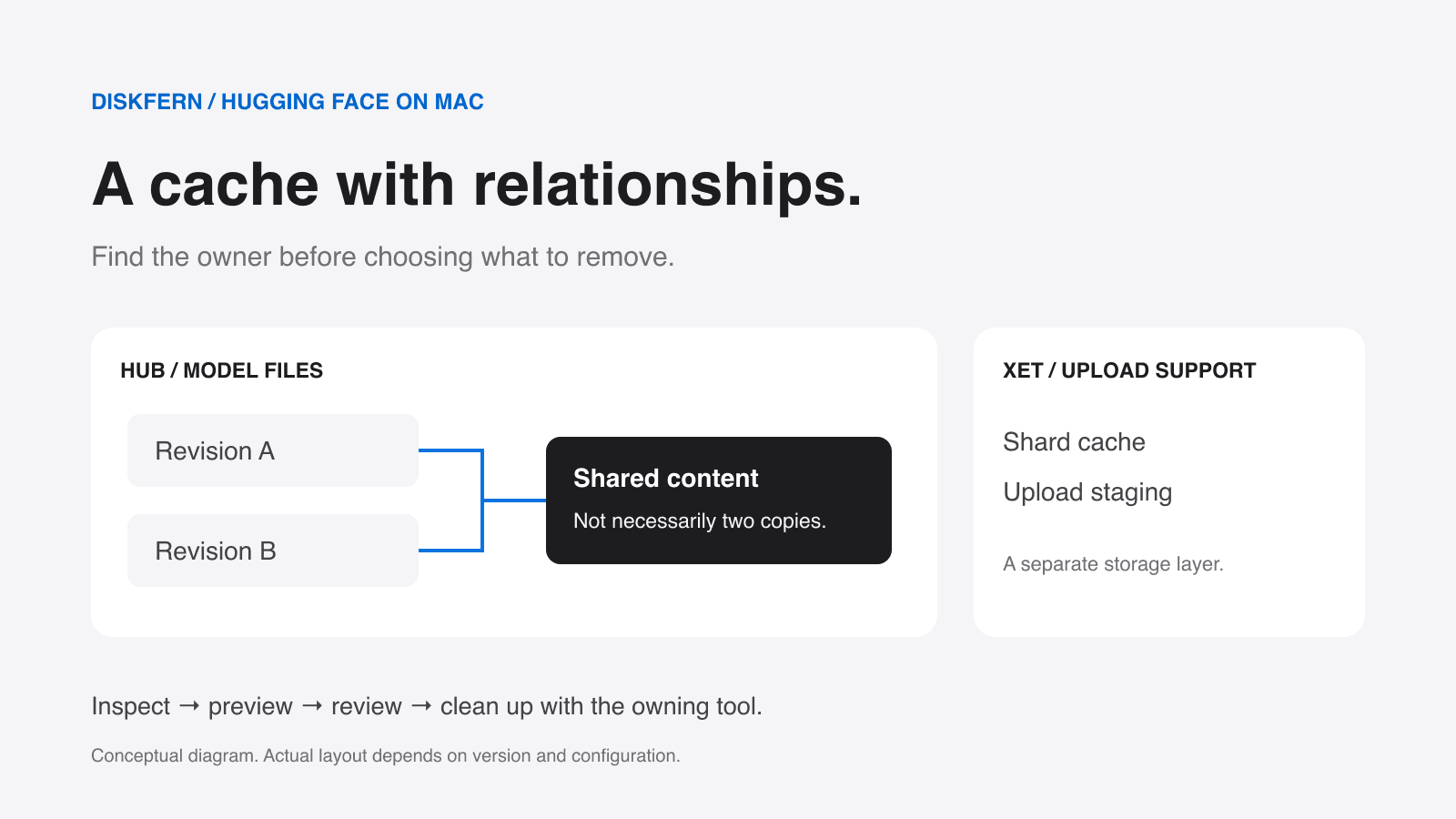
A cached repository is not an ordinary Downloads folder. refs records named revisions, snapshots exposes the files for particular revisions, and blobs holds content that those snapshots can reference. Newer layouts can also share file content across repositories.
huggingface/
  hub/
    blobs/                  shared content, when enabled
    models--org--model/
      refs/                 named revisions
      snapshots/            revision file views
      blobs/                content or links to shared data
xet/ upload-support cache and stagingTwo revision folders can point to the same underlying data. Adding their apparent sizes together can overstate the storage that deleting one would actually release. Use the current cache manager to interpret the relationships.
Read more: Hugging Face: understand caching
Start with hf cache ls, not deletion
Begin by listing cached repositories. Then inspect individual revisions. These are inspection commands; they do not remove the model files.
hf cache lshf cache ls --revisionsTo focus on large entries, the current CLI supports an explicit descending size order and a result limit:
hf cache ls --sort size:desc --limit 20Ask whether you still use each repository, whether a project needs a particular revision, and whether it must remain available offline. A large model used every day is an asset, not clutter.
Check the CLI you actually have
These examples follow the current Hugging Face documentation checked on 19 October 2026. Run hf version and hf cache --help if an option is unavailable, then consult the documentation for your installation.
Read more: Hugging Face: cache commands
Preview pruning before removing old revisions
hf cache prune targets detached revisions, incomplete downloads and unreferenced shared blobs in the current cache format. Preview its selection before deciding whether any of that material is expendable.
hf cache prune --dry-runDetached means a revision has no current branch or tag reference in the cache. It does not prove that none of your projects uses its commit hash. Keep revisions needed for reproducibility or offline work, even when a prune preview lists them.
Stop active downloads, uploads and model-loading work before making changes. Read the preview, preserve anything you need, and proceed only when you understand the selection. Removing --dry-run changes the operation from a preview to deletion; it does not move the files to the Mac’s Trash.
Read more: Hugging Face: cache commands
Remove one unused model instead of the whole cache
If one repository is no longer needed, target its identifier instead of deleting the parent cache directory. The following is an example identifier: replace it with an entry you have reviewed in hf cache ls.
hf cache rm model/organisation/model-name --dry-runA repository-level removal includes its cached revisions. If you only want an older revision gone, use the supported revision target and check the resulting preview. Do not remove all revisions because one is large.
For a custom location, use the command’s --cache-dir option with the verified Hub-cache path. Check the selection again; a preview of the default cache says nothing about another application’s separate cache.
Read more: Hugging Face: cache commands
Can you remove just one GGUF file?
A repository can offer several quantizations while you use only one. Current hf cache rm supports an exact file URI, which lets you preview a particular file rather than the whole model repository.
hf cache rm hf://models/organisation/model-name/model-file.gguf --dry-runReplace the organisation, repository and filename with the exact cached target. The documented file operation applies across that repository’s cached revisions. A shared blob is removed only when no other cached file still references it; folders and wildcard targets are not supported for this operation.
That scope matters if two experiments depend on different revisions of the same filename. Review every affected revision before deciding to run the real removal.
Read more: Hugging Face: cache commands
Xet is a different layer of storage
The xet directory is separate from the Hub’s model-file cache. Current Hugging Face documentation describes upload shard data and resumable-upload staging there. It now says local chunk caching is no longer used for downloads.
This behavior has changed between releases. An older chunk_cache directory or an old article quoting a fixed cache limit does not describe every current installation. Inspect your version and the configured HF_XET_CACHE location.
The documentation allows removing the Xet cache to reclaim storage, but it is still a trade-off: removing staging can discard local upload-resumption information, and removing shard data can require work again later. Finish or stop transfers first, identify the exact Xet directory, and follow the version’s guidance. Do not erase the whole Hugging Face home directory.
Read more: Hugging Face: understand caching · Hugging Face: cache locations and configuration
Why model sizes do not equal guaranteed savings
With shared blobs enabled, repository-level sizes can count content that another repository also uses. Cache-wide physical accounting can count that shared content once. Removing one repository may therefore recover less storage than its displayed logical size.
Use an up-to-date cache manager that understands the installed layout. Manually deleting individual blobs can break references or cause avoidable downloads, and older cleanup clients may not handle newer shared content correctly.
| What you need to know | Start here |
|---|---|
| Which repositories occupy the cache? | hf cache ls |
| Which revisions are cached? | hf cache ls --revisions |
| What would pruning select? | hf cache prune --dry-run |
| What would removing one repository affect? | hf cache rm with its reviewed ID and --dry-run |
| What would removing one file affect? | hf cache rm with an exact hf:// file URI and --dry-run |
| What is in the separate Xet directory? | Check version-specific Xet documentation before changing it. |
Read more: Hugging Face: understand caching · Hugging Face: cache commands
Consider the cost of downloading a model again
A cached model is replaceable only while its source and your access remain available. Cleanup can be a poor trade when a model is gated, a revision is important, or your next working session will be offline.
- Confirm the model and exact revision remain available to you.
- Keep any authentication or permissions needed to retrieve it again.
- Account for download size, metered connectivity and rebuild or reconstruction time.
- Preserve models used by reproducible projects or an upcoming offline session.
- Keep local modifications or irreplaceable artifacts separately before cleanup.
Do not publish tokens or private repository details in screenshots. An unfamiliar cache folder deserves inspection; it does not establish that the contents are unnecessary.
A safe Hugging Face cleanup workflow
Inspect first, preview the exact selection, and verify your remaining workflows afterward. The examples below do not delete data.
- 1
Confirm the cache location and stop active transfers.
Check the same environment used by the owning application. Preserve models and revisions needed offline.
- 2
Find the largest cached repositories.
$hf cache ls --sort size:desc --limit 20Large is a reason to review an entry, not a reason to remove it.
- 3
Inspect the individual revisions.
$hf cache ls --revisionsKeep any revision referenced by a project, even if it has no current branch or tag in the cache.
- 4
Preview pruning if you want to review detached data.
$hf cache prune --dry-runDo not accept a selection that contains a revision or incomplete transfer you still need.
- 5
Preview a specific repository only if it is no longer needed.
$hf cache rm model/organisation/model-name --dry-runThe identifier is an example. Replace it with an actual reviewed entry. Running without --dry-run deletes the selected cache data rather than sending it to Trash.
- 6
After an approved cleanup, recheck storage and your projects.
Compare the same physical-storage measurement before and after. Confirm that remaining models load as expected; cache-reported size is not a guarantee of identical free-space growth.
The Diskfern way
How Diskfern helps
Find the cache, then use its own tools
- Use Diskfern to locate large readable model and developer-storage folders.
- Inspect repositories and revisions with Hugging Face’s CLI before choosing a removal.
- Use the owning tool’s reviewed cleanup operation, then rescan to see what changed.
- Keep semantic cache management with Hugging Face. Diskfern does not manage its repository graph or certify every blob as disposable.
Finding and reviewing is free. Moving items to the Trash from Diskfern is part of Pro.
Scan your Mac freeQuestions
Is it safe to delete the whole ~/.cache/huggingface directory?
Do not start there. The parent directory can include authentication data, caches and models needed offline. Identify the actual cache and use the owning tool’s targeted controls for data you no longer need.
Does hf cache prune delete every model?
No. Current documentation describes detached revisions, incomplete downloads and unreferenced shared blobs. A detached revision may still be needed by your code, so review the dry run rather than treating pruning as automatically safe.
Why is hf cache ls showing nothing when a folder is large?
Check that the CLI and the application use the same Hub-cache location. The large directory may also contain Xet data, downstream assets, local downloads or a cache owned by another environment. Hub-cache inspection is not an inventory of every related directory.
Will hf cache cleanup use the Mac’s Trash?
Do not expect that recovery path. These commands remove cache data directly when run without --dry-run. Preview first and preserve models, local changes and revisions you may still need.
Does Diskfern delete Hugging Face models automatically?
No. Use Diskfern to inspect large readable folders, then use Hugging Face’s tools for repository-aware cleanup. A rescan helps you see the change without claiming exact recovered space or content-based duplicate detection.

Written by
Diskfern Team
We explain Mac storage using product behavior and the sources listed below. Review your app settings and backups before removing data.
Sources
- Hugging Face: cache commands · checked October 19, 2026
- Hugging Face: understand caching · checked October 19, 2026
- Hugging Face: cache locations and configuration · checked October 19, 2026

Get your space back. Start with a free scan.
Explore the files and folders Diskfern can read. Your files stay on your Mac, and nothing is removed until you say so.
macOS 14 Sonoma or later · Apple silicon and Intel