 Diskfern
Developer storage
Ollama & LM Studio Model Storage on Mac: Finding and Removing Old Models
A single local language model can be larger than most apps on your Mac. It is easy to download several while experimenting, then forget the ones you do not use.
 Diskfern Team7 min readUpdated
 Short answer
Ollama, LM Studio, and raw GGUF/Hugging Face downloads each store model weight files in their own folder, typically several gigabytes per model. Remove only models you can replace. Preserve custom weights, fine-tunes, and unavailable versions; a model that is not running may still be needed for offline work.
Is it safe to delete a model I downloaded in Ollama or LM Studio?
Use the app's model manager for a model you no longer need. First confirm its exact variant is still downloadable, preserve custom weights or fine-tunes, and check any shared use or offline requirements. Do not infer that every model file can be replaced.
Where are Ollama and LM Studio model files actually stored?
Ollama stores models under ~/.ollama/models by default. LM Studio stores downloaded GGUF models under its own models folder, configurable in the app's settings. Models downloaded directly from Hugging Face (outside either app) often land wherever a script or tool was configured to save them, commonly in a cache folder under your home directory.
How do I find all my local AI models and their real sizes?
Each tool has its own list view (Ollama's ollama list, LM Studio's model browser), but neither shows a combined total across tools, and Hugging Face cache downloads outside either app are easy to miss entirely. A disk-space analyzer that scans your whole drive shows all of them together, labeled, with real file sizes.
What’s safe to delete?
Unused Ollama models
Review first~/.ollama/models
Frees several GB per model; re-downloadable with `ollama pull <model>`.
How: ollama rm <model-name>
Unused LM Studio models
Review firstLM Studio's configured models folder
Re-downloadable from the in-app model browser.
How: Delete from LM Studio's My Models tab, or remove the file directly from its models folder.
Hugging Face cache downloads
Review first~/.cache/huggingface (or a tool-specific cache path)
Re-downloadable from Hugging Face; some tools re-fetch automatically if the cache is cleared.
How: Inspect with hf cache ls and preview a chosen removal with hf cache rm <repo-or-revision> --dry-run before confirming. Do not delete shared blobs manually.
Partially downloaded / corrupted model files
SafeTool-specific temp or cache folders
Only removes a failed download; re-download starts fresh.
How: Delete via Finder or the tool's own cleanup option.
Model files don't shrink while in use
A model's size on disk stays constant whether you run it once or a hundred times. Unlike app caches, there is no growing cache for each model.
Do it manually
No app needed. These steps use Finder, Terminal, and each tool’s own settings.
- 1
List installed Ollama models and their sizes.
$ollama list - 2
Remove a specific Ollama model.
$ollama rm <model-name> - 3
In LM Studio, open the My Models tab and delete models you're not using.
- 4
Check for Hugging Face cache downloads outside either app.
$du -sh ~/.cache/huggingface 2>/dev/null
The Diskfern way
How Diskfern helps
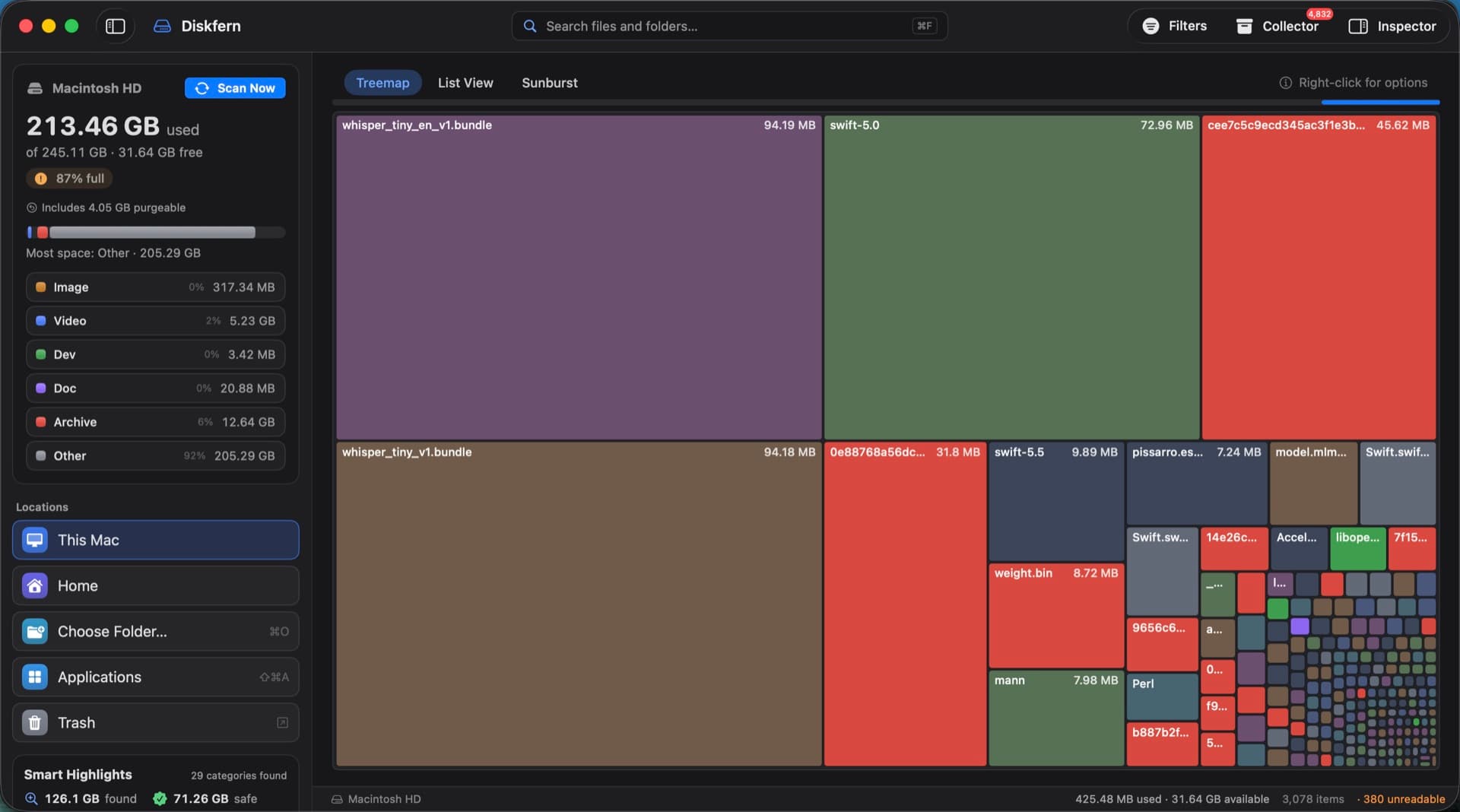
Diskfern groups Ollama, LM Studio, Hugging Face, and GGUF model files into one Smart Highlight category, so scattered downloads across different tools show up together.
- Scan your Mac with Diskfern.
- Open Smart Highlights and select the AI models category (Ollama / LM Studio / Hugging Face / GGUF).
- See each model file's real size across every tool, in one list.
- Inspect which models occupy the most space, then remove unused models through the owning tool (such as 'ollama rm' or LM Studio's manager) to keep catalogs clean.
Finding and reviewing is free. Moving items to the Trash from Diskfern is part of Pro.
See all your local AI models in one placeQuestions
How big are local AI models typically?
It varies enormously by parameter count and quantization, from under a gigabyte for small quantized models to tens of gigabytes for larger ones. Check your models' sizes directly rather than assuming a figure.
Will deleting a model affect my chat history in the app?
Model weights and chat history are often separate, but storage behavior depends on the app and version. Use its model manager, check its documentation, and export important chats before cleanup. Do not delete the app's entire data folder.
Can two apps share the same downloaded model to save space?
Not usually. Ollama and LM Studio manage their model storage independently, so the same model downloaded in both tools is stored twice unless you configure a shared path.
Is it safe to delete the entire ~/.ollama folder?
Do not treat the whole folder as disposable. It can contain models and configuration or keys you need. Use `ollama list` and `ollama rm <model-name>` to manage identified models, preserving custom models and configuration separately.

Written by
Diskfern Team
We explain Mac storage using product behavior and the sources listed below. Review your app settings and backups before removing data.
Sources
- Ollama Documentation: Model storage · checked October 19, 2026
- Hugging Face Hub: Manage your cache · checked October 19, 2026

Get your space back. Start with a free scan.
Explore the files and folders Diskfern can read. Your files stay on your Mac, and nothing is removed until you say so.
macOS 14 Sonoma or later · Apple silicon and Intel