Files & photos
Why Does Dropbox Still Take Up Mac Storage When Your Files Are Set to Online-Only?
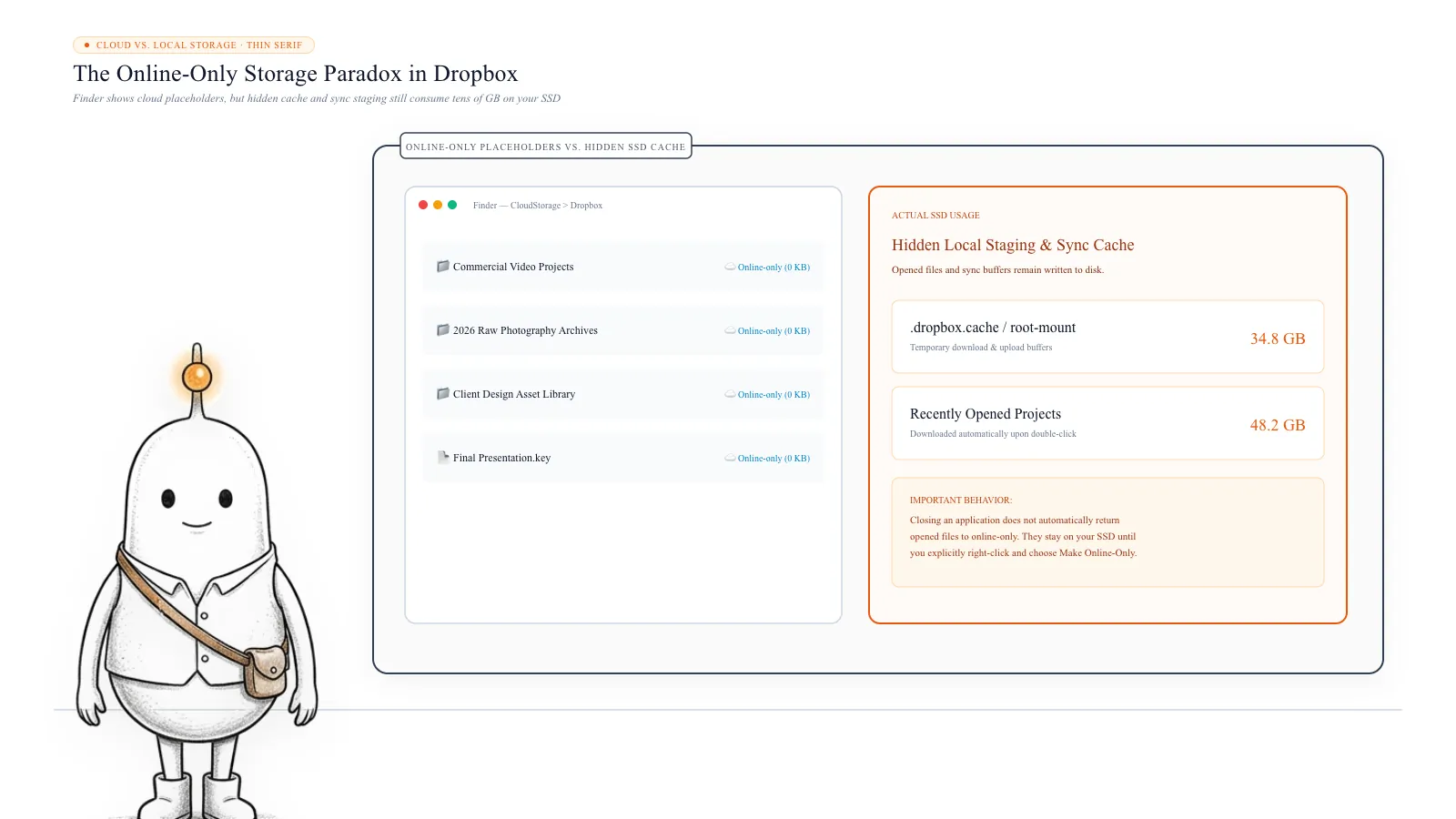
You move your Dropbox files to online-only, expecting your Mac's internal storage to become free again. Your files still appear in Finder, but they should now be stored in the cloud rather than downloaded to your SSD. Yet your Mac continues showing that Dropbox is consuming tens of gigabytes. You investigate further and discover a hidden Dropbox-related folder containing 50 GB, 90 GB, or even more data.
 Diskfern Team11 min readUpdated
Short answer
Setting Dropbox files to online-only only unloads the file content until opened. Opening a file downloads a full local copy that remains on your SSD. Additionally, Dropbox maintains hidden cache folders (.dropbox.cache or Group Containers on File Provider macOS) for sync staging. You can safely clear documented cache via Trash after quitting Dropbox, or use Selective Sync to exclude massive folders completely.
Why does Dropbox use storage when files are online-only?
Dropbox's online-only feature allows you to see your files in Finder without keeping their full contents downloaded on your Mac. For example, imagine you have a Dropbox account containing 200 GB of photos, videos, and work documents. You do not necessarily need all 200 GB stored on your Mac. When a file is online-only, Dropbox keeps it in your cloud account and displays a placeholder in Finder. The placeholder allows you to see the filename and access the file when needed.
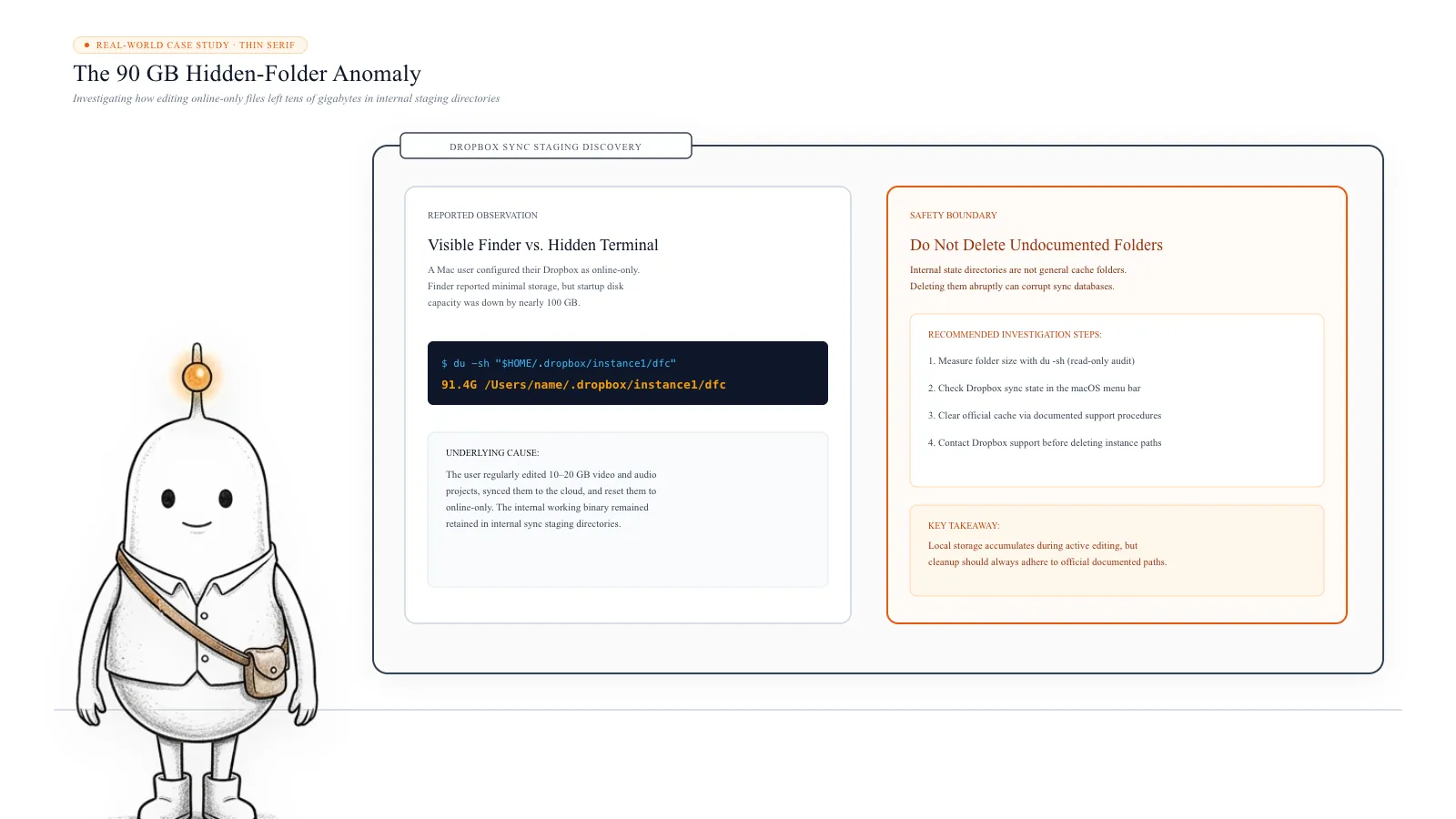
This is a real problem reported by Mac users. In one Reddit discussion, a user found a hidden folder at ~/.dropbox/instance1/dfc consuming approximately 90 GB, despite the Dropbox files being configured as online-only. The user suspected that it contained local copies of recently accessed work sessions.
However, there are several situations in which Dropbox can still use local storage:
- Temporary downloads: Opening an online-only file downloads it to your Mac.
- Offline availability: Files marked as available offline remain stored locally.
- Sync cache: Dropbox keeps temporary data to support uploads, downloads, and syncing.
- File Provider data: Newer Dropbox installations use macOS File Provider infrastructure to manage cloud files.
- Recently accessed files: Files opened or edited may have local data associated with them until they are returned to online-only status or managed by the system.
This is why setting everything to online-only does not necessarily mean that every Dropbox-related folder on your Mac will immediately become empty.
Read more: Reddit: Dropbox taking up way too much storage despite online-only files · Dropbox Help: How to make Dropbox files online-only on macOS
1. Understand the difference between online-only and available offline
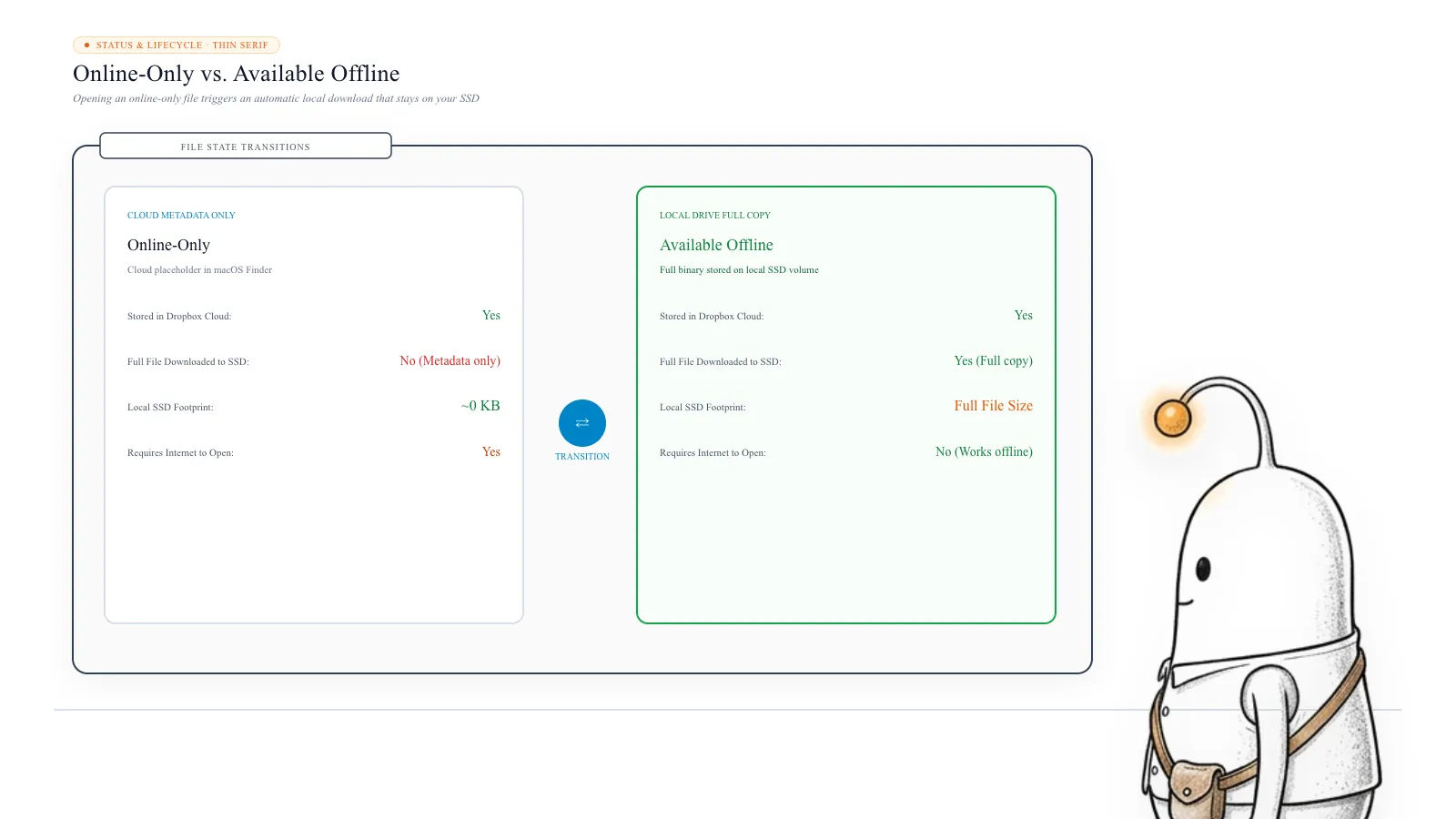
Before investigating hidden folders, check whether your files are actually online-only. Dropbox provides two main storage states: online-only and available offline.
Online-only: The file is stored in your Dropbox account rather than being fully downloaded to your Mac. You can still see its name and location in Finder, but you need an internet connection to open it.
Available offline: The file is downloaded and stored locally. You can open it without an internet connection, but it consumes space on your Mac.
| Feature | Online-only | Available offline |
|---|---|---|
| Stored in Dropbox cloud | Yes | Yes |
| Full file stored locally | No | Yes |
| Visible in Finder | Yes | Yes |
| Opens without internet | No | Yes |
| Uses substantial Mac storage | No | Yes |
Online-only placeholders can still use a small amount of local metadata storage. However, they should not occupy the same space as the complete original files. Dropbox also notes that opening an online-only file downloads it to your computer. You can then change it back to online-only when you no longer need the local copy.
Read more: Dropbox Help: How to make Dropbox files online-only on macOS
2. Opening an online-only file can download it again
This is one of the easiest ways to unintentionally increase Dropbox storage. Imagine that you have a large video project stored online-only. You double-click it in Finder to work on it. Dropbox downloads the file so that your application can access it.
After you finish editing, you close the project. However, closing the application does not automatically mean that the downloaded file has been returned to online-only status. The file may continue occupying local storage. If you regularly work with large Photoshop documents, video projects, audio sessions, or other large files, these downloads can accumulate.
How to return a downloaded file to online-only:
- Open Finder.
- Open your Dropbox folder.
- Find the file or folder you no longer need locally.
- Right-click it.
- Select Make online-only.
- Wait for Dropbox to finish syncing.
The file remains in your Dropbox account and can be downloaded again when needed. You can also choose Make available offline whenever you need a local copy. Important: The current Dropbox menu uses the terms Make online-only and Make available offline. Older guides and tutorials may still refer to these features as Smart Sync.
4. Dropbox uses a different cache location on newer macOS installations
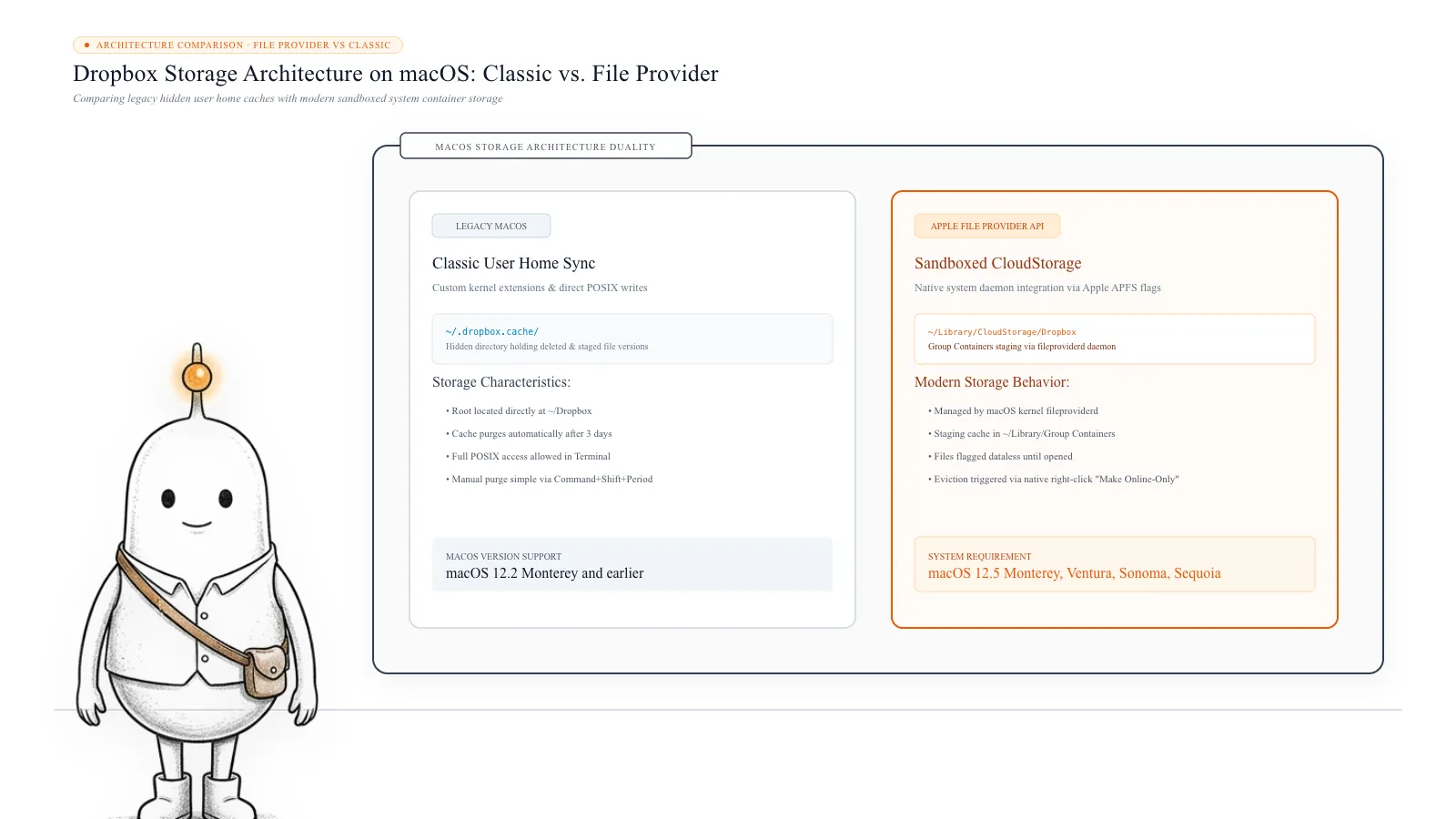
This is an important distinction. Newer versions of Dropbox use Apple's File Provider framework to integrate cloud storage with macOS.
Instead of placing the main Dropbox folder directly inside your home directory, File Provider installations place it under: ~/Library/CloudStorage/. You may see a folder named Dropbox or a Dropbox account-specific name there.
The cache location also changes. According to Dropbox, File Provider installations manage cache data outside the Dropbox folder, under a Group Containers location. The relevant directory has a name ending in .com.getdropbox.dropbox.sync. Inside that container, Dropbox documents a root-mount folder as the location to inspect when clearing cache.
How to check whether you use File Provider:
- Click the Dropbox icon in your Mac's menu bar.
- Click your profile picture or initials.
- Open Preferences.
- Select Sync.
- Find Dropbox folder updates.
Dropbox will indicate whether you are already using File Provider or whether an update is available. You can also look for your Dropbox folder inside ~/Library/CloudStorage/. The folder location alone is a useful clue, but checking Dropbox Preferences is more reliable.
Read more: Dropbox Help: Expected changes with Dropbox for macOS on File Provider
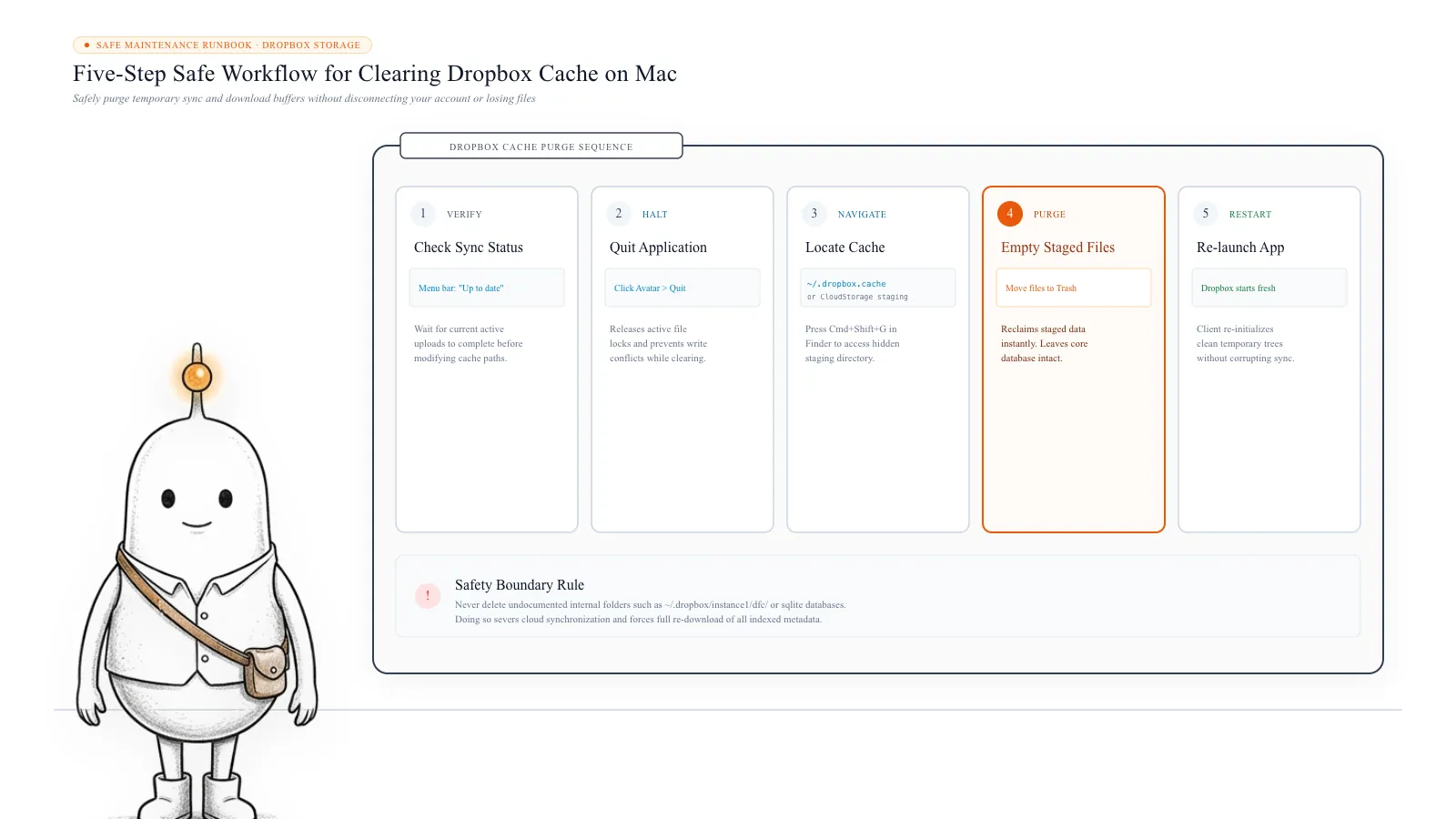
7. How to safely clear Dropbox cache files
The correct cleanup process depends on whether your installation uses File Provider. Do not apply instructions written for an older Dropbox installation to a newer one without checking the difference.
Option A: Older Dropbox installation without File Provider:
- Wait until Dropbox finishes syncing completely.
- Quit the Dropbox desktop application completely.
- Open Finder and open your Dropbox folder.
- Press Command + Shift + . to show hidden files.
- Open .dropbox.cache.
- Move the files inside the cache folder to Trash. Do not delete the entire Dropbox folder.
- Reopen Dropbox and allow it to finish starting and syncing.
Option B: Dropbox using File Provider:
- Confirm that Dropbox has finished syncing.
- Quit the Dropbox desktop application.
- Wait for the DropboxFileProviderExtension process to stop.
- Open Finder, select Go from the menu bar, hold Option, and select Library.
- Open Group Containers.
- Find the folder whose name ends in .com.getdropbox.dropbox.sync.
- Open root-mount.
- Follow Dropbox's instructions to move the cache files inside to Trash.
The Group Containers folder has a unique identifier, so its full name may differ between Macs. Do not delete the entire Group Container, the entire Group Containers directory, or unrelated Dropbox folders. Important: These instructions are for Dropbox cache cleanup. They are not instructions to erase the undocumented ~/.dropbox/instance1/dfc folder found in the Reddit example.
Read more: Dropbox Help: How to clear the Dropbox cache folder
8. Use Selective Sync when you do not need folders visible on your Mac
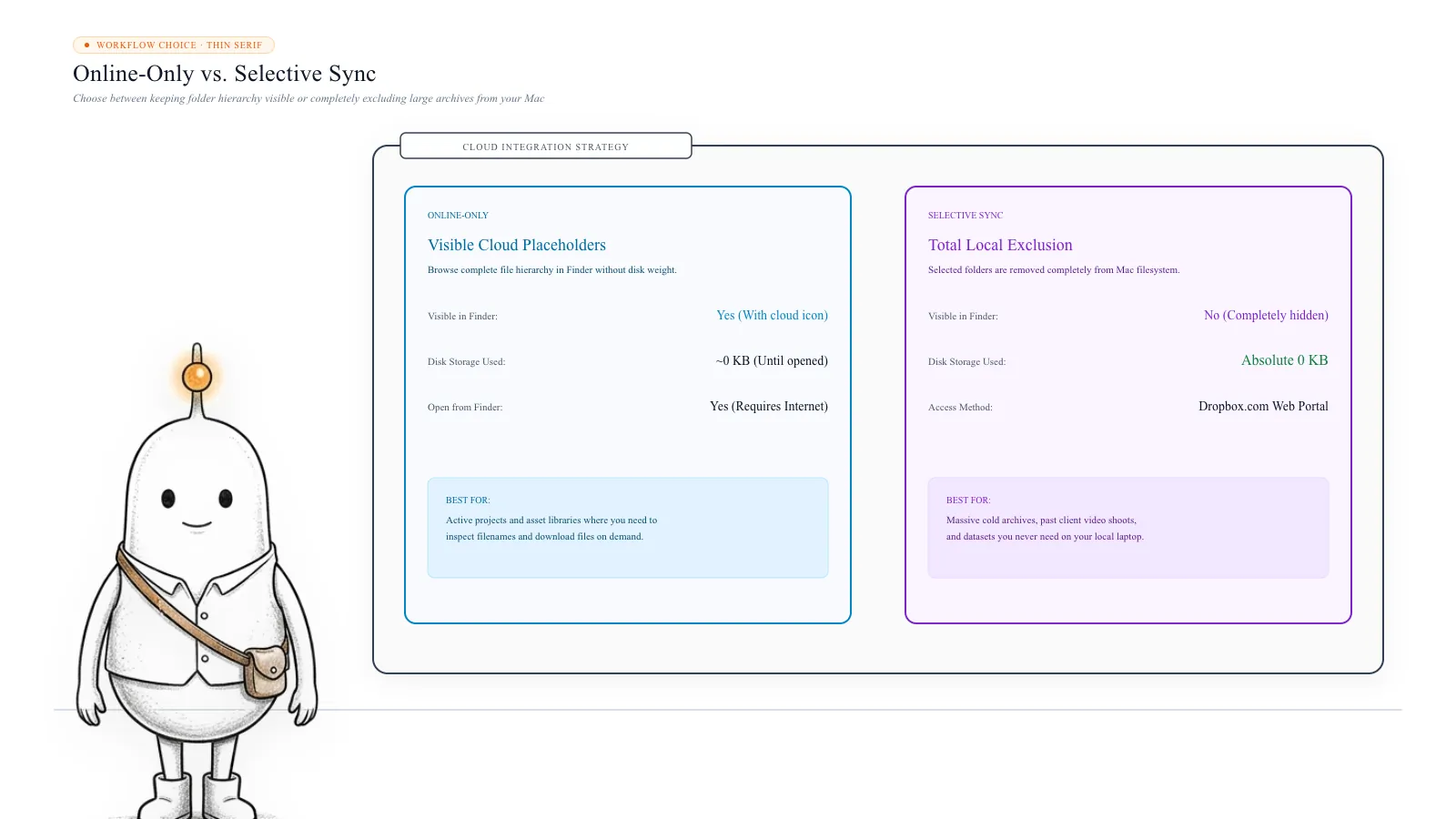
Online-only and Selective Sync are not the same thing. Online-only files remain visible in Finder, even though their contents are stored in the cloud. Selective Sync lets you choose entire folders that should not sync to your computer at all.
For example, imagine you have: 100 GB of archived client projects, 40 GB of old video footage, 20 GB of personal documents, and 5 GB of active work files. You might want the active files visible in Finder while keeping the archived folders out of your local Dropbox folder entirely. Selective Sync is useful for this situation.
| Feature | Online-only | Selective Sync |
|---|---|---|
| Folder visible in Finder | Yes | No, when excluded |
| Full content downloaded | No | No |
| Can access through Dropbox website | Yes | Yes |
| Can open directly from Finder | Yes, with internet | No |
| Best for | Keeping the folder structure visible | Excluding entire folders from the Mac |
Before excluding a folder, confirm that its contents have finished syncing to Dropbox online.
Read more: Dropbox Help: How to use Selective Sync
9. Prevent Dropbox from filling your Mac again
Clearing cache files can recover storage, but the problem may return if you regularly work with large files. A few settings and habits can make a difference.
Set new files to online-only by default: You can configure Dropbox so that newly added files in the root Dropbox directory start as online-only. Click the Dropbox icon in the menu bar, open your account menu, select Preferences > Sync > Default sync preference > Online-only. There is one detail worth remembering: Dropbox says this preference applies to new files added directly to the root directory. Files that already exist are not automatically changed, and documents created locally and moved into Dropbox can remain available offline.
Return completed projects to online-only: If you regularly work with large files, make a habit of changing finished projects back to online-only. Right-click the completed file or folder and select Make online-only. Check its sync status before assuming the local data has been removed.
Keep frequently used files available offline: Do not make every file online-only if you need to work without an internet connection. Keep important active projects available offline and return archived or completed projects to online-only. This reduces unnecessary downloads while keeping the files you actually need accessible.
Review Dropbox storage periodically: Every few weeks, check the Dropbox folder, hidden cache locations, and macOS storage overview. This helps you catch unexpected local data growth before it consumes most of your SSD.
What’s safe to delete?
.dropbox.cache files (legacy)
Safe after sync~/Dropbox/.dropbox.cache/
Temporary sync staging chunks are removed. Automatically clears every 3 days; safe to empty to Trash when sync is idle.
How: Quit Dropbox > Empty files inside .dropbox.cache to Trash
File Provider root-mount cache
Safe via guide~/Library/Group Containers/*.com.getdropbox.dropbox.sync/root-mount/
Staged local cache files are removed. Rebuilds automatically on next launch without affecting cloud files.
How: Quit Dropbox > Move cache files in root-mount to Trash
Downloaded Online-Only Files
Make online-only~/Dropbox/ or ~/Library/CloudStorage/Dropbox
Frees local SSD space while preserving files in Dropbox cloud. Do not delete in Finder; use right-click context menu.
How: Right-click file or folder > Make online-only
Undocumented ~/.dropbox/instance folders
Review first~/.dropbox/instance1/dfc
Can contain active database pointers or sync instance state. Deleting abruptly can corrupt account syncing.
How: Inspect with du -sh; consult Dropbox support before removing
Active Local Dropbox Files
Don't touch~/Dropbox or ~/Library/CloudStorage/Dropbox
Moving files to Trash from your Dropbox folder deletes them from your Dropbox cloud account and all synced devices.
How: Never delete files to save space; choose 'Make online-only' instead
Hidden .dropbox Symlink / System folder
Don't touch~/.dropbox
Contains client configuration, sync logs, and auth tokens. Deleting can unlink your Mac from Dropbox.
How: Leave intact in user home directory
Opening downloads files automatically
Double-clicking an online-only file downloads the full file to your Mac so applications can edit it. Remember to right-click and choose 'Make online-only' once your editing session is finished.
Do not delete files in Finder to save space
Moving files inside your Dropbox folder to the Mac Trash deletes them from your cloud account and all synced computers. Always use 'Make online-only' or 'Selective Sync' to recover disk space safely.
Recommended manual Dropbox storage steps
Always use Dropbox's native context menus and official cache cleanup procedures rather than deleting folders in Finder or Terminal.
- 1
Check hidden Dropbox cache and container storage in Terminal
$du -sh "$HOME/Dropbox/.dropbox.cache" "$HOME/Library/Group Containers/"*dropbox* 2>/dev/nullMeasures local staging cache sizes safely without altering or deleting any synced files.
- 2
Return large opened projects to online-only in Finder
$Finder > Right-click file or folder > Make online-onlyUnloads local file payload from SSD while preserving file visibility and cloud copy.
- 3
Exclude massive archived folders using Selective Sync
$Dropbox Preferences > Sync > Selective SyncCompletely removes excluded folders from local filesystem while retaining 100% cloud access.
The Diskfern way
How Diskfern helps
When macOS reports tens of gigabytes in System Data or Cloud Storage, Diskfern lets you visually explore whether storage is in hidden .dropbox.cache, Group Containers, or downloaded files.
- Open Diskfern and scan your Home folder or Macintosh HD.
- Use Treemap and Sunburst views to visually identify hidden cache directories in ~/Library/Group Containers or ~/.dropbox.
- Check folder sizes with Disk Advisor, then use Dropbox's 'Make online-only' or official cache purging steps to reclaim storage.
Finding and reviewing is free. Moving items to the Trash from Diskfern is part of Pro.
Inspect Dropbox Storage with DiskfernQuestions
Why is Dropbox using 90 GB when everything is online-only?
Online-only files should not occupy their full file size locally. However, opened files, offline copies, temporary downloads, and Dropbox cache data can still use storage. A Reddit user reported finding 90 GB in a hidden ~/.dropbox/instance1/dfc folder, but this is not a documented universal cache location.
Does Dropbox download online-only files when I open them?
Yes. Opening an online-only file downloads it to your Mac so that you can access it. You can return it to online-only afterward using the Finder context menu.
What is the .dropbox.cache folder?
It is a hidden folder used by older Dropbox installations to store temporary files for uploads, downloads, and syncing. Dropbox says it is automatically cleared every three days and provides instructions for manually clearing it when necessary.
Where is the Dropbox cache stored on newer Macs?
For File Provider installations, Dropbox manages cache outside the visible Dropbox folder. Its official cleanup instructions point to a Group Containers folder ending in .com.getdropbox.dropbox.sync, with cache files under root-mount.
Is Smart Sync still available?
Older Dropbox guides refer to the feature as Smart Sync. Current Dropbox menus use terms such as Make online-only and Make available offline. They provide the same basic choice between cloud-only and locally stored files.
Can I delete the hidden .dropbox folder?
Do not delete it blindly. Dropbox explains that some hidden .dropbox folders are symbolic links created when the main Dropbox folder is renamed. They do not necessarily consume extra storage, and deleting files through a symbolic link can delete the original files.
Does deleting Dropbox cache delete my cloud files?
Clearing the documented cache is different from deleting files in your actual Dropbox folder. However, always follow the cleanup process for your installation type and avoid removing undocumented sync folders. Never delete your actual Dropbox files if your goal is only to clear temporary storage.
What is the difference between online-only and Selective Sync?
Online-only files remain visible in Finder as placeholders and can be downloaded when opened. Selective Sync excludes entire folders from your local Dropbox folder while keeping them available through Dropbox online.

Written by
Diskfern Team
We explain Mac storage using product behavior and the sources listed below. Review your app settings and backups before removing data.
Sources
- Dropbox Help: How to clear the Dropbox cache folder · checked November 8, 2026
- Dropbox Help: How to make Dropbox files online-only on macOS · checked November 8, 2026
- Dropbox Help: Make files and folders online-only · checked November 8, 2026
- Dropbox Help: Expected changes with Dropbox for macOS on File Provider · checked November 8, 2026
- Dropbox Help: What is the hidden .dropbox folder? · checked November 8, 2026
- Dropbox Help: How to use Selective Sync · checked November 8, 2026
- Reddit: Dropbox taking up way too much storage despite online-only files · checked November 8, 2026
Keep reading
Learn more about managing large media, cloud sync, and external drives on Mac.
Logic Pro Sound Library Taking Up 80GB? Free Up Mac Storage
Logic Pro and GarageBand sound libraries can consume tens of GB on your Mac. Find the library, remove unused sounds safely, or move it to an external SSD.
After Effects Cache Taking Up Mac Storage? Here is How to Fix It
After Effects cache can consume hundreds of GB on your Mac. Find disk and media cache files, clear them safely, set limits, and move cache to an external SSD.
Why Are iPhone & iPad Backups Taking Hundreds of GB on Mac?
Discover why old iPhone and iPad backups accumulate in MobileSync, how to find and manage them in Finder, and how to safely reclaim gigabytes of storage.
Mac Storage Keeps Shrinking Automatically? Here is Why
Find out why your Mac loses storage even when you're not downloading anything: swap files, app caches, background logs, and how to safely diagnose the cause.

Get your space back. Start with a free scan.
Explore the files and folders Diskfern can read. Your files stay on your Mac, and nothing is removed until you say so.
macOS 14 Sonoma or later · Apple silicon and Intel