Files & photos
Why Are Old iPhone and iPad Backups Taking Up Hundreds of GB on Your Mac?
You connect your iPhone to your Mac, create a backup, and forget about it. Months later, you replace the phone, transfer your data to a newer device, and continue using your Mac as usual. But the old backup may still be sitting on your internal drive.
 Diskfern Team10 min readUpdated
Short answer
Local iPhone and iPad backups live inside ~/Library/Application Support/MobileSync/Backup/ and do not automatically delete when you replace a device. Over time, multiple devices and archived backups can take hundreds of gigabytes. Instead of deleting the folder in Finder, use Finder's Manage Backups feature to identify devices, dates, and safely delete unneeded backups.
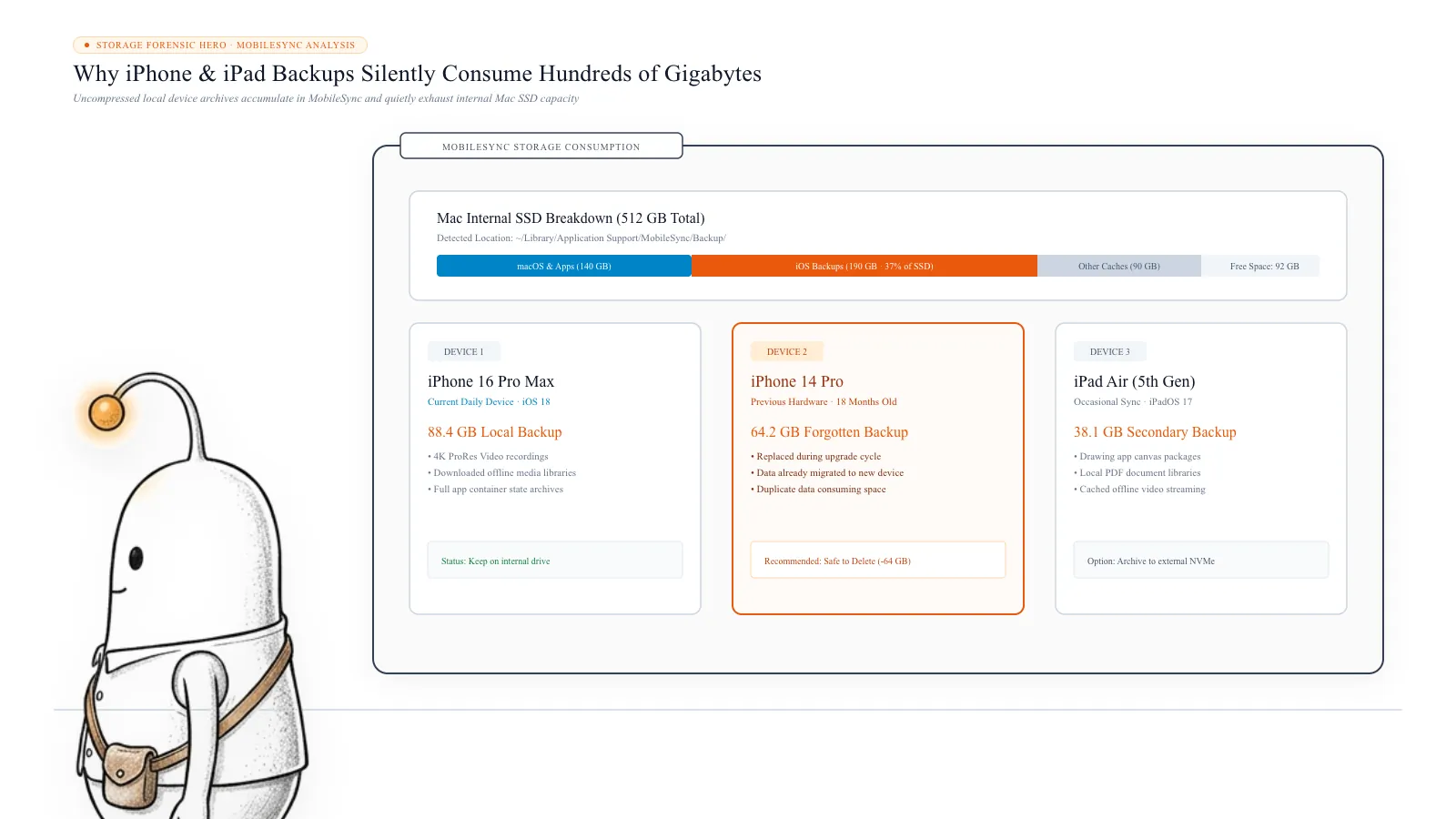
Why do iPhone and iPad backups take up so much Mac storage?
When you back up an iPhone or iPad to your Mac, the computer stores a local copy of much of the device's data and settings. This is different from simply syncing files between your devices.
Now imagine discovering that a folder called MobileSync is consuming 100 GB, 150 GB, or even more than 180 GB of storage. This is not just a hypothetical problem. In a Reddit discussion, a MacBook Pro owner reported finding 186 GB inside the MobileSync folder while investigating storage usage. The same person also saw a separate 99 GB figure under iOS Files and could not explain the difference. It illustrates how confusing local device backups can become when you do not know where macOS stores them.
Depending on your settings, a computer backup can include information such as:
- App data and documents.
- Messages and their attachments.
- Device settings and configuration.
- Photos and videos that are not already synced to iCloud.
- Other data stored locally on the device.
A backup can therefore become quite large, especially when your iPhone or iPad contains years of messages, downloaded content, and application data. Apple explains that a computer backup includes almost all of your device's data and settings, with certain exclusions for content already synced to iCloud or synced from a computer.
What makes one backup larger than another? Two iPhones with the same storage capacity can produce very different backup sizes. For example, one device might mostly contain synced cloud data and a few applications. Another might have large messaging attachments, locally stored photos, downloaded videos, and substantial app data.
The amount of data that gets backed up depends on what is actually stored on the device and what is already synced elsewhere. One important detail: content already synced through iCloud Photos or Messages in iCloud is not included in a computer backup in the same way as unsynced local data. This is why the storage capacity printed on your iPhone does not tell you exactly how large its Mac backup will be.
Read more: Apple Support: Backup methods for iPhone, iPad, and iPod touch · Reddit: 186 GB inside MobileSync folder on MacBook Pro
1. Where does macOS store iPhone and iPad backups?
macOS stores local iPhone and iPad backups inside your user Library folder. The standard location is: ~/Library/Application Support/MobileSync/Backup/. The MobileSync folder is not normally visible when you browse your home folder because the Library directory is hidden by default.
How to open the MobileSync backup folder: You can reach it directly through Finder. Open Finder, select Go from the menu bar, choose Go to Folder, paste the following path, and press Return: ~/Library/Application Support/MobileSync/Backup/
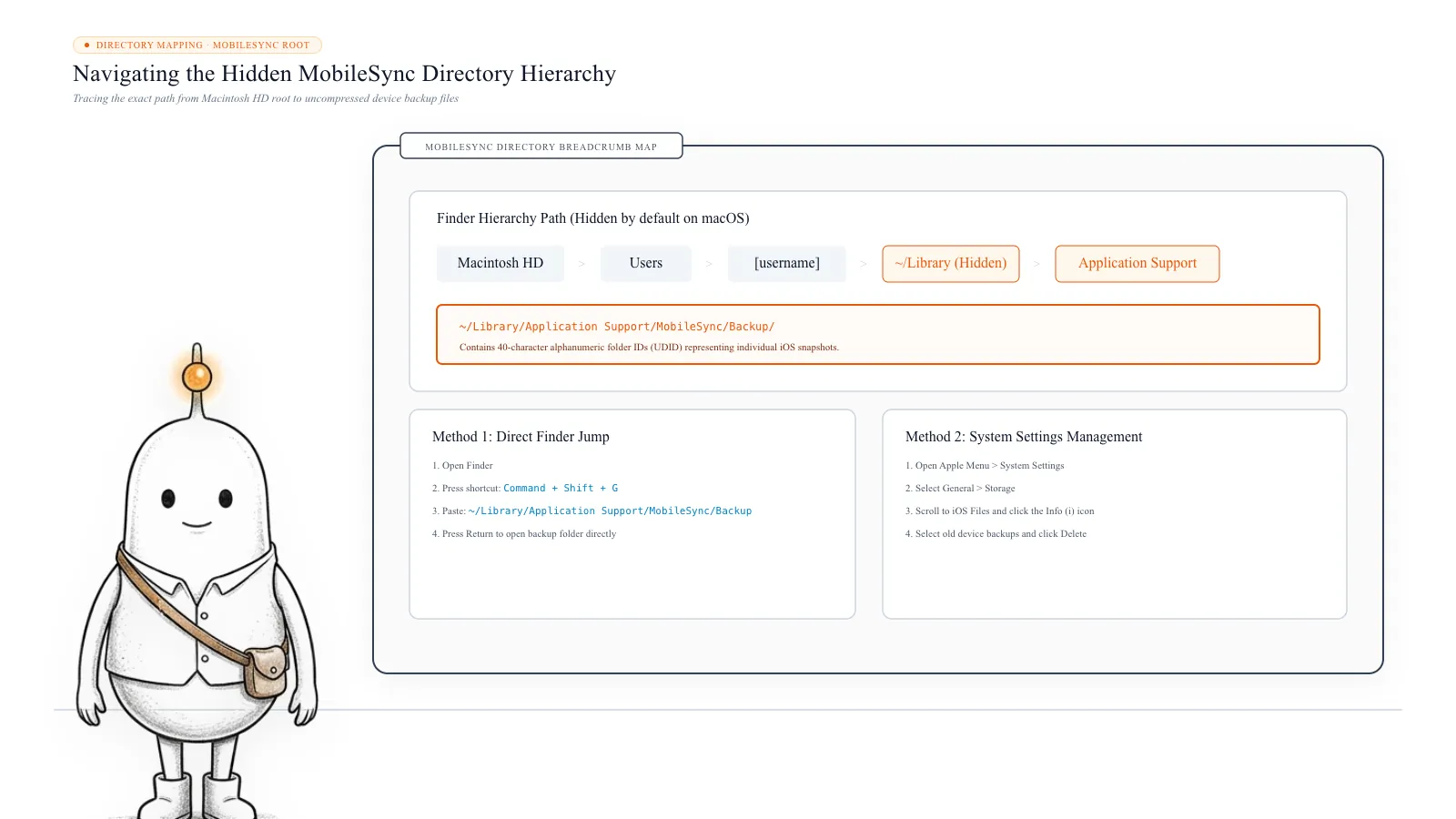
Inside, you may find several directories with long names made up of letters and numbers. These names are not designed to help you identify the device. That is why deleting folders based on their names alone is risky.
Important: Use this folder primarily to inspect where backups are stored. Use Finder's Manage Backups feature to identify and delete the correct backup.
Read more: Apple Support: Locate backups of your iPhone, iPad, and iPod touch
2. Why are there multiple iPhone and iPad backups on your Mac?
One of the easiest ways for local backups to accumulate is to use multiple Apple devices over several years. Replacing an iPhone does not automatically mean its old local backup is removed from your Mac.
| Device | Situation |
|---|---|
| iPhone 12 | Old device, replaced two years ago |
| iPhone 14 | Previous daily-use phone |
| iPhone 16 | Current device |
| iPad Air | Occasionally backed up to the Mac |
You might have created backups of all four devices. Replacing an iPhone does not automatically mean its old local backup is removed from your Mac. The backup can remain there even after you transfer your information to a new phone. Archived backups can also contribute to the total.
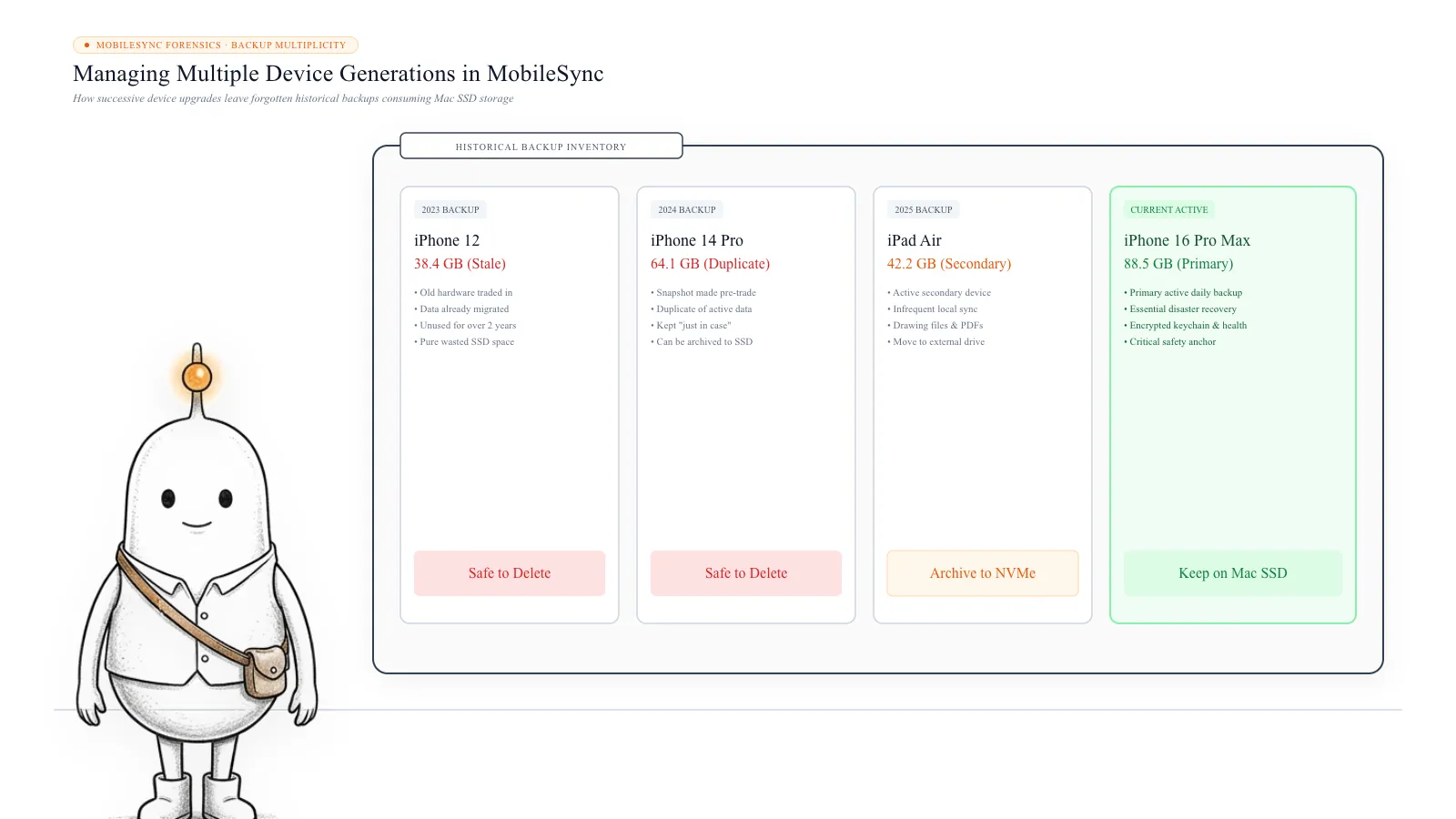
Does every backup create another full copy? Not necessarily. Finder can update an existing backup rather than preserving a separate full copy every time you back up the same device. However, when you archive a backup, Finder preserves that version so that later backups do not replace it. Backups from separate devices also remain separate. This means your MobileSync folder can grow over time, particularly when you keep archived backups or backups of devices you no longer own. You do not need to keep every historical backup forever. But you should identify what each backup contains before removing it.
3. How to see which iPhone or iPad backups are consuming storage
The safest way to identify your backups is through Finder. You do not have to understand the long folder names inside MobileSync.
Use Finder's Manage Backups feature: Connect an iPhone or iPad to your Mac using a USB cable. Open Finder, select the connected device from the sidebar, open the General tab, and find and select Manage Backups.
Finder displays the available local device backups. You can review information such as the device associated with a backup and its date. You can also right-click a backup to access options such as Delete, Archive, and Show in Finder. This is particularly useful when you have backups from older devices that are no longer connected to your Mac.
Check the total MobileSync folder size using Terminal. Open Terminal and run:
du -sh "$HOME/Library/Application Support/MobileSync/Backup"To inspect the individual backup directories, run:
du -sh "$HOME/Library/Application Support/MobileSync/Backup"/*These commands show the sizes of the folders inside the backup directory. For example, you might see output like: 18G Backup/folder-a, 42G Backup/folder-b, 67G Backup/folder-c. The names above are illustrative. Remember that these folder names do not tell you which device they belong to. Match them with the backup information shown in Finder before taking any action.
Terminal may also be restricted from reading certain locations without the necessary permissions. If that happens, use Finder's Manage Backups screen rather than changing permissions or deleting files blindly.
Read more: Apple Support: Locate backups of your iPhone, iPad, and iPod touch
4. Are iPhone backups and iCloud backups the same?
No. They are two different backup methods. An iCloud backup is stored in your iCloud account. A computer backup is stored locally on your Mac or PC. You can use either method or both.
| Feature | iCloud backup | Finder backup |
|---|---|---|
| Storage location | iCloud | Your Mac |
| Requires internet | Yes, for cloud backup and restore | Not for the local backup itself |
| Uses Mac storage | No | Yes |
| Encryption | Always encrypted | Encryption is optional |
| Restore | Through Apple's device setup and restore process | Through Finder |
There is another important difference involving encrypted backups. When you create an encrypted computer backup, it can include additional information such as saved passwords, Wi-Fi settings, Activity data, Health data, and Keychain information. Apple notes that Activity, Health, and Keychain data require an encrypted computer backup. If you delete the only backup containing this information, you may lose an important restore option.
Do not assume that having iCloud Backup enabled means every piece of data in your local Finder backup is safely available somewhere else. Check your actual sync and backup settings before deleting anything.
Read more: Apple Support: Backup methods for iPhone, iPad, and iPod touch
5. How to safely delete old iPhone and iPad backups
Once you identify backups from devices you no longer use, you can decide which ones are safe to remove. Before deleting anything, check the device name, backup date, and whether you still need the data.
Delete a backup through Finder: Connect an iPhone or iPad to your Mac, open Finder and select the connected device, open the General tab, click Manage Backups, find the backup you want to remove, right-click the backup, select Delete, and confirm your choice. After deletion, the backup is removed from your Mac.
Be careful: Apple warns that deleted backups cannot be recovered through this process. Do not delete the only backup of a device unless you have another reliable way to recover the information you might need.
Should you archive a backup instead? Sometimes deleting an old backup is not the best choice. Suppose you are about to install a major iOS update or make significant changes to your device. You may want to preserve its current backup as a restore point. In that situation, consider choosing Archive instead of Delete. Archiving preserves that backup so that a later backup does not replace it. The trade-off is that it continues to use storage on your Mac. Keep archived backups only when you have a clear reason to retain them.
Read more: Apple Support: Locate backups of your iPhone, iPad, and iPod touch
6. What happens if you delete the wrong backup?
This is the most important part of managing local device backups. A backup is not just another temporary folder. It may be the only remaining copy of information that was once stored on an old iPhone or iPad.
- You replaced an iPhone but never checked whether all its photos were transferred.
- You stopped using an iPad but still need documents stored inside an application.
- You rely on a local encrypted backup for certain Health or Keychain data.
- You have important messages or attachments that are not synced to iCloud.
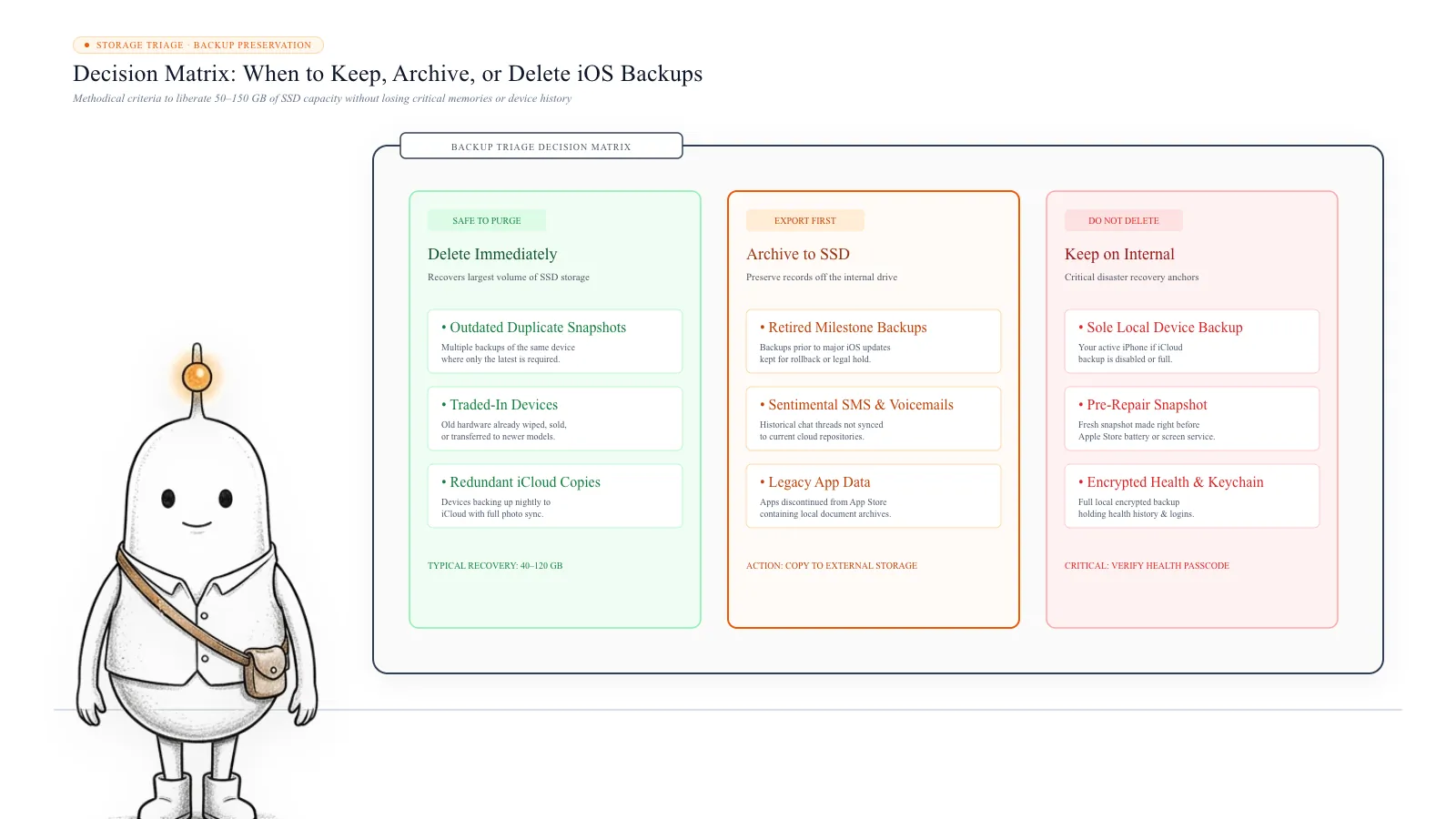
Deleting the backup could remove your only recovery option for that information. Before deleting an old backup, ask yourself: Do I still own or use this device? Was its information successfully transferred to another device? Is the important data synced or backed up elsewhere? Do I need this historical backup as a restore point? Do I know the password for any encrypted backup I intend to keep? If you are unsure, keep the backup until you have verified another copy.
7. How to prevent iPhone backups from consuming your Mac storage again
You do not have to stop backing up your Apple devices. Local backups are useful, especially when you want a copy that does not depend on your iCloud storage plan. Instead, make backup management part of your regular storage maintenance.
Review old backups periodically: Check Finder's Manage Backups screen every few months. Look for devices you no longer use and archived backups you no longer need. Keep a recent backup of devices you still use: Before removing historical backups, make sure the devices you care about have a recent, usable backup. If you rely on encrypted backups, keep the encryption password somewhere secure.
Choose where your backups should live: If your Mac has limited internal storage, consider keeping a separate backup drive or using iCloud for suitable backup needs. An external drive can help preserve files without using the Mac's internal SSD, but make sure the backup is complete and restorable before removing the original. Do not simply move or rename folders inside MobileSync and assume Finder will continue managing them correctly.
Investigate storage before deleting random files: When your Mac reports that System Data or Documents is consuming a large amount of storage, the actual cause may be buried in folders that are not easy to identify. Finding the largest folders first is a better approach than removing files at random.
Find large iPhone and iPad backups with Diskfern: The MobileSync folder is a good example of how important storage can remain hidden inside your Mac's Library directory. You may see a large folder in a disk usage report without immediately knowing whether it contains device backups, application data, or something else. Diskfern helps you explore storage using Treemap, Sunburst, and List views. You can inspect large folders, explore their contents, and identify storage-consuming areas without relying only on broad macOS storage categories. When investigating MobileSync, use Diskfern to understand how much space the folder occupies and where the large directories are located. For deleting or archiving individual iPhone and iPad backups, continue to use Finder's Manage Backups feature. It provides the device and backup information needed to make a safer decision.
What’s safe to delete?
Backups of Replaced/Sold Devices
Safe after verifyFinder > Manage Backups
Removes historical backup for devices you no longer own.
How: Verify that all photos, messages, and files transferred to your new phone before deleting.
Archived Milestone Backups
Review firstFinder > Manage Backups
Removes locked point-in-time snapshot created before major iOS updates.
How: Check backup date; delete only if current device runs stably and recent backups exist.
Active Primary Device Backup
Keep recent~/Library/Application Support/MobileSync/Backup/
Destroys your primary offline restore image and encrypted Health/Keychain data.
How: Keep at least one recent backup for every active device you own.
MobileSync Folder Root Structure
Don't touch~/Library/Application Support/MobileSync/
Moving or renaming raw hash folders breaks Finder's device sync indexing.
How: Always delete or archive device backups through Finder's Manage Backups interface.
Do not delete raw hash folders manually from MobileSync
Folders inside MobileSync have long hexadecimal names that do not identify the device. Deleting them directly in Terminal or Finder risks removing the only backup of your current device. Always use Finder's Manage Backups to verify the device name and date first.
Encrypted backups hold exclusive Health & Keychain data
If your backup is encrypted, it contains sensitive passwords, Wi-Fi credentials, and Health history not included in standard iCloud backups. Ensure you know the password before deleting older copies.
Do it manually
No app needed. These steps use Finder, Terminal, and each tool’s own settings.
- 1
Navigate to the hidden MobileSync directory in Finder to check raw backup presence.
Use Finder > Go > Go to Folder and enter ~/Library/Application Support/MobileSync/Backup/
- 2
Check the total size of the MobileSync folder using Terminal without modifying files.
$du -sh "$HOME/Library/Application Support/MobileSync/Backup"Gives an instant summary of how many gigabytes device backups occupy.
- 3
Connect your iPhone or iPad with a USB cable and open Finder.
Select the device from the sidebar and open the General tab.
- 4
Click 'Manage Backups' to see human-readable device names and exact dates.
Allows you to safely distinguish between active phones and old replaced devices.
- 5
Right-click unneeded device backups and select Delete.
Permanently frees space on your Mac while leaving active device backups intact.
The Diskfern way
How Diskfern helps
Diskfern scans your Mac drive to reveal hidden space-consumers in the Library folder, mapping the exact size of MobileSync backups across interactive Treemap and Sunburst views.
- Open Diskfern and scan your Home directory or Macintosh HD.
- Explore the Treemap to locate the Application Support > MobileSync directory immediately.
- Inspect individual backup subfolder sizes with Quick Look and the Inspector.
- Open Finder's Manage Backups to safely archive or delete verified obsolete backups.
Finding and reviewing is free. Moving items to the Trash from Diskfern is part of Pro.
Download Free for macOSQuestions
Where are iPhone backups stored on a Mac?
Local iPhone and iPad backups are stored in: ~/Library/Application Support/MobileSync/Backup/. You can open this location through Finder using Go > Go to Folder.
Why is MobileSync taking up so much storage?
The folder contains local device backups. Backups from multiple iPhones and iPads, along with archived versions, can accumulate over time and consume substantial storage.
Does deleting an iPhone backup delete anything from the iPhone?
Deleting a local backup from your Mac does not erase the data currently stored on your iPhone. It removes that particular restore point from the Mac. However, you may lose the ability to recover information that existed only in that backup.
Can I delete the entire MobileSync folder?
Do not delete the entire folder blindly. It may contain backups of devices you still use or information you have not saved elsewhere. Identify each backup through Finder's Manage Backups screen and remove only the ones you no longer need.
Why do MobileSync and iOS Files show different storage numbers?
Storage categories and individual folder measurements do not always present information in the same way. A Reddit user reported seeing 186 GB in MobileSync and a separate 99 GB figure under iOS Files, but the discussion did not establish the exact cause. Treat such figures as something to investigate on your own Mac rather than assuming they represent the same backup or that one number is necessarily incorrect.
Are old iPhone backups automatically deleted?
You should not assume that replacing or removing an iPhone automatically removes its local Mac backup. Review Finder's Manage Backups list and manage old copies yourself.
Is it safe to delete an archived iPhone backup?
It is safe only when you no longer need that historical restore point and have verified that the important data exists somewhere else. An archived backup is preserved intentionally, so do not remove it simply because it is old.

Written by
Diskfern Team
We explain Mac storage using product behavior and the sources listed below. Review your app settings and backups before removing data.
Sources
- Apple Support: Backup methods for iPhone, iPad, and iPod touch · checked November 8, 2026
- Apple Support: Locate backups of your iPhone, iPad, and iPod touch · checked November 8, 2026
- Reddit: 186 GB inside MobileSync folder on MacBook Pro · checked November 8, 2026
Keep reading
Learn more about managing large media, cloud sync, and external drives on Mac.
iPhone Videos Taking Up Mac Storage?
Find why iPhone videos take up Mac storage, how Photos, AirDrop, iCloud and editing apps store copies, and how to check ProRes files before archiving or deleting anything.
iCloud Not Freeing Up Mac Storage?
More iCloud storage does not increase your Mac's SSD. Learn what Optimize Mac Storage does, how synced deletions work, and how to check local Photos and iCloud Drive files safely.
Is This Mac File Safe to Delete?
Found a huge file or folder on your Mac? Check who owns it, whether it can be rebuilt, and what deleting it affects before you reclaim space.
Disk Space Analyzer Features
Map readable folders, then move from the big picture to individual files without losing your place.

Get your space back. Start with a free scan.
Explore the files and folders Diskfern can read. Your files stay on your Mac, and nothing is removed until you say so.
macOS 14 Sonoma or later · Apple silicon and Intel