Files & photos
Your iPhone Shoots 4K. Your Mac Keeps Every Take, Export and Mistake.
The headline is shorthand: an iPhone does not automatically put every take, edit, or export on your Mac. When you transfer or import footage, copies may remain in Photos, Downloads, an editing library, and export folders. ProRes can add a lot of data, and some transfer methods may change the format. Find each copy before deciding what to keep.
 Diskfern Team10 min readUpdated
Short answer
An iPhone video may be stored in Photos, a transfer folder, an editing library, and export folders. ProRes can be much larger than HEVC. Check sync and transfer settings before calling two files duplicates; compare contents, keep a verified copy of originals, and manage libraries in Photos or the editor.
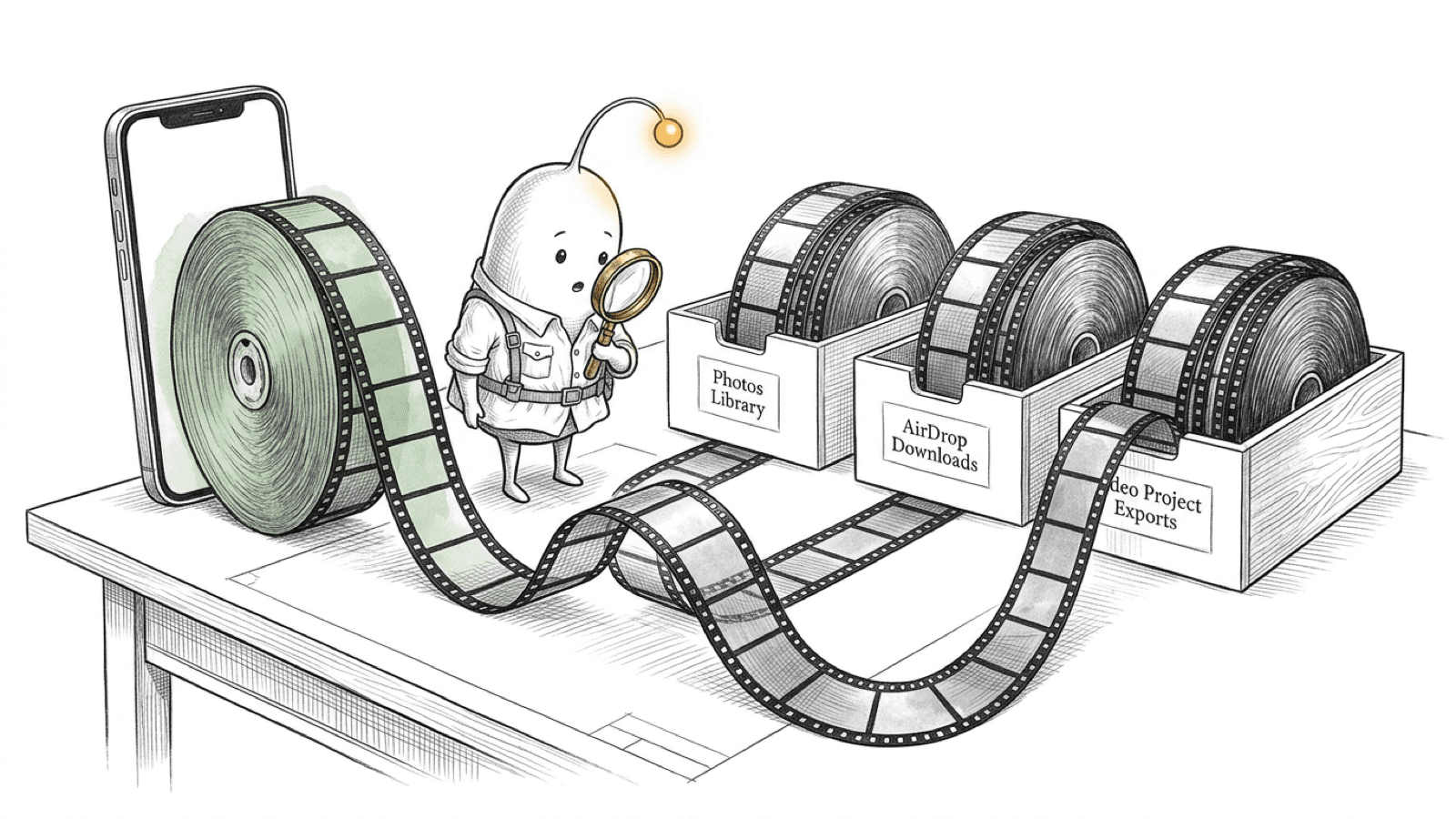
Why can one iPhone video appear in several places on a Mac?
Different workflows can put media in different locations. A USB import to Photos, an AirDrop save, an Image Capture download, and an editor’s library or export folder may each leave a file or reference on the Mac.
| Route | Where to check | Important detail |
|---|---|---|
| Photos over USB | The selected Photos library, usually in Pictures | Photos copies imports into the library when “Copy items to the Photos library” is enabled. If disabled, Photos refers to the source location instead. |
| iCloud Photos | Photos on each device and the iCloud account | The library syncs. Optimize Storage can keep smaller local versions while originals remain in iCloud; Download Originals keeps full-size files on the Mac too. |
| AirDrop | The destination chosen when accepting the transfer, often Downloads | For ProRes, Apple says to turn on All Photos Data to transfer the original to a supported device. Other sharing paths may provide HEVC or H.264 instead. |
| Image Capture | The folder selected in its Import To menu | Image Capture can download files directly to a chosen folder. Check its action settings before importing; it has an option to delete items from the device after import. |
| Editing app | The editor’s library, linked media folder, cache, and export destination | Storage behavior depends on the app and its settings. This guide uses Final Cut Pro only as a linked example; see the separate library guide for its managed and external media. |
Photos can also keep a referenced file outside its library. If you move or rename that file in Finder, Photos may no longer locate it. When iCloud Photos is enabled, referenced files outside the library are not uploaded as part of the iCloud Photos library and need their own backup.
Read more: Apple Support: transfer photos and videos from iPhone to Mac · Apple Support: change where Photos stores imports · Apple Support: use iCloud Photos on Mac · Apple Support: import items with Image Capture · Apple Support: share ProRes video with AirDrop
Why are ProRes videos taking so much space?
Apple says iPhone ProRes files can be up to 30 times larger than HEVC files. Actual size depends on codec, resolution, frame rate, recording duration, and camera app settings.
| Codec in Final Cut Camera | Apple’s stated estimate per minute |
|---|---|
| HEVC | More than 175 MB |
| ProRes 422 LT | More than 3.1 GB |
| ProRes 422 | More than 4.4 GB |
| ProRes 422 HQ | More than 6.6 GB |
| Full-sensor ProRes RAW | More than 10 GB |
Those figures come from Apple’s Final Cut Camera guide and should not be read as guaranteed Camera-app file sizes. Apple’s iPhone ProRes guidance also says recording requires at least 10 percent of the device’s storage to be free. Supported external recording has additional requirements, including exFAT formatting, an unencrypted drive, and minimum write speeds tied to resolution and frame rate; check Apple’s current table for your iPhone and recording mode.
Read more: Apple Support: Apple ProRes on iPhone · Apple Support: video formats in Final Cut Camera
How can I tell whether two videos are duplicates?
Names, dates, thumbnails, and file sizes help find candidates, but they do not prove two files contain the same bytes. A transcoded or edited copy of the same scene is a different file from the camera original.
- Compare the path and file details in Finder. Note the format, dimensions, duration, and size where available.
- For two files you have already identified, compare their SHA-256 hashes with
shasum -a 256 "/path/to/first.mov" "/path/to/second.mov". Matching hashes are strong evidence the files are byte-for-byte identical; different hashes mean their contents differ, even if they show the same scene. - For a direct byte comparison,
cmp -s "/path/to/first.mov" "/path/to/second.mov"returns status 0 when the files match, 1 when they differ, and another nonzero status can indicate a read error. Replace both example paths with actual files. - Open and play the file you plan to keep, including a seek near the end. A hash match proves the copies match each other, not that either one is the original or complete.
Hashing and comparison read the files and can take time with large videos, but they do not change them. Do not compare or remove files by opening a Photos library package and editing its internal folders; use Photos to export originals or manage library items.
Read more: Apple Support: export unmodified originals from Photos on Mac · Apple Support: change where Photos stores imports · macOS 26.7 man page: shasum · macOS 26.7 man page: cmp
How do I find large iPhone videos on Mac without deleting them?
First check Photos’ Library Properties or Finder Get Info for the library itself. Then list large standalone video files in common folders. These read-only commands report paths and sizes; they do not identify duplicates or determine what is safe to remove.
Measure Photos libraries stored in your Pictures folder:
find "$HOME/Pictures" -type d -name '*.photoslibrary' -prune -exec du -sh {} + 2>/dev/nullFind large standalone video files in common folders. This avoids searching inside the Photos library package; add another folder only if you know it contains standalone files you want to inspect:
find "$HOME/Downloads" "$HOME/Movies" "$HOME/Desktop" "$HOME/Documents" -type f \( -iname '*.mov' -o -iname '*.mp4' -o -iname '*.m4v' \) -size +500M -print 2>/dev/nullCheck free space on the filesystem containing your home folder:
df -h "$HOME"A missing Photos library, different storage location, or macOS privacy permission can affect output. Do not add sudo; do not delete files based on the result alone.
Read more: Apple Support: move a Photos library to an external drive · macOS 26.7 man page: du · macOS 26.7 man page: df · macOS 26.7 man page: find · macOS 26.7 man page: sort
How should I archive iPhone originals before freeing Mac space?
Choose the method that fits where the original currently lives. Export unmodified originals from Photos when you need original files, or copy a whole Photos library when you need the library’s organization and edits. A transferred or exported copy should be checked before you remove another copy.
- From Photos on Mac: select the videos and choose File > Export > Export Unmodified Original. Choose a destination folder or external drive. Edits are not applied to the unmodified original export.
- From iPhone: select videos in Photos, tap Share, choose Export Unmodified Original, then save to a connected storage device. Apple says deleting from Photos and then clearing Recently Deleted can free device storage; do that only after you have checked the export.
- If you need to move a whole Photos library, follow the steps in our external-drive guide. Apple recommends APFS or Mac OS Extended (Journaled), excludes Time Machine backup drives, and advises against flash/SD or network/cloud-shared storage. Open the intended library from its new location and verify it before removing the old copy. If the drive is unavailable when Photos opens, Photos may create a new empty library in Pictures; check the library selection before assuming the original disappeared.
- If iCloud Photos is on, understand that changes and deletions sync across devices. iCloud is a sync service for this library, not a separate copy you can assume will remain unchanged after deleting an item.
- Keep another backup of irreplaceable footage on a separate device or location. A library copy and exported source files should not be the only copy of important recordings.
There is a format distinction: Apple requires exFAT for an external volume used to record iPhone ProRes directly, while Photos libraries require APFS or Mac OS Extended (Journaled). If you need both workflows, check the format of each volume before use. Formatting erases the selected volume.
Read more: Apple Support: export unmodified originals from Photos on Mac · Apple Support: export photos and videos from iPhone to external storage · Apple Support: move a Photos library to an external drive · Apple Support: use iCloud Photos on Mac · Apple Support: Apple ProRes on iPhone
Where Diskfern fits when finding video copies
A storage map can show which folders and standalone files occupy space. It cannot determine which file is the camera original, compare the contents of video files, or confirm that a Photos or editing-library archive is complete.
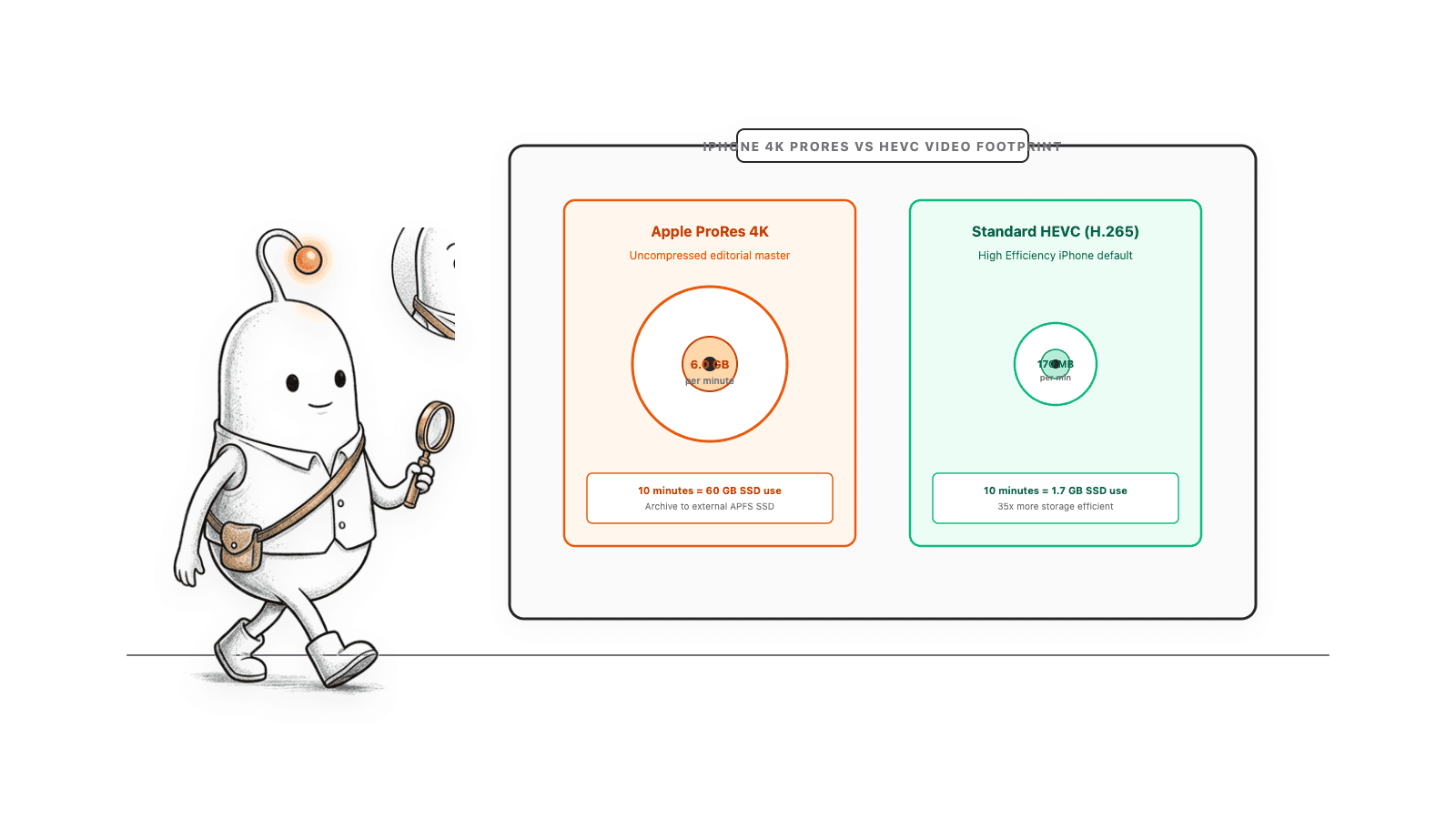
Use Diskfern to locate large paths, then compare candidate files and manage Photos libraries with their own tools. See Find large files on Mac, External drive storage on Mac, and Video project storage with Final Cut Pro.
Read more: Diskfern: find large files on Mac · Diskfern: check external drive storage on Mac · Diskfern: video project storage and Final Cut Pro libraries
Do not remove the only verified original
A matching filename, iCloud sync, or a hash comparison between two files does not prove either file is a complete independent backup. Open the archived copy and keep another copy of irreplaceable footage before cleanup.
A verify-first video cleanup sequence
Locate files, determine how each copy was created, verify an archive, and only then decide what to remove.
- 1
Check Photos, iCloud Photos, Downloads, and editing-app storage locations.
- 2
Measure the Photos library and list large standalone video files without entering library packages.
- 3
Compare candidates by format, metadata, and file contents; names and sizes alone are not enough.
- 4
Export unmodified originals or copy the Photos library using Apple’s documented workflow.
- 5
Open and play files from the archive location, then keep another backup before removing anything.
The Diskfern way
How Diskfern helps
Find large paths for review before touching video files
- Scan folders you want to inspect for large files and directories.
- Use the map and list to locate large paths, then compare likely copies with file tools.
- Use Photos or the relevant editing app to manage library contents and verify archives.
Finding and reviewing is free. Moving items to the Trash from Diskfern is part of Pro.
Explore Developer StorageQuestions
Why are iPhone videos taking up so much Mac storage?
A recording may exist in Photos, a standalone transfer folder, an editing library, and an export folder. ProRes can be much larger than HEVC. Check import and sync settings before assuming that similarly named files are duplicates.
How much larger is ProRes than HEVC on iPhone?
Apple says ProRes files can be up to 30 times larger than HEVC. Apple’s Final Cut Camera guide gives per-minute estimates for that app and specific 4K30 settings; your actual size depends on recording settings and duration.
Does Photos import make another copy of my iPhone video?
Photos copies imports into its library when “Copy items to the Photos library” is enabled. If that setting is off, Photos references the file at its current location instead. Check Photos > Settings > General before moving or deleting source files.
Does AirDrop keep the original ProRes file?
Apple says to turn on All Photos Data in the share options to transfer the original ProRes video to a supported device. For other devices or sharing paths, Apple may provide a compatible HEVC or H.264 version instead.
Does deleting a video from one device remove it from iCloud Photos?
When iCloud Photos is enabled, deletions sync across devices using that library. Check that you have an independent copy before deleting, and do not treat another synced device as an untouched backup.
Can I compare two video files without deleting them?
Yes. `shasum -a 256` can compare their SHA-256 hashes, or `cmp -s` can compare two files byte by byte. These checks tell whether the file contents match; they do not tell you which copy is original or complete.

Written by
Diskfern Team
We explain Mac storage using product behavior and the sources listed below. Review your app settings and backups before removing data.
Sources
- Apple Support: Apple ProRes on iPhone · checked November 5, 2026
- Apple Support: video formats in Final Cut Camera · checked November 5, 2026
- Apple Support: transfer photos and videos from iPhone to Mac · checked November 5, 2026
- Apple Support: import items with Image Capture · checked November 5, 2026
- Apple Support: share ProRes video with AirDrop · checked November 5, 2026
- Apple Support: change where Photos stores imports · checked November 5, 2026
- Apple Support: use iCloud Photos on Mac · checked November 5, 2026
- Apple Support: export unmodified originals from Photos on Mac · checked November 5, 2026
- Apple Support: move a Photos library to an external drive · checked November 5, 2026
- Apple Support: use HEIF or HEVC media on Apple devices · checked November 5, 2026
- Apple Support: export photos and videos from iPhone to external storage · checked November 5, 2026
- macOS 26.7 man page: du · checked November 5, 2026
- macOS 26.7 man page: df · checked November 5, 2026
- macOS 26.7 man page: find · checked November 5, 2026
- macOS 26.7 man page: shasum · checked November 5, 2026
- macOS 26.7 man page: cmp · checked November 5, 2026
- macOS 26.7 man page: sort · checked November 5, 2026
- Diskfern: find large files on Mac · checked November 5, 2026
- Diskfern: check external drive storage on Mac · checked November 5, 2026
- Diskfern: video project storage and Final Cut Pro libraries · checked November 5, 2026
Keep reading
Learn more about managing large media, cloud sync, and external drives on Mac.
Video files and Final Cut Pro storage
Learn how Final Cut Pro libraries, source footage, proxy and optimized media, render files, and exports use Mac storage, and how to archive them without losing project assets.
External drive storage on Mac
See how much space is used on an external drive in Finder, Get Info or Disk Utility, then find the files filling it up. Works for USB and SSD drives.
Find large files on Mac
Finder's search can find large files, but it's slow and easy to misuse. Here's how to find them properly, plus faster methods for big drives.
Developer Storage
Bring Xcode, Android, Docker, package caches, and local AI models into one readable map.

Get your space back. Start with a free scan.
Explore the files and folders Diskfern can read. Your files stay on your Mac, and nothing is removed until you say so.
macOS 14 Sonoma or later · Apple silicon and Intel