Files & photos
Your YouTube Video Is Published. Why Is Its Entire Production Still on Your Mac?
If YouTube video files are taking up Mac storage after an upload, the footage, Final Cut Pro library, project timeline, generated media, and exports may still be on disk. Learn how those pieces differ before deciding what to keep, regenerate, or move.
 Diskfern Team10 min readUpdated
Short answer
A finished upload is not a complete archive of a video project. Keep the Final Cut Pro library and source footage you need to reopen or re-export the edit. Apple says render, optimized, and proxy files can be regenerated from original media, but library backups contain the database only, not media. Before deleting or moving anything, confirm whether media is inside the library or stored elsewhere, then open and verify an archive copy.
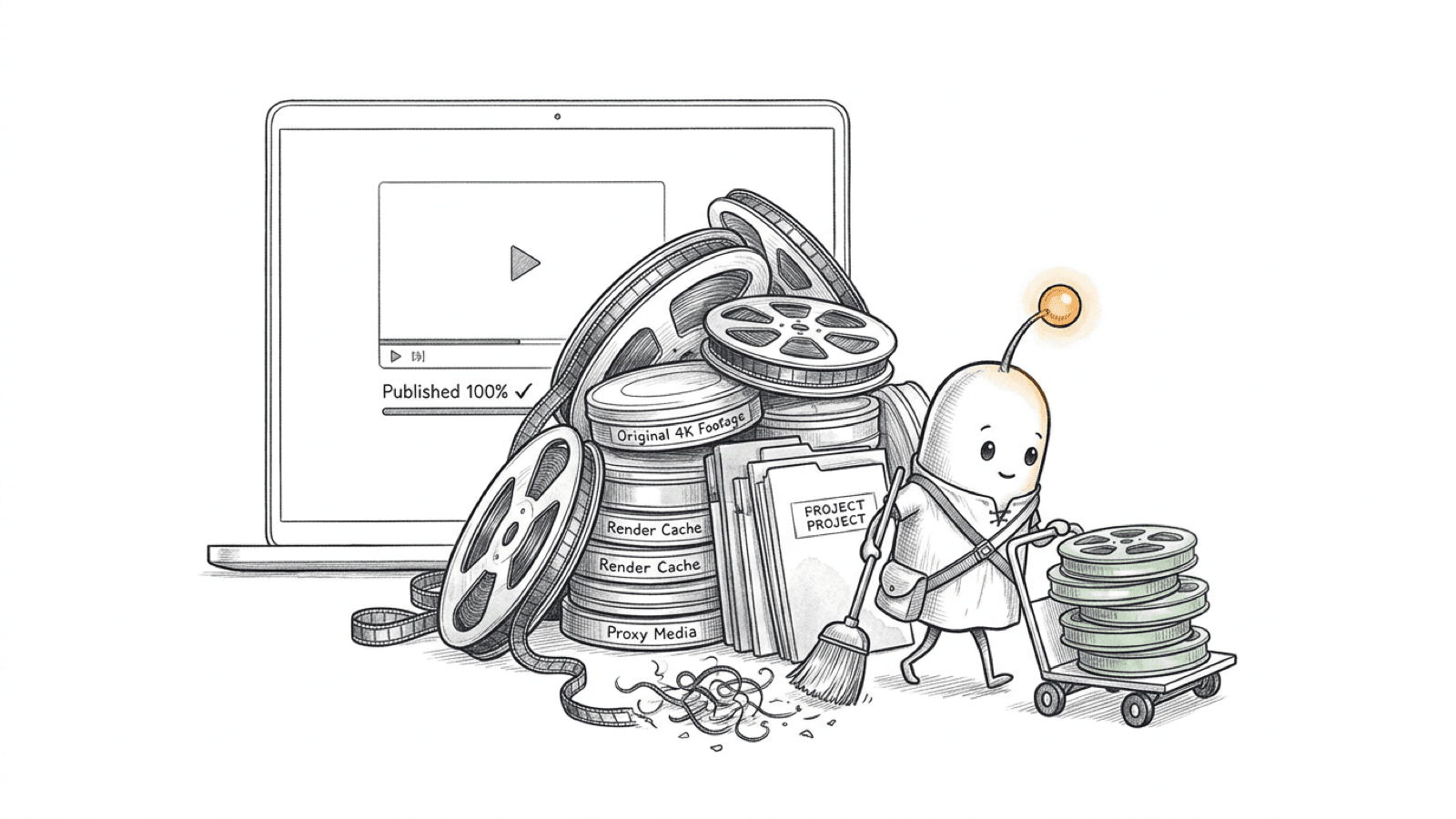
Why does Mac storage stay full after a video is published?
The exported video is only one output of an edit. The camera originals, project database, Final Cut Pro library, generated media, audio, graphics, and alternate exports may still be on the Mac or an attached drive.
A published video lets people watch the finished piece; it does not, by itself, preserve the editable timeline, source clips, library database, or every asset used in the edit. Treat a platform upload as distribution, not as a verified archive of the production. Keep the source files and a tested project archive if you may need to revise or re-export it.
Read more: Apple Support: copy or move a Final Cut Pro library · Apple Support: back up projects and libraries in Final Cut Pro
What storage does a Final Cut Pro library use?
A Final Cut Pro library is a package that organizes projects, events, clips, and the library database. Its media and supporting files can be inside the package or in separate locations, depending on import and storage settings.
In Library Properties, Final Cut Pro shows storage locations for media, Motion content, cache, and library backups. Apple’s current guide says media and cache are stored in the library by default; Motion content and library database backups are stored in folders under Movies by default. You can change those locations, so do not assume one library package contains every file used by a project.
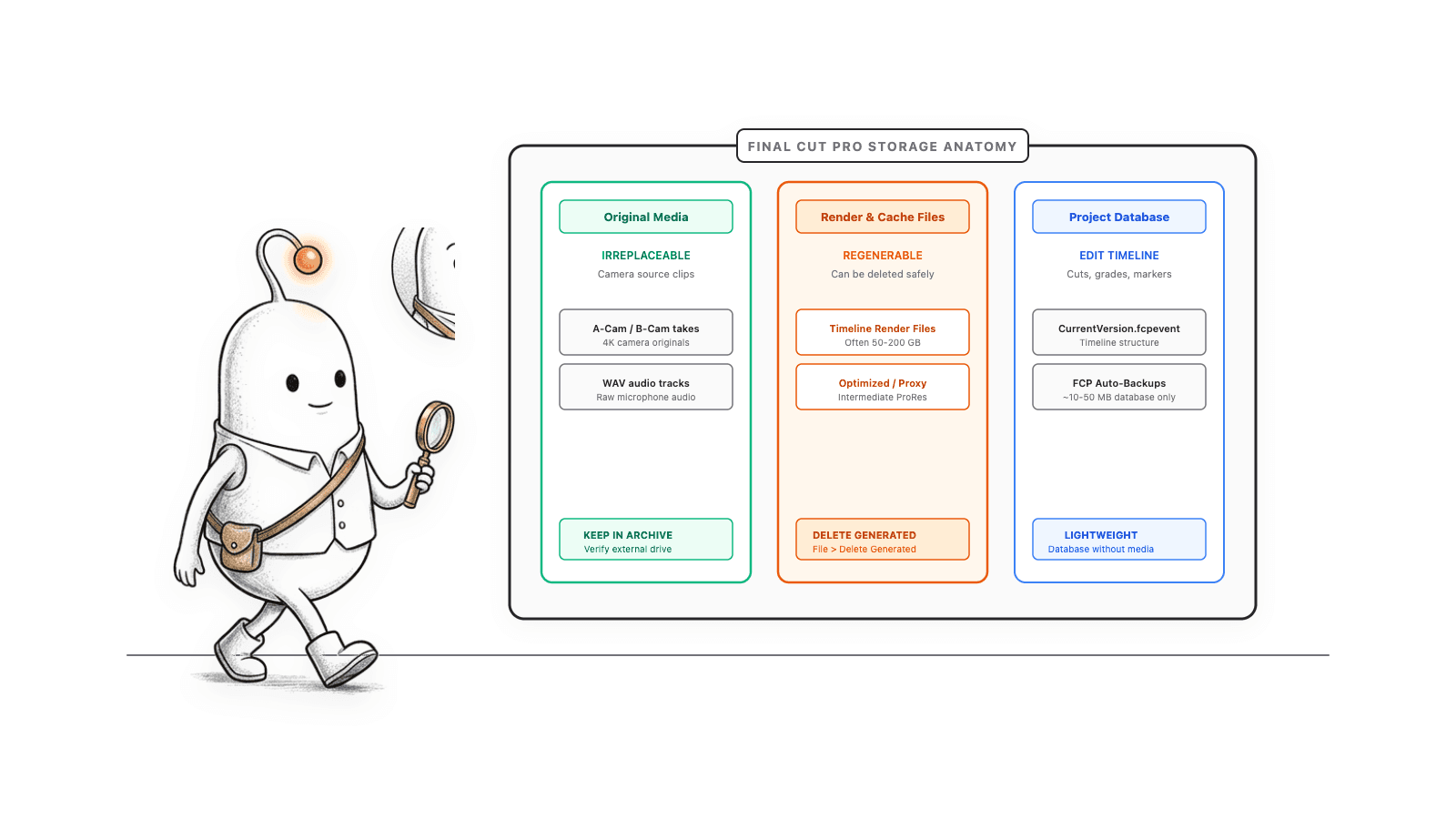
- Original media: the source clips imported from a camera, phone, or other location. Imported media may be managed inside the library or left at its existing external location.
- Optimized and proxy media: transcoded versions created to help editing or playback. They are generated separately from the original media.
- Cache: render files, analysis files, thumbnails, and audio waveforms. The cache location can be inside or outside the library.
- Library backups: automatic backups of the library database. Apple says these backups do not include media files.
- Motion content and other assets: custom titles, effects, generators, fonts, or third-party plug-ins may have separate storage locations and may need separate handling when moving a project.
Read more: Apple Support: what Final Cut Pro libraries contain · Apple Support: set storage locations in Final Cut Pro · Apple Support: back up projects and libraries in Final Cut Pro · Apple Support: consolidate projects and libraries in Final Cut Pro
Which Final Cut Pro files can be regenerated?
Generated files are different from source footage and project structure. Apple documents deletion and regeneration for render, optimized, and proxy media, provided the original media is still available.
| File or asset | Can Final Cut Pro regenerate it? | Careful next step |
|---|---|---|
| Original camera footage | No. It is source material. | Keep a verified copy before removing any original. |
| Library database and project edits | Not from render files. Library backups can restore the database, but not media. | Keep the library and a separate database backup if you need the edit. |
| Optimized media | Yes, from available original media. | It may need to be generated again and can use time and disk space. |
| Proxy media | Yes, from available original media. | It may need to be generated again. Switch to original or optimized media before sharing/exporting for full quality. |
| Render files | Yes, from available project assets. | Final Cut Pro can render again; expect rendering to take time. |
| Analysis files, thumbnails, and waveforms | Apple lists these under cache storage; behavior depends on the item and project. | Use Final Cut Pro’s own storage controls rather than deleting package contents manually. |
| Custom fonts, Motion content, third-party plug-ins | Not necessarily included in a library copy. | Track what the project uses and retain installers or licenses you are entitled to use. |
| Final exported master | It may be possible to export again if the library and all required assets remain available. | Keep the master you intend to publish or deliver. |
Final Cut Pro’s Delete Generated Files commands can delete render, optimized, and proxy files. Apple says those commands do not delete original media. They can affect generated files stored outside the library too, so review the selected library, event, or clip and the specific options in the confirmation dialog before proceeding.
Read more: Apple Support: create optimized and proxy files in Final Cut Pro · Apple Support: manage render files in Final Cut Pro
How do you measure YouTube video files taking up Mac storage?
Start with Final Cut Pro’s Library Properties inspector for a breakdown of media and cache associated with a selected library. Then use Finder or read-only Terminal commands to locate large libraries and loose files around it.
- In Final Cut Pro, select the library and open File > Library Properties. Review the storage locations and the reported original, optimized, and proxy media totals.
- In Finder, select a library and choose File > Get Info to see its package size. This total alone does not explain which media is inside it or whether linked media exists elsewhere.
- Use the read-only commands below to find library packages and large files in common folders. Change the folders to match your own storage locations.
find "$HOME/Movies" -type d -name '*.fcpbundle' -prune -print 2>/dev/nullMeasure libraries directly inside Movies; the output is in kilobytes and sorted smallest to largest:
du -sk "$HOME/Movies"/*.fcpbundle 2>/dev/null | sort -nFind individual files larger than 1 GB in common personal folders:
find "$HOME/Movies" "$HOME/Desktop" "$HOME/Downloads" -type f -size +1G -print 2>/dev/nullList the largest folders directly inside Movies (sizes are in kilobytes):
du -k -d 1 "$HOME/Movies" 2>/dev/null | sort -n | tail -15These commands list paths and sizes; they do not delete files. A missing folder, privacy permission, or a library stored elsewhere can change the results. Do not add sudo, and do not treat a large or old path as safe to remove.
Read more: Apple Support: set storage locations in Final Cut Pro · macOS 26.7 man page: du · macOS 26.7 man page: find · macOS 26.7 man page: sort
How to reduce space without losing the edit
Work inside Final Cut Pro and preserve the source media. Generated files may be recreated, while original footage, project edits, external media, and third-party dependencies need a deliberate archive plan.
- Confirm the project is finished and keep the exported master you want to retain.
- Select the library and review its storage locations in Library Properties. Identify whether media is managed inside the library or linked from external folders.
- If you need space, consider deleting generated render, optimized, or proxy files through File > Delete Generated Library Files. Read the dialog carefully; generated media may need to be created again later, and original footage must remain available.
- For an archive, choose File > Copy to Library > New Library. Select the media types you want included. To make a self-contained copy, include media stored in external locations and consolidate media and any Motion content the project needs.
- Custom Motion content and third-party plug-ins may need separate handling. Apple notes that third-party plug-ins are not managed inside the library; keep track of the required items and compatible installers.
- Open the copied library from its destination. Check for missing-media alerts, play representative clips, and confirm the project opens before considering removal of the working copy or any loose source media.
- Use an APFS-formatted external drive for a Final Cut Pro library. Apple says a library cannot be stored on a drive used for Time Machine backups. Keep another backup on a separate device or location.
A library backup is not a footage backup: Apple’s automatic backups contain the library database only. A copied library is not verified until you open it and confirm the media and dependencies needed by the project are available.
Read more: Apple Support: copy or move a Final Cut Pro library · Apple Support: move a Final Cut Pro library · Apple Support: consolidate projects and libraries in Final Cut Pro · Apple Support: format storage devices for Final Cut Pro · Apple Support: back up projects and libraries in Final Cut Pro
Where a disk-space analyzer fits
Final Cut Pro’s Library Properties is the place to inspect media associated with a selected library. A disk-space analyzer can help locate other large folders or loose exports on the Mac, but it cannot tell which copy is original, whether an archive is complete, or whether a file is safe to delete.
Diskfern can help locate large paths to review. Use Final Cut Pro’s own tools to inspect a library, and verify project archives in Final Cut Pro before removing anything. See Find large files on Mac and Developer Storage.
Read more: Diskfern: find large files on Mac · Diskfern: Developer Storage
Do not delete source footage based on size alone
A Final Cut Pro library backup does not include media. Keep a verified copy of camera originals and open the archive library before removing any source files.
A safe video-project storage workflow
Measure in Final Cut Pro, archive source media and project dependencies, verify the copy, then review generated files.
- 1
Record the library’s media and cache locations in Library Properties.
- 2
Identify which source media is inside the library and which is linked externally.
- 3
Copy and consolidate a new library with the media and Motion content the project needs.
- 4
Open the archive copy and check for missing clips before deleting or moving originals.
- 5
Only then review generated render, optimized, or proxy files through Final Cut Pro’s controls.
The Diskfern way
How Diskfern helps
Locate large video folders and exports for review
- Scan only locations you want to inspect for large files and folders.
- Use the map and list to find paths that may account for storage use.
- Inspect a Final Cut Pro library in Final Cut Pro and verify an archive before removing project media.
Finding and reviewing is free. Moving items to the Trash from Diskfern is part of Pro.
Explore Developer StorageQuestions
Why is my Mac still full after uploading a YouTube video?
The upload does not remove your local camera originals, Final Cut Pro library, generated media, or export files. Check the library’s storage locations and measure large folders before deciding what to archive or remove.
Can I delete camera footage after publishing the video?
Only consider removing source footage after you have a verified copy you intend to keep and have confirmed the project archive can access its media. A published upload is not a copy of the Final Cut Pro library or all of its source assets.
Can Final Cut Pro regenerate proxy and optimized media?
Apple says Final Cut Pro can regenerate proxy and optimized files from original media. The original media must still be available, and generating those files again takes time and storage.
Do Final Cut Pro library backups include video footage?
No. Apple says automatic library backups include the library database, not the media files. Back up source media separately and verify the archive copy.
Can I store a Final Cut Pro library on any external drive?
Apple recommends APFS for external storage used with Final Cut Pro and says a library cannot be stored on a drive used for Time Machine backups. Check the drive’s format and keep a separate backup before moving a library.

Written by
Diskfern Team
We explain Mac storage using product behavior and the sources listed below. Review your app settings and backups before removing data.
Sources
- Apple Support: set storage locations in Final Cut Pro · checked November 5, 2026
- Apple Support: what Final Cut Pro libraries contain · checked November 5, 2026
- Apple Support: create optimized and proxy files in Final Cut Pro · checked November 5, 2026
- Apple Support: manage render files in Final Cut Pro · checked November 5, 2026
- Apple Support: copy or move a Final Cut Pro library · checked November 5, 2026
- Apple Support: move a Final Cut Pro library · checked November 5, 2026
- Apple Support: back up projects and libraries in Final Cut Pro · checked November 5, 2026
- Apple Support: consolidate projects and libraries in Final Cut Pro · checked November 5, 2026
- Apple Support: format storage devices for Final Cut Pro · checked November 5, 2026
- macOS 26.7 man page: du · checked November 5, 2026
- macOS 26.7 man page: find · checked November 5, 2026
- macOS 26.7 man page: sort · checked November 5, 2026
- Diskfern: find large files on Mac · checked November 5, 2026
- Diskfern: Developer Storage · checked November 5, 2026
Keep reading
Learn more about managing large media, cloud sync, and external drives on Mac.
Find large files on Mac
Finder's search can find large files, but it's slow and easy to misuse. Here's how to find them properly, plus faster methods for big drives.
Mac storage still full after deleting files?
Deleted files but Mac storage is still full? Understand the Trash, APFS snapshots, purgeable space and shared volumes before deleting anything else.
Developer Storage
Bring Xcode, Android, Docker, package caches, and local AI models into one readable map.

Get your space back. Start with a free scan.
Explore the files and folders Diskfern can read. Your files stay on your Mac, and nothing is removed until you say so.
macOS 14 Sonoma or later · Apple silicon and Intel