Files & photos
How to Check External Hard Drive Storage on Mac
Learn how to check the available storage and format of an external drive. Know which Disk Utility row refers to the physical device. Make personal copies only if you have a verification/backup strategy.
 Diskfern Team10 min readUpdated
Short answer
To check an external drive's storage on a Mac, select the drive in Finder and press Command-I (Get Info) to see its capacity, used space and format. You can also open Disk Utility to see the physical disk, its APFS container, and every volume sharing the space. To find what is taking up the most room, use a [disk space analyzer](/features/disk-space-analyzer).
How to Check the Storage of an External Drive in Finder (Mac)
Finder status bar: available storage on the disk that contains the current folder. Get Info: available details of a selected drive (including format). Disk Utility Info: for total capacity of physical device and storage details.
- Attach the drive and wait for it to be visible in a Finder window. (Location.)
- Click the drive itself (not a folder within).
- (If status bar isn't visible) Go View → Show Status Bar. Finder will display the available storage on the bottom of the window.
- Click the File → Get Info (or Command-I shortcut) to inspect the selected drive. Look at General Information to find out the format.
To estimate whether you can fit a copy, compare size of the item with the available storage number. Leave some space for other files and the app requirements. Keep in mind that printed capacity of the drive (on the packaging) is the total size, not available free storage.
Read more: Apple: get file, folder and disk information · Apple: troubleshoot saving files to an external drive · Apple: get detailed information about a disk in Disk Utility
See how much free space is on internal drive for Mac baseline
In order to clean up space on your Mac, you can start by checking your internal drive. Click Apple menu > System Settings > General > Storage. On the chart you can see how much used and available space you have on your Mac. If you want more detailed view of volumes and containers on internal disk, take a look at All Volumes.
Before moving files, make note of available storage space. Then check again, after deleting verified copy on the internal drive, in the same view. Consider this more of a reading than guarantee of a specific amount of space to be freed up.
System Data is a category in internal drive for system managed files and supporting files that don't belong to other categories. This is not separate total for external drive. Don't delete system folders just because you want to move some personal library to other disk.
Read more: Apple: change Storage settings on Mac
How to see external drive storage on Mac using Disk Utility
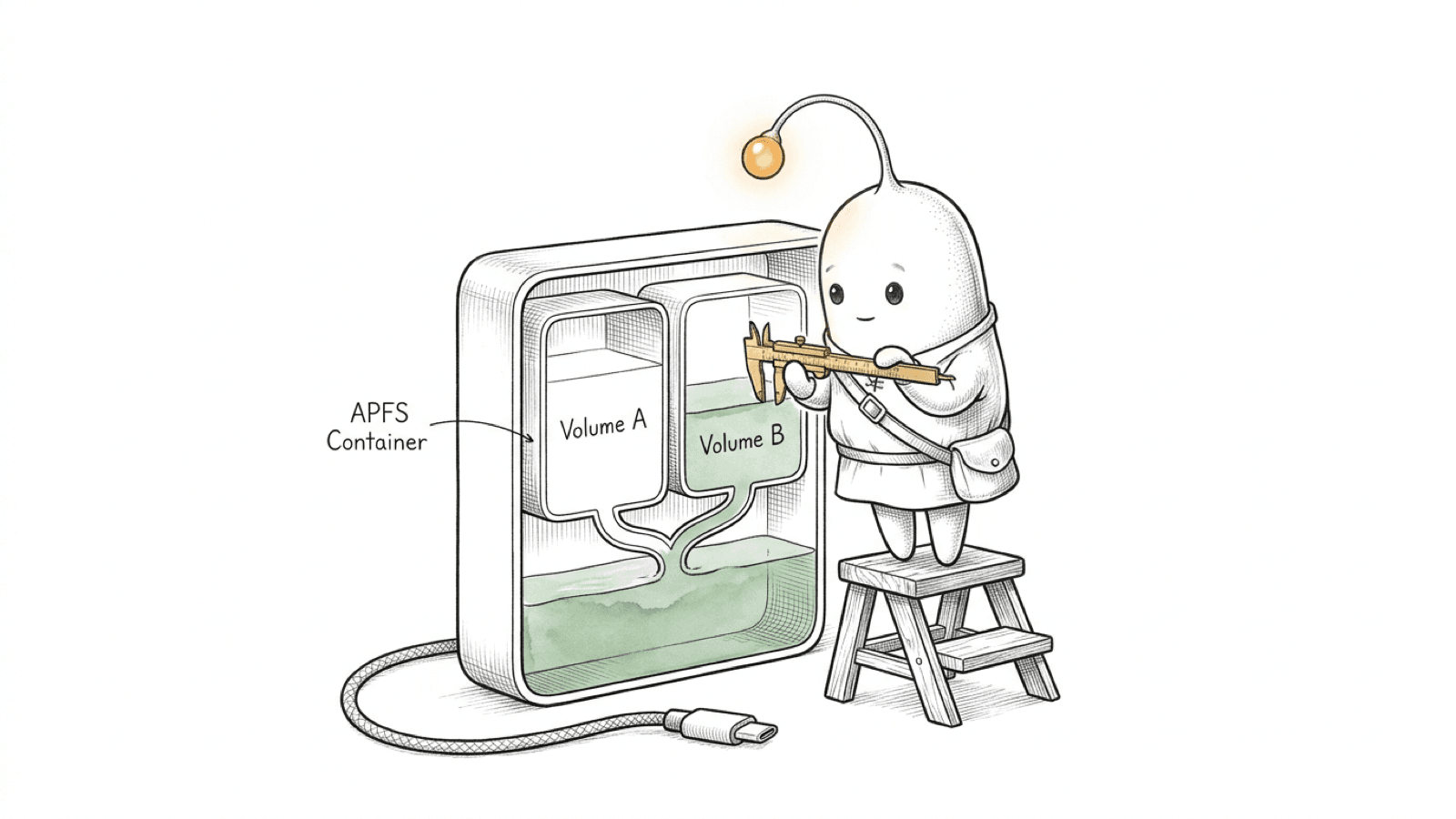
Disk Utility helps you see storage layout. Launch Disk Utility, select View > Show All Devices, look for your drive under External. You may see physical device, and then partition or container and one or more volumes. Click the appropriate row and click Info for more details.
Physical drive
 └── Partition or APFS container
   ├── Volume
└── Volume This is not extra physical drives. It's linked storage layers. Look at total capacity on device. Shared pool on container. Details of mounted file system on volume. Disk Utility Info can help you tell apart capacity, available, purgeable, used, free space.
Read more: Apple: view all devices or only volumes in Disk Utility · Apple: get detailed information about a disk in Disk Utility
Why does external drive storage appear differently on Mac?
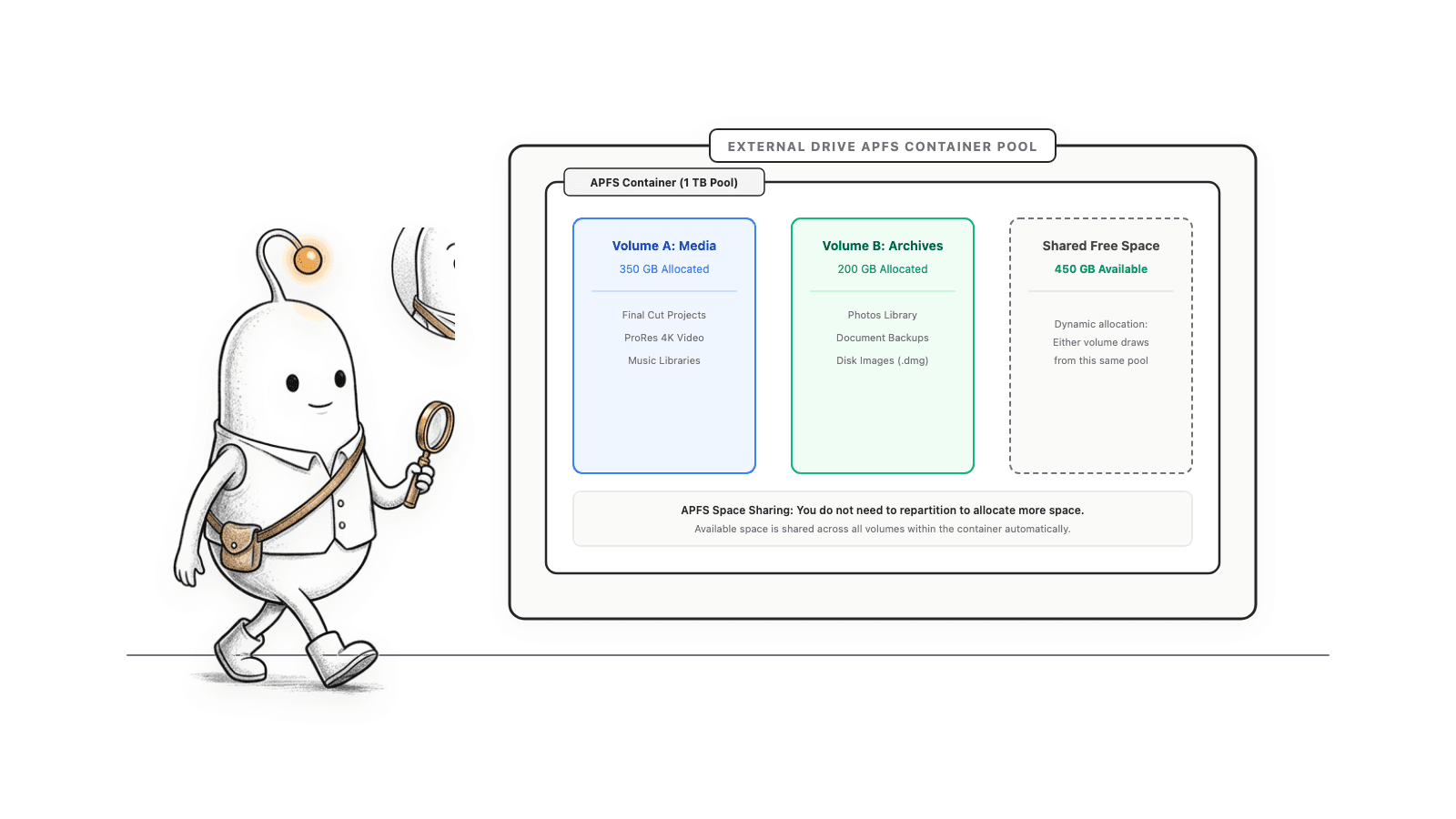
In a container with multiple APFS volumes, the free space is pooled. macOS will use this free space when required. You can optionally set reserve/quota for limiting how much a volume can consume.
Example: a physical drive with Work & Archive volumes doesn't necessarily carve the physical capacity into two equally-sized volumes. (The volumes can pool the container's free space unless restricted. Don't sum the per-row values as if they were individual drives.)
Mind the distinction between capacity (the total size) vs available (the amount that macOS claims as available, which may include purgeable). Compare like for like. The volume and physical device are different concepts.
Read more: Apple: add, delete, or erase APFS volumes · Apple: get detailed information about a disk in Disk Utility
Pick the format for your devices
Drive formats influence which operating systems and applications can access the drive. See Finder Get Info for current format. Don't alter it yet.
| Format | What might be useful to know |
|---|---|
| APFS | Apple's file system for macOS 10.13+, volumes can share space in a container |
| Mac OS Extended (Journaled) | Mac format. Apple supports for Photos libraries on an external device. |
| exFAT | Apple's Windows-friendly format for (Disk Utility formatting) > 32 GB disks |
| MS-DOS (FAT) | Apple's Windows-friendly format for (Disk Utility formatting) <= 32 GB disks |
| NTFS | NTFS drive may be readable by macOS, but Disk Utility can't write to it. |
Consider which computers/apps you're using the drive with. Apple's Photos guidance recommends APFS or Mac OS Extended (Journaled) for a Photos library. Another format may be better for cross-platform file sharing.
Formatting means the selected storage gets erased. Consider free space, permissions, Time Machine, is this the right format for the job? Before doing this, copy any required files somewhere else.
Read more: Apple: file system formats available in Disk Utility · Apple: format a disk for Windows computers · Apple: troubleshoot saving files to an external drive · Apple: move your Photos library to save space
After you make a copy, move personal files
For documents, archives, exported ready products, copy them over to the external and open some from the external. Leave internal copies until you can verify the copy and backup. Then, you can remove internal copies that are no longer needed.
- Don't move your only copy yet. Copy some files to the external drive.
- Open from destination. Compare folders or file numbers where appropriate.
- Open and check that the copy works.
- Backup something important separately.
- Then, remove the internal copies that are no longer needed. For libraries where there are specific instructions in the app - follow them. Don't just move support folders and so on.
How to move Photos library to external drive?
You can get some internal space back by moving the Photos library, but then you're reliant on external drive for it. Apple recommends using APFS or Mac OS Extended (Journaled). Do not use Time Machine backup drive, SD card, USB flash drive or network/cloud share for your Photos library.
- Connect your destination drive. Find out space availability on Finder status bar and file system format in Finder Get Info.
- Quit Photos. In Finder, navigate to your Pictures folder and find Photos library.
- Copy it to your external drive. Wait until copy is done. For now, leave the original in place.
- Double-click the Photos library (in its new location). Check that you can see your photos and albums as expected.
- For iCloud Photos or for other apps to use it from Photo Picker, in Photos settings, make it System Photo Library.
- Backup separately. Only when you've made sure you can open your library from the external one as expected and that your backup is up to date, you can consider moving the original to Trash.
Make sure you have your external drive connected and accessible before you launch Photos. Photos may create a new empty library (in default Pictures location) if it can't find your library. Reconnect your external drive and use the correct library. Empty library doesn't mean that your moved library is gone.
Read more: Apple: move your Photos library to save space · Apple: designate a System Photo Library in Photos
Missing drive or read-only
If the drive is not visible in Finder, in Disk Utility go to View > Show All Devices to see if macOS sees it. If you see the device and if you ejected the volume, select the volume and click Mount to make it visible in Finder.
If it's not visible in Disk Utility, review power and cable. Use the cable that came with it. If there's an adapter, try a compatible adapter or cable. Avoid jumping to conclusions that it must be wiped.
If you can open files but can't create new files, review available space and format. Review Sharing & Permissions. See if it's reserved for Time Machine. (It's possible your Mac can read NTFS but cannot write to it from Disk Utility.) Note that when you reformat you'll lose the data. So that's a conscious last resort. With a separate copy of whatever data you need.
The shared drive may not show up in Disk Utility like a physical drive connected directly to your Mac. For shared drives you should follow the storage provider's directions for connection and permissions as well.
Read more: Apple: view all devices or only volumes in Disk Utility · Apple: mount a volume that has been ejected using Disk Utility · Apple: use the ports on your Mac · Apple: connect and use other storage devices with Mac · Apple: troubleshoot saving files to an external drive · Apple: format a disk for Windows computers
The Diskfern way
How Diskfern helps
Finder and Disk Utility report available space and storage structure. Diskfern can add a read-only map of the readable folders on a drive you select, so you can see which folders occupy space before deciding what to do.
- Scan a selected external drive without changing its files.
- Explore readable folder sizes in Treemap, List, or Sunburst views.
- Keep backups and make any move or deletion decision separately.
Finding and reviewing is free. Moving items to the Trash from Diskfern is part of Pro.
Explore Disk Space AnalyzerQuestions
How do I check the capacity of an external hard drive on a Mac?
Show Finder's status bar to see available space. Press Command-I to inspect the selected drive's details and format; use Disk Utility Info when you need the physical device's total capacity.
Why does my external SSD show several entries in Disk Utility?
One physical drive can contain a partition or APFS container and multiple volumes. These entries are layers on the same device, and APFS volumes in one container share its free space.
Does external storage count as System Data on my Mac?
System Data is a category in the Mac's internal Storage settings. An external drive has its own capacity and available space, so check it separately in Finder or Disk Utility.
Can I use one external drive with both Mac and Windows?
Apple lists exFAT and MS-DOS (FAT) as Windows-compatible formats and distinguishes them by disk size. Formatting erases data, so copy needed files elsewhere before changing a drive's format.
Can I keep my Photos library on any USB drive?
No. Apple's guidance calls for APFS or Mac OS Extended (Journaled) and advises against USB flash drives, SD cards, Time Machine backup drives, and network or cloud-shared storage for the library.
What should I do if my Mac can read an external drive but cannot save to it?
Check available space, format, permissions, and whether the device is used for Time Machine. NTFS may be readable without being writable through macOS Disk Utility. Do not erase the drive until needed data is backed up elsewhere.

Written by
Diskfern Team
We explain Mac storage using product behavior and the sources listed below. Review your app settings and backups before removing data.
Sources
- Apple: get file, folder and disk information · checked October 30, 2026
- Apple: troubleshoot saving files to an external drive · checked October 30, 2026
- Apple: get detailed information about a disk in Disk Utility · checked October 30, 2026
- Apple: change Storage settings on Mac · checked October 30, 2026
- Apple: view all devices or only volumes in Disk Utility · checked October 30, 2026
- Apple: add, delete, or erase APFS volumes · checked October 30, 2026
- Apple: file system formats available in Disk Utility · checked October 30, 2026
- Apple: format a disk for Windows computers · checked October 30, 2026
- Apple: move your Photos library to save space · checked October 30, 2026
- Apple: designate a System Photo Library in Photos · checked October 30, 2026
- Apple: mount a volume that has been ejected using Disk Utility · checked October 30, 2026
- Apple: use the ports on your Mac · checked October 30, 2026
- Apple: connect and use other storage devices with Mac · checked October 30, 2026
- Diskfern: disk space analyzer · checked October 30, 2026
Keep reading
Learn more about managing large media, cloud sync, and external drives on Mac.
1TB SSD PS5 Can I Use On Mac?
Can you use a 1TB PS5 SSD on a Mac? Learn how external USB and internal M.2 NVMe formats compare, why formatting wipes games, and when exFAT works.
SSD NVMe on a Mac: Choosing an External Enclosure
Learn how to use an SSD NVMe with your Mac. Compare external enclosures, USB4 speeds, compatibility, APFS and exFAT formats, and setup.
What is System Data on Mac?
System Data is not one folder. See what it contains (caches, snapshots, logs, app data), why it grows, and which parts are safe to delete.
Find large files on Mac
Finder's search can find large files, but it's slow and easy to misuse. Here's how to find them properly, plus faster methods for big drives.
Mac storage full: what to delete first
A practical, safety-first order for what to check when your Mac says storage is almost full, starting with the easiest wins and ending with what to leave alone.
Disk space analyzer
Map readable folders, then move from the big picture to individual files without losing your place.

Get your space back. Start with a free scan.
Explore the files and folders Diskfern can read. Your files stay on your Mac, and nothing is removed until you say so.
macOS 14 Sonoma or later · Apple silicon and Intel