Files & photos
You Bought 2TB of iCloud. Your Mac Still Has a Storage Problem.
An iCloud+ upgrade adds cloud capacity. It does not add capacity to your Mac's SSD. If Photos is using space locally, check whether the Mac downloads originals or optimizes its library before deleting anything.
 Diskfern Team9 min readUpdated
Short answer
iCloud storage and Mac storage are separate. iCloud Photos uses both: its originals are stored in iCloud, while your Mac may keep originals or smaller versions depending on Photos settings. Optimize Mac Storage can reduce local use when space is needed, but it is not an instant cleanup button. Check sync status and make a separate copy before deleting library items.
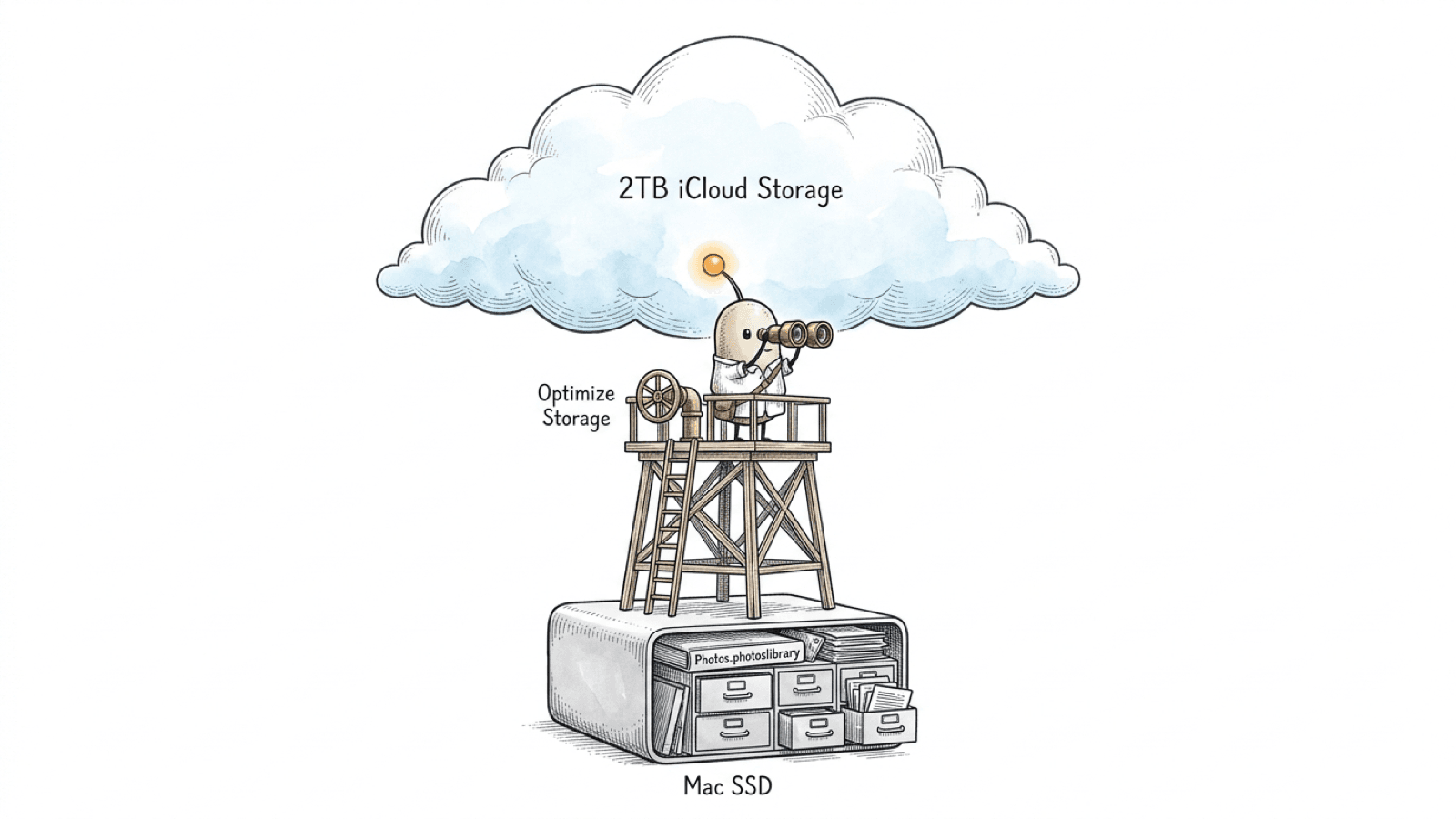
Why doesn't more iCloud storage free space on my Mac?
Your iCloud plan and Mac SSD are different storage pools. Buying more iCloud capacity does not change the physical capacity of the Mac. iCloud Photos can use both pools at once: the library is stored in iCloud and some or all of its contents may also be stored locally.
Apple distinguishes iCloud storage, which keeps data in the cloud and up to date across devices, from device storage, which is the built-in storage on a Mac, iPhone, or iPad. A full iCloud account can stop iCloud features from staying current; it does not turn cloud capacity into local SSD space.
The practical question is what your Mac keeps downloaded. Photos settings, iCloud Drive download state, and files outside Apple's managed libraries can all affect local usage. Check each separately rather than using the size of your iCloud plan as a measure of free Mac space.
Read more: Apple Support: iCloud storage and device storage · Apple Support: Set up and use iCloud Photos · Apple Support: manage iCloud storage on your Apple device
What do Download Originals and Optimize Mac Storage do?
These Photos settings control the local copies on your Mac. Download Originals keeps full-size versions on both the Mac and in iCloud. Optimize Mac Storage keeps smaller versions locally when space is needed and leaves the originals in iCloud.
| Setting | Local Mac copy | What to expect |
|---|---|---|
| Download Originals to this Mac | Full-size originals | Keeps the full-size library on the Mac as well as in iCloud; allow time for originals to download. |
| Optimize Mac Storage | Smaller versions as needed | Photos can optimize the local library when space is needed; originals remain in iCloud and can be downloaded when required. |
- Open Photos on the Mac.
- Choose Photos > Settings, then select the iCloud tab.
- Check whether Download Originals to this Mac or Optimize Mac Storage is selected.
- If you change the setting, allow Photos and iCloud time to update. Check the library status before treating the process as complete.
Optimize is not an immediate command to empty the library. Apple describes it as keeping smaller versions on the Mac and optimizing when more device storage is needed, starting with items accessed least. Opening or editing an item may require its original to download again.
Read more: Apple Support: use iCloud Photos on Mac · Apple Support: optimize storage in Photos on Mac · Apple Support: Set up and use iCloud Photos
Is iCloud Photos a backup?
iCloud Photos keeps one library in sync across devices. Apple says edits and deletions appear on the other devices using that library, and photos in iCloud Photos are not duplicated in iCloud Backup. Keep a separate backup copy if you need protection from accidental deletion or account problems.
| Question | iCloud Photos | Separate backup copy |
|---|---|---|
| Do edits and deletions sync? | Yes, across devices using the library. | Depends on the backup method and its retention settings. |
| Is this another copy in iCloud Backup? | Apple says iCloud Photos content is not duplicated in iCloud Backup. | A separately stored copy is outside the synced Photos library. |
| What should I check? | Upload status, library setting, and Recently Deleted. | That the backup completed, opens, and has a retention or second-copy plan. |
If you delete a photo or video from a library using iCloud Photos, the deletion syncs to the other devices using that library. Deleted items are usually recoverable in Recently Deleted for 30 days. Apple warns that if your iCloud storage is over its limit, deleted items may be removed immediately and unavailable there. A separate backup may offer another recovery route, depending on how and when it was made.
Read more: Apple Support: Set up and use iCloud Photos · Apple Support: what does iCloud back up? · Apple Support: delete or recover photos and videos on Mac
What happens if you turn off iCloud Photos or delete a file?
Turning off sync on one Mac and deleting an item from a synced library are different actions. Review the choice Photos presents before confirming, and make a separate copy of anything you need to keep.
- Deleting a photo or video from iCloud Photos removes it across devices using that library. Recently Deleted is a temporary recovery window, not a long-term archive.
- When you turn off iCloud Photos on a Mac, Apple documents options to download the library or remove items that are not fully downloaded from that Mac. The library remains available to other devices that still use iCloud Photos.
- If you turn off iCloud Photos on all devices, Apple's current guide warns that the library is scheduled for deletion from iCloud after 30 days unless you undo the request. Read the current confirmation and export anything important first.
- iCloud Drive is separate from Photos. Choosing Remove Download for an iCloud Drive file removes its local download while leaving it in iCloud. Dragging an item from iCloud Drive to another Finder folder copies it to the Mac and removes it from iCloud Drive on devices using the account.
Don't use Delete as a local-space setting
For iCloud Photos, Delete means remove the library item and sync that change. For an iCloud Drive file, use Finder's Remove Download action when your goal is to remove only the Mac's downloaded copy.
Read more: Apple Support: use iCloud Photos on Mac · Apple Support: Set up and use iCloud Photos · Apple Support: delete or recover photos and videos on Mac · Apple Support: work with folders and files in iCloud Drive
How can you see what is stored on the Mac?
Check Photos settings, the Mac's storage view, and Finder's iCloud Drive status icons. A cloud-only file and a downloaded file can appear in the same iCloud Drive folder, so a folder listing alone does not tell you which content is local.
- In Photos, open Photos > Settings > iCloud and note the selected storage option. In the Photos sidebar, select Library > All Photos and review the sync status shown there.
- Open System Settings > General > Storage to review the Mac's local storage categories. Check iCloud storage separately in Apple Account > iCloud > Manage.
- In Finder, open iCloud Drive and check the status icon beside each item. Apple documents Download Now, Remove Download, and Keep Downloaded actions for files stored there.
- To estimate a Photos library located in Pictures, use Finder's Get Info. A library moved to another folder or external drive will not be included in that check.
A Photos library is a managed package. Do not open it and remove internal files in Finder. If you need a standalone copy, use Photos' File > Export > Export Unmodified Original. If you need to relocate the whole library, follow Apple's process and the external-drive guide.
Read more: Apple Support: Set up and use iCloud Photos · Apple Support: work with folders and files in iCloud Drive · Apple Support: export unmodified originals from Photos on Mac · Apple Support: move your Photos library to save space
How can you reclaim Mac space without losing photos?
Start with local optimization and verification, not deletion. Make sure the library has finished syncing, keep an independent copy of important originals, and only then choose the Photos setting or file action that matches your goal.
- Check that Photos has finished uploading. Apple notes that upload time depends on library size and internet speed; a stalled or paused upload means the cloud library may not yet reflect every local item.
- Export unmodified originals from Photos to a separate destination if you need standalone source files. Open a sample from the destination and keep another copy of irreplaceable material before removing the library item.
- If you want Photos to manage local storage, select Optimize Mac Storage and give it time to respond to storage needs. Do not expect a specific amount of space or an immediate change.
- For iCloud Drive documents, use Remove Download when the goal is to reclaim the local download while keeping the cloud item. Avoid dragging a file out of iCloud Drive unless you intend to remove it from iCloud Drive across devices.
- If the Photos library itself is the largest local item, review Apple's supported external-drive workflow. Keep a separate backup of the library; moving it is not the same as backing it up.
For large video originals, see iPhone videos taking up Mac storage. For general folder and file checks, use find large files on Mac.
Read more: Apple Support: Set up and use iCloud Photos · Apple Support: export unmodified originals from Photos on Mac · Apple Support: work with folders and files in iCloud Drive · Apple Support: move your Photos library to save space
Where Diskfern fits in an iCloud storage check
Diskfern can help you inspect local folders and see how much space they use. It does not show your iCloud account's capacity, determine whether an item has finished syncing, or decide whether a photo is backed up.

Use a local storage map to locate large paths, then use Photos and Finder to check sync and download status. Diskfern cannot verify a cloud upload or replace a separate backup.
Read more: Diskfern: find large files on Mac
A synced copy is not an independent backup
Changes and deletions in iCloud Photos sync to devices using that library. Keep a separate copy of important originals and verify it before deleting or changing sync settings.
A safer iCloud and Mac storage check
Identify which storage pool is full, verify sync, then choose a local-space action that preserves the library.
- 1
Check Mac storage and iCloud storage separately.
- 2
Review Photos' iCloud setting and upload status.
- 3
Keep a separate, verified copy of important originals.
- 4
Use Optimize Mac Storage for Photos or Remove Download for iCloud Drive, according to the item.
- 5
Avoid deleting synced Photos items unless you intend to remove them from the library across devices.
The Diskfern way
How Diskfern helps
Locate large local paths before changing Photos or iCloud settings
- Scan the local folders you want to inspect.
- Use the map or list to find large folders and files on the Mac.
- Check cloud sync, download state, and backup status in Apple's own apps before removing anything.
Finding and reviewing is free. Moving items to the Trash from Diskfern is part of Pro.
Explore Developer StorageQuestions
Does buying more iCloud storage free Mac storage?
No. iCloud storage and the Mac's SSD are separate. iCloud Photos can use both; Optimize Mac Storage can reduce local copies when space is needed, but upgrading iCloud alone does not change local capacity.
Will Optimize Mac Storage delete my original photos?
Apple says Optimize Mac Storage keeps smaller versions on the Mac and the original, full-size versions in iCloud. It optimizes the local library when storage is needed. Keep a separate backup of important photos and confirm uploads are complete.
If I delete a photo on my Mac, will it disappear from my iPhone?
If both devices use the same iCloud Photos library, deleting an item removes it across those devices. It is usually recoverable in Recently Deleted for 30 days, but Apple warns this may not apply if iCloud storage is over its limit.
Does Remove Download delete an iCloud Drive file?
No. Finder's Remove Download action removes the local download while keeping the file in iCloud Drive. Dragging a file from iCloud Drive to another folder instead copies it to the Mac and removes it from iCloud Drive across devices.
Are iCloud Photos included in iCloud Backup?
Apple says photos and videos using iCloud Photos are not duplicated in iCloud Backup. Keep a separate backup copy if you need another recovery source for the library.

Written by
Diskfern Team
We explain Mac storage using product behavior and the sources listed below. Review your app settings and backups before removing data.
Sources
- Apple Support: Set up and use iCloud Photos · checked November 5, 2026
- Apple Support: use iCloud Photos on Mac · checked November 5, 2026
- Apple Support: optimize storage in Photos on Mac · checked November 5, 2026
- Apple Support: iCloud storage and device storage · checked November 5, 2026
- Apple Support: manage iCloud storage on your Apple device · checked November 5, 2026
- Apple Support: what does iCloud back up? · checked November 5, 2026
- Apple Support: delete or recover photos and videos on Mac · checked November 5, 2026
- Apple Support: work with folders and files in iCloud Drive · checked November 5, 2026
- Apple Support: export unmodified originals from Photos on Mac · checked November 5, 2026
- Apple Support: move your Photos library to save space · checked November 5, 2026
- Diskfern: find large files on Mac · checked November 5, 2026
- Diskfern: check external drive storage on Mac · checked November 5, 2026
- Diskfern: iPhone videos taking up Mac storage · checked November 5, 2026
Keep reading
Learn more about managing large media, cloud sync, and external drives on Mac.
iPhone videos taking up Mac storage
Find why iPhone videos take up Mac storage, how Photos, AirDrop, iCloud and editing apps store copies, and how to check ProRes files before archiving or deleting anything.
External drive storage on Mac
See how much space is used on an external drive in Finder, Get Info or Disk Utility, then find the files filling it up. Works for USB and SSD drives.
Find large files on Mac
Finder's search can find large files, but it's slow and easy to misuse. Here's how to find them properly, plus faster methods for big drives.
Developer Storage
Bring Xcode, Android, Docker, package caches, and local AI models into one readable map.

Get your space back. Start with a free scan.
Explore the files and folders Diskfern can read. Your files stay on your Mac, and nothing is removed until you say so.
macOS 14 Sonoma or later · Apple silicon and Intel