Apps
Why Is Adobe After Effects Filling Your Mac's SSD With Cache Files?
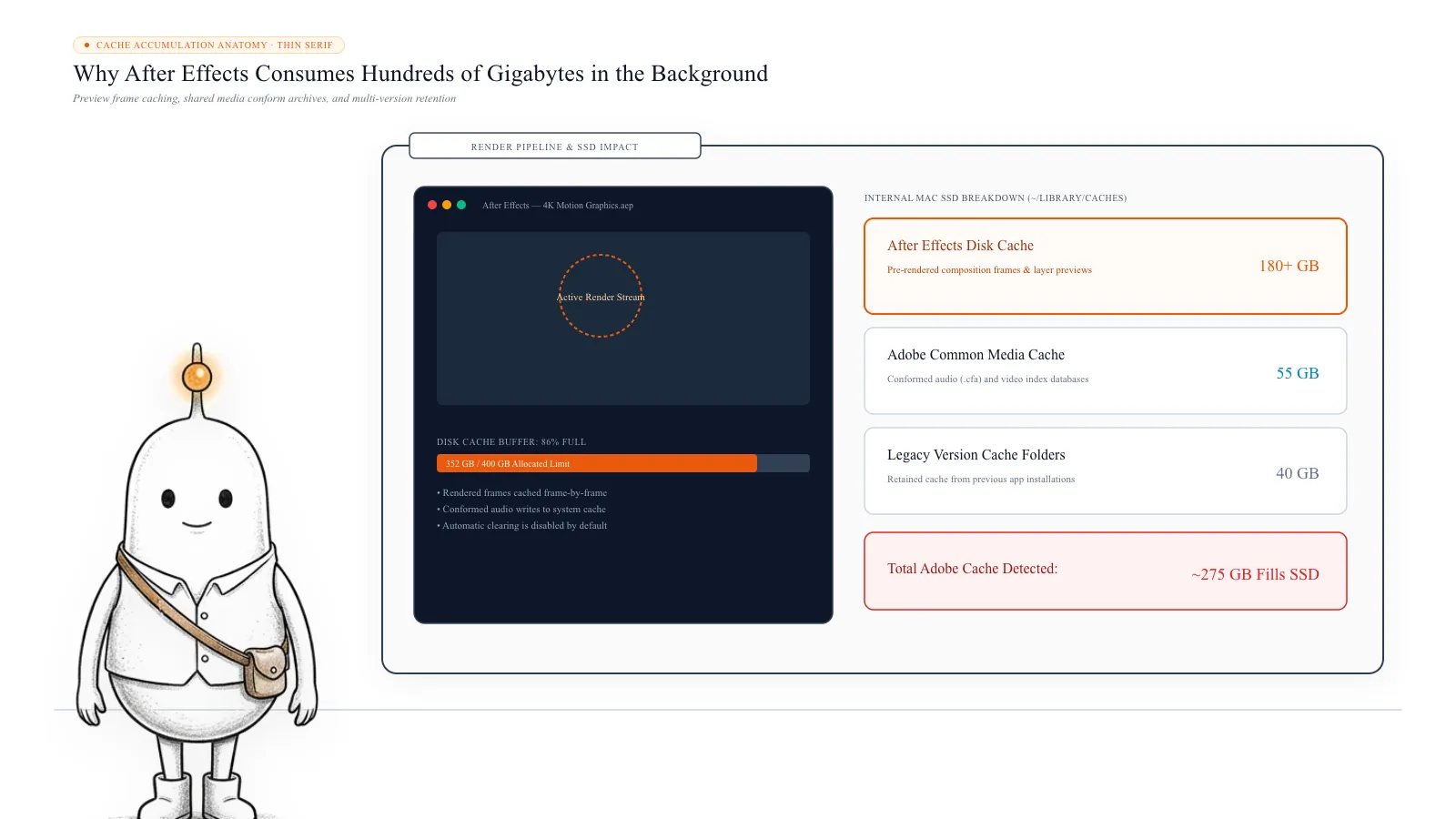
You open your Mac's Storage settings and notice something strange. System Data is taking up hundreds of gigabytes, your available storage keeps shrinking, and you cannot figure out which files are responsible. You start checking Downloads, Applications, and Documents. Nothing looks particularly large. Then you investigate Adobe After Effects. A folder containing cache files is consuming more than 200 GB of your internal SSD.
 Diskfern Team12 min readUpdated
Short answer
After Effects creates RAM cache for immediate playback, persistent disk cache for rendered frames, and shared media cache for conformed audio and video indexes. These temporary files do not automatically delete after projects finish. You can safely clear them inside After Effects under Settings > Disk, configure sensible cache caps, or relocate cache folders to an external SSD.
Why does After Effects use so much storage?
After Effects is designed to make editing and previewing complex compositions faster. When you import footage, apply effects, animate layers, or preview a timeline, the application may generate temporary data that it can reuse instead of processing everything again.
This is not an unusual type of problem for people who regularly work with video and motion graphics. In one Reddit discussion, a Mac user reported recovering around 250 GB after finding that After Effects had been accumulating cache files. Another user in the same discussion discovered more than 350 GB of After Effects cache. The reason is simple: After Effects stores temporary data to make previews and editing faster. Those files can remain on your Mac after you close a project or quit the application.
For example, imagine working on a composition with:
- Several 4K video clips.
- Multiple animated layers.
- Motion blur and visual effects.
- Colour adjustments.
- Text animations.
- Complex transitions.
Recalculating every frame whenever you move through the timeline would take time. After Effects stores some of that processed information in memory and on your storage drive. This helps reduce repeated processing and can make editing feel more responsive. The problem is that cached data is not always removed when you finish working on a project. After multiple editing sessions, the accumulated files can occupy a significant amount of your Mac's SSD.
Read more: Reddit: Mac user discovers 350+ GB of After Effects cache · Reddit: After Effects cache taking up nearly 250 GB
1. Understand the three types of After Effects cache
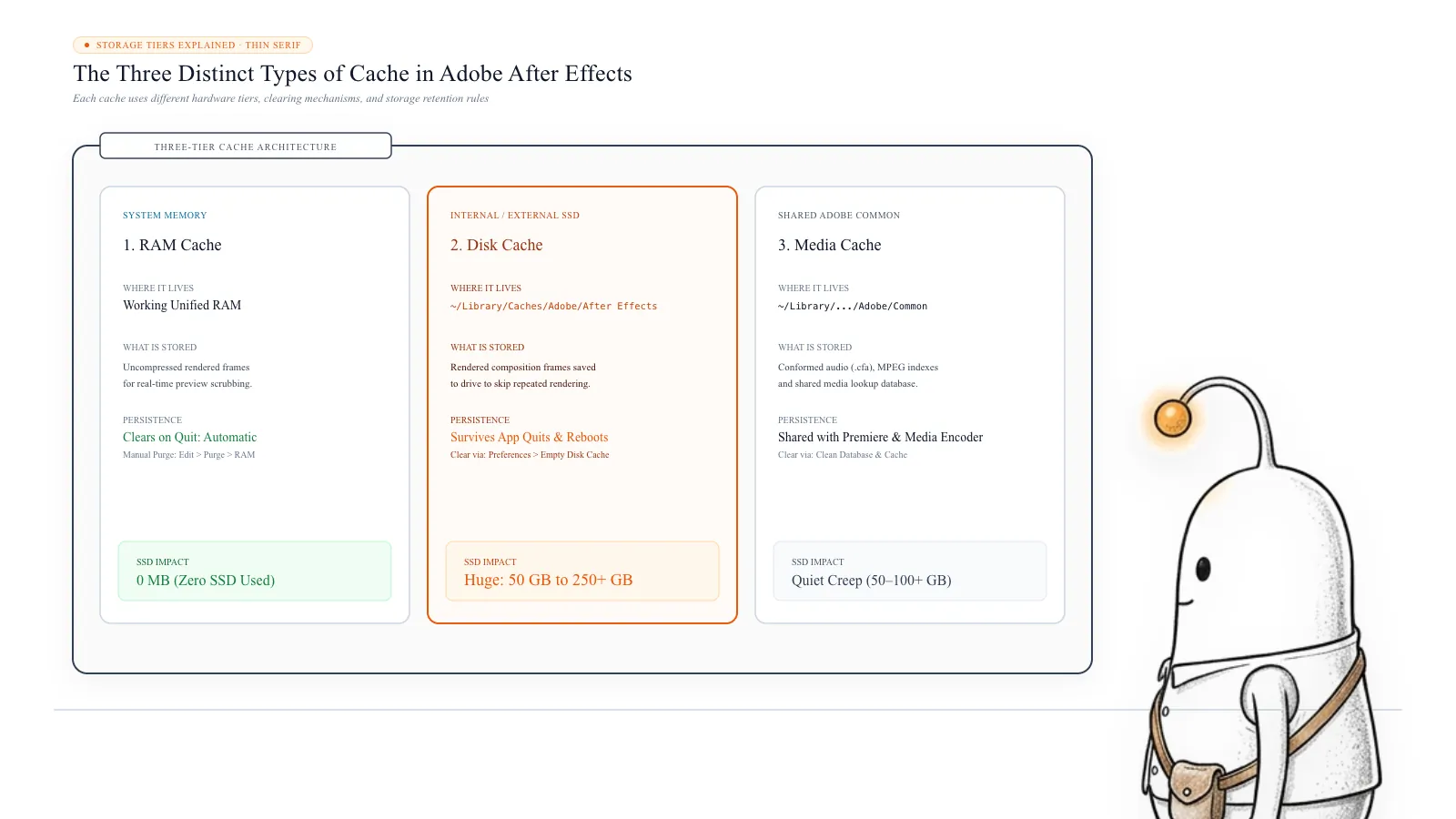
Before deleting anything, it helps to understand that After Effects does not use just one cache folder. There are three important types of cache to know about: RAM cache, disk cache, and media cache.
RAM cache stores frames and image data in your Mac's memory so that After Effects can display previews more quickly. This cache uses RAM rather than permanently occupying your SSD. After Effects automatically clears its RAM cache when you quit the application. You can also purge it manually.
Disk cache stores rendered frames and related data on your storage drive. Unlike RAM cache, persistent disk cache can remain available after you close a project or quit After Effects. This lets the application reuse previously processed frames when you return to a project or work with similar content. Over time, the disk cache can become large, particularly if you work on several complex compositions.
Media cache is different from disk cache. When After Effects imports certain video and audio formats, it can process and store additional files to make the footage easier to access during editing. For example: .cfa files contain conformed audio data, and .mpgindex files contain index information for MPEG media. After Effects also maintains a database that tracks these cached files.
Adobe explains that the media cache system is shared with applications such as Premiere Pro and Adobe Media Encoder. This means cache-related storage can be used across multiple Adobe applications, not just After Effects. These files can accumulate independently of the disk-cache size setting.
2. Where are After Effects cache files stored on a Mac?
After Effects cache locations depend on your settings and application version. The important thing is to check the locations configured inside After Effects instead of assuming every installation uses exactly the same folders.
Find the disk cache location:
- Open After Effects.
- Select After Effects from the macOS menu bar.
- Open Settings.
- Select Disk.
- Find the Disk Cache section.
- Check the configured cache folder.
In older versions, the same controls may appear under Preferences or Media & Disk Cache. The location shown here is the one you should investigate.
Find the media cache location: In the same Disk settings panel, look for the Media Cache and Database sections. These settings show where After Effects stores processed media files and the database used to track them. A common default location for Adobe media cache data on macOS is: ~/Library/Application Support/Adobe/Common/. However, this location can be changed in Adobe's settings, and other Adobe applications may use the shared cache system.
Open the common media cache folder: You can inspect the default location through Finder. Open Finder, select Go from the menu bar, choose Go to Folder, paste ~/Library/Application Support/Adobe/Common/, and press Return.
The Library folder is hidden by default, which is why many Mac users never discover these files while browsing their home directory. Important: Do not assume everything inside the Adobe Common folder is safe to delete. Other Adobe applications may depend on the same cache database and files. Use the application's cache controls whenever possible.
3. Why can the cache exceed the limit you configured?
This is one of the most confusing parts of After Effects storage management. You may open Disk settings and discover that the maximum disk cache is set to 50 GB. However, a disk usage scanner reports that Adobe-related folders are consuming 200 GB or more. Does that mean After Effects ignored your limit? Not necessarily.
The maximum disk cache setting applies to the disk cache. It does not act as one combined limit for every type of Adobe cache. There are several possible reasons for the difference:
Disk cache and media cache are separate: The Maximum Disk Cache Size setting controls the space allocated for disk cache. Media cache files and their database are managed separately. Therefore, the total storage occupied by Adobe cache folders can be greater than the disk-cache limit.
Older After Effects versions can retain cache files: If you have upgraded After Effects over time, cache data from older versions may still be present. Adobe explains that purging the disk cache in one version does not automatically purge the disk cache belonging to another version. For example, clearing the cache from your current installation does not necessarily remove cache files created by a previous installation. This is particularly important when you have used several major versions of After Effects on the same Mac.
Premiere Pro and Media Encoder also use media cache: Adobe's shared media cache system means that files can be associated with different applications. Changing the shared media cache location from one supported Adobe application can also update the location used by the others. This is another reason to investigate the actual cache folders rather than assuming every large Adobe folder belongs to one After Effects project.
4. How to check how much storage After Effects is using
Before clearing anything, find out how much space the cache is actually occupying. This helps you understand whether the problem is disk cache, media cache, or another Adobe folder.
Check through macOS Storage settings:
- Open the Apple menu.
- Select System Settings.
- Open General.
- Select Storage.
- Wait for the storage categories to finish calculating.
Look at System Data and Documents, but do not assume either category identifies the exact source. macOS may group application-related temporary files into broader storage categories.
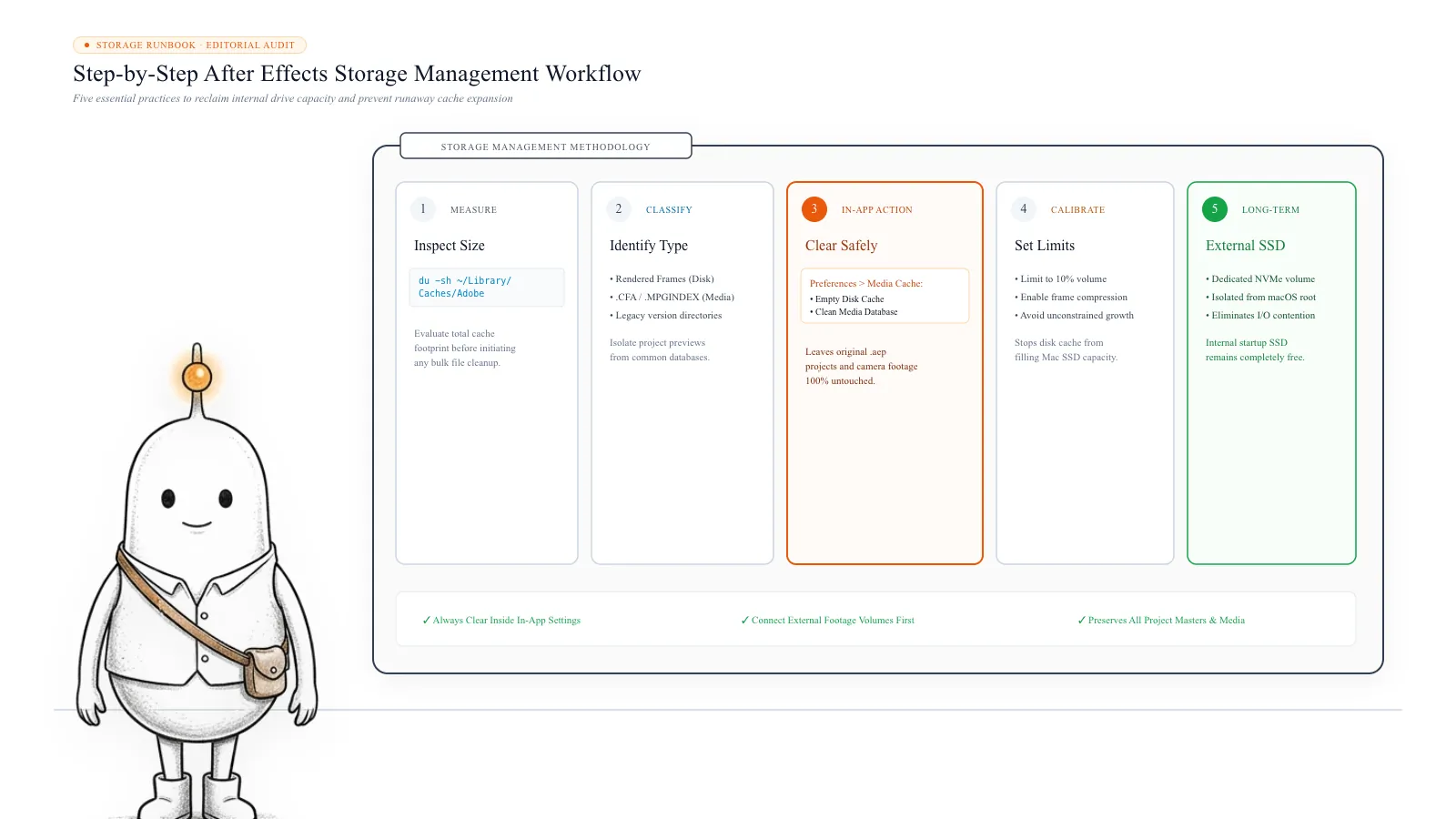
Inspect Adobe folders using Terminal. Open Terminal and run:
du -sh "$HOME/Library/Caches/Adobe" "$HOME/Library/Application Support/Adobe/Common" 2>/dev/nullThis checks two common locations: Adobe cache files under your user Library's Caches folder, and the Adobe Common folder used for media cache data.
To inspect individual subfolders, run:
du -sh "$HOME/Library/Caches/Adobe"/* 2>/dev/nullAnd for shared media cache:
du -sh "$HOME/Library/Application Support/Adobe/Common"/* 2>/dev/nullThese commands only measure folder sizes. They do not delete anything. Your actual cache may be stored somewhere else if you previously changed its location. Check the Disk settings in After Effects and inspect that folder as well.
5. How to safely clear After Effects disk cache
The safest way to clear disk cache is through After Effects itself. You do not need to manually remove random folders from your Library directory.
Clear disk cache from Settings:
- Save your open projects.
- Open After Effects.
- Select After Effects from the menu bar.
- Open Settings.
- Select Disk.
- Find the Disk Cache section.
- Select Empty Disk Cache.
- Confirm the operation.
After Effects will remove the disk cache files associated with that cache location and version. You can also use: Edit > Purge > All Memory & Disk Cache. This clears the memory and disk caches through After Effects. The exact menu names can differ between versions.
What happens after clearing disk cache? Your project files are not deleted. However, After Effects may need to process and cache frames again when you reopen projects or move through your timelines. You may notice slower previews initially, more processing when reopening compositions, and longer waits while frames are cached again. That is expected. The purpose of the cache is to avoid repeating that work, so clearing it means some work must be repeated.
6. How to clear media cache safely
Clearing disk cache does not necessarily remove all media cache files. After Effects manages these separately.
In current versions, look under: After Effects > Settings > Disk. Find the Media Cache and Database settings. You may also see an Empty All Caches option under Startup & Repair in newer versions. Adobe describes this option as clearing disk cache, media cache, and database cache.
Be careful with the Clean Database & Cache command: It is not a general-purpose command that removes every media cache file. Adobe states that it removes conformed and indexed files associated with footage whose original source is no longer available.
Before using it, make sure that external drives containing your current project footage are connected. Otherwise, After Effects may treat that footage as missing and remove associated cache entries.
If you clear media cache, After Effects may need to reconform or re-index footage the next time you use it. For this reason, save your projects and allow time for cache rebuilding before an important editing session.
7. How to move After Effects cache to an external SSD
If your Mac has a 256 GB or 512 GB internal SSD, keeping all your editing cache on the startup drive can become inconvenient. One practical solution is to move the cache to a separate external SSD. This allows After Effects to use additional storage without consuming as much space on your Mac's internal drive.
Adobe recommends using a fast drive for disk caching and notes that a separate physical drive from your source footage can improve performance.
Step 1. Connect a fast external SSD: Connect an external SSD to your Mac. For editing work, prioritize consistent transfer speeds, a reliable connection, enough capacity for your cache and other working files, and a drive that remains connected while After Effects is running. A slow USB drive may become a performance bottleneck.
Step 2. Create separate cache folders: Open the external SSD in Finder and create folders such as External SSD/ After Effects Cache/ Disk Cache/, Media Cache/, and Media Cache Database/. These are example folder names. You can organize them differently. Do not select the root of the external drive as the disk cache folder. Adobe specifies that the disk cache folder cannot be the root directory of the drive.
Step 3. Change the disk cache location: Open After Effects, go to After Effects > Settings > Disk, find Disk Cache, select Choose Folder, select the Disk Cache folder on your external SSD, and confirm the selection.
Step 4. Change the media cache locations: In the same settings panel, find the Media Cache and Database sections. Change their locations to the corresponding folders on your external SSD. Remember that the media cache and its database are separate settings. Moving one does not automatically mean the other has moved. Because the media cache database is shared with other Adobe applications, check the resulting cache locations if you also use Premiere Pro or Media Encoder.
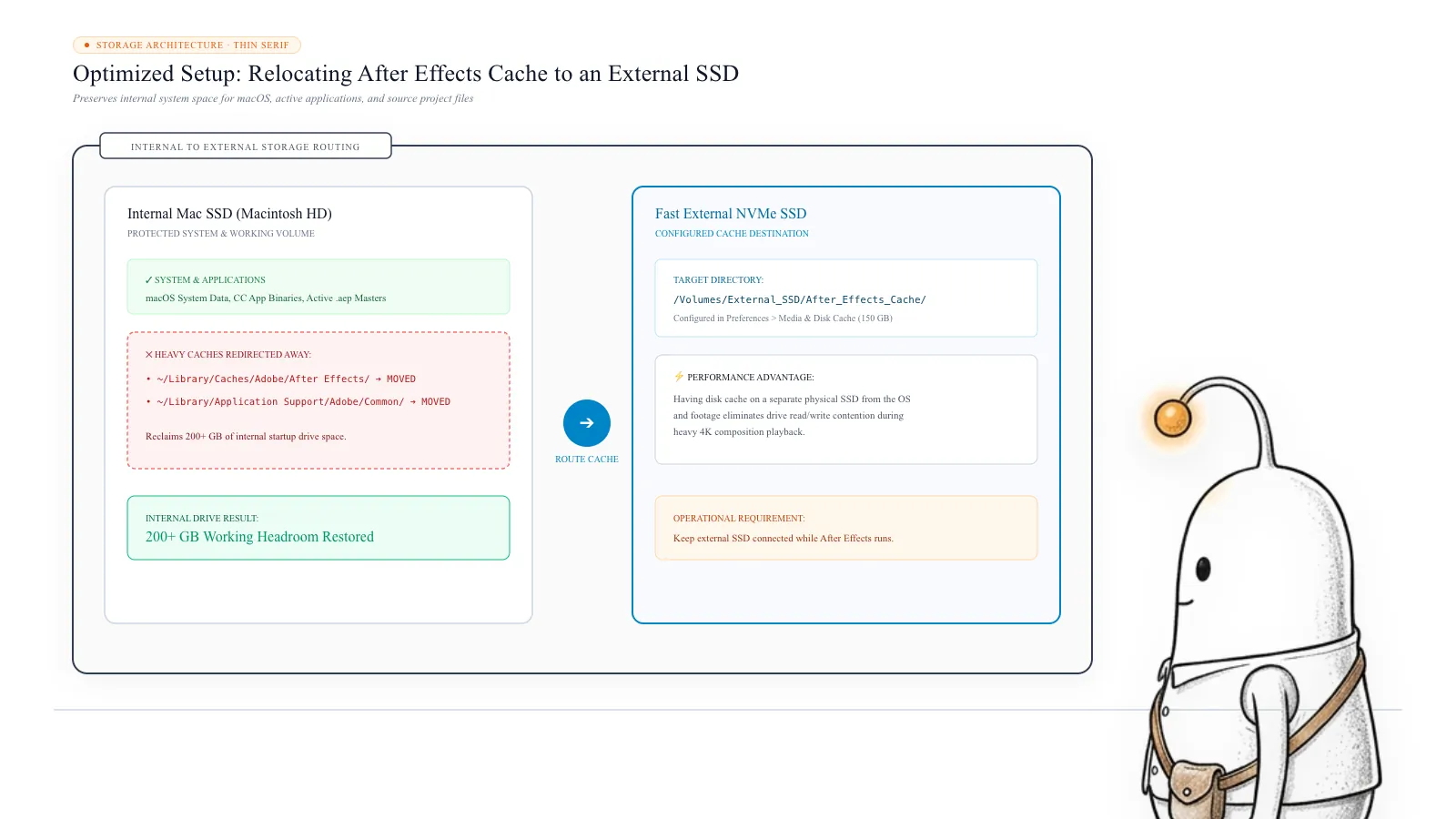
Step 5. Keep the SSD connected: After changing your cache locations, keep the external SSD connected and mounted while working in After Effects. If you disconnect it, the application will not be able to access the cache stored there. Reconnect the drive before continuing your work. Also make sure the external drive is backed up if it contains project footage or other important files. Cache data can be rebuilt, but original footage and project files may not be replaceable.
8. Set a sensible cache limit to prevent future storage problems
Moving the cache to an external drive helps, but you should also configure a sensible disk-cache limit inside After Effects.
Open: After Effects > Settings > Disk > Maximum Disk Cache Size. Adobe's current documentation states that the default disk-cache size is set to 10% of the volume's total size, up to 100 GB. You can adjust this value according to your available storage and editing workload:
- A Mac with limited internal storage may need a lower disk-cache limit.
- A Mac with a large internal SSD may be able to allocate more space.
- An external SSD dedicated to editing cache can provide additional room for larger projects.
Do not allocate all available storage to the cache. Your Mac still needs free space for macOS, applications, project files, exports, and other temporary operations. Also remember that this setting controls disk cache, not every media cache folder or cache left by other application versions.
For an additional optimization, After Effects offers Enable Compressed Frames (Lossless). Adobe says this can reduce disk-cache size while retaining image quality, although the performance and storage benefit depends on the project.
Read more: Adobe Help: After Effects preferences and settings
9. What should you never delete while cleaning After Effects storage?
It is easy to mistake a large Adobe folder for unnecessary cache data. But not everything created by After Effects is temporary. Be careful with what you remove.
| File or folder | What to do |
|---|---|
| Disk cache | Clear through After Effects |
| Media cache | Manage through Adobe's cache settings |
| Cache database | Manage through Adobe's cache controls |
| Original video and audio footage | Keep unless you have another verified copy |
| After Effects project files (.aep) | Keep or back up |
| Rendered exports | Delete only when you no longer need them |
| Project auto-saves | Keep useful recovery versions |
| Plugins and application support files | Do not delete as cache |
A rendered video is not the same as a cached preview frame. If you delete an exported video, you are deleting an actual project output, not just temporary data. Similarly, deleting original footage can break an After Effects project because the application may no longer be able to locate the media it references. The safest approach is to clear cache through Adobe's own controls and leave original project assets alone.
What’s safe to delete?
Disk Cache
Safe via AE~/Library/Caches/Adobe/After Effects/
Rendered frame previews are removed. After Effects regenerates frames when opening or playing timelines.
How: After Effects > Settings > Disk > Empty Disk Cache
Media Cache Files
Safe via AE~/Library/Application Support/Adobe/Common/Media Cache Files
Conformed audio (.cfa) and index files (.mpgindex) are removed. Re-indexed when footage is loaded.
How: After Effects > Settings > Disk > Media Cache
Media Cache Database
Review first~/Library/Application Support/Adobe/Common/Media Cache
Removes index pointers linking cache to source media. Only clean with all project storage drives connected.
How: Clean Database & Cache with external drives mounted
Original Video & Audio Footage
Don't touchUser project directories and external drives
Causes Media Offline errors and breaks project compositions permanently.
How: Never delete original media while cleaning cache
Project Files (.aep)
Don't touchDocuments / Project directories
Destroys composition keyframes, project timelines, and layer arrangements.
How: Keep and maintain regular backups
Rendered Final Exports (.mov, .mp4)
Review firstOutput folders
Deletes delivered video files; requires re-rendering from composition if needed again.
How: Delete only delivered files you no longer need
Adobe Application Support & Plugins
Don't touch/Library/Application Support/Adobe
Breaks After Effects extension panels, color profiles, third-party plugins, and presets.
How: Leave intact in macOS system and user libraries
Clean Database & Cache precaution
Before selecting Clean Database & Cache in After Effects, make sure all external drives containing active project footage are plugged into your Mac. Otherwise, After Effects may assume the footage is missing and purge valid media cache.
Shared media cache across Adobe Creative Cloud
The Adobe Common folder is shared with Premiere Pro and Adobe Media Encoder. Changing its location or cleaning its database affects all installed Adobe video applications.
Recommended manual cache management steps
Always use After Effects' native preferences to purge and move cache files rather than deleting arbitrary directories in Finder.
- 1
Inspect current Adobe cache disk footprint in Terminal
$du -sh "$HOME/Library/Caches/Adobe" "$HOME/Library/Application Support/Adobe/Common" 2>/dev/nullMeasures current disk and media cache usage without altering or deleting any files.
- 2
Purge After Effects disk cache through application settings
$After Effects > Settings > Disk > Empty Disk CacheRemoves temporary frame previews safely through Adobe's native cleanup routine.
- 3
Relocate disk cache and media cache to a fast external NVMe SSD
$After Effects > Settings > Disk > Choose FolderKeeps internal Mac SSD clear by offloading heavy preview files to dedicated external storage.
The Diskfern way
How Diskfern helps
When macOS System Data consumes hundreds of gigabytes, Diskfern helps you immediately visualize hidden Adobe cache folders in your user Library.
- Open Diskfern and scan your Home or Macintosh HD storage drive.
- Switch between Treemap and Sunburst views to visually locate large Adobe folders under Library/Caches and Application Support/Adobe.
- Use Diskfern to verify cache sizes, then open After Effects Settings > Disk to purge or relocate the cache safely.
Finding and reviewing is free. Moving items to the Trash from Diskfern is part of Pro.
Scan Adobe Cache with DiskfernQuestions
Is it safe to delete After Effects cache files on a Mac?
Yes, clearing cache is generally safe when you use After Effects' built-in cache controls. The cache stores temporary processed data, not your original project footage. After clearing it, previews and media may need to be processed again.
Why is After Effects using 250 GB or more of storage?
After Effects can accumulate disk cache and media cache data across projects and editing sessions. Old application versions may also retain their own disk cache. The total can become much larger than the disk-cache limit shown in Settings.
Does clearing After Effects cache delete my projects?
No. Clearing the cache through After Effects does not delete saved .aep projects or original footage. It removes cache data that the application can regenerate.
Does the disk-cache limit control media cache too?
No. The Maximum Disk Cache Size setting controls the disk cache. Media cache and its database are managed separately, so total Adobe cache storage can exceed the configured disk-cache limit.
Can I move After Effects cache to an external SSD?
Yes. After Effects lets you choose separate locations for disk cache, media cache, and its database. A fast external SSD can be a practical option, particularly when your Mac has limited internal storage.
Why does After Effects cache keep growing after I clear it?
After Effects rebuilds cache as you import footage, process media, and work on compositions. Clearing cache does not prevent new cache files from being generated. Set an appropriate disk-cache limit and review media cache separately.
Should I delete the Adobe Common folder?
Do not delete the entire folder blindly. It can contain shared media cache files and database data used by other Adobe applications. Use the relevant Adobe cache controls and understand which files you are removing.

Written by
Diskfern Team
We explain Mac storage using product behavior and the sources listed below. Review your app settings and backups before removing data.
Sources
- Adobe Help: Memory and storage in After Effects · checked November 8, 2026
- Adobe Help: After Effects preferences and settings · checked November 8, 2026
- Reddit: Mac user discovers 350+ GB of After Effects cache · checked November 8, 2026
- Reddit: After Effects cache taking up nearly 250 GB · checked November 8, 2026
Keep reading
Explore practical storage guides for Apple Mail and macOS applications.
Mac Storage Keeps Shrinking Automatically? Here is Why
Find out why your Mac loses storage even when you're not downloading anything: swap files, app caches, background logs, and how to safely diagnose the cause.
Why Can't I Install a macOS Update Even With Enough Space?
Mac says there isn't enough space to install a macOS update? Learn why, check purgeable storage, find temporary files, and troubleshoot safely.
Why Are iPhone & iPad Backups Taking Hundreds of GB on Mac?
Discover why old iPhone and iPad backups accumulate in MobileSync, how to find and manage them in Finder, and how to safely reclaim gigabytes of storage.

Get your space back. Start with a free scan.
Explore the files and folders Diskfern can read. Your files stay on your Mac, and nothing is removed until you say so.
macOS 14 Sonoma or later · Apple silicon and Intel