System Data & macOS
Why Does My Mac Keep Losing Storage Even When I'm Not Downloading Anything?
You close a few apps, leave your Mac running, and come back to find that several gigabytes of storage have disappeared. You haven't downloaded anything, installed an application, or saved any large files. Yet the available space keeps getting smaller.
 Diskfern Team9 min readUpdated
Short answer
Your Mac loses storage without downloads because macOS uses its SSD for virtual memory swap files, application caches, browser data, and continuous background logging. Developer tools like Docker and Xcode also generate dynamic build files. Instead of deleting random files, measure memory pressure and inspect growing directories to find the exact cause.
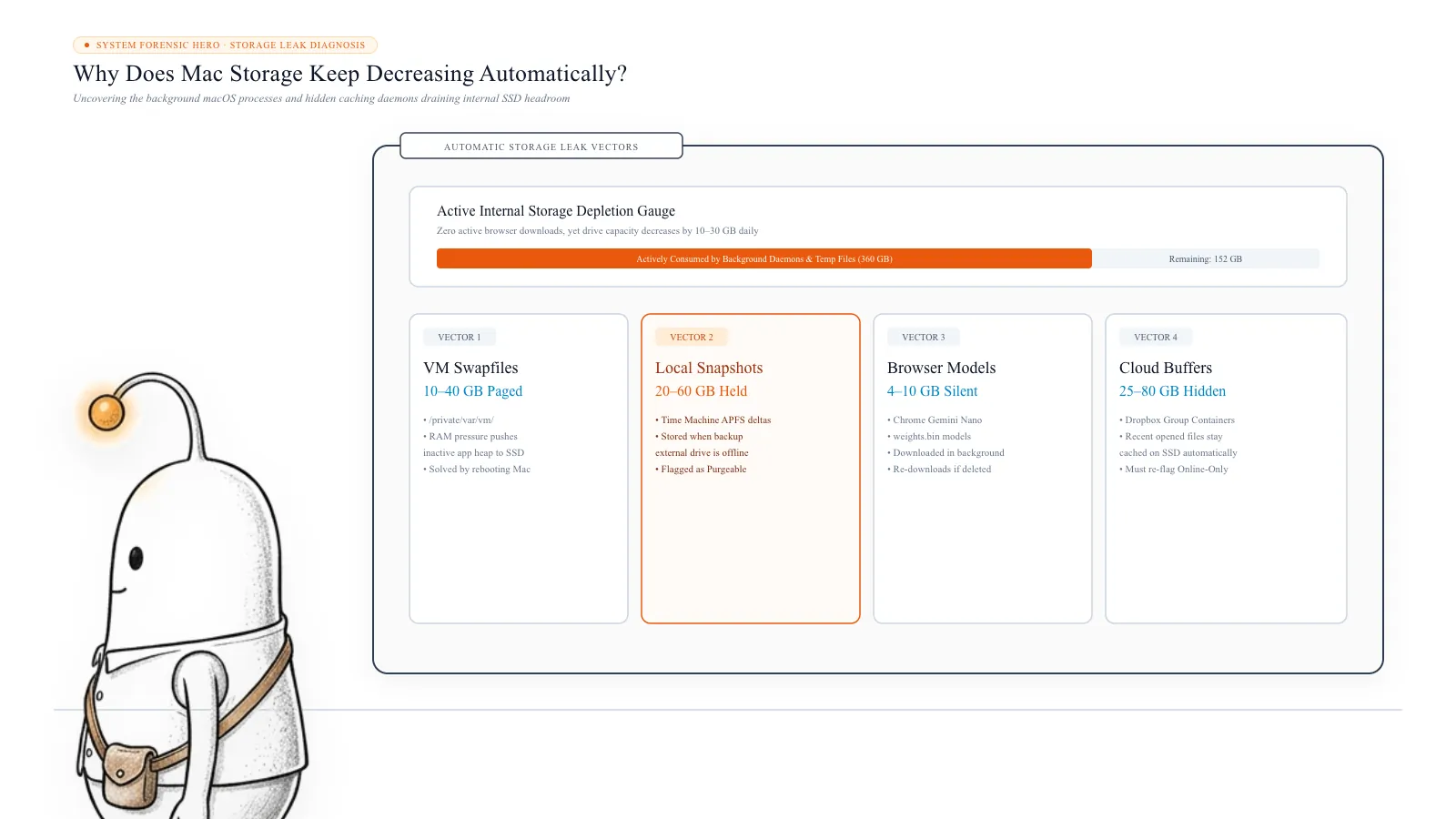
Why does Mac storage decrease even when you're not downloading anything?
Your Mac doesn't need a new download to consume additional disk space. Several background activities can create or expand files without requiring any action from you.
Sometimes restarting your Mac brings some of that space back. Other times, it continues disappearing as soon as you start working again. This happens because your Mac uses its SSD for more than documents, applications, and downloads. Running applications generate temporary files, browsers maintain caches, macOS uses virtual memory, and background processes can continuously write data to your drive.
The difficult part is identifying which process is responsible. Instead of deleting random files or repeatedly restarting your Mac, here's how to investigate what is actually consuming your storage, why it happens, and what you can safely do about it.
- Virtual memory and swap files.
- Application caches and temporary files.
- Browser data and website storage.
- Application logs and continuously generated data.
- Developer tools and virtual machines.
- Background macOS activities.
Not all of these indicate a problem. Some are temporary resources that macOS or applications manage automatically. The important thing is to identify whether storage is fluctuating normally or whether a particular application is continuously accumulating data.
Read more: Apple Support: Free up storage space on Mac
1. Virtual memory can consume several gigabytes
One reason your Mac may lose storage while running is virtual memory. Your Mac uses RAM to keep applications and their working data readily accessible. But when memory becomes constrained, macOS can compress memory and move some inactive memory pages to your SSD. This process is called swapping.
For example, imagine you have a Mac with 8 GB of RAM and several applications open: Chrome with multiple tabs, Visual Studio Code, Docker Desktop, Slack, and Photoshop. Together, these applications may demand more memory than is comfortably available.
macOS manages this situation using memory compression and swap space. Swap files occupy space on your startup disk, so available storage can decrease while your Mac is working.
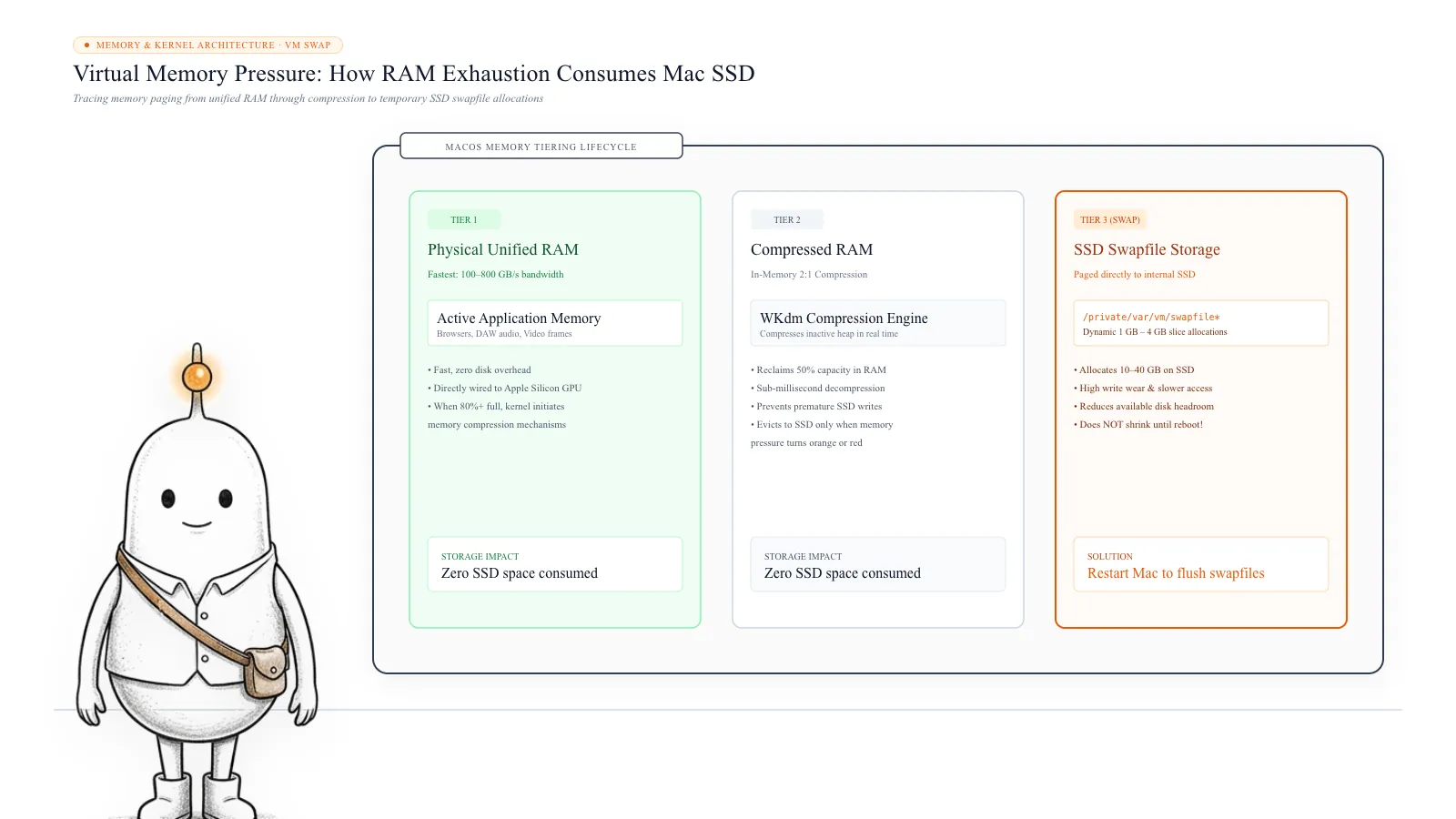
How to check swap usage on Mac: You can check how much storage is currently being used for swap without installing anything. Open Activity Monitor, select the Memory tab, look at the bottom of the window, and find the Swap Used value. This shows how much disk space is currently being used for virtual memory.
You can also check it using Terminal:
sysctl vm.swapusageYou'll see output similar to: vm.swapusage: total = 4096.00M used = 1536.00M free = 2560.00M. These are illustrative values, not a measurement from your Mac. The used value tells you how much swap space is currently occupied.
What should you do if swap usage is high? First, check Activity Monitor for applications consuming unusually large amounts of memory. Consider closing applications you aren't using, particularly browsers with many open tabs, virtual machines, and memory-intensive development tools.
Save your work before restarting your Mac. A restart can release swap space associated with the previous session, although it doesn't solve the underlying problem if the same applications create memory pressure again. Never manually delete files from /private/var/vm. macOS manages these files, and removing them yourself can interfere with system operation.
Read more: Apple Support: Activity Monitor User Guide for Mac
2. Applications continuously create temporary files and caches
Another common reason storage decreases is application activity. Most applications generate data while running, including temporary working files, cached images and videos, downloaded resources, application logs, database files, autosave data, and processing or rendering files.
For example, opening a website can cause your browser to cache images, scripts, fonts, and other resources. Editing a video can generate previews and temporary rendering data. Working with large documents can create autosave files and temporary versions. These activities can consume storage even when you aren't explicitly downloading anything.
| Location | What it can contain |
|---|---|
| ~/Library/Caches/ | Application caches |
| ~/Library/Application Support/ | Application data and supporting files |
| ~/Library/Logs/ | Application logs |
| /private/var/folders/ | Temporary and cached system resources |
| /private/tmp/ | Temporary files |
Not everything in these locations is unnecessary. For example, Application Support can contain important databases, account information, project data, and other files required by applications. Apple's developer documentation explains how applications use cache and temporary directories for data that can be recreated or discarded when appropriate. However, you shouldn't assume that every file in these locations is safe to delete.
How to check whether caches are growing: You can inspect the size of your user cache directory using Terminal:
du -sh ~/Library/CachesTo inspect its largest immediate subdirectories:
du -h -d 1 ~/Library/CachesYou can compare these results at different times to identify whether the directory is growing. If one application is responsible for most of the growth, check that application's own storage or cache settings before removing anything.
Read more: Apple Developer: Using the file system effectively
3. Your browser may be consuming storage in the background
Browsers are another possible source of unexpected storage growth. Chrome, Safari, Firefox, and other browsers maintain local data to improve performance and support normal browsing.
- Cached website resources.
- Images and videos.
- Offline website data.
- Downloaded files.
- Browser databases.
- Extension data.
Some websites also use substantial local storage. For example, web applications that handle video, design files, documents, or large datasets can store data locally while you use them.
How to investigate browser storage: Start by checking the browser's own storage settings. For Chrome: Open Chrome > Settings > Privacy and security > Site settings, and review the available site data and permissions options. For Safari: Open Safari > Settings > Privacy > Manage Website Data, and review what is stored before removing anything.
Deleting website data can sign you out of websites or remove locally stored information. Also check your Downloads folder. Some applications and browser extensions can download files automatically when configured to do so.
4. Background processes may be writing files continuously
Sometimes the problem isn't a large cache or swap file. It is an application or background process repeatedly creating new data.
- Cloud synchronization applications.
- Photo and video processing tools.
- Backup software.
- Development environments.
- Virtual machines.
- Applications generating large logs.
- Failed tasks repeatedly producing temporary files.
This is particularly relevant if your available storage decreases continuously while the Mac is idle. Find processes generating disk activity: Open Activity Monitor and select the Disk tab.
Review the following columns: Bytes Written, Bytes Read, PID, Process Name. Sort by Bytes Written to see which processes have written the most data since their activity counters started. This is useful for identifying applications performing substantial disk activity.
However, there is an important limitation: Bytes Written is cumulative. A process with a high number may have written that data hours ago. It does not necessarily mean the process is currently consuming additional storage. To investigate, note the value, wait a few minutes while the Mac performs its normal workload, and compare the change. If a process continues writing large amounts of data, investigate that application. Do not force quit unfamiliar system processes simply because they appear near the top.
Read more: Apple Support: Activity Monitor User Guide for Mac
5. Developer tools and virtual machines can quietly grow
If you use your Mac for programming, development tools can be another source of storage growth. Applications such as Docker, Xcode, Android Studio, package managers, and local AI tools create data as you work.
| Tool | Possible storage growth |
|---|---|
| Docker | Container images, build cache and volumes |
| Xcode | DerivedData, archives and simulators |
| Android Studio | Emulator images and Gradle caches |
| Node.js | Dependencies and package caches |
| Python | Virtual environments and package caches |
| Local AI tools | Downloaded model files and inference caches |
A Docker container might generate logs or modify a virtual disk image. An Xcode build might produce additional build artifacts. A local AI application might download several gigabytes of model files. These activities can happen without a traditional browser download appearing in your Downloads folder.
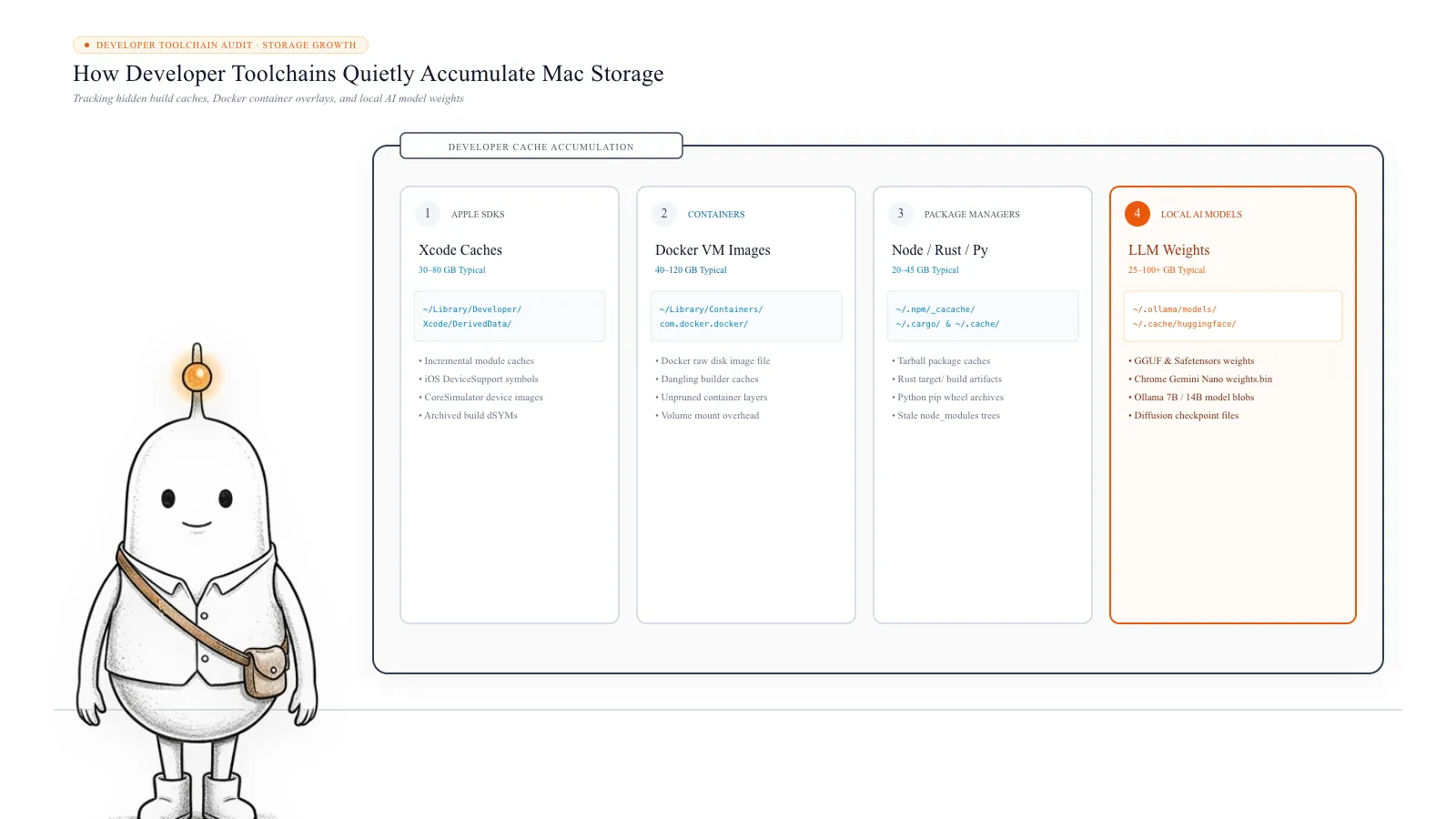
If you suspect a development tool, inspect its storage using its own management commands and settings before deleting anything. For example, Docker Desktop provides its own tools for inspecting images, containers, volumes, and build cache.
6. macOS background activities can temporarily change storage usage
macOS also performs background operations that can affect storage, including Spotlight indexing, software updates, system logging, temporary file generation, application and system resource caching, and Time Machine snapshots.
However, not every background activity permanently consumes additional storage. For example, Apple says Time Machine local snapshots are automatically managed and normally count as available storage. macOS removes them as they age or when storage is needed. Therefore, local snapshots should not automatically be blamed whenever available storage decreases.
You can inspect snapshot dates using:
tmutil listlocalsnapshots /This command lists local snapshots. It does not delete them. Read Apple's explanation of Time Machine local snapshots before considering any manual changes.
Read more: Apple Support: About Time Machine local snapshots
How to identify exactly what is consuming your Mac storage
Now that you understand the possible causes, the next step is to determine which one applies to your Mac. Instead of cleaning everything, follow this diagnostic sequence.
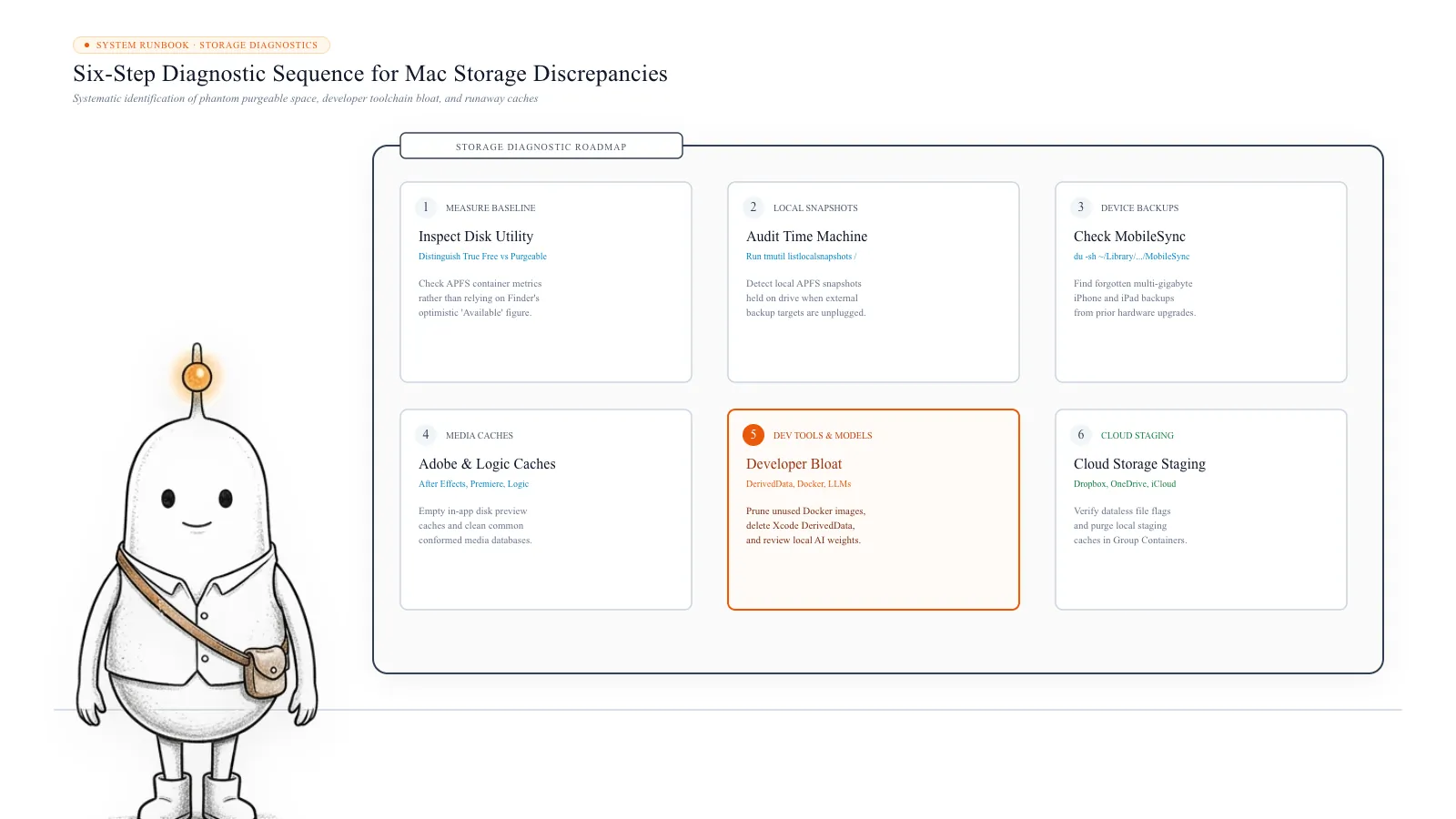
- Step 1. Record your current available storage: Open System Settings > General > Storage. Wait for the storage information to load. Record the available space and the categories occupying the disk. Do not rely exclusively on the System Data category.
- Step 2. Check whether swap usage is increasing: Open Activity Monitor and select Memory. Record Swap Used. If it is unusually high, check which applications are consuming memory.
- Step 3. Check disk activity: Select Activity Monitor's Disk tab. Look for processes with increasing Bytes Written values to narrow down applications that are actively writing data.
- Step 4. Inspect large directories: Use Terminal's du command to inspect your user cache (du -h -d 1 ~/Library/Caches) and your Downloads folder (du -sh ~/Downloads).
- Step 5. Compare storage after a short interval: Leave your Mac running under normal conditions for 15 to 30 minutes. Check the measurements again.
| What you observe | What to investigate |
|---|---|
| Swap Used increases | Memory-intensive applications |
| Cache directories grow | Browser or application caches |
| Bytes Written increases rapidly | Active disk-writing processes |
| Docker storage grows | Images, containers and volumes |
| Storage changes after restarting | Temporary runtime resources or swap |
| System Data changes without an obvious file increase | System-managed resources and storage accounting |
This comparison is more useful than randomly deleting files because it gives you evidence about what is changing. Keep in mind that directory-size measurements and macOS's available-storage figure don't always match exactly. APFS snapshots, purgeable space, and system-managed storage can affect the reported values.
Why does restarting my Mac temporarily restore storage?
If your Mac suddenly shows more available space after restarting, it is worth investigating runtime resources. A restart terminates running applications and resets their memory state.
Some temporary files may also be removed when their owning processes terminate. Swap usage can decrease as well. However, restarting does not automatically remove every cache, application database, or background-generated file.
If the same application recreates the data after startup, the storage decrease may return. This is why repeatedly restarting your Mac is not a permanent solution when an application or process is responsible for continuous growth.
Is it safe to delete files from System Data?
Not automatically. System Data is a broad storage classification, not one folder containing disposable files. It can include caches, logs, virtual memory files, temporary resources, application support data, and other system-managed files.
Some resources can be safely removed through the application that created them. Others should remain untouched. Avoid manually deleting files from: /System, /private/var/vm, unfamiliar application databases, active virtual machine storage, or Application Support folders you don't understand. If you find a large folder, identify its owner and purpose before removing anything.
Find what's growing before deleting anything
When Mac storage keeps decreasing automatically, the first question shouldn't be what you can delete. It should be what is creating the additional data.
Activity Monitor can help identify memory pressure and disk-writing processes. Terminal can help inspect directory sizes. macOS Storage settings can show how your overall storage is changing.
If you want to investigate the files themselves, Diskfern can scan readable folders and drives and display their storage usage through Treemap, Sunburst, and List views. You can identify large directories, inspect file locations, and investigate developer storage without relying on the vague System Data category alone.
Diskfern's scanning and file discovery are free. Cleanup actions are subject to the selected plan. The important thing is to identify the cause first. Your Mac may simply be using temporary resources normally, or an application may be generating data faster than it releases it. Once you know which one is happening, you can decide whether anything actually needs to be cleaned.
What’s safe to delete?
Identified Browser Caches
SafeBrowser settings (Chrome / Safari / Firefox)
Websites reload assets on next visit; temporary speed decrease.
How: Clear through browser Privacy settings or Diskfern Smart Highlights.
Stale User Caches (~/Library/Caches)
Review first~/Library/Caches/*
Rebuilt on next app launch; active sessions may need to re-download assets.
How: Inspect per-app cache folder size with du or Diskfern before clearing.
Time Machine Local Snapshots
System-managedAPFS local snapshots
macOS thins them automatically when storage space is needed.
How: List with tmutil listlocalsnapshots /; do not force-delete prematurely.
Virtual Memory Swap (/private/var/vm)
Don't touch/private/var/vm
Manual deletion causes system instability or kernel panic.
How: Close memory-heavy applications or perform a clean restart instead.
System Files (/System)
Protected by SIP/System
Modifying /System impairs bootability; protected by Signed System Volume.
How: Never attempt to delete system files.
Never manually delete /private/var/vm
Virtual memory swap files are actively managed by the macOS kernel. Deleting files directly from /private/var/vm can crash active applications or cause a kernel panic. Close memory-hungry applications or restart your Mac to safely release swap.
System Data is not a single folder
System Data in macOS Storage settings aggregates caches, swap files, logs, Application Support databases, and Time Machine snapshots. Never attempt to 'delete System Data' as a whole.
Do it manually
No app needed. These steps use Finder, Terminal, and each tool’s own settings.
- 1
Record your initial available storage in System Settings > General > Storage.
Note total free space to establish a baseline before diagnosing.
- 2
Check current virtual memory swap space using Terminal.
$sysctl vm.swapusageLook at the 'used' value. High swap indicates application memory pressure.
- 3
Inspect Activity Monitor's Disk tab sorted by Bytes Written.
Identify processes actively writing data continuously while the Mac is running.
- 4
Measure user cache size to detect rapid directory growth.
$du -sh ~/Library/CachesCompare this value 15–30 minutes later to verify if caches are expanding.
- 5
List local Time Machine snapshots to check if snapshots were recently captured.
$tmutil listlocalsnapshots /Snapshots count as purgeable space and are automatically managed by macOS.
The Diskfern way
How Diskfern helps
Diskfern scans your Mac's storage in seconds, visualizing disk usage through interactive Treemap, Sunburst, and List views so you can see which folders are expanding.
- Open Diskfern and select your Home folder or Macintosh HD.
- Browse the interactive Treemap to spot large growing directories instantly.
- Check Smart Highlights to separate rebuildable caches from personal documents.
- Stage candidate items in Collector to review safety tiers before moving anything to Trash.
Finding and reviewing is free. Moving items to the Trash from Diskfern is part of Pro.
Download Free for macOSQuestions
Why does my Mac storage keep decreasing every few minutes?
Applications may be generating temporary files, caches, logs, or virtual memory files. Background processes can also write data continuously. Check Activity Monitor and compare directory sizes over time to identify the cause.
Does restarting a Mac free up storage?
It can release some swap space and temporary resources associated with terminated processes. However, it does not guarantee that all temporary files or application caches will be removed.
Can Chrome cause Mac storage to decrease automatically?
Yes. Chrome stores cached website resources, downloaded content, and local website data. Websites and extensions can also generate additional local data.
Why does System Data keep increasing on Mac?
System Data can include caches, logs, virtual memory files, temporary resources, and application support data. Its size varies depending on what macOS and installed applications are doing.
Can swap files be deleted manually?
No. You should not manually delete swap files. macOS manages virtual memory and the associated files. If swap usage is unusually high, investigate memory pressure and the applications consuming RAM.
How can I find which folder is growing on my Mac?
Use Terminal's du command to inspect directory sizes at different times. You can also use a disk space analyzer such as Diskfern to scan your drive and explore which folders occupy the most space.

Written by
Diskfern Team
We explain Mac storage using product behavior and the sources listed below. Review your app settings and backups before removing data.
Sources
- Apple Support: Activity Monitor User Guide for Mac · checked November 8, 2026
- Apple Developer: Using the file system effectively · checked November 8, 2026
- Apple Support: About Time Machine local snapshots · checked November 8, 2026
- Apple Support: Free up storage space on Mac · checked November 8, 2026
Keep reading
Continue exploring macOS system storage, safety principles, and triage.
Deleted Files but Mac Storage Still Full?
Deleted files but Mac storage is still full? Understand the Trash, APFS snapshots, purgeable space and shared volumes before deleting anything else.
Is This Mac File Safe to Delete?
Found a huge file or folder on your Mac? Check who owns it, whether it can be rebuilt, and what deleting it affects before you reclaim space.
MacBook Storage for AI Development
Planning a MacBook for coding or AI development? Measure local models, Docker, Xcode, projects, and caches to decide how much SSD space your workflow needs.
Developer Storage Management
Bring Xcode, Android, Docker, package caches, and local AI models into one readable map.

Get your space back. Start with a free scan.
Explore the files and folders Diskfern can read. Your files stay on your Mac, and nothing is removed until you say so.
macOS 14 Sonoma or later · Apple silicon and Intel