Apps
Why Is Logic Pro's Sound Library Taking Up 80GB+ on Your Mac?
You install Logic Pro, download a few instruments and Apple Loops, and start making music. Everything works fine until you check your Mac's storage. Suddenly, something called Music Creation or Instrument Library is occupying tens of gigabytes. You investigate further and find a Logic Pro Library bundle that appears to be another 80 GB. Where did all that storage go?
 Diskfern Team12 min readUpdated
Short answer
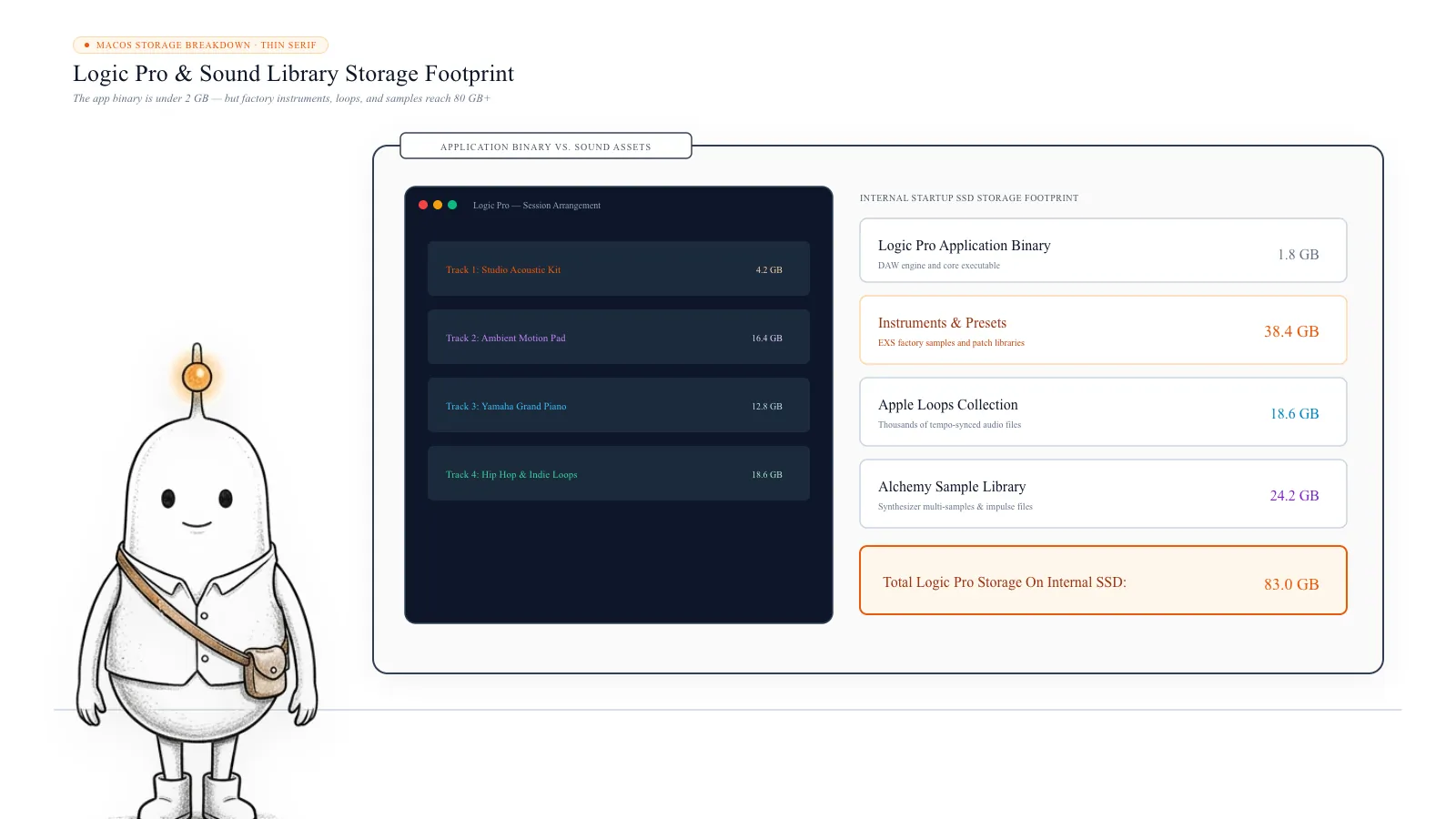
Logic Pro downloads factory sound libraries separately from the core application, including Apple Loops, sampler instruments, Alchemy multi-samples, and drum kits. In Logic Pro 12, content is stored in ~/Music/Logic Pro Library.bundle, while older versions distribute data across /Library/Application Support and /Library/Audio. You can selectively remove sound packs via Manage Packs or relocate the entire library to an external SSD.
Why does Logic Pro need so much storage?
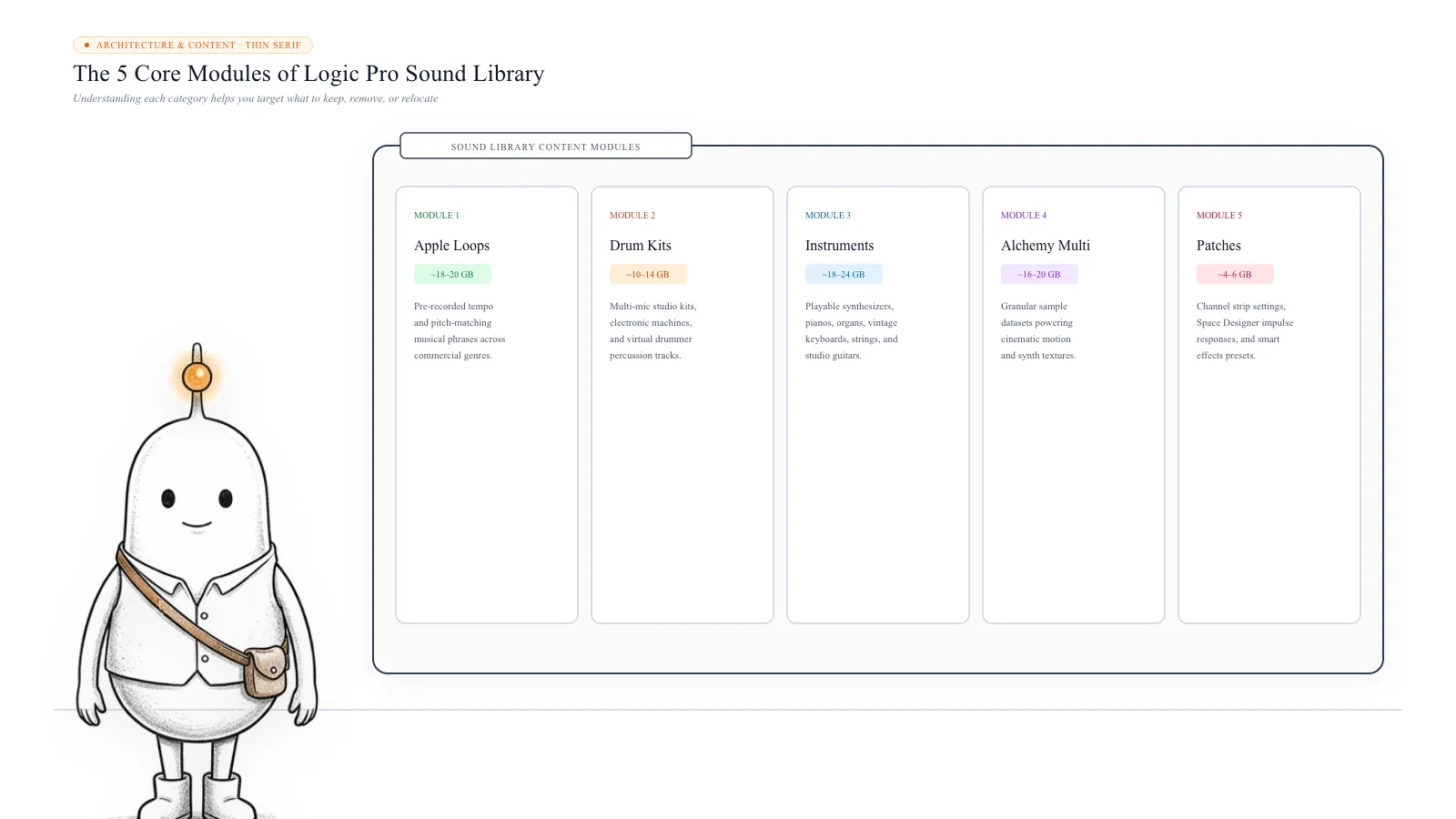
Logic Pro is not just a music recording application. It includes a large collection of sounds and instruments that you can use to build complete compositions. The Sound Library provides the audio resources used by software instruments, loops, samplers, and other music creation features.
Depending on the content you download, it can include:
- Apple Loops: Pre-recorded musical phrases and audio loops.
- Drum kits: Acoustic and electronic drum sounds.
- Software instruments: Sampled instruments, synthesizers, and other playable sounds.
- Patches: Presets that configure instruments and sounds.
- Alchemy samples: Sample data and resources used by Alchemy.
- Sampler instruments: Instruments that use recorded samples.
- Impulse responses: Audio data used by certain effects.
- Legacy content: Older sound collections and compatibility resources.
These files are installed separately from the main Logic Pro application. Apple's support documentation says that installing the complete Logic Pro and MainStage Sound Library requires approximately 72 GB of free storage. This is an installation requirement, not a promise that every user's library will occupy exactly 72 GB. Additional content, older installations, and related music-creation files can affect the total.
This is a real concern among Mac users. In one Reddit discussion, a Logic Pro user found an 80 GB Logic Pro Library bundle and an 83 GB Instrument Library entry in macOS Storage. Another user reported that Logic and GarageBand folders together occupied around 90 GB. The important thing is that these figures do not always represent separate amounts of physical storage. The way Logic Pro stores its library has also changed in recent versions.
Read more: Apple Support: Install additional Logic Pro content · Reddit: Logic Pro Library and Instrument Library showing 80 GB and 83 GB · Reddit: Logic and GarageBand folders occupying around 90 GB
1. Logic Pro and GarageBand install more than the application
One common misunderstanding is assuming that deleting an application removes everything associated with it. That is not necessarily what happens with music production software. The application itself is only one part of the installation. Downloaded instruments, sample libraries, loops, and other resources can be stored separately.
| Component | What it contains |
|---|---|
| Logic Pro application | The main music production software |
| Logic Pro Sound Library | Instruments, samples, patches, and loops |
| GarageBand content | Instruments, Drummers, presets, and additional loops |
| Apple Loops | Ready-to-use musical phrases and audio recordings |
| User-created loops | Audio loops you created or imported yourself |
GarageBand also provides a sound library containing instruments, guitar and voice presets, session drummers, and percussion content. Some older Logic Pro, GarageBand, and MainStage installations use shared library locations. However, you should not assume that every version uses one identical library. Logic Pro 12 introduced a consolidated library bundle, while GarageBand can still have its own application-specific content. This distinction matters when checking storage or deciding which files to remove.
Read more: Apple Support: GarageBand User Guide for Mac
2. Where is the Logic Pro Sound Library stored?
The location depends on the version of Logic Pro installed on your Mac. This is particularly important because Logic Pro 12 introduced a different storage structure.
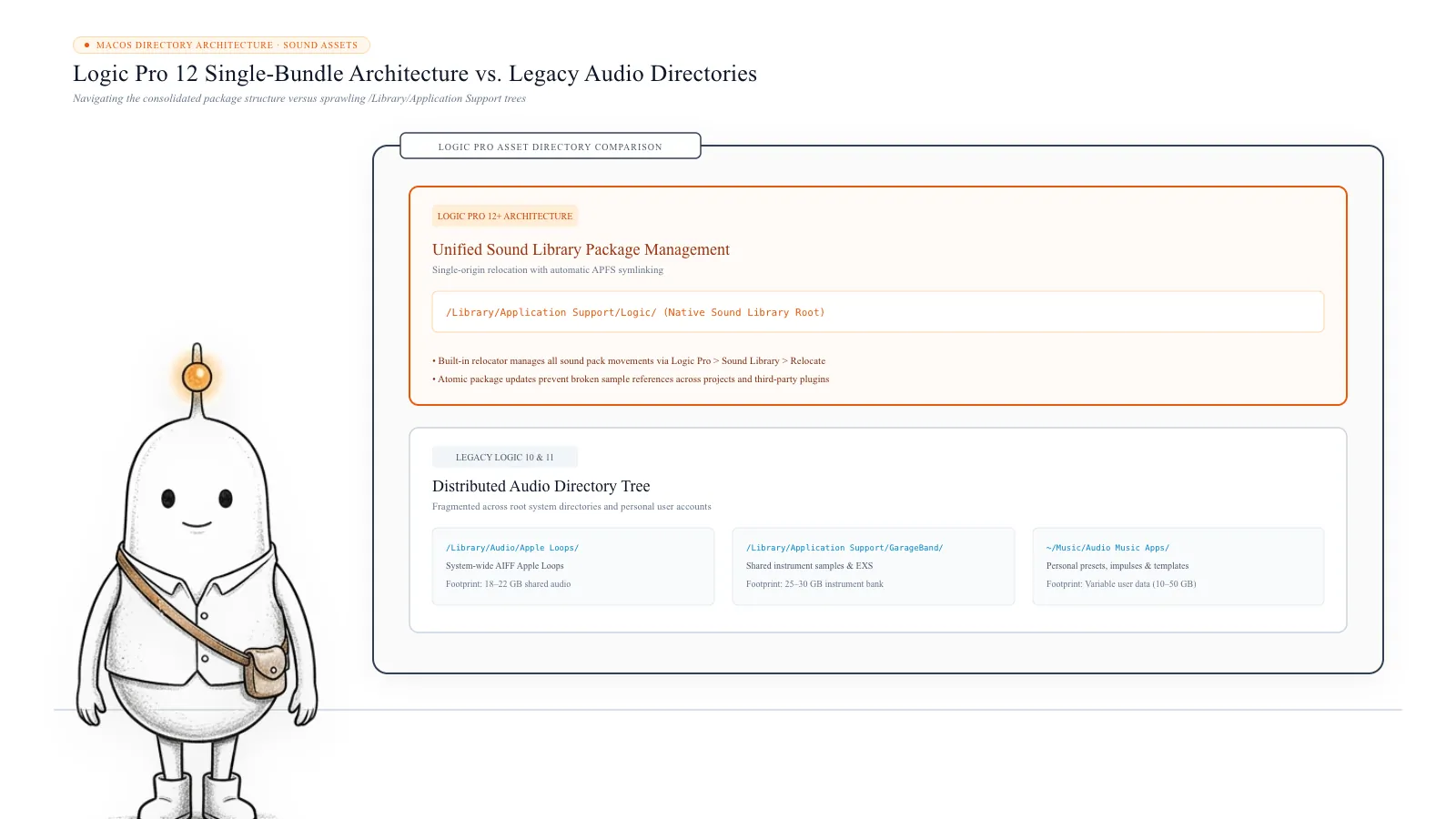
Logic Pro 12 and newer: In Logic Pro 12, the sound library is stored in a consolidated bundle by default. The standard location is: ~/Music/Logic Pro Library.bundle. This bundle contains the sound-related files used by Logic Pro, including patches, Apple Loops, and samples.
To inspect it: Open Finder, select Go from the menu bar, choose Go to Folder, enter ~/Music/, and look for Logic Pro Library.bundle. You can right-click the bundle and select Get Info to inspect its reported size. It may look like a single file in Finder, but it is technically a package containing multiple folders and files.
Older Logic Pro versions store sound library content across several system-wide folders:
- /Library/Application Support/Logic/
- /Library/Audio/Apple Loops/Apple/
- /Library/Audio/Impulse Responses/Apple/
- /Library/Application Support/Logic/Alchemy Samples/
- /Library/Application Support/Logic/EXS Factory Samples/
These locations can contain substantial amounts of downloaded sound data. Apple documents these locations in its Logic Pro content management guide. Do not assume that every folder is safe to remove manually. Some content can be used by multiple music production applications, depending on your installed versions.
Read more: Apple Support: Manage Logic Pro content
3. Why do Logic Pro Library and Instrument Library sometimes show similar sizes?
You might find two large storage entries on your Mac: Logic Pro Library.bundle inside your Music folder, and Instrument Library under Music Creation in macOS Storage. A Reddit user reported seeing approximately 80 GB for one entry and 83 GB for the other. It is tempting to assume that both are separate copies consuming more than 160 GB. However, this is not necessarily true.
Logic Pro 12 introduced a consolidated library bundle. When you first open Logic Pro 12 after upgrading from an earlier version, it creates the new bundle using a cloned version of the existing library. Apple specifically explains that this cloning operation does not require additional storage space. It also says you do not need to delete the older library files just to optimise storage.
This is important because macOS and Finder may present library content in ways that make the figures confusing. Do not add the displayed sizes together or delete the older folders based only on their names. First check your Logic Pro version, the actual library location, and the storage shown by macOS.
Read more: Apple Support: About the Logic Pro and MainStage sound library · Reddit: Logic Pro Library and Instrument Library showing 80 GB and 83 GB
4. How to check how much storage Logic Pro and GarageBand are using
Before deleting anything, find out which part of the sound library is consuming the most storage.
Check macOS Storage settings:
- Open the Apple menu.
- Select System Settings.
- Open General.
- Select Storage.
- Find the Music Creation category.
- Open its details if an information button is available.
Depending on your macOS version and installed applications, you may see content associated with Logic Pro, GarageBand, or MainStage. Look for entries such as Instrument Library and Apple Loops. This is a useful starting point, but remember that category names and storage figures can differ between macOS versions.
Inspect library folders through Terminal. You can check the size of common Logic and GarageBand folders by running:
du -sh "$HOME/Music/Logic Pro Library.bundle" "/Library/Application Support/Logic" "/Library/Application Support/GarageBand" "/Library/Audio/Apple Loops/Apple" 2>/dev/nullSome of these locations may not exist on your Mac. That is normal. The command only measures the folders. It does not remove anything.
To inspect the individual contents of an older Logic Pro installation, you can run:
du -sh "/Library/Application Support/Logic"/* 2>/dev/nullThis can help you identify whether large sample folders, such as EXS Factory Samples or Alchemy Samples, account for much of the storage. Do not assume that a large folder is unnecessary just because you do not recognise its name.
5. How to remove Logic Pro sound packs you no longer use
You do not necessarily need every sound pack installed on your Mac. For example, you might regularly use electronic drum kits and synthesizers but never use orchestral samples or certain legacy instrument collections. Logic Pro allows you to manage installed sound packs.
Delete individual sound packs in Logic Pro 12:
- Open Logic Pro.
- Choose Logic Pro > Sound Library.
- Open Manage Packs.
- Review the installed sound packs and their sizes.
- Select Delete next to a pack you no longer need.
- Confirm the deletion.
You can also review the total storage occupied by the installed packs in this section. Avoid selecting Delete All Installed Packs unless you deliberately want to remove the complete installed collection.
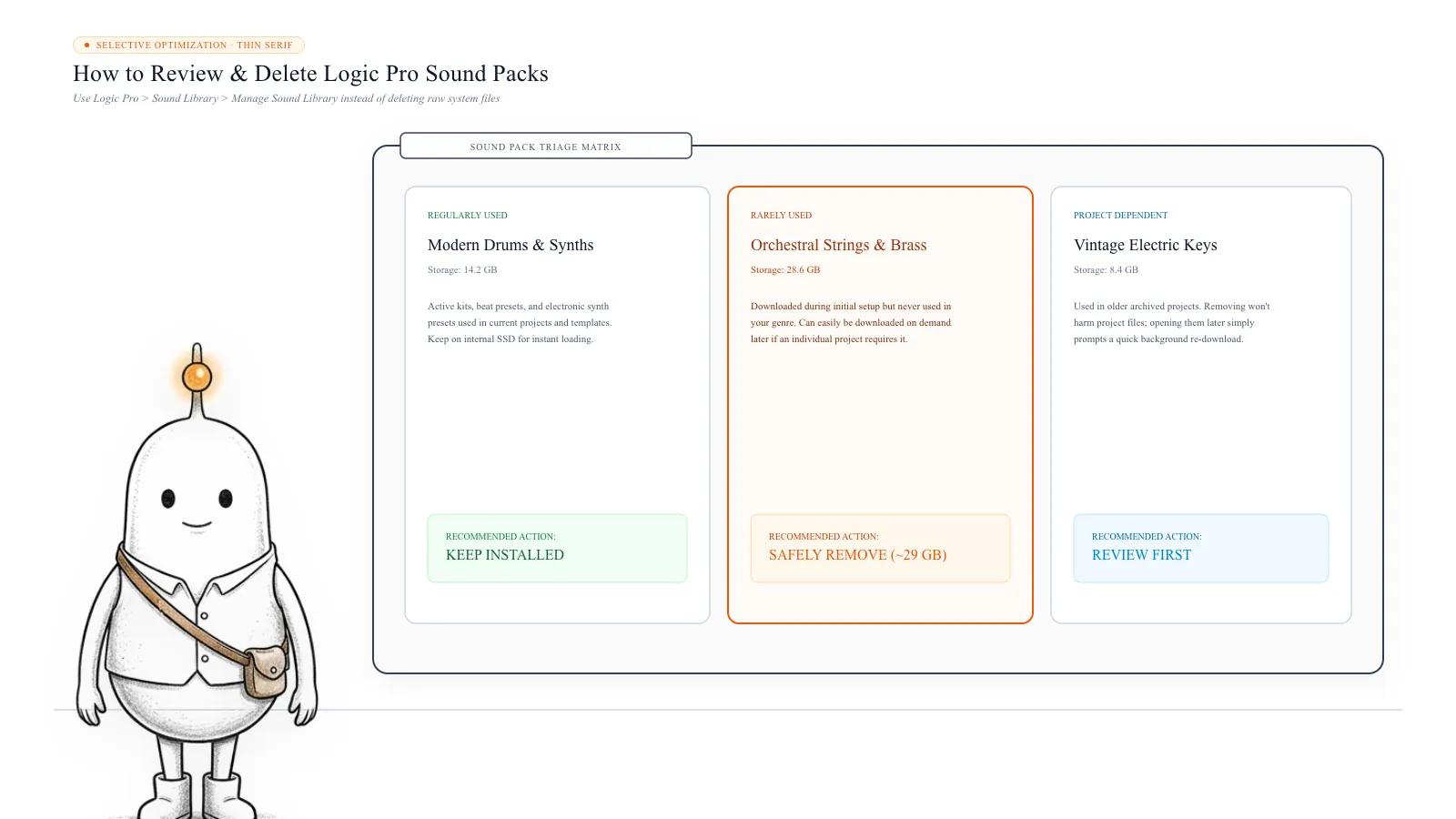
What happens when you remove a sound pack? Your saved Logic Pro projects are not automatically deleted. However, a project that uses a removed instrument or sample may no longer have access to that sound. When you open the project or select a missing patch, Logic Pro may prompt you to download the required content again. This means you can remove packs you rarely use, but it is worth checking which sounds your active projects depend on before doing so.
Read more: Apple Support: Download additional sound packs in Logic Pro
6. How to safely remove GarageBand and older music content
GarageBand also downloads additional sound content. This can include instruments, guitar and voice presets, Drummers, Apple Loops, and other resources. Some of these files are stored outside the GarageBand application itself.
Check the Music Creation storage category on supported macOS versions: Open System Settings, select General, open Storage, find Music Creation, open the category details, and review the available Instrument Library and Apple Loops entries. Remove only the content you no longer need, where macOS provides that option. Apple's older Logic Pro content management guide also documents deleting Instrument Library and Apple Loops content through the Mac's storage management interface.
Can GarageBand sounds be downloaded again? Yes. GarageBand provides options to download additional sounds and reinstall its Sound Library. Open GarageBand and choose GarageBand > Sound Library > Reinstall Sound Library. You can also choose GarageBand > Sound Library > Download All Available Sounds. The reinstall option is useful when the library has been altered or is no longer working correctly.
Important: Do not remove the entire Logic or GarageBand folder manually if you still use these applications. Some library files may be shared with other Apple music-creation applications, and older projects may depend on them.
Read more: Apple Support: Download additional sounds and loops in GarageBand
7. How to move the Logic Pro Sound Library to an external SSD
If your Mac has a limited internal SSD, moving the sound library to an external drive can be a practical solution. You can keep Logic Pro itself on your Mac while storing the large sound library on an external SSD. Apple officially supports moving the sound library to external storage. However, the steps depend on your Logic Pro version.
Moving the library in Logic Pro 12 or newer: Logic Pro 12 stores its library as Logic Pro Library.bundle in ~/Music/.
- Connect your external SSD.
- Open Finder.
- Open your Music folder.
- Locate Logic Pro Library.bundle.
- Drag the bundle to a suitable folder on the external SSD.
- Allow the copy or move operation to finish.
- Open Logic Pro. If prompted, locate the library on the external SSD.
You can also open: Logic Pro > Settings > General > Sound Library, and use the Location and Locate controls to point Logic Pro to the moved bundle. Before deleting any remaining original copy, confirm that Logic Pro can locate the external library and load your instruments, patches, and loops.
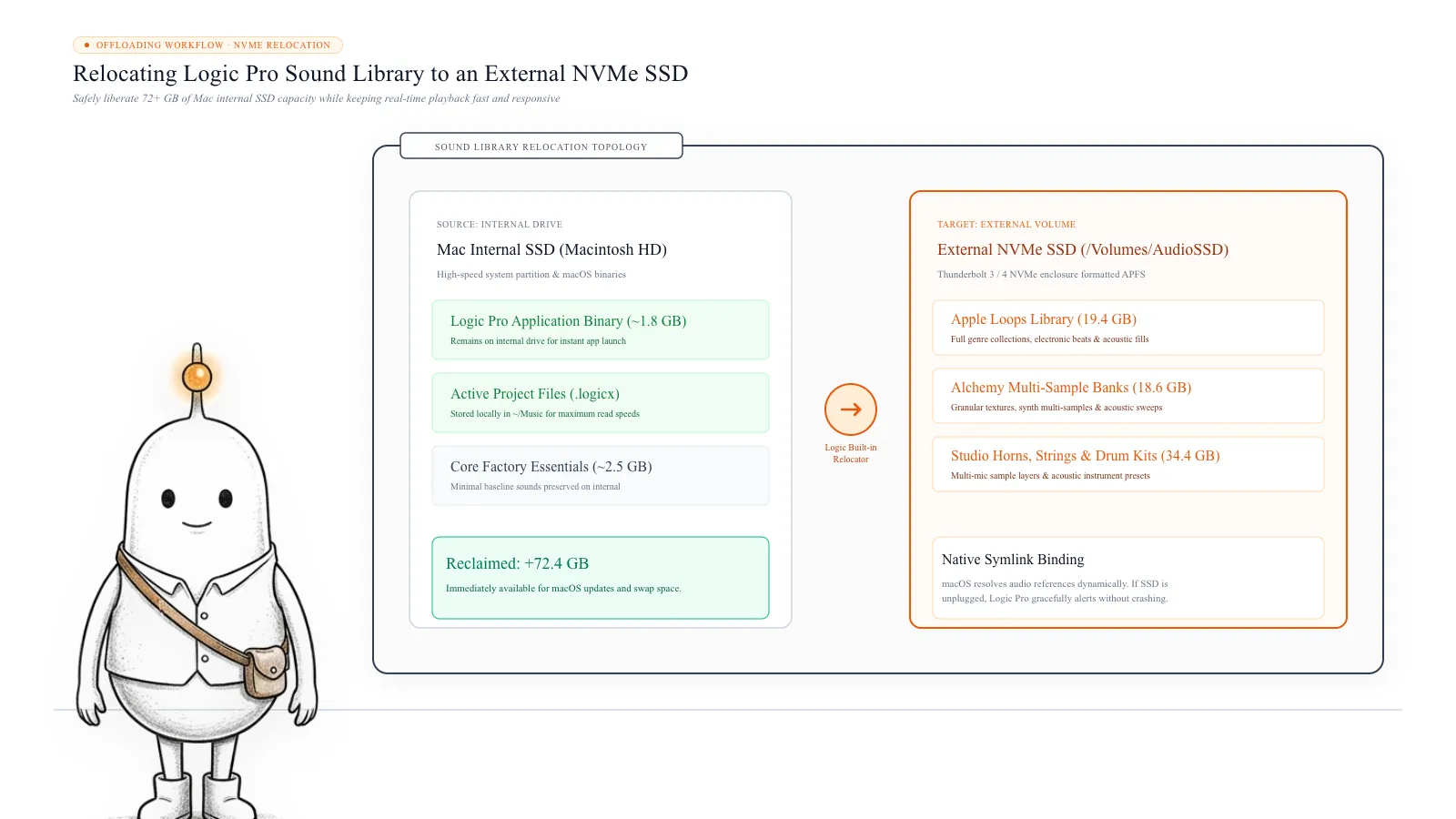
Moving the library in older Logic Pro versions: If you use Logic Pro 11.2.2 or earlier, connect your external SSD, make sure it has enough free space, open Logic Pro, and choose Logic Pro > Sound Library > Relocate Sound Library. Select the external storage volume, click Relocate, and allow Logic Pro to complete the operation.
For older versions, Apple recommends using a compatible Mac file system such as APFS or Mac OS Extended (Journaled). Do not use a volume dedicated to Time Machine backups for this library. Also, avoid renaming the external storage volume after relocation, because Logic Pro may no longer be able to find the library.
Read more: Apple Support: Move Logic Pro and MainStage content
8. What happens when the external SSD is disconnected?
Moving the sound library does not make it unnecessary for Logic Pro. The external drive needs to be connected and mounted when you want to use the sounds stored on it.
If you open Logic Pro while the external SSD is disconnected, the application may ask you to locate the library. You can reconnect the drive and choose Retry. You may also be able to continue without the library, but tracks that depend on missing Sound Library content can be replaced with basic tones until the library becomes available again.
For this reason, keep the external SSD connected while working on projects that use those sounds. Also, eject it properly after closing Logic Pro and other applications that are using the library.
9. What should you never delete while cleaning music storage?
Not every large audio folder is replaceable. The distinction between downloaded Apple content and your own creative work is particularly important.
| Content | Recommended action |
|---|---|
| Unused Logic Pro sound packs | Remove through Manage Packs |
| Unused Apple instrument content | Manage through supported Storage controls |
| Downloaded Apple Loops | Remove only after checking project usage |
| Logic Pro Library.bundle | Move using Apple's instructions, not random deletion |
| GarageBand application support | Do not delete blindly |
| User-created Apple Loops | Keep or back up |
| Logic Pro projects (.logicx) | Keep or back up |
| GarageBand projects (.band) | Keep or back up |
| Recorded audio and imported samples | Keep unless another verified copy exists |
| Third-party Audio Unit plugins | Manage through the plugin developer or supported app controls |
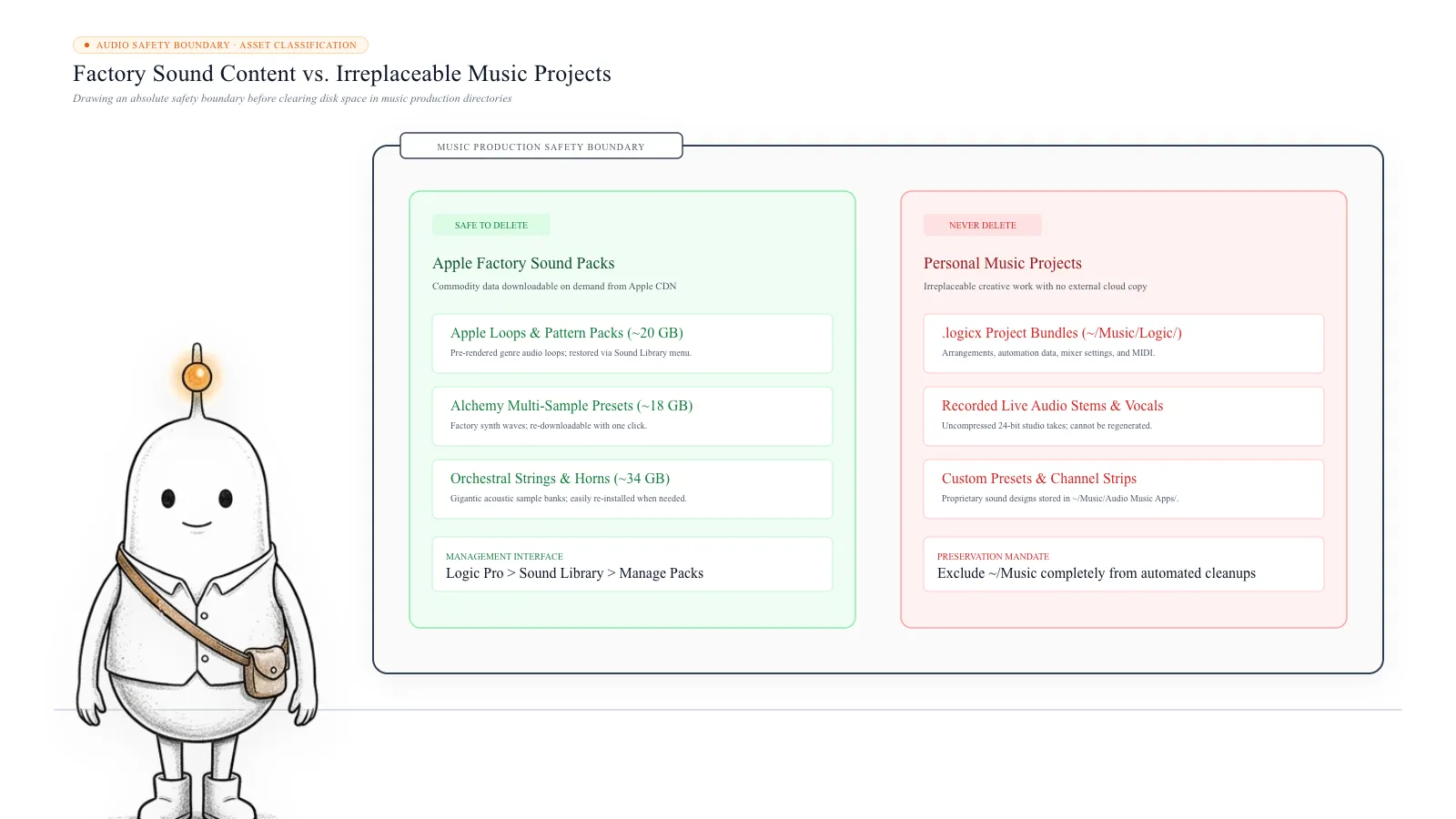
One folder worth protecting is your personal Apple Loops location: ~/Library/Audio/Apple Loops/. Apple documents this as a location for custom Apple Loops. These can include loops you created or imported yourself. They are not necessarily replaceable downloads from Apple's Sound Library. Your project files and original recordings are also separate from the downloaded factory library. Removing the wrong folder can break a project or remove audio that you cannot download again.
What’s safe to delete?
Unused Logic Pro Sound Packs
Safe via Logic~/Music/Logic Pro Library.bundle or Logic > Sound Library
Removes downloaded instruments and loops. Projects using them will prompt a re-download when opened.
How: Logic Pro > Sound Library > Manage Packs > Delete
GarageBand Sound Library
Safe via App/Library/Application Support/GarageBand
Removes GarageBand instruments and presets. Can be re-downloaded via GarageBand > Sound Library > Reinstall.
How: System Settings > Storage > Music Creation or GarageBand
Downloaded Factory Apple Loops
Review first/Library/Audio/Apple Loops/Apple/
Factory loops are removed. Can be re-downloaded from Apple, but active arrangements may report missing audio.
How: Manage through Logic Pro Sound Library controls
Logic Pro Library.bundle
Relocate only~/Music/Logic Pro Library.bundle
Breaks all Logic Pro instruments, patches, and preview loops. Should be relocated to an external SSD, not deleted.
How: Drag to external SSD and locate via Logic Pro settings
User-Created Apple Loops
Don't touch~/Library/Audio/Apple Loops/User Loops/
Destroys personal loops and customized audio phrases that cannot be re-downloaded from Apple.
How: Keep and back up to external storage
Logic Pro Project Files (.logicx)
Don't touch~/Music/Logic or custom project folders
Permanently deletes song compositions, MIDI data, track automation, and audio recordings.
How: Never delete project files as sound library cache
Audio Unit Plugins (.component)
Don't touch/Library/Audio/Plug-Ins/Components
Disables third-party synthesizers and mixing plugins across all DAWs.
How: Manage via plugin vendor installers or license managers
APFS cloning in Logic Pro 12
When upgrading to Logic Pro 12, macOS clones existing library files into the new bundle without taking double the physical storage. Do not add the sizes together or delete older files hastily.
Protect custom Apple Loops and recordings
Factory sound packs can always be re-downloaded from Apple. However, custom user loops in ~/Library/Audio/Apple Loops and project files (.logicx) cannot be recovered if deleted.
Recommended manual music storage steps
Always manage Logic Pro and GarageBand content through Apple's native library controls rather than deleting system audio directories in Finder.
- 1
Inspect Logic Pro and GarageBand storage footprint in Terminal
$du -sh "$HOME/Music/Logic Pro Library.bundle" "/Library/Application Support/Logic" "/Library/Application Support/GarageBand" "/Library/Audio/Apple Loops/Apple" 2>/dev/nullCalculates sound library size across modern bundle and legacy shared audio paths without modifying files.
- 2
Manage and selectively remove unneeded sound packs in Logic Pro
$Logic Pro > Sound Library > Manage PacksDelete unneeded genre packs and instrument collections while retaining core production sounds.
- 3
Relocate the full sound library to an external high-speed SSD
$Logic Pro > Settings > General > Sound Library (or Relocate Sound Library)Frees 72+ GB of internal Mac SSD storage while preserving complete instrument access.
The Diskfern way
How Diskfern helps
When macOS reports tens of gigabytes inside Music Creation or System Data, Diskfern lets you visually map whether storage is in Logic Pro Library.bundle, GarageBand, or legacy system audio folders.
- Open Diskfern and scan your Home folder or internal Macintosh HD.
- Use Treemap and Sunburst views to visually identify large music bundles in ~/Music and /Library/Application Support.
- Check exact directory sizes with Disk Advisor, then use Logic Pro's native Manage Packs or Relocate controls to free up space.
Finding and reviewing is free. Moving items to the Trash from Diskfern is part of Pro.
Scan Music Storage with DiskfernQuestions
How much storage does the Logic Pro Sound Library need?
Apple's support documentation says approximately 72 GB of free storage is required to install the complete Logic Pro and MainStage Sound Library. The actual space used on your Mac depends on installed content, application versions, and additional downloads.
Can Logic Pro use 80 GB or more of storage?
Yes. A large library can exceed 80 GB when additional content and older music-library files are present. However, check whether the storage figures represent separate physical data before adding them together.
Can I delete Logic Pro Library.bundle?
You can remove sound packs through Logic Pro's Manage Packs controls. If you want to move the complete bundle, follow Apple's relocation instructions. Do not delete the bundle blindly because Logic Pro needs it to access its instruments, loops, and samples.
Can I keep Logic Pro on my Mac and its sound library on an external SSD?
Yes. Apple supports storing the Logic Pro Sound Library on an external storage device. The external drive must be available when you want to use the library.
Does moving the Logic Pro library also move GarageBand content?
It depends on the versions and library structure. Older music-creation installations may share library locations. Logic Pro 12 and MainStage 4 use the consolidated bundle described by Apple. Do not assume that moving a Logic Pro 12 bundle automatically relocates every GarageBand-specific file.
Is it safe to remove Apple Loops?
Downloaded Apple Loops can be installed again, but projects that use a removed loop may need the content downloaded again. Be especially careful with custom loops you created yourself, as these are your own files rather than replaceable factory downloads.
Why does macOS show Music Creation as a large storage category?
Music Creation includes content from applications such as GarageBand, Logic Pro, and MainStage. The category can include instruments, sound libraries, and Apple Loops stored separately from the applications themselves.
Will deleting GarageBand remove all its sound files?
Not necessarily. The application and its downloaded content are separate. Removing GarageBand does not automatically guarantee that all associated music content will be removed.

Written by
Diskfern Team
We explain Mac storage using product behavior and the sources listed below. Review your app settings and backups before removing data.
Sources
- Apple Support: Install additional Logic Pro content · checked November 8, 2026
- Apple Support: GarageBand User Guide for Mac · checked November 8, 2026
- Apple Support: Manage Logic Pro content · checked November 8, 2026
- Apple Support: About the Logic Pro and MainStage sound library · checked November 8, 2026
- Apple Support: Download additional sound packs in Logic Pro · checked November 8, 2026
- Apple Support: Download additional sounds and loops in GarageBand · checked November 8, 2026
- Apple Support: Move Logic Pro and MainStage content · checked November 8, 2026
- Reddit: Logic Pro Library and Instrument Library showing 80 GB and 83 GB · checked November 8, 2026
- Reddit: Logic and GarageBand folders occupying around 90 GB · checked November 8, 2026
Keep reading
Explore practical storage guides for Apple Mail and macOS applications.
After Effects Cache Taking Up Mac Storage? Here is How to Fix It
After Effects cache can consume hundreds of GB on your Mac. Find disk and media cache files, clear them safely, set limits, and move cache to an external SSD.
Mac Storage Keeps Shrinking Automatically? Here is Why
Find out why your Mac loses storage even when you're not downloading anything: swap files, app caches, background logs, and how to safely diagnose the cause.
Why Can't I Install a macOS Update Even With Enough Space?
Mac says there isn't enough space to install a macOS update? Learn why, check purgeable storage, find temporary files, and troubleshoot safely.
Why Are iPhone & iPad Backups Taking Hundreds of GB on Mac?
Discover why old iPhone and iPad backups accumulate in MobileSync, how to find and manage them in Finder, and how to safely reclaim gigabytes of storage.

Get your space back. Start with a free scan.
Explore the files and folders Diskfern can read. Your files stay on your Mac, and nothing is removed until you say so.
macOS 14 Sonoma or later · Apple silicon and Intel