Apps
Why Did Google Chrome Download a 4GB AI Model to Your Mac?
You might be checking your Mac's storage when you notice something unusual: a file several gigabytes in size sitting inside Google Chrome's application support folder. Its name is weights.bin. It isn't a video, a downloaded document, or a cache from a website you visited. It's part of Gemini Nano, Google's on-device AI model for Chrome.
 Diskfern Team8 min readUpdated
Short answer
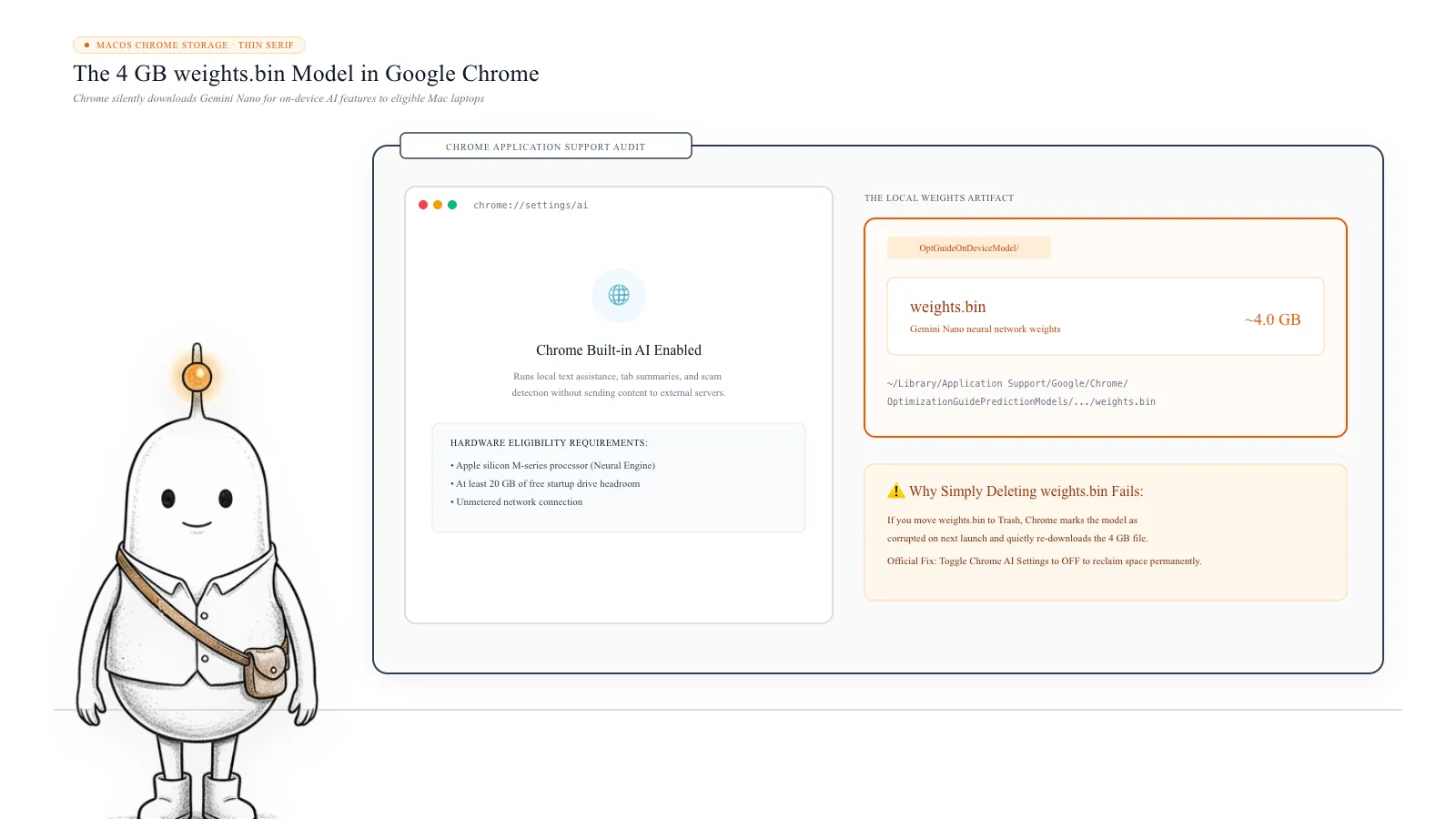
Google Chrome automatically downloads a ~4 GB model weights file (weights.bin) inside ~/Library/Application Support/Google/Chrome/OptGuideOnDeviceModel/ on eligible Macs to power local Gemini Nano AI features. Manually deleting it to Trash causes Chrome to re-download it. To remove the file permanently, turn off On-device AI in Chrome Settings > AI innovations.
What Is Gemini Nano Doing Inside Google Chrome?
Gemini Nano is Google's smaller language model designed to run directly on a device rather than sending every AI task to a remote server. Chrome uses on-device models to support features such as writing assistance and text rephrasing, scam detection and security-related features, summarising content, and other browser features that use built-in AI capabilities.
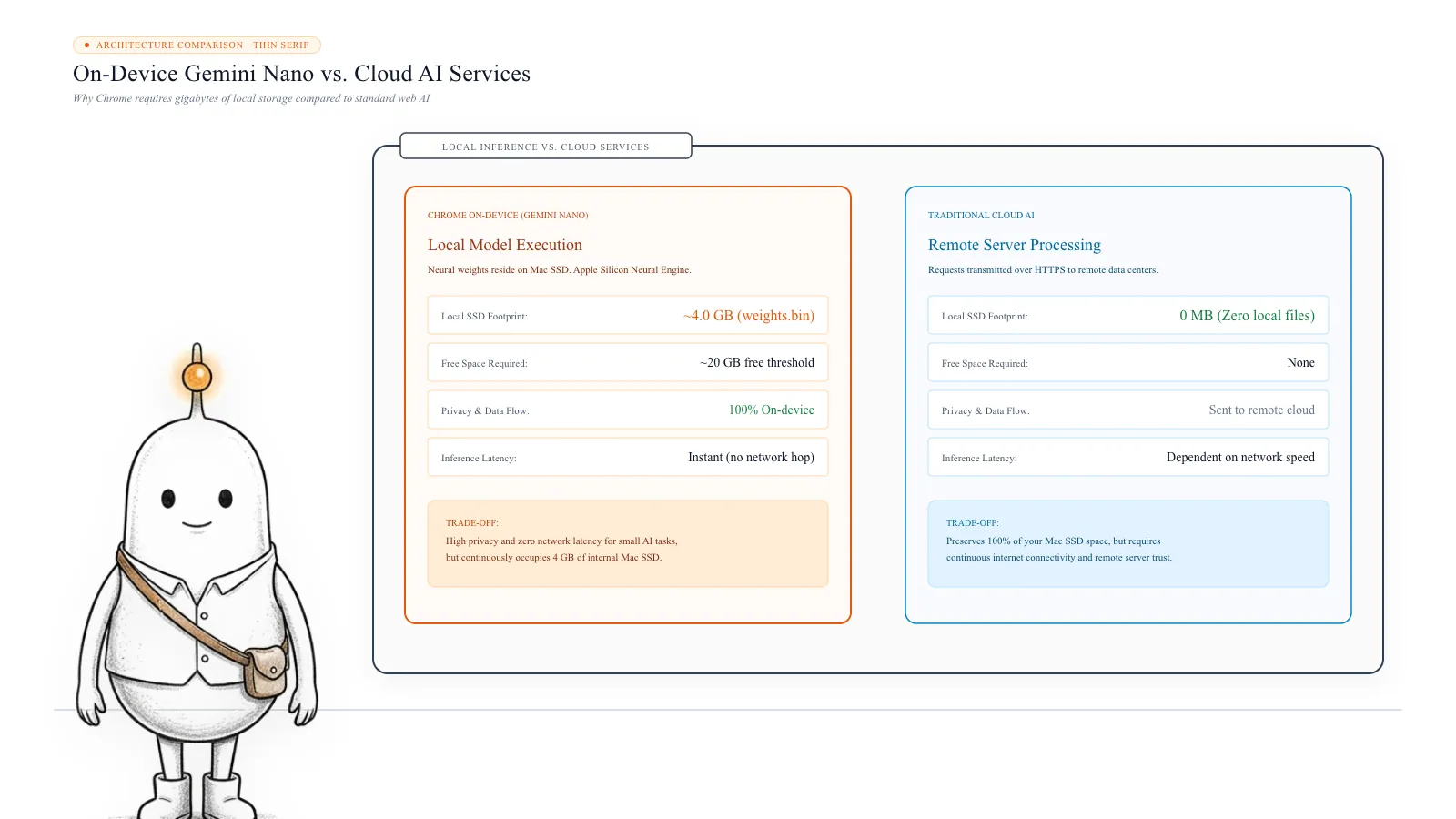
The exact features available depend on your Chrome version, device, and feature availability. Unlike a cloud-based AI service, an on-device model needs its model files stored locally. These files contain the numerical parameters, commonly called weights, that the model uses to process information. That's why Chrome needs several gigabytes of storage for Gemini Nano.
Running a model locally can reduce the need to send certain processing requests to a server and may improve response times. But there's a trade-off: the model occupies space on your Mac even when you're not actively using an AI feature.
Google says Chrome only downloads these models on eligible devices. Its documented requirements include sufficient hardware performance, an unmetered network connection, and approximately 20 GB of free disk space. Requirements can change.
Read more: Chrome for Developers: Understand built-in model management in Chrome · Snopes Fact Check: Google Chrome silently downloads 4GB AI model
What Is the 4GB weights.bin File?
The file attracting attention is named weights.bin. It is stored inside a Chrome data directory called OptGuideOnDeviceModel. This directory contains the on-device model used by Chrome's optimisation guide infrastructure.
On macOS, the commonly reported location is: ~/Library/Application Support/Google/Chrome/OptGuideOnDeviceModel/. You may find a version-numbered subfolder inside it containing weights.bin. The exact directory structure can vary between Chrome versions and profiles, so don't assume every Mac will have precisely the same folder layout. The file can occupy around 4 GB, although its actual size may differ as Google updates the model.
How to find it using Finder:
- Open Finder.
- Press Command + Shift + G.
- Paste this path: ~/Library/Application Support/Google/Chrome/
- Look for OptGuideOnDeviceModel.
- Open the folder and check for a version-numbered directory containing weights.bin.
- If you find it, select the file and press Command + I to open Get Info. This shows its actual size.
If the folder doesn't exist, Chrome may not have downloaded the model to your current user profile.
Read more: Reddit: PSA Chrome silently downloaded a 4GB AI model on Mac
How to Check the Model's Size Using Terminal
You can also inspect the directory without opening individual folders. Terminal allows you to measure and find the exact file without deleting anything.
Open Terminal and run:
du -sh "$HOME/Library/Application Support/Google/Chrome/OptGuideOnDeviceModel" 2>/dev/nullThis reports the total size of the model directory if it exists. To locate weights.bin anywhere inside Chrome's user data directory, use:
find "$HOME/Library/Application Support/Google/Chrome" -name "weights.bin" -type f -print 2>/dev/nullThese commands only inspect files. They don't delete or modify anything. If you use multiple Chrome profiles, remember that Chrome's user data can contain more than one profile. The model directory may not necessarily be inside the Default profile folder.
Why Deleting weights.bin Alone May Not Work
It seems straightforward: find the large file, move it to Trash, and reclaim the storage. But that doesn't address why Chrome downloaded it.
Chrome manages its on-device AI models automatically. If the on-device AI setting remains enabled and a feature needs the model, Chrome may download the missing files again. Google's own documentation explicitly warns that manually locating and deleting model files is not the supported way to manage them. This explains why some users report that the folder or file returns after they restart Chrome.
The important distinction is between removing a model file and disabling the feature responsible for managing that model. If you want to keep Chrome's on-device AI features, leave the model installed. If you don't want Chrome to download or maintain these models, use its supported setting instead.
Read more: Google Chrome Help: Manage on-device generative AI models in Chrome
How to Stop Chrome From Downloading Gemini Nano
Google now documents a setting that lets users manage on-device generative AI models through Chrome Settings.
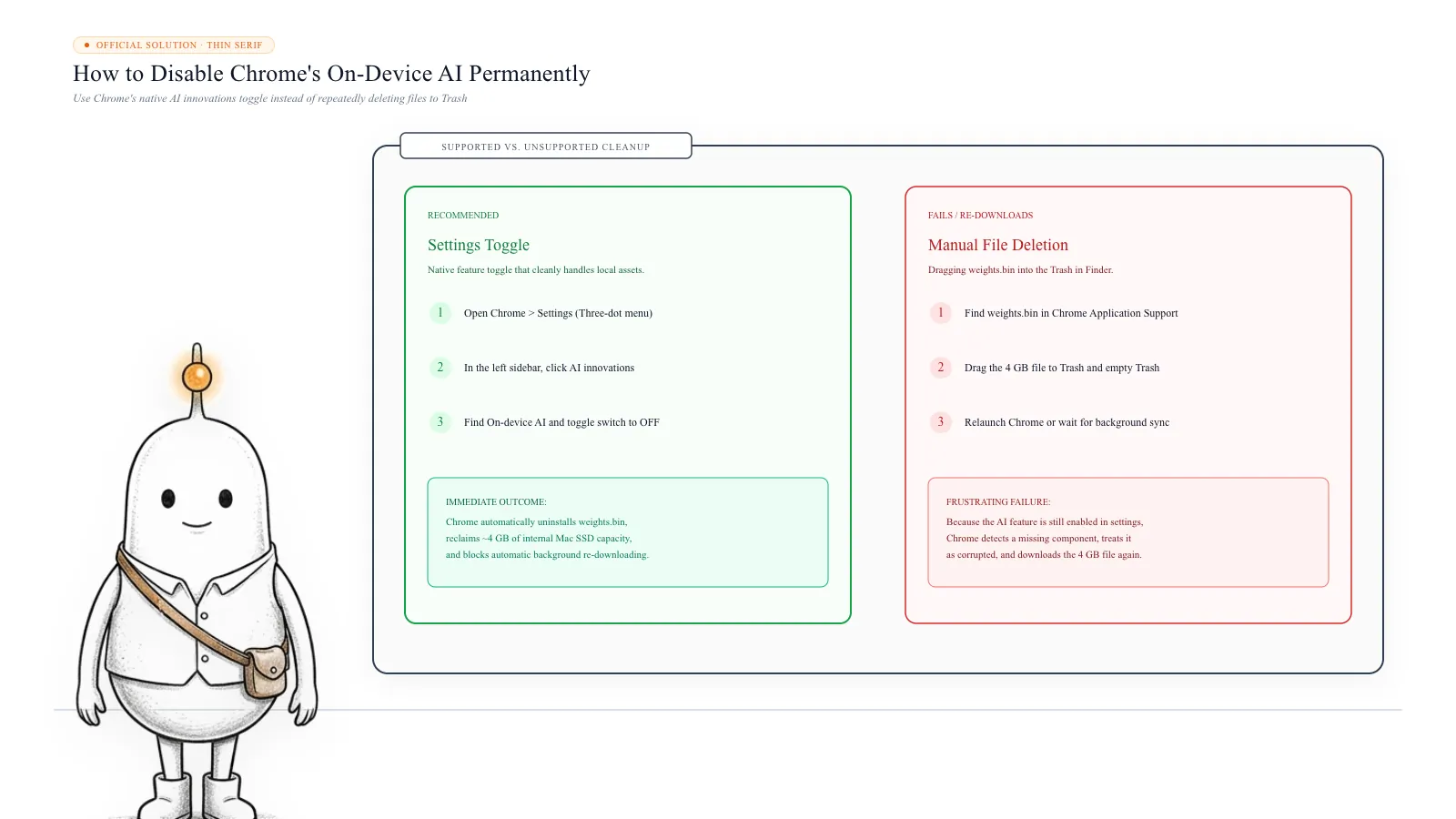
Follow these steps:
- Open Google Chrome.
- Click the three-dot menu in the top-right corner.
- Open Settings.
- Select AI innovations.
- Find On-device AI.
- Turn the setting off.
The exact menu availability and wording can vary by Chrome version and rollout. According to Google's support documentation, turning this setting off: deletes the on-device generative AI model files, prevents Chrome from downloading these models again while the setting remains off, and disables features that depend on those on-device models. Some Chrome AI features don't rely on these generative models and may continue working.
What if you can't find the setting? Check whether Chrome is up to date and look again under Settings → AI innovations. The setting may not be available in every version, configuration, or managed browser installation. If your Mac is managed by an organisation, Chrome Enterprise policies may control these features. In that situation, contact your administrator rather than trying to override managed settings.
Avoid relying on random Chrome flags or terminal commands found in forum posts as a permanent solution. Experimental flags can change or disappear, and they aren't Google's documented model-management method.
Read more: Google Chrome Help: Manage on-device generative AI models in Chrome
Does Turning Off On-device AI Affect Chrome?
Yes, but only features that depend on the on-device generative models.
For example, you may lose access to certain local writing assistance or AI-powered features that require Gemini Nano. There is also a potential benefit: Chrome no longer needs to maintain those model files while the setting is off. You don't need to uninstall Chrome, clear your browsing history, or reset your browser to manage this storage. If you regularly use Chrome's local AI features, keeping the model may be worth the storage cost. If you never use them, disabling on-device AI can be a reasonable choice.
Why Does Chrome Need So Much Free Storage to Download an AI Model?
Google's documentation lists approximately 20 GB of available disk space as a requirement for downloading on-device generative AI models.
That doesn't mean Gemini Nano itself occupies 20 GB. The model is much smaller, with the commonly reported weights.bin file occupying around 4 GB. The additional free-space requirement gives Chrome room to manage downloads and other operations without immediately exhausting available storage.
Chrome also manages model updates in the background. Google's developer documentation explains that model updates can involve downloading a complete new model rather than applying a small incremental patch. This means temporary storage use can differ during an update. Chrome can also automatically remove the model when available storage falls below an internal threshold.
Read more: Chrome for Developers: Understand built-in model management in Chrome
Find Chrome's AI Model Alongside Other Large Files on Your Mac
The Gemini Nano model is just one example of an application storing large resources outside its main application bundle.
Other applications can also occupy substantial storage through:
- Browser caches and downloaded resources
- Local AI models
- Developer tool caches
- Application support files
- Virtual machines and container images
- Media libraries and temporary project files
The challenge is identifying which large files belong to which applications and understanding whether they're safe to remove. Diskfern helps you inspect your Mac's storage through Treemap, Sunburst, and List views. You can explore large folders, investigate application data, and identify storage consumed by developer tools and local AI models. Start with a free scan, locate the largest items, and inspect their locations before deciding what to remove.
What’s safe to delete?
weights.bin (via Chrome settings)
Safe via settings~/Library/Application Support/Google/Chrome/OptGuideOnDeviceModel/
Turning off On-device AI safely purges the 4 GB model file. Local AI writing and summary features are disabled.
How: Chrome > Settings > AI innovations > Toggle On-device AI to OFF
OptGuideOnDeviceModel folder (manual deletion)
Will re-download~/Library/Application Support/Google/Chrome/OptGuideOnDeviceModel/
Reclaims 4 GB temporarily, but Chrome automatically re-downloads the model when restarting or running AI features.
How: Do not manually delete; disable On-device AI in Chrome Settings instead
Chrome Cache & Media Storage
Safe to clear~/Library/Caches/Google/Chrome/
Removes cached images, scripts, and web resources. Websites reload slightly slower on first visit.
How: Chrome > Clear Browsing Data > Cached images and files
Chrome User Profiles & Bookmarks
Don't touch~/Library/Application Support/Google/Chrome/Default/
Deletes saved passwords, bookmarks, browsing history, and active session logins.
How: Never delete user profile directories as temporary cache
Why manual deletion fails
Deleting weights.bin manually to Trash does not turn off the underlying feature. Chrome detects the missing file and downloads it again in the background. Always toggle the setting off under Settings > AI innovations.
Managed and Enterprise Mac configurations
If your Mac is managed by your employer or school, Chrome Enterprise policies may enforce AI features. If the AI innovations toggle is locked, contact your IT administrator.
Recommended manual Chrome AI management steps
Always disable on-device AI via Chrome's native settings instead of deleting model files in Finder, which prompts automatic re-downloads.
- 1
Inspect Chrome OptGuideOnDeviceModel folder size in Terminal
$du -sh "$HOME/Library/Application Support/Google/Chrome/OptGuideOnDeviceModel" 2>/dev/nullMeasures current on-device AI model footprint on your internal SSD without modifying browser data.
- 2
Locate weights.bin file across all Google Chrome profiles
$find "$HOME/Library/Application Support/Google/Chrome" -name "weights.bin" -type f -print 2>/dev/nullFinds the exact path of all installed Gemini Nano model weight files.
- 3
Disable On-device AI to safely delete the model permanently
$Chrome Settings > AI innovations > On-device AI (Toggle OFF)Instructs Chrome to purge the 4 GB model files and prevents future background downloads.
The Diskfern way
How Diskfern helps
When macOS reports unexpected gigabytes in Application Support or System Data, Diskfern lets you quickly spot weights.bin and large browser caches.
- Open Diskfern and scan your Home directory or Macintosh HD.
- Switch to Sunburst or Treemap view to visually inspect ~/Library/Application Support/Google/Chrome/.
- Identify OptGuideOnDeviceModel and check whether Gemini Nano is consuming 4 GB of internal storage.
Finding and reviewing is free. Moving items to the Trash from Diskfern is part of Pro.
Scan Chrome Storage with DiskfernQuestions
Is Gemini Nano installed on every Mac running Chrome?
No. Chrome downloads on-device generative AI models only on eligible devices that meet its hardware and other requirements. Not every Mac or Chrome profile will contain the model.
Is weights.bin a virus or malware?
No. The file is associated with Google's Gemini Nano on-device AI model. Its presence inside Chrome's model directory is not, by itself, evidence of malware.
Can I delete the OptGuideOnDeviceModel folder manually?
You can technically remove files from your user Library, but Google does not recommend manual deletion as the way to manage these models. Chrome may download them again if on-device AI remains enabled. Use Chrome's On-device AI setting instead.
Does Gemini Nano work without an internet connection?
The model runs locally, so inference can happen on your device without sending each request to a cloud model. However, downloading and updating the model requires an internet connection, and individual Chrome features may have other connectivity requirements.
Will turning off On-device AI disable all Gemini features in Chrome?
No. Google states that some Chrome AI features do not depend on on-device generative models. Those features may continue working after you turn the setting off.
How much storage does Gemini Nano use?
The commonly reported weights.bin file is around 4 GB, but the actual size can vary with the model version and Chrome installation.

Written by
Diskfern Team
We explain Mac storage using product behavior and the sources listed below. Review your app settings and backups before removing data.
Sources
- Chrome for Developers: Understand built-in model management in Chrome · checked November 8, 2026
- Google Chrome Help: Manage on-device generative AI models in Chrome · checked November 8, 2026
- Snopes Fact Check: Google Chrome silently downloads 4GB AI model · checked November 8, 2026
- Reddit: PSA Chrome silently downloaded a 4GB AI model on Mac · checked November 8, 2026
Keep reading
Explore practical storage guides for Apple Mail and macOS applications.
Local AI model hardware limitations
Understand local AI model hardware limitations across VRAM, Apple Silicon unified memory, memory bandwidth, KV cache growth, GPU drivers, and SSD storage.
Dropbox Online-Only Files Still Taking Up Mac Storage? Fix It
Dropbox online-only files can still leave local cache data on your Mac. Find hidden Dropbox folders, inspect sync storage, and safely clear unnecessary cache.
Logic Pro Sound Library Taking Up 80GB? Free Up Mac Storage
Logic Pro and GarageBand sound libraries can consume tens of GB on your Mac. Find the library, remove unused sounds safely, or move it to an external SSD.
After Effects Cache Taking Up Mac Storage? Here is How to Fix It
After Effects cache can consume hundreds of GB on your Mac. Find disk and media cache files, clear them safely, set limits, and move cache to an external SSD.
Mac Storage Keeps Shrinking Automatically? Here is Why
Find out why your Mac loses storage even when you're not downloading anything: swap files, app caches, background logs, and how to safely diagnose the cause.

Get your space back. Start with a free scan.
Explore the files and folders Diskfern can read. Your files stay on your Mac, and nothing is removed until you say so.
macOS 14 Sonoma or later · Apple silicon and Intel