Developer storage
Local AI Model Hardware Limitations: Memory, Bandwidth, Context, and Storage
Understanding local AI model hardware limitations comes down to one core rule: a model is constrained by memory capacity first, memory bandwidth second, and context-window overhead right behind them. On desktop PCs, the hardest wall is discrete GPU VRAM; on Apple Silicon Macs, the ceiling is shared unified memory, specifically the safe GPU working-set limit macOS exposes rather than the headline RAM figure on the box.
 Diskfern Team9 min readUpdated
Short answer
Running a model locally does not fail gracefully once those boundaries are crossed. If model weights and conversation state exceed fast GPU memory, inference runtimes either fail to load, drop context length silently, offload layers onto a much slower CPU, or push active memory onto SSD swap.

1. Memory capacity (VRAM vs. RAM vs. Apple Silicon working set)
To run at usable speeds, a model's weights, attention cache, and runtime buffers must reside in memory the GPU can access directly. In Hugging Face's quantization documentation, an 8-billion-parameter model takes about 16 GB for weights alone in bf16 (2 bytes per parameter), about 8 GB at 8-bit precision, and roughly 4–5 GB at 4-bit precision (Hugging Face Transformers Quantization Overview). At the 70-billion-parameter scale, 16-bit (bf16/fp16) weights alone come to 140 GB decimal (~130.4 GiB binary at 2 bytes per parameter), exceeding a single 80 GB-class data-center GPU unless you quantize the weights or shard across multiple devices.
| Constraint Area | Discrete GPU Rig (Windows/Linux) | Apple Silicon Mac (Unified Memory) | What Happens When Exceeded |
|---|---|---|---|
| Primary memory pool | Dedicated GPU VRAM (e.g., 24 GB GDDR6X on an RTX 4090) | Shared CPU/GPU unified memory (e.g., 24 GB to 128 GB on M4 Pro/Max models) | Partial CPU offload or out-of-memory failure |
| Effective GPU cap | Physical VRAM minus OS, display, and runtime allocations | Governed by Metal's recommendedMaxWorkingSetSize | Runtime reduces context or splits layers |
| Multi-GPU scaling | Supported across CUDA / ROCm / Vulkan devices | Not applicable on single-chassis laptops/desktops | Must shrink model, quantize lower, or reduce context |
| Disk / SSD role | Holds downloaded checkpoints and weights | Holds weights plus macOS virtual memory (Swap Used) | Swap thrashing stalls token generation |
Sources: NVIDIA GeForce RTX 4090 Specs, Apple Support MacBook Pro Tech Specs, Apple Developer `recommendedMaxWorkingSetSize`, Ollama Hardware Support, Ollama FAQ, Apple Activity Monitor Guide.
One common hardware mistake on Mac is treating total unified memory as 100% dedicated VRAM. Apple's Metal API exposes recommendedMaxWorkingSetSize, an approximation of how much GPU memory an application can allocate before hurting runtime performance (Apple Developer Documentation). Because macOS reserves room for the operating system and active apps, a 24 GB Mac exposes noticeably less than 24 GiB to Metal compute backends, and LM Studio notes that while 8 GB Macs can run small models with modest context, 16 GB+ RAM is recommended (LM Studio System Requirements).
When a model does not fit cleanly into GPU memory, tools such as Ollama split layers across the GPU and system RAM. You can inspect that split directly while a model is loaded using ollama ps: 100% GPU means the full model is GPU-resident, whereas outputs such as 48%/52% CPU/GPU indicate partial CPU offloading and much slower responses (Ollama FAQ).
2. Memory bandwidth: the real limit on token speed
Even after a model fits inside VRAM or unified memory, memory bandwidth dictates how quickly it generates replies. During autoregressive decoding, a language model produces one output token at a time, and latency is dominated by transferring weights, KV tensors, and activations from memory rather than raw compute speed (NVIDIA Technical Blog: Inference Optimization). In standard dense models, generating each token requires reading all model weights from memory.
As an arithmetic upper bound (assuming 100% memory-bus utilization and ignoring compute overhead, quantization unpacking, and KV-cache reads):
Theoretical ceiling (tokens/s) ≈ Memory Bandwidth (GB/s) ÷ Active Model Footprint (GB)Apple's M4 family illustrates why two Macs with similar CPU speeds perform very differently on local AI: Apple lists 120 GB/s memory bandwidth on M4, 273 GB/s on M4 Pro, and 410 GB/s to 546 GB/s on M4 Max (Apple Newsroom M4 Pro and M4 Max, Apple Support MacBook Pro Tech Specs). Dividing those bandwidth figures by a ~20 GB (decimal) quantized model yields theoretical bus ceilings of ~6.0 tokens/sec on base M4, ~13.7 tokens/sec on M4 Pro, and ~27.3 tokens/sec on a 546 GB/s M4 Max, before real-world driver, attention, and KV-cache overhead lowers sustained throughput further.
- CPU-only RAM bottleneck: Standard desktop or laptop system DDR memory typically has far lower bandwidth than GPU GDDR6X/HBM or high-tier unified memory, which is why CPU fallback feels dramatically slower even when a computer has 64 GB of system RAM.
- Dense vs. Mixture-of-Experts (MoE): An MoE model still requires enough RAM/VRAM and disk storage for all of its parameters, but because only a subset of expert parameters activates per token, its bandwidth demand per generated token is lower than an equally large dense model.
3. Context length and KV cache growth
Hardware tables often measure only the model file on disk and ignore the key-value (KV) cache, the working memory required to retain conversation history, system prompts, and pasted files without recomputing every earlier token (Hugging Face KV Cache Strategies).
For standard transformer architectures, KV-cache memory scales linearly with sequence length and batch size, governed by the number of layers, KV heads, head dimension, and cache precision (NVIDIA Technical Blog: Inference Optimization):
KV Cache Bytes = 2 × n_layers × n_kv_heads × d_head × bytes per element × context length × batch sizeCalculating directly from Grouped-Query Attention (GQA) dimensions for a 32-layer model with 8 KV heads, head dimension 128, and bf16 (2-byte) cache entries gives 131,072 bytes (128 KiB) per token, adding roughly 0.50 GiB at 4K tokens, 1.00 GiB at 8K tokens, 4.00 GiB at 32K tokens, and 8.00 GiB at 64K tokens for a single request (using binary 1K = 1,024 tokens; at a decimal 64,000-token setting, the same model uses ~7.81 GiB). Serving multiple concurrent requests multiplies that allocation further; Ollama explicitly notes that parallel request processing scales context memory by OLLAMA_NUM_PARALLEL × OLLAMA_CONTEXT_LENGTH (Ollama FAQ).
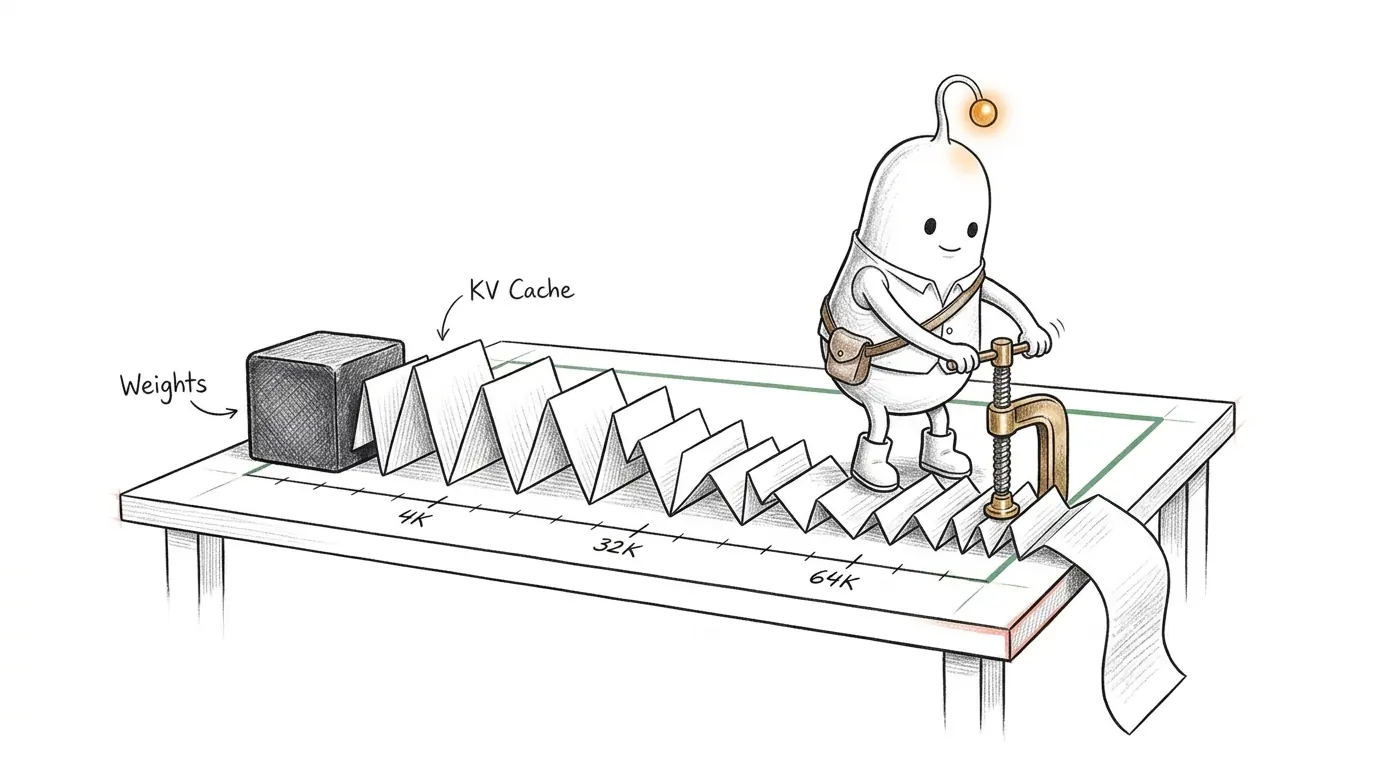
You can also curb context memory pressure with Flash Attention and KV-cache quantization. Ollama enables Flash Attention automatically on supported backends (or forces it with OLLAMA_FLASH_ATTENTION=1) and allows KV-cache quantization via OLLAMA_KV_CACHE_TYPE: q8_0 uses roughly half the memory of f16 with minimal precision loss, while q4_0 uses roughly one quarter with a larger potential quality trade-off (Ollama FAQ).
Hardware limits also trigger software context defaults. Ollama documents that it selects default context lengths from reported available VRAM (Ollama Context Length):
- Below 24 GiB VRAM: defaults to a 4k context window.
- 24–48 GiB VRAM: defaults to a 32k context window.
- 48 GiB VRAM or more: defaults to a 256k context window.
Note two important nuances:
- Unified-memory threshold caveat on 24 GB Macs: Because Ollama picks default context windows from reported available VRAM (Ollama Context Length) while macOS manages GPU headroom under Metal's
recommendedMaxWorkingSetSize(Apple Developer Documentation), a 24 GB unified-memory Mac may report less than 24 GiB of available GPU memory and drop into the 4k default tier, though Ollama's documentation does not explicitly confirm how Mac working-set rounding maps to these tiers. Check your actual allocation withollama psand override it withOLLAMA_CONTEXT_LENGTHonly if the full model remains GPU-resident (Ollama Context Length). - Architecture caps: Not every architecture scales linearly across every layer: Hugging Face documents that models using sliding-window attention or chunked attention stop growing cache memory on those sliding layers once they reach their window size (Hugging Face KV Cache Strategies).
4. GPU compute backends, drivers, thermal limits, and power
Memory gets a model loaded, but compute compatibility, driver support, and power delivery determine whether hardware acceleration works at all:
- NVIDIA CUDA: Ollama supports NVIDIA GPUs with CUDA compute capability 5.0+ and driver version 550+ (or 570+ for compute capability 5.0–6.2 cards), with high-end desktop cards like the GeForce RTX 4090 offering 24 GB of GDDR6X memory alongside desktop thermal and PSU sizing demands (Ollama Hardware Support, NVIDIA RTX 4090 Specs).
- AMD and Intel GPUs: Ollama supports listed AMD Radeon RX, Radeon AI PRO, Radeon PRO, Ryzen AI, and Instinct GPUs on Linux via ROCm v7, and listed Radeon RX and PRO cards on Windows via ROCm v7 / HIP7-capable drivers. Additional GPU support on Windows and Linux, including extra AMD GPUs and Intel GPUs on Linux (with vendor or Mesa Vulkan driver setup), is provided via Vulkan, which is enabled by default when the backend is installed (Ollama Hardware Support).
- CPUs and macOS restrictions: Ollama supports Metal GPU acceleration on Apple M-series Macs running macOS 14 Sonoma or newer, while x86 Intel Macs are CPU-only (Ollama macOS Docs). LM Studio similarly lists Apple Silicon (M1/M2/M3/M4) on macOS 14.0+ as supported, notes Intel Macs are not supported, and requires
AVX2on x64 Windows/Linux CPUs (LM Studio System Requirements). - Container virtualization limitation: GPU passthrough is not available inside Docker Desktop on macOS, meaning containerized local models on a Mac fall back to CPU unless the runtime executes natively on macOS (Ollama FAQ).
- Long prompts and sustained thermals: Generating output tokens is usually bandwidth-bound, whereas reading a long codebase or PDF (prompt prefill) is heavily compute-bound. Thin laptops without active cooling or desktop power headroom can throttle clocks during sustained prefill loops.
5. SSD storage, swap pressure, and local cache bloat
A common misconception is that a large or fast internal NVMe SSD can substitute for missing RAM or VRAM. While fast storage speeds up initially loading a model file into memory, running an active model out of virtual memory swap cripples generation speed because storage latency and bandwidth are orders of magnitude slower than GPU memory or unified RAM.
On macOS, Activity Monitor tracks this boundary directly under Memory: when Memory Pressure rises and Swap Used climbs on your startup disk, macOS is paging inactive data between RAM and SSD to stay afloat (Apple Activity Monitor Guide).
Where SSD capacity is a real hardware limitation is model hoarding and duplicate caches:
- Ollama notes that locally stored models can occupy tens to hundreds of gigabytes under
~/.ollama/modelson macOS, though you can relocate them to another drive viaOLLAMA_MODELS(Ollama macOS Docs, Ollama FAQ). - Hugging Face libraries store downloaded checkpoints and shared revision blobs in
~/.cache/huggingface/hubunless redirected viaHF_HOMEorHF_HUB_CACHE(Hugging Face Manage Cache). - Under macOS 27, Apple states its built-in Apple Intelligence models require up to 14 GB of local storage on Macs with M3 or later and at least 12 GB unified memory (or up to 8 GB on other eligible models), and notes that storage requirements may temporarily exceed those limits during and shortly after a software update (Apple Support: Apple Intelligence).
How to check your machine's real hardware limits before downloading
Run quick built-in checks before pulling a multi-gigabyte checkpoint:
- Preview memory before loading (LM Studio CLI): Run
lms load --estimate-only <model_key>(optionally adding--context-lengthand--gpu) to check estimated GPU and total memory before committing RAM (LM Studio `lms load`). - Verify 100% GPU residency (Ollama): After loading a model, run
ollama psand confirm thePROCESSORcolumn shows100% GPUrather than splitting acrossCPU/GPU, and confirmCONTEXTmatches your task (Ollama Context Length). - Check memory pressure and swap on Mac: Open Activity Monitor's Memory tab while generating text and watch Memory Pressure and Swap Used (Apple Activity Monitor Guide).
- Audit disk space used by downloaded models: On macOS, inspect
~/.ollama/modelsand~/.cache/huggingface/hubbefore pulling additional variants. If you want a visual breakdown across those scattered model directories alongside Xcode, Docker, and package caches on Mac, Diskfern Developer Storage scans readable folders so you can inspect large checkpoints before removing unused files yourself (note that disk tools only free SSD space, they do not expand RAM, VRAM, or token-generation speed).
The Diskfern way
How Diskfern helps
When evaluating local AI models, internal storage fills up quickly with multi-gigabyte checkpoints across Ollama, Hugging Face, and LM Studio alongside Docker and Xcode caches.
- Run a read-only scan with Diskfern Developer Storage to map model weights and runtime caches across your Mac.
- Review dormant models and duplicate revision blobs before deciding what to delete or relocate to external storage.
Finding and reviewing is free. Moving items to the Trash from Diskfern is part of Pro.
Download DiskfernQuestions
Why does my local AI model slow to a crawl when it almost fits in memory?
When model weights plus the KV cache exceed available GPU VRAM (or exceed `recommendedMaxWorkingSetSize` on Apple Silicon), runtimes either offload some layers to system CPU/RAM or trigger OS disk swapping. Because generating each token reads model parameters sequentially, even partial CPU/RAM spilling drops generation speed sharply ([Ollama FAQ](https://docs.ollama.com/faq)).
Can upgrading to a larger or faster SSD let me run bigger local AI models?
No for runtime speed; yes only for storing more models on disk. Model inference speed depends on keeping active weights and KV cache in GPU VRAM or unified RAM. Adding SSD space lets you keep multiple quantized variants or use external storage for libraries like `OLLAMA_MODELS`, while leaving startup-disk headroom for macOS updates and swap ([Ollama macOS Docs](https://docs.ollama.com/macos)).
Why might Ollama default a 24 GB Mac to a 4,096-token context?
Ollama selects default context lengths from reported available VRAM: `< 24 GiB` defaults to `4k`, `24–48 GiB` to `32k`, and `>= 48 GiB` to `256k` ([Ollama Context Length](https://docs.ollama.com/context-length)). On a 24 GB Mac, macOS reserves part of unified memory for the system and exposes GPU headroom via Metal's `recommendedMaxWorkingSetSize` ([Apple Developer Documentation](https://developer.apple.com/documentation/metal/mtldevice/recommendedmaxworkingsetsize.md)); if reported available GPU memory falls under `24 GiB`, the runtime can land in the `4k` tier. Check `ollama ps` and override with `OLLAMA_CONTEXT_LENGTH` or app settings only if the full model remains GPU-resident ([Ollama Context Length](https://docs.ollama.com/context-length)).
Does quantization fix all local AI hardware limits?
Lowering precision from `bf16` (2 bytes/parameter) to 4-bit (~0.5 bytes/parameter plus quantization overhead) cuts weight memory by roughly three-quarters, making much larger models loadable on consumer hardware ([Hugging Face Quantization Overview](https://huggingface.co/docs/transformers/main/en/quantization/overview)). However, quantization trades off some accuracy, and long context windows still consume gigabytes of additional memory via the KV cache unless KV-cache quantization or sliding-window architectures are also used.

Written by
Diskfern Team
We explain Mac storage using product behavior and the sources listed below. Review your app settings and backups before removing data.
Sources
- Ollama: Hardware support · checked November 12, 2026
- Ollama: Context length · checked November 12, 2026
- Ollama: Frequently Asked Questions · checked November 12, 2026
- Ollama: macOS installation and model storage · checked November 12, 2026
- LM Studio: System requirements · checked November 12, 2026
- LM Studio: CLI lms load reference · checked November 12, 2026
- Hugging Face: Quantization overview · checked November 12, 2026
- Hugging Face: KV cache strategies · checked November 12, 2026
- Hugging Face: Manage Hub cache · checked November 12, 2026
- NVIDIA: Mastering LLM Techniques — Inference Optimization · checked November 12, 2026
- Apple Developer: MTLDevice recommendedMaxWorkingSetSize · checked November 12, 2026
- Apple Support: MacBook Pro (14-inch, M4 Pro or M4 Max, 2024) Tech Specs · checked November 12, 2026
- Apple Newsroom: Apple Introduces M4 Pro and M4 Max · checked November 12, 2026
- Apple Support: View memory usage in Activity Monitor on Mac · checked November 12, 2026
- Apple Support: Get started with Apple Intelligence on Mac · checked November 12, 2026
- NVIDIA: GeForce RTX 4090 Specifications · checked November 12, 2026
Keep reading
Explore more developer storage guides, cache management, and tools.
Ollama and LM Studio model storage on Mac
Where Ollama and LM Studio store models on Mac, how much space they use, and how to remove models you no longer need.
MacBook storage for AI development
Planning a MacBook for coding or AI development? Measure local models, Docker, Xcode, projects, and caches to decide how much SSD space your workflow needs.
Hugging Face cache on Mac
Hugging Face models are cached in ~/.cache/huggingface/hub on Mac. Check its size, see which models take space, and delete them safely.
Chrome 4GB AI model on Mac
Google Chrome can download Gemini Nano's 4GB weights.bin file to your Mac for on-device AI. Find out where it is stored and how to safely disable or manage it.
Developer storage
Bring Xcode, Android, Docker, package caches, and local AI models into one readable map.

Get your space back. Start with a free scan.
Explore the files and folders Diskfern can read. Your files stay on your Mac, and nothing is removed until you say so.
macOS 14 Sonoma or later · Apple silicon and Intel