Files & photos
Why Can't You Copy a Large File to a USB Drive That Has Plenty of Free Space?
You've got a USB drive with 30 GB of free space. You're trying to copy a 6 GB video, disk image, or archive from your Mac. But macOS refuses to transfer it. The error might say the item is too large for the volume, or that there isn't enough space. You check the drive again. There is clearly enough room. So what's going on?
 Diskfern Team9 min readUpdated
Short answer
A USB drive formatted with FAT32 (labelled MS-DOS FAT in Disk Utility) has an architectural limit of 4 GiB minus 1 byte per individual file, regardless of total free capacity. A 5 GB file will fail even on a 1 TB drive. To fix this, back up your files and reformat the drive to exFAT, which supports huge files on both macOS and Windows.
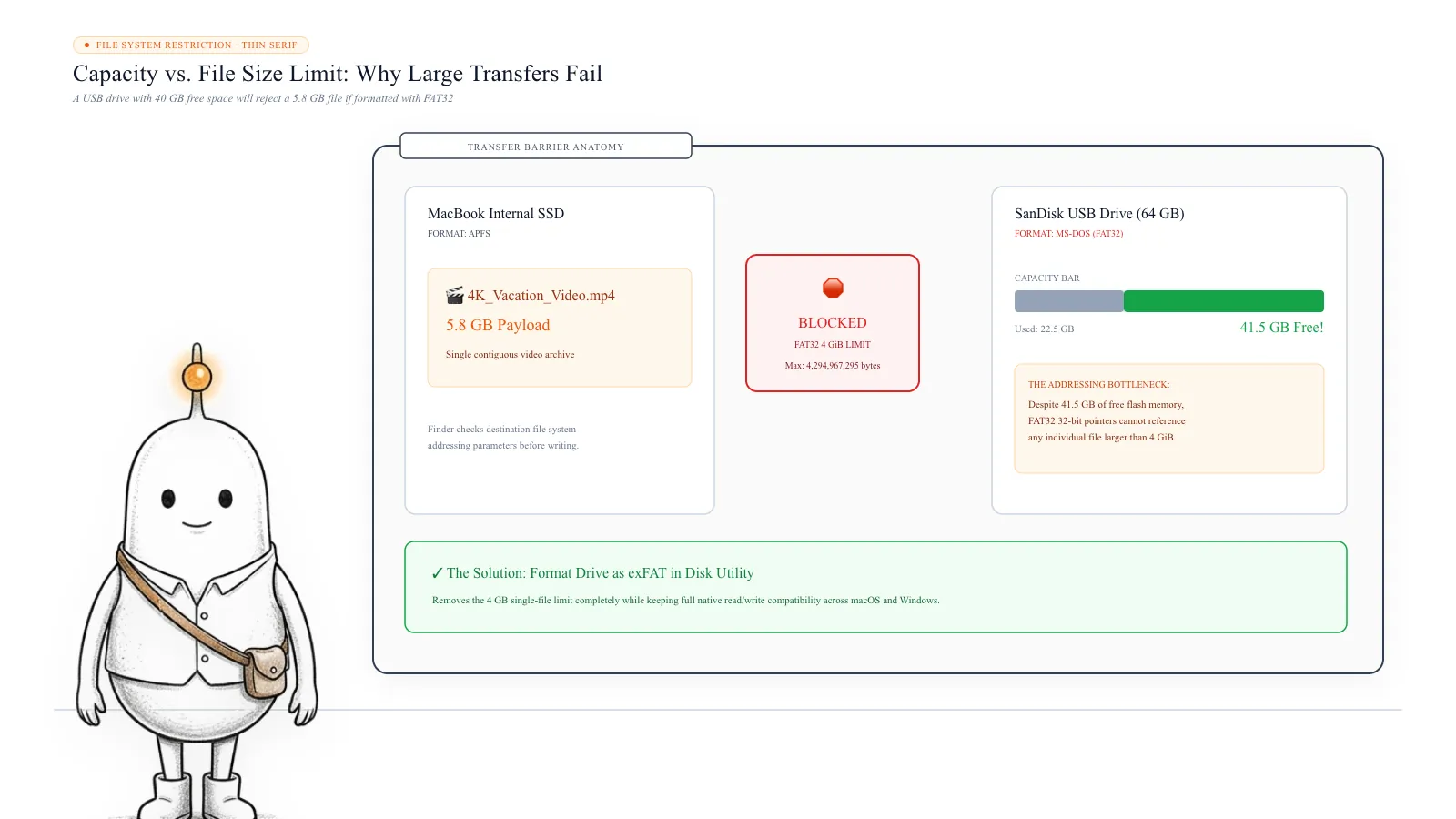
Why a USB Drive Can Have Free Space but Reject a Large File
Storage devices use a file system to organise files, folders, and available space. Think of the USB drive as a storage warehouse. Its capacity determines how much total material the warehouse can hold. The file system determines how that material can be organised and stored. These are separate limitations.
| File | Size | Can FAT32 store it? |
|---|---|---|
| Document | 200 MB | Yes |
| Photo collection archive | 2 GB | Yes |
| Video file | 3.8 GB | Yes |
| Video file | 5 GB | No |
| Disk image | 8 GB | No |
FAT32 supports individual files only up to 4 GiB minus 1 byte, commonly described as a 4 GB limit. That is why a 5 GB file can fail even when the drive has 40 GB free. The limitation belongs to the file system, not the physical USB drive.
Read more: SanDisk Support: USB drive 4 GB file size limit on FAT32 · Microsoft Learn: File system functionality comparison
How to Check Whether Your USB Drive Uses FAT32
Before changing anything, identify the format currently used by your USB drive. You can do this directly in macOS using Finder, Disk Utility, or Terminal.
Method 1: Check using Finder:
- Connect the USB drive to your Mac.
- Open Finder.
- Select the USB drive in the sidebar.
- Press Command + I.
- Look for the Format field in the information window.
You may see MS-DOS (FAT), ExFAT, APFS, Mac OS Extended, or NTFS. Disk Utility uses the label MS-DOS (FAT) for its FAT-format option. On common modern USB drives, this is generally FAT32. If you see MS-DOS (FAT), the 4 GB single-file limit is a likely explanation for your failed transfer.
Method 2: Check using Disk Utility:
- Open Spotlight with Command + Space.
- Search for Disk Utility.
- Open the application.
- Select your USB volume in the sidebar.
- Check the file system information.
You can also inspect the drive using Terminal:
diskutil info /Volumes/YourUSBNameReplace YourUSBName with the actual name of your mounted USB volume. This command displays information about the volume, including its file system type. It does not modify the drive.
FAT32 vs exFAT vs APFS vs NTFS: Which Format Should You Choose?
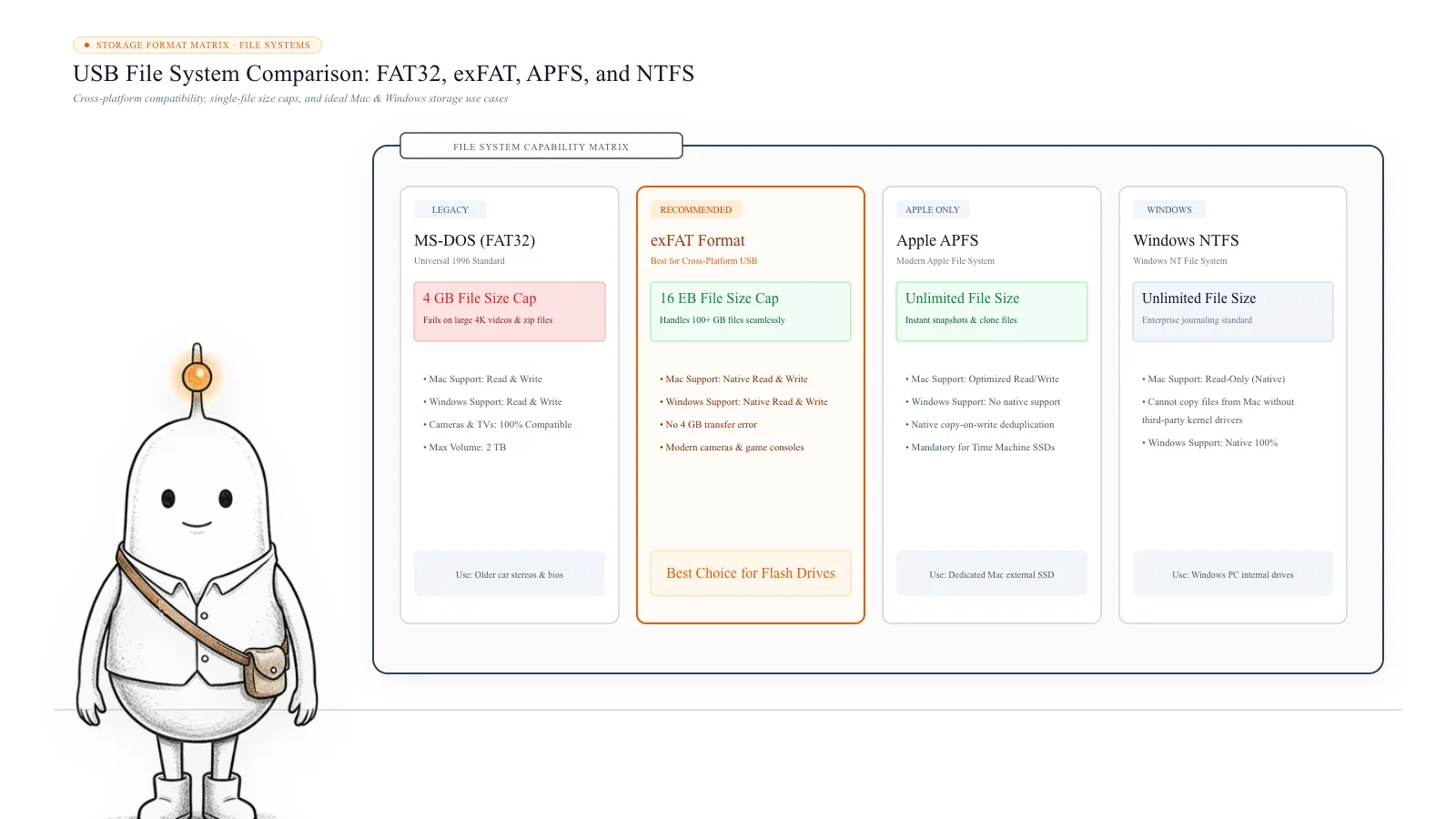
Not all file systems work equally well across operating systems. The right choice depends on where you intend to use the USB drive.
1. FAT32: Broad Compatibility, but a 4 GB File Limit. FAT32 is an older file system that remains common on USB drives, memory cards, and removable storage. Its biggest advantage is compatibility across many computers, televisions, gaming devices, and cameras. But its maximum individual file size is approximately 4 GB.
2. exFAT: Usually the Best Choice for Mac and Windows. exFAT was designed for removable storage and supports much larger individual files than FAT32. It is natively supported by modern macOS and Windows versions, making it the most practical choice for sharing large files between Mac and PC without extra drivers.
3. APFS: Best for Mac-Only Storage. Apple File System (APFS) is the modern file system engineered for macOS. It supports large files, encryption, snapshots, and space sharing. However, Windows cannot read or write APFS volumes without specialized third-party tools.
4. NTFS: Best for Windows-First Storage. NTFS is the standard internal file system for Windows. While it supports large files and journaling, macOS can only read NTFS volumes natively. Writing files to NTFS on a Mac requires third-party kernel extensions or drivers.
Read more: Apple Support: File system formats available in Disk Utility on Mac · Microsoft Learn: File system functionality comparison
Which USB Format Should You Actually Use?
Here's a quick comparison of the four main file systems:
| Format | Mac support | Windows support | Large files | Best use |
|---|---|---|---|---|
| FAT32 | Read/write | Read/write | No, 4 GB limit | Older devices |
| exFAT | Read/write | Read/write | Yes | Mac and Windows transfers |
| APFS | Read/write | No native support | Yes | Mac-only storage |
| NTFS | Generally read-only | Read/write | Yes | Windows-first storage |
For most everyday file transfers: Mac + Windows: Choose exFAT. Mac only: Choose APFS. Windows only: Choose NTFS. Older devices: Check the device's supported formats before choosing FAT32 or another format. One important exception: if the USB drive is intended for a television, camera, car stereo, gaming console, or another specialised device, check its documentation first.
How to Format a USB Drive as exFAT on a Mac
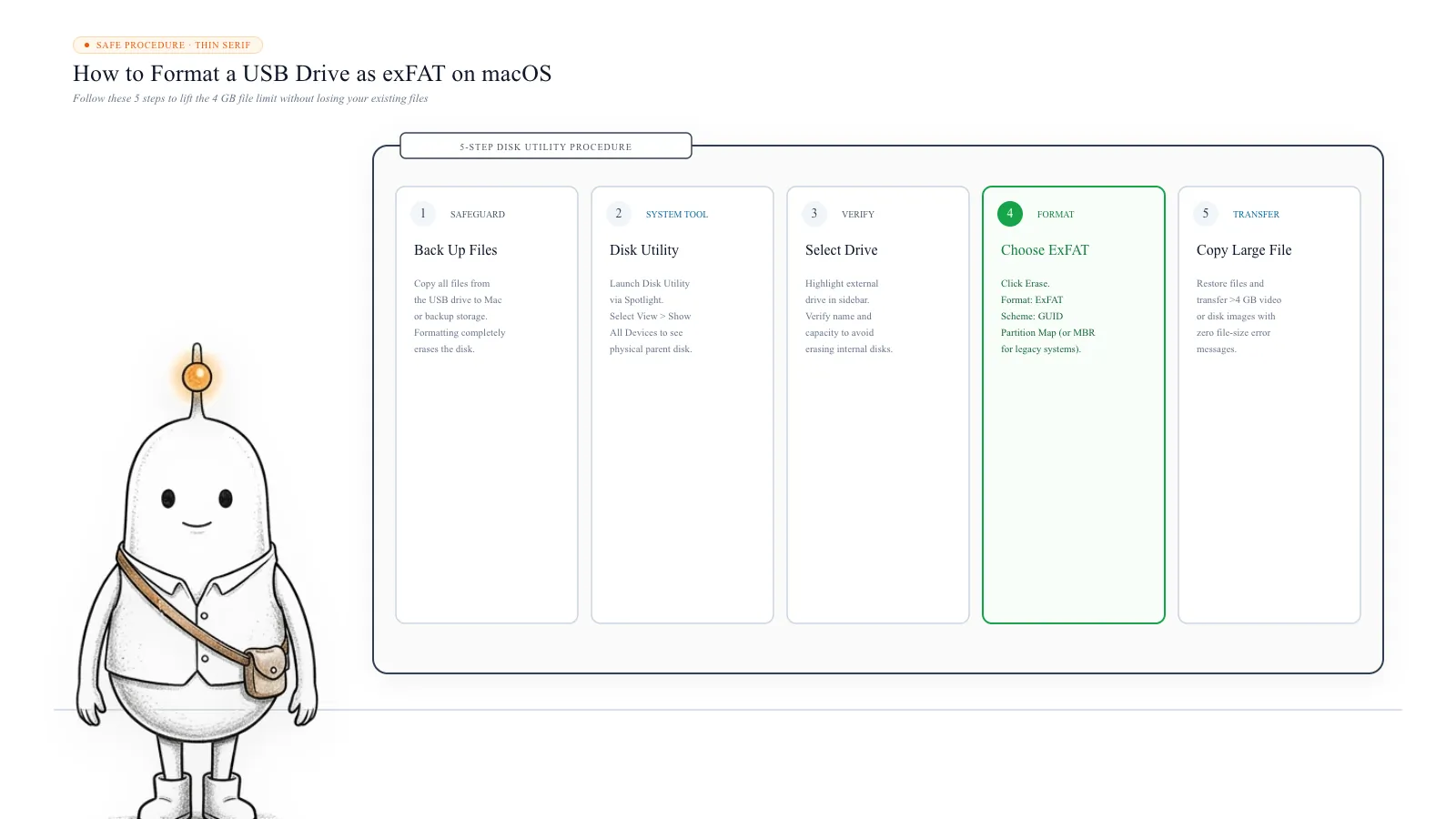
If your USB drive currently uses FAT32 and you need to transfer files larger than 4 GB, formatting it as exFAT can solve the problem. But remember: formatting erases all existing data on the selected volume.
Step 1: Back Up Your Existing Files. Connect the USB drive and copy everything you want to keep to your Mac or another storage device. Verify that the backup is accessible before continuing.
Step 2: Open Disk Utility. Press Command + Space, search for Disk Utility, and select View → Show All Devices in the top toolbar.
Step 3: Select the Correct Drive. Find your physical USB device in the left sidebar. Check the device name and capacity to make sure you do not erase internal disks.
Step 4: Choose Erase. Click Erase in the toolbar. Enter a name for the drive, select ExFAT under Format, and choose GUID Partition Map (or Master Boot Record for legacy hardware) under Scheme.
Step 5: Confirm and Finish. Click Erase. Wait for Disk Utility to format the drive, then click Done. Your USB drive will now accept files larger than 4 GB without errors.
Read more: Apple Support: Format a disk for Windows computers in Disk Utility on Mac
Can You Fix the 4 GB Limit Without Formatting?
Sometimes you don't want to erase and reformat your USB drive. There are a few alternatives, but each has limitations.
Split the Large File into Smaller Parts: You can split a large archive or disk image into multi-part archive segments (e.g., zip or rar volumes), provided each part stays below FAT32's 4 GB limit. The recipient will need to reassemble them.
Use Another Storage Device: If you frequently transfer large videos, application installers, or disk images, keeping a secondary drive formatted as exFAT saves time.
Use Cloud Storage or Network Transfers: For files that don't need physical handoff, cloud storage (AirDrop, local SMB file sharing, or cloud drives) bypasses USB file-system restrictions entirely.
What If Your USB Drive Uses exFAT but Still Won't Accept the File?
FAT32 isn't the only possible reason a transfer can fail. If your USB drive already uses exFAT, check these possibilities:
1. The drive doesn't actually have enough available space. Finder's displayed capacity and available space can sometimes be misunderstood, especially when multiple volumes or hidden Trash bins are present.
2. The drive has file-system errors. A damaged file system can cause copying errors. Run First Aid in Disk Utility to repair supported directory structures.
3. The USB drive is failing. Flash memory degradation can produce input/output errors during file writes. Copy accessible files to safety immediately if transfers fail intermittently.
4. The destination device doesn't support the format. Some smart TVs, car audio systems, and game consoles only recognize FAT32 partitions.
5. The source file is still being used. Ensure exporting or downloading applications have fully closed the file handle before attempting to copy.
Before You Reformat: Check What Is Actually Taking Up Space
A USB transfer error can make it seem like your Mac or external drive has a storage problem. But a file-system limit is different from insufficient capacity.
Before deleting files or formatting anything, check the drive's format and available space. If your Mac's internal storage is also getting crowded, Diskfern can help you inspect large files and folders through Treemap, Sunburst, and List views. You can identify large files, explore application storage, and understand where your Mac's space is going before deciding what to remove.
What’s safe to delete?
USB Drive Data (During Reformat)
Back up first/Volumes/YourUSBName
Clicking Erase in Disk Utility wipes all existing partitions and files on the USB drive.
How: Copy files to Mac storage before formatting to exFAT
.Trashes & .Spotlight-V100 on USB
Safe to empty/Volumes/YourUSBName/.Trashes
Files deleted on the USB drive stay in the hidden .Trashes folder until you empty the Mac Trash.
How: Empty Trash in macOS while the USB drive is connected
Original Mac Source Files
Don't touchMacintosh HD / User Folders
Deleting original files before verifying the USB copy destroys your only copy.
How: Never delete local files until external transfers are confirmed
Formatting erases all data on the drive
Formatting a USB drive to exFAT completely wipes all files and folders currently on it. Always copy everything you want to keep to your Mac or another backup drive first.
FAT32 vs exFAT in Disk Utility
In macOS Disk Utility, FAT32 is labelled 'MS-DOS (FAT)'. If your drive displays this format, any file larger than 4 GiB (approx 4.29 GB) will be rejected with an error.
Recommended manual USB troubleshooting steps
Always verify your USB drive's format and back up critical files before using Disk Utility's erase tools.
- 1
Inspect USB drive file system format in Terminal
$diskutil info /Volumes/YourUSBNameReveals whether the mounted external drive uses MS-DOS (FAT32), exFAT, or APFS.
- 2
Empty macOS Trash with the USB drive connected
$Finder > Empty TrashPurges the hidden /Volumes/YourUSBName/.Trashes folder to reclaim space from previously deleted files.
- 3
Format the drive to exFAT in Disk Utility
$Disk Utility > Select Drive > Erase > Format: ExFAT, Scheme: GUIDRemoves the 4 GB single-file limit while keeping cross-platform read/write support for Mac and PC.
The Diskfern way
How Diskfern helps
When macOS reports space errors or when external drives fail to accept files, Diskfern helps you inspect real free space and find massive hidden files.
- Open Diskfern and select your mounted external USB drive or internal Macintosh HD.
- Switch to Treemap or Sunburst view to instantly visualize file size distributions and hidden folders like .Trashes.
- Check available storage and file sizes before copying large files or planning a reformat.
Finding and reviewing is free. Moving items to the Trash from Diskfern is part of Pro.
Inspect Drives with DiskfernQuestions
Why does my USB drive say the file is too large when it has enough space?
Your USB drive may use FAT32, which limits individual files to approximately 4 GB. The total free space doesn't override this limit. Formatting the drive as exFAT can solve the problem, provided the destination devices support it.
Does exFAT support files larger than 4 GB?
Yes. exFAT supports much larger individual files than FAT32 and works with modern macOS and Windows systems.
Will formatting my USB drive delete everything?
Yes. Formatting the selected disk or volume erases its existing data. Back up your files and verify the backup before proceeding.
Can a Mac write to an NTFS USB drive?
macOS generally supports reading NTFS drives but not native write access. Additional software may provide write support, but exFAT is usually simpler for transferring files between Mac and Windows.
Should I use APFS or exFAT for an external SSD?
Choose APFS if the SSD is intended for Mac-only use. Choose exFAT if you need to share files with Windows computers or other compatible devices.
Is FAT32 the same as MS-DOS (FAT) in Disk Utility?
Disk Utility labels its FAT formatting option as MS-DOS (FAT). It is commonly used for FAT32-formatted removable drives, but the label doesn't explicitly identify the exact FAT variant in every situation.
Can I change FAT32 to exFAT without losing files?
The normal Disk Utility erase-and-format process deletes the existing data. Back up the files elsewhere, format the drive as exFAT, and then copy the files back. Don't assume a format change will preserve your data.

Written by
Diskfern Team
We explain Mac storage using product behavior and the sources listed below. Review your app settings and backups before removing data.
Sources
- Apple Support: File system formats available in Disk Utility on Mac · checked November 8, 2026
- Apple Support: Format a disk for Windows computers in Disk Utility on Mac · checked November 8, 2026
- Microsoft Learn: File system functionality comparison · checked November 8, 2026
- SanDisk Support: USB drive 4 GB file size limit on FAT32 · checked November 8, 2026
Keep reading
Learn more about managing large media, cloud sync, and external drives on Mac.
Mac External Drive Storage Guide: APFS vs exFAT vs NTFS
See how much space is used on an external drive in Finder, Get Info or Disk Utility, then find the files filling it up. Works for USB and SSD drives.
Why Can't I Install a macOS Update Even With Enough Space?
Mac says there isn't enough space to install a macOS update? Learn why, check purgeable storage, find temporary files, and troubleshoot safely.
Mac Storage Keeps Shrinking Automatically? Here is Why
Find out why your Mac loses storage even when you're not downloading anything: swap files, app caches, background logs, and how to safely diagnose the cause.
Why Are iPhone & iPad Backups Taking Hundreds of GB on Mac?
Discover why old iPhone and iPad backups accumulate in MobileSync, how to find and manage them in Finder, and how to safely reclaim gigabytes of storage.

Get your space back. Start with a free scan.
Explore the files and folders Diskfern can read. Your files stay on your Mac, and nothing is removed until you say so.
macOS 14 Sonoma or later · Apple silicon and Intel