Files & photos
The storage audit nobody does after an upgrade.
Migration Assistant can bring selected applications, user accounts, documents, and settings to a new Mac. It does not sort them by whether you still need them. Audit local storage and verify the new Mac before considering what to remove.
 Diskfern Team9 min readUpdated
Short answer
After using Migration Assistant, check the storage estimate and selected categories, then review the new Mac's Storage settings and largest local folders. Open important files and apps, read any migration summary, and keep the old Mac plus a separate backup until you have verified the new setup. Do not assume the transfer removed clutter or verified every file.
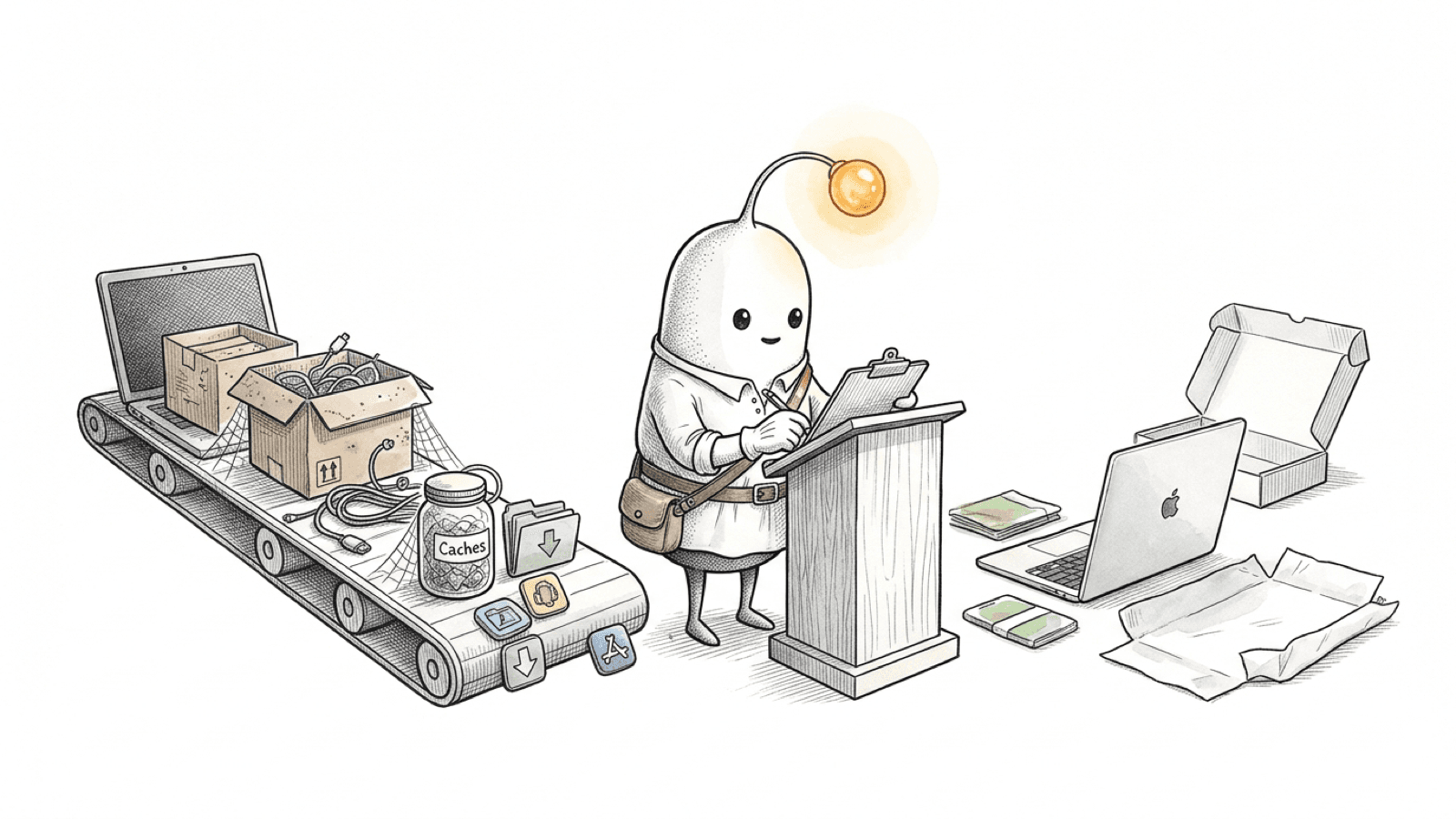
What does Migration Assistant transfer to a new Mac?
Apple says Migration Assistant transfers documents, apps, user accounts, and settings from one Mac to another. Its selection screen lets you choose categories and, in some categories, specific items such as an account's Downloads, Movies, Desktop, documents, and pictures.
| Category | What Apple's guide says |
|---|---|
| Applications | Apps can transfer, but incompatible apps or apps with newer versions already installed may not transfer or may not be usable. |
| User accounts | Choose accounts and expand them to select specific folders and data. |
| Other Files & Folders | Transfer documents and files. |
| Privacy & Security Settings | Transfer settings in this category. |
| System & Network | Transfer system and network settings, with some items selectable within the category. |
Before you start the transfer, Migration Assistant calculates how much storage is used by the information it found, including applications, user accounts, files, folders, and settings. Treat this as an estimate of selected source data, not a promise that the same amount will appear as used on the new Mac: apps, accounts, system versions, and storage accounting can differ.
Apple's documentation does not specify which caches, hidden files, or duplicate files are copied or skipped in every case. This guide does not assume that Migration Assistant cleans those items or transfers all of them. Inspect the result on your Mac.
Read more: Apple Support: transfer to a new Mac with Migration Assistant · Apple Support: transfer information to Mac from another computer or device
Does Migration Assistant erase the old Mac?
No. Apple says Migration Assistant does not delete information from the old Mac or replace macOS on the new Mac. That means the source Mac can remain available while you verify the destination, but it is not a substitute for a separate backup.
- Keep the old Mac unchanged while you check important files, projects, photos, passwords, and apps on the new Mac.
- Read the migration summary. Apple says it appears when issues are found, such as documents that could not transfer or incompatible software.
- If you used iCloud Photos, iCloud Drive, or another sync service, later changes can sync between devices. The old Mac may not be an independent copy of synced data.
- Make a separate backup of data you need before erasing, selling, or giving away the old Mac. Follow Apple's current erase-and-transfer instructions only after verification.
Large transfers can take hours and may seem to pause occasionally, according to Apple. When the transfer finishes, allow the new Mac to restart and sign in to the migrated account before checking the result.
Read more: Apple Support: transfer to a new Mac with Migration Assistant · Apple Support: what to do before you sell, give away, trade in, or recycle your Mac · Apple Support: iCloud not freeing Mac space? Photos storage explained
Can a second account or retained user data take extra space?
It can. If an account with the same name already exists on the new Mac, Migration Assistant may let you replace it or rename the incoming account. Apple also says you may be able to keep a copy of replaced account data in Deleted Users.
- If you choose to keep replaced account data, review it later before removing anything. Confirm that the migrated account has the files you expect and that the retained copy is no longer needed.
- If you rename the incoming account, Apple says both accounts remain on the Mac so you can log in to them separately. Review the account list and storage before deleting either account.
- Apple's Mac storage guide also recommends checking the Users folder for data that remains after a user account has been deleted. Do not remove a folder just because its name is unfamiliar; first identify which account or files depend on it.
Migration Assistant transfers email, but Apple notes that you might need to set up your email account again in the mail app to access it. Treat any setup or sign-in issue as something to resolve before erasing the source Mac.
Read more: Apple Support: transfer to a new Mac with Migration Assistant · Apple Support: change Storage settings on Mac
How do you check storage on the new Mac?
Start with Apple's built-in Storage view, then inspect large folders that belong to your user account. The category totals help locate likely areas; they are not a complete explanation of every byte on an APFS disk.
- Open Apple menu > System Settings > General > Storage. Review the categories and use an Info button where Apple offers one to inspect items.
- Check Photos if you migrated a large System Photo Library. Apple's Storage guide says the Photos category contains the System Photo Library.
- Open Documents and File Browser to inspect large files and the storage used by folders. Storage categories vary with the apps and files on the Mac.
- Compare the displayed free and available storage carefully. Apple defines free space as physically open space; available space can also include purgeable data that macOS may reclaim.
- Measure folders you recognize before deciding what to keep. Do not delete from System Data, macOS, or inside managed app libraries based only on a category total.
If the new Mac uses iCloud Photos or iCloud Drive, check whether items are downloaded or optimized before interpreting a local size. Our iCloud storage guide explains those settings and the difference between local removal and deleting a synced item.
Read more: Apple Support: change Storage settings on Mac · Apple Support: find and delete files on Mac · Apple Support: get detailed information about a disk · Apple Support: iCloud not freeing Mac space? Photos storage explained
Which read-only commands can help find large folders?
These commands list folder sizes or matching file paths. They do not remove files, determine whether a file is safe to delete, or verify that Migration Assistant copied it correctly. Run them from Terminal without adding sudo.
Compare the sizes of common folders in your home directory:
du -sh "$HOME/Downloads" "$HOME/Desktop" "$HOME/Documents" "$HOME/Movies" 2>/dev/null | sort -hList the largest items directly inside your home folder, including hidden folders such as Library when permissions allow:
du -h -d 1 "$HOME" 2>/dev/null | sort -h | tail -15Find installer and archive files larger than 100 MB in Downloads, Desktop, and Documents:
find "$HOME/Downloads" "$HOME/Desktop" "$HOME/Documents" -type f \( -iname '*.dmg' -o -iname '*.pkg' -o -iname '*.iso' -o -iname '*.zip' \) -size +100M -print 2>/dev/nullA folder that does not exist, privacy permissions, cloud-only files, or unreadable locations can affect the output. A quiet result does not prove the Mac contains no large files. These commands are read-only; use Finder or the app that owns a file to review it before removing it.
Read more: Apple Support: change Storage settings on Mac · Apple Support: find and delete files on Mac · macOS 26.7 man page: du · macOS 26.7 man page: find · macOS 26.7 man page: sort
What should you review before removing migrated files?
Treat a large size as a reason to inspect a file, not proof that it is disposable. Verify the app or project works, identify whether a file is original or generated, and make a recoverable copy before you remove anything important.
- Installers: after confirming the installed app opens and you can retrieve the installer again, an old .dmg or .pkg may be a cleanup candidate. Keep offline installers or license files you still need.
- Exports: names such as final, final-2, or export are clues only. Compare file contents before treating files as identical. Our iPhone video guide explains hash comparison and its limits.
- Projects: open active projects and check linked media before archiving. For Final Cut Pro libraries and source footage, use the separate video project storage guide.
- Applications: Apple says incompatible apps or apps with newer versions already installed may not transfer or may not be usable. Check the developer's current version and license before removing or reinstalling an app.
- Deleted Users: if you chose to retain replaced account data, check what the retained copy contains and whether the migrated account is complete before removing it.
Use the Trash first and keep it until you have worked on the new Mac for a while. See how to decide whether a Mac file is safe to delete for a slower review process. Avoid broad cleanup commands and never erase the old Mac just to reclaim new-Mac storage.
Read more: Apple Support: transfer to a new Mac with Migration Assistant · Apple Support: find and delete files on Mac · Diskfern: decide whether a Mac file is safe to delete · Diskfern: video files and Final Cut Pro storage
Where Diskfern fits after a Mac migration
A local storage map can help you find large folders and files after migration. It cannot tell whether Migration Assistant transferred everything, whether an app is compatible, or whether a file is safe to remove.
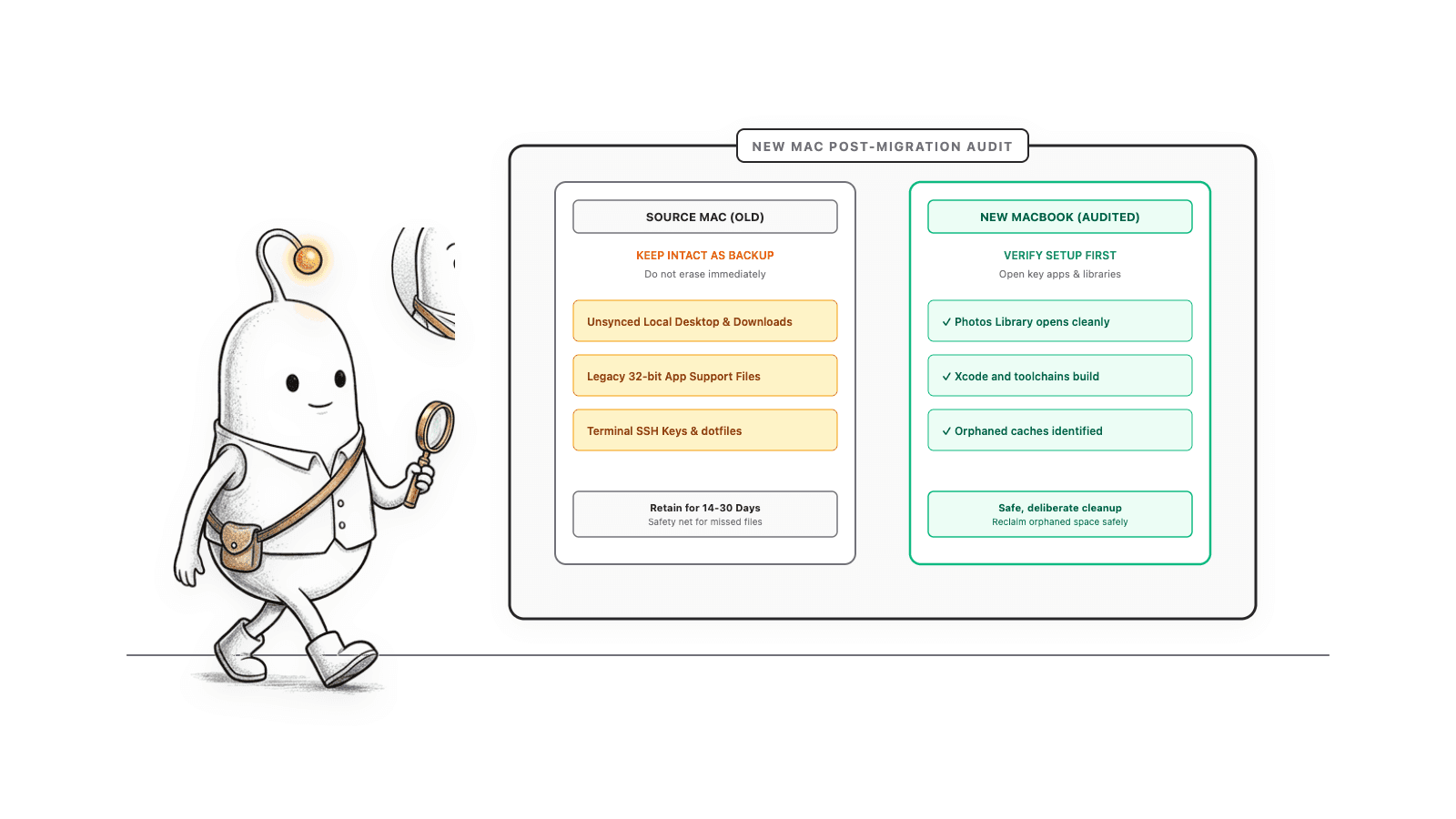
Use Diskfern to locate local storage for review, then open files and apps to verify them. For a manual approach, see find large files on Mac.
Read more: Diskfern: find large files on Mac
Do not erase the old Mac before verification
Migration Assistant does not delete information from the old Mac, but a successful transfer summary is not proof that every file and app you rely on is ready. Open and check important items, and keep a separate backup before erasing the source Mac.
A new-Mac storage audit
Check the transfer, inspect large paths, verify what you rely on, and keep the old Mac until the new setup is confirmed.
- 1
Read the migration summary and note anything that did not transfer.
- 2
Open important documents, projects, Photos libraries, password tools, and apps on the new Mac.
- 3
Review Storage settings and measure large folders in your home directory.
- 4
Check retained or renamed user accounts and review their data before cleanup.
- 5
Keep a separate backup and verify it before erasing the old Mac.
The Diskfern way
How Diskfern helps
Find large local paths for review after migration
- Scan the local folders or startup disk you want to inspect.
- Use the map and list to locate large folders, installers, and media files.
- Open and verify files in their owning apps before deciding what to remove.
Finding and reviewing is free. Moving items to the Trash from Diskfern is part of Pro.
Explore Developer StorageQuestions
Does Migration Assistant delete anything from the old Mac?
Apple says Migration Assistant does not delete information from the old Mac or replace macOS on the new Mac. Keep the source available until you have verified important files and apps on the destination.
Can I choose what Migration Assistant transfers?
Yes. Apple says you can select categories, then expand some categories to choose specific items such as account folders. Review the selections before starting the transfer.
Why is my new MacBook storage full after migration?
The transfer can include large folders, apps, and a Photos library. Check the selected categories and the new Mac's Storage settings, then measure specific folders before removing files.
Will every app work after Migration Assistant?
Not necessarily. Apple warns that incompatible apps, or apps with newer versions already installed on the new Mac, may not be transferred or may not be usable.
When can I erase my old Mac after migration?
Only after you have checked the files and apps you need on the new Mac and made a separate backup. Apple provides a separate checklist for preparing a Mac to sell, give away, or trade in.

Written by
Diskfern Team
We explain Mac storage using product behavior and the sources listed below. Review your app settings and backups before removing data.
Sources
- Apple Support: transfer to a new Mac with Migration Assistant · checked November 5, 2026
- Apple Support: transfer information to Mac from another computer or device · checked November 5, 2026
- Apple Support: change Storage settings on Mac · checked November 5, 2026
- Apple Support: find and delete files on Mac · checked November 5, 2026
- Apple Support: get detailed information about a disk · checked November 5, 2026
- macOS 26.7 man page: du · checked November 5, 2026
- macOS 26.7 man page: find · checked November 5, 2026
- macOS 26.7 man page: sort · checked November 5, 2026
- Apple Support: what to do before you sell, give away, trade in, or recycle your Mac · checked November 5, 2026
- Apple Support: iCloud not freeing Mac space? Photos storage explained · checked November 5, 2026
- Diskfern: find large files on Mac · checked November 5, 2026
- Diskfern: decide whether a Mac file is safe to delete · checked November 5, 2026
- Diskfern: video files and Final Cut Pro storage · checked November 5, 2026
Keep reading
Learn more about managing large media, cloud sync, and external drives on Mac.
Find large files on Mac
Finder's search can find large files, but it's slow and easy to misuse. Here's how to find them properly, plus faster methods for big drives.
iCloud and Mac storage
More iCloud storage does not increase your Mac's SSD. Learn what Optimize Mac Storage does, how synced deletions work, and how to check local Photos and iCloud Drive files safely.
iPhone videos taking up Mac storage
Find why iPhone videos take up Mac storage, how Photos, AirDrop, iCloud and editing apps store copies, and how to check ProRes files before archiving or deleting anything.
Video files and Final Cut Pro storage
Learn how Final Cut Pro libraries, source footage, proxy and optimized media, render files, and exports use Mac storage, and how to archive them without losing project assets.

Get your space back. Start with a free scan.
Explore the files and folders Diskfern can read. Your files stay on your Mac, and nothing is removed until you say so.
macOS 14 Sonoma or later · Apple silicon and Intel