Developer storage
Cursor Storage on Mac: Why It's Huge and How to Clear It
Cursor can store Agent conversations, worktrees, and extensions on your Mac. Find which one is large before choosing what to clean, especially if you want to keep chats or unfinished project work.
 Diskfern Team9 min readUpdated
Short answer
Cursor can take up storage through chat history (stored in state.vscdb), Agent worktrees and project data. Check which of these is large before you delete anything, and use Cursor's own cleanup tools where they exist.
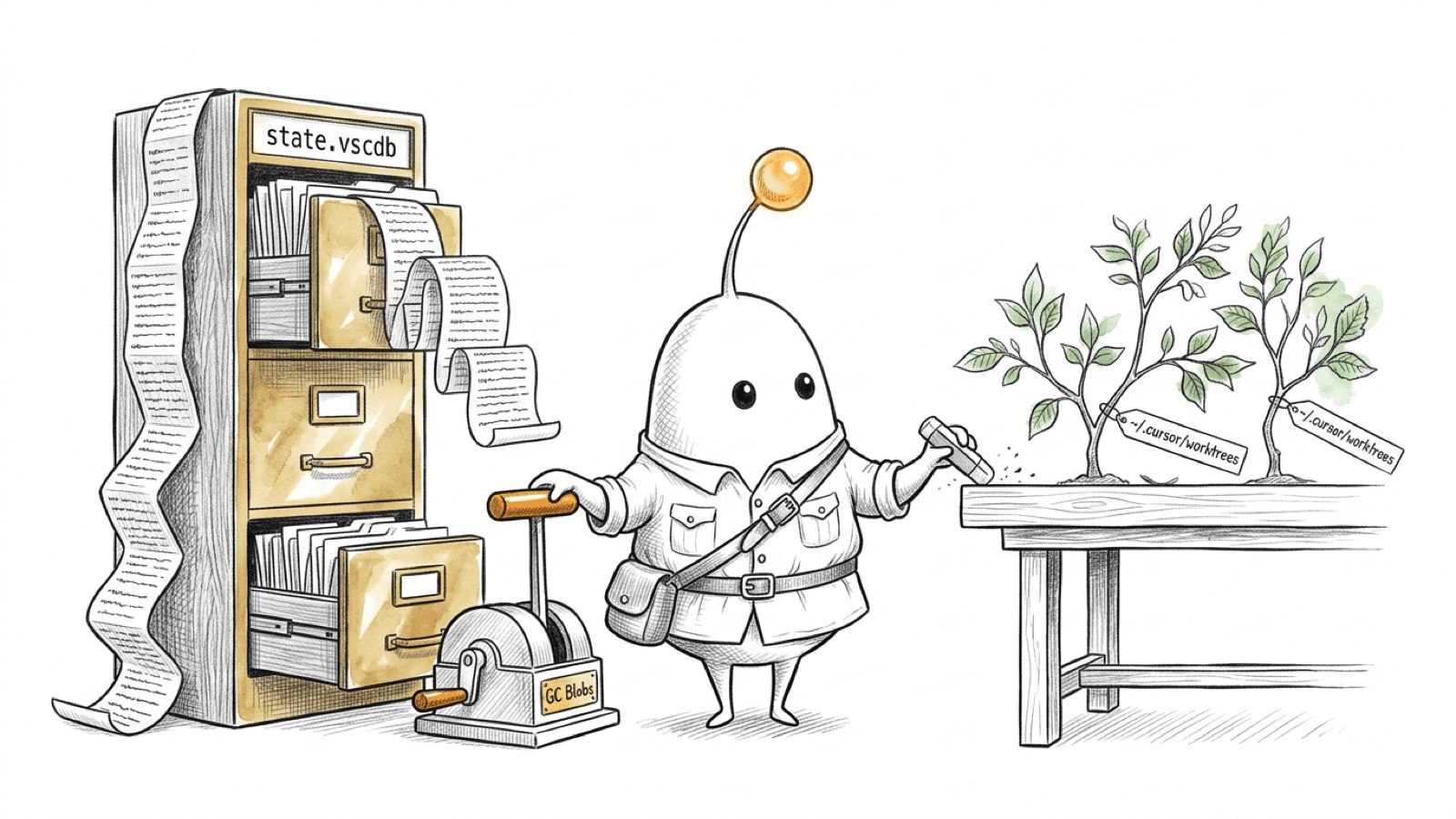
Cursor taking up too much space on Mac? Check these three places
When auditing developer storage on Mac, Cursor stores Agent chat history, worktrees, and extensions locally. Cursor says Agent conversations are the largest contributor for most users, but that does not tell you what is largest on your Mac. Measure first, then follow the path that actually accounts for the space.
- Agent history and local state: Cursor says old Agent conversations can make its local database grow to many gigabytes. Support commonly identifies
~/Library/Application Support/Cursor/User/globalStorage/state.vscdb; use it as a clue, not a guaranteed path for every version or setup. - Agent worktrees: Cursor-managed checkouts are commonly under
~/.cursor/worktrees/. These contain project files and changes, so they are not simply disposable cache. - Extensions and project data: extensions, dependencies, build output, and files in your repositories may also occupy space. Their cleanup does not use the chat-history workflow.
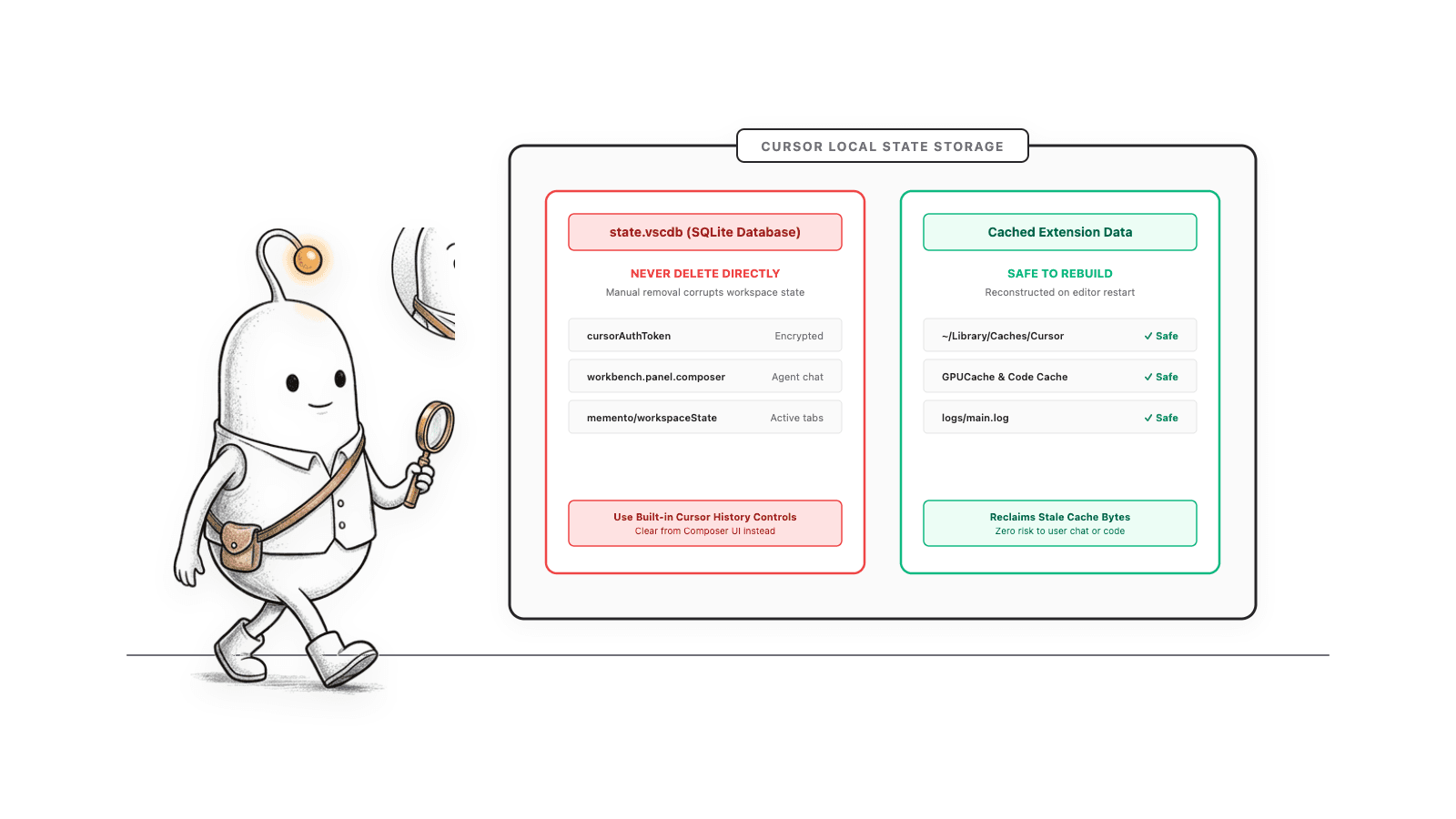
Read more: Cursor: Installation and startup — free up disk space · Cursor Community: reduce local Cursor storage while preserving history
How to find Cursor storage on a Mac without changing it
Quit Cursor with Cmd-Q for a steadier measurement. The following du commands report folder sizes; they do not remove or modify files. Start with the parent app-data folder and the Agent worktrees folder:
du -sh "$HOME/Library/Application Support/Cursor" 2>/dev/null
du -sh "$HOME/.cursor/worktrees" 2>/dev/nullIf the commonly reported database path exists, check it separately:
du -sh "$HOME/Library/Application Support/Cursor/User/globalStorage/state.vscdb" 2>/dev/nullA missing result can mean the path is absent, named differently, or inaccessible; it does not mean Cursor uses zero space. The exact database path comes from Cursor support discussions, while Cursor’s current help documents the cleanup controls rather than promising one filesystem layout.
- Record the reported sizes before cleaning.
- If worktrees are largest, inspect them in Cursor’s Worktrees cleanup settings.
- If the local database is largest, decide whether you want to retain old chats before using the chat cleanup commands.
- If neither explains the total, inspect the broader Cursor folder and project locations instead of deleting unrelated data.
Read more: Cursor: Installation and startup — free up disk space · Cursor Community: reduce local Cursor storage while preserving history
How to clean Cursor chat history without losing everything
When the local chat database is the large item, Cursor’s documented workflow uses two commands in order. They do different things: the first removes old conversations you choose not to keep; the second compacts the database.
- Open the Command Palette with Cmd-Shift-P.
- Run Delete Old Chats… and choose a retention window.
- Export chats you may need before deleting them. Cursor staff describes old-chat removal as permanent.
- Run GC Agent KV Blobs and allow it to finish.
Deleting chats alone often removes entries but leaves the database file at its previous size. Cursor says GC Agent KV Blobs is the compaction step. Cursor support describes it as removing unreferenced Agent data while retaining chats that remain available; how much space it reclaims depends on how much data is no longer needed.
Cursor says each command can take a minute or two on large databases. Support discussions report longer waits for unusually large files. Compaction may need temporary free space, and there is no universal recovery amount or guaranteed file-size reduction. If your Mac is almost full, do not start until you have enough room for the operation to finish. When it completes, quit Cursor fully and measure again.
Deleting old chats is a history decision
Choose a retention window only after considering which conversations you may need. Export wanted chats first, and do not treat Delete Old Chats as a reversible cache cleanup.
Read more: Cursor: Installation and startup — free up disk space · Cursor Community: reduce local Cursor storage while preserving history
How to free space from Cursor Agent worktrees
If ~/.cursor/worktrees/ is large, open Agents Window → Settings → Worktrees → Cleanup. Cursor currently documents a maximum of 25 worktrees and 50 GB total by default; older managed worktrees are removed first. The settings page lists worktrees and offers deletion of a specific one.
- Open the worktree in Cursor and check its branch and Git status.
- Commit, create a pull request, or bring back any changes you want to keep.
- Only then remove the worktree from Cursor’s cleanup settings.
A worktree is an isolated Git checkout with its own files, dependencies, and changes. Deleting it can discard task work that has not been committed or brought back. Cursor also documents worktree settings in the classic editor; labels and available controls can vary by build, so check the current help page if your interface differs.
Read more: Cursor: Installation and startup — free up disk space · Cursor: Worktrees
What not to delete while troubleshooting Cursor storage
Do not manually delete or edit state.vscdb as a routine cleanup step. Cursor’s supported process lets the application remove selected older chats and compact data it no longer needs. Deleting the database yourself can remove local history and state rather than clean only disposable data.
- Do not assume
state.vscdb.backupis disposable. Cursor’s current official guide does not list deleting it as a standard cleanup step; ask Cursor support about your exact version and situation. - Do not remove a worktree because its name looks old. Inspect it for uncommitted changes and files you have not brought back.
- Do not run broad Terminal deletion commands copied from a forum. A wrong path can remove chats, settings, extensions, or project work.
A large file is a measurement, not a safety label. If you cannot identify its owner or consequence, leave it in place while you investigate.
Read more: Cursor: Installation and startup — free up disk space · Cursor: Worktrees
When Diskfern can help locate Cursor storage
Diskfern can map large folders and keep their paths visible while you investigate. Its developer-storage guide covers common tool data and shows how to move from a broad map to a selected location. That helps with discovery; it does not certify that a Cursor database or worktree is safe to remove.
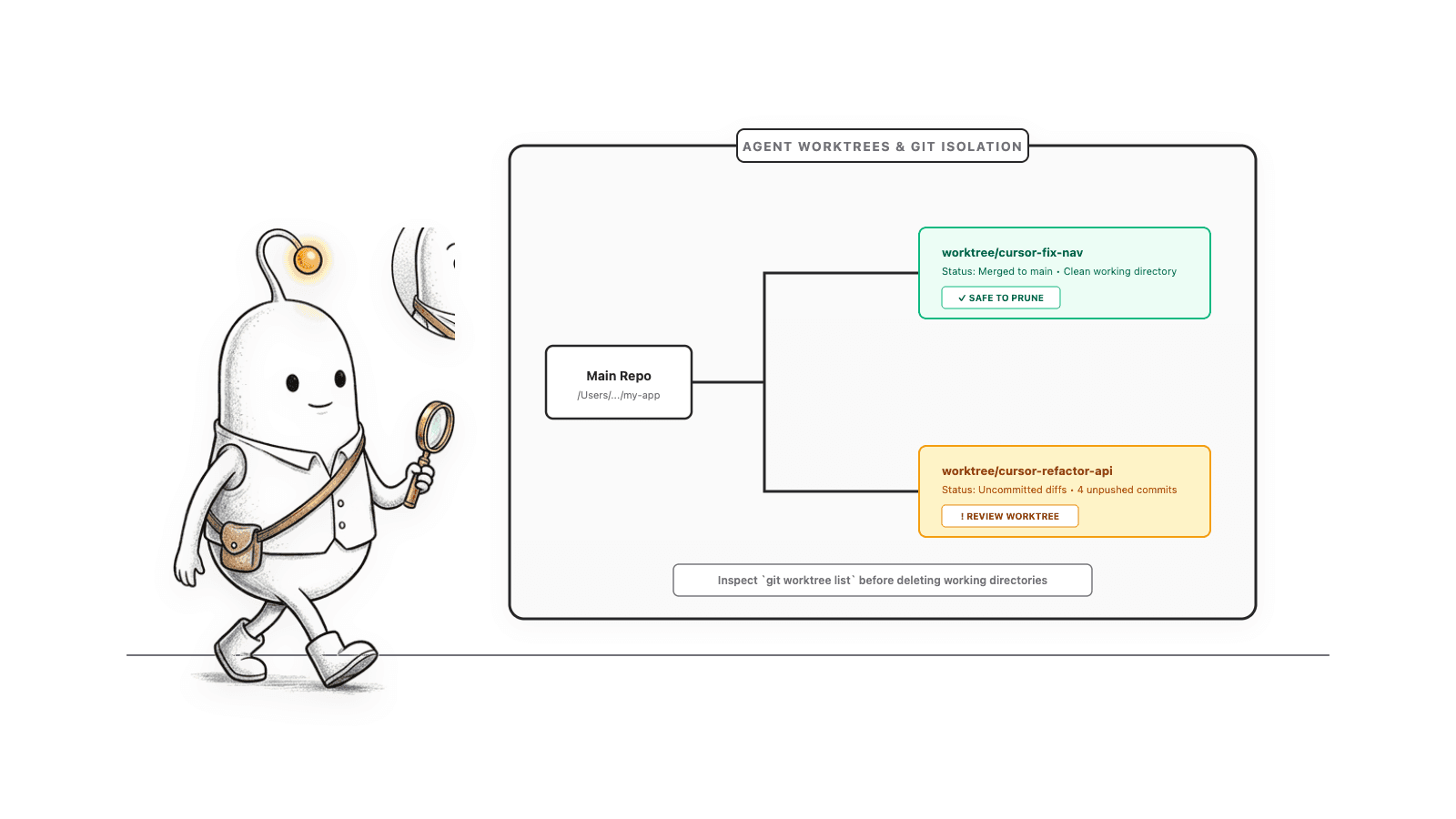
Use a scan to locate a large path, inspect its contents and owner, and then choose the owning application’s cleanup controls. The related guides below cover Diskfern developer storage, Mac file search, and storage used by Claude Code and Codex.
Read more: Diskfern Developer Storage
A quick decision path
Match the cleanup to the location you measured, and keep data you may need.
- 1
Measure Cursor’s app-data and worktree folders with the read-only commands above.
Record the same paths again after cleanup so the comparison is meaningful.
- 2
For chat history, export conversations you want to keep, then use Delete Old Chats… followed by GC Agent KV Blobs.
Old-chat deletion is permanent; compaction recovery varies.
- 3
For worktrees, inspect Git changes and bring back or commit anything valuable before removal.
An isolated checkout can contain unfinished work.
- 4
For extensions, use Cursor’s extension controls rather than deleting arbitrary folders.
Extension cleanup does not compact chat history.
The Diskfern way
How Diskfern helps
Map the files before choosing what to remove
- Scan the relevant folder or Mac and locate large paths in context.
- Inspect the selected path and size before taking action.
- Use Cursor’s own cleanup controls for Cursor-managed history and worktrees.
Finding and reviewing is free. Moving items to the Trash from Diskfern is part of Pro.
Explore Developer StorageQuestions
Where is Cursor’s state.vscdb file on Mac?
Cursor support commonly identifies `~/Library/Application Support/Cursor/User/globalStorage/state.vscdb` for local chat and Agent state. Treat it as a reported location, since versions and configurations can differ.
Can I delete Cursor’s state.vscdb manually?
That is not Cursor’s documented cleanup procedure. Use Delete Old Chats… for history you choose to remove, then GC Agent KV Blobs to compact the database.
Does GC Agent KV Blobs delete my chats?
Cursor documents it as the compaction step after old-chat cleanup. Cursor staff says it removes unreferenced Agent data while preserving chats that remain available.
Why did Cursor’s database size stay the same after deleting chats?
Removing entries may leave the database file at its old size. Cursor says to run GC Agent KV Blobs afterward; reclaimed space depends on how much stored data is no longer needed.
Does Cursor clean up Agent worktrees automatically?
Cursor says it cleans managed worktrees automatically and provides count and total-size controls. Review each worktree for changes before manually deleting it.

Written by
Diskfern Team
We explain Mac storage using product behavior and the sources listed below. Review your app settings and backups before removing data.
Sources
- Cursor: Installation and startup — free up disk space · checked October 29, 2026
- Cursor: Worktrees · checked October 29, 2026
- Cursor Community: reduce local Cursor storage while preserving history · checked October 29, 2026
Keep reading
Explore more developer storage guides, cache management, and tools.
Claude Code and Codex storage on Mac
Measure Claude Code and Codex storage on your Mac, protect useful session history, and inspect their folders safely before you delete anything.
uv cache on Mac
Run uv cache clean to wipe it all or uv cache prune to drop unused entries. Find ~/.cache/uv, check its size and free up GBs on your Mac.
How to search on Mac
Find the right Mac search shortcut, words on a page, browser history and large files. Fix missing results and try Diskfern’s plain-language file search.
Developer storage
Bring Xcode, Android, Docker, package caches, and local AI models into one readable map.

Get your space back. Start with a free scan.
Explore the files and folders Diskfern can read. Your files stay on your Mac, and nothing is removed until you say so.
macOS 14 Sonoma or later · Apple silicon and Intel