Files & photos
How to search on Mac: find files, words and lost space
You remember a word in the document, roughly when you saved the video, or the website you opened yesterday. Start with the detail you have. The right search depends on where you expect to find it.
 Diskfern Team11 min readUpdated
Short answer
Press Command + Space to search with Spotlight. Press Command + F to find words on the current page or start a file search in Finder. Check your browser’s History menu for visited websites. To find large files, use macOS Storage, Finder’s size filter, or a Diskfern scan.

Mac search shortcut: which one do you need?
Command is the key marked ⌘. Hold it while pressing the other key. If Command + F seems to search the wrong thing, check which app is active: a browser searches its current page, while Finder searches for files.
| You’re looking for | Start here | What it searches |
|---|---|---|
| An app or a file | Command + Space | Spotlight’s indexed results |
| Files with particular properties | Option + Command + Space | A Finder search window |
| A word on the page you’re reading | Command + F | The current webpage or document, in supported apps |
| A website you visited | Your browser’s History menu | Saved browsing history |
| Files taking up storage | System Settings > General > Storage | Storage categories and large files |
| Files in a Diskfern scan | Command + F or Command + K in Diskfern | Scanned names, types, sizes, dates and locations |
For text searches, Command + G usually moves to the next match; Shift + Command + G moves back. These save a lot of clicking in a long article.
Read more: Apple: Mac keyboard shortcuts · Google: Chrome keyboard shortcuts
How to Spotlight search on Mac
Press Command + Space, then type a name or a few words you remember. Use the arrow keys to select a result and Return to open it. You can also click Spotlight’s magnifying glass in the menu bar if it is shown.
Spotlight is a good first stop for opening an app, finding a document or doing a quick calculation. You don’t need the full filename. Start with something distinctive, such as a client’s name or a project word, instead of a common word like “final.”
When the results are too broad, add a type. Try invoice kind:pdf or holiday kind:images. Spotlight supports metadata filters, and newer macOS versions also offer buttons for browsing categories and narrowing locations. The controls you see depend on your macOS version.
A missing result does not prove the file is gone. Spotlight relies on its index and the locations it can search. If a file you know exists is missing, check the troubleshooting section below before searching through folders by hand.
Read more: Apple: search with Spotlight · Apple: narrow Spotlight results
How to search for a word on Mac
To find a word in a webpage or an open document, use Command + F. You can type a whole phrase, such as storage settings, when a single word gives you too many matches.
- Click the page or document you want to search, then press Command + F.
- Type the word or phrase in the Find field. Matching text is highlighted where the app supports it.
- Use the next and previous arrows, or Command + G and Shift + Command + G, to move between matches.
- Press Escape to close Find in your browser when you’re finished.
This is the usual approach in Safari, Chrome and Firefox. In Preview, Command + F lets you search text in a PDF. If a scanned PDF has no searchable text, a word can be plainly visible on the page without producing a match. Try selecting the word: an image of text may need text recognition before it can be searched.
Find searches what is available in the open document or page. It won’t look through every browser tab or every file on your Mac. For a file you haven’t opened yet, switch to Finder or Spotlight.
Read more: Apple: Mac keyboard shortcuts · Google: Chrome keyboard shortcuts · Mozilla: find text on a page · Apple: find text in PDFs in Preview
How to search for keywords on Mac
Use Finder when you want to narrow a file search by location, kind or date. It can also find words inside supported, indexed documents, which is useful when you remember the contents but forgot the name.
- Open Finder and press Command + F. Enter a distinctive keyword such as
invoice. - Check the search scope below the toolbar. Choose This Mac for a broader search, or the named folder if you know where the file belongs.
- Use a Name condition when the keyword must appear in the filename. Otherwise, supported document contents may also produce matches.
- Click the + button to add a condition. Choose Kind, then PDF, for example. Add a date condition if you remember roughly when the file changed.
- If this is a search you’ll use again, click Save to make a Smart Folder. It saves the search criteria without moving the files.
Suppose you remember an invoice from a client but have thirty PDFs with similar names. Search the client’s name, choose PDF as the kind, then narrow the date. Check whether you’re matching a name or document contents before making the query more complicated.
Content search depends on the file format and indexing. A password-protected file, an image-only scan or a file in an excluded location may need to be opened in its own app. Diskfern’s search, described below, matches names and scan metadata; it does not search the words inside documents.
Read more: Apple: narrow Finder results · Apple: create a Smart Folder
How to see search history on Mac
There is no single history containing every search you make on a Mac. Start with the app you used. Browser history records visited pages; Google account activity can hold searches saved to your account.
| Where you searched | How to find it again |
|---|---|
| Safari | Choose History > Show All History, then search the history list. |
| Chrome | Press Command + Y, or choose History > History from the three-dot menu. Search for a site name or a word from its title. |
| Your Google account | Open Google My Activity while signed into the account you used. What appears depends on your activity settings. |
| Spotlight | On macOS versions that support previous-search recall, open Spotlight and press Up Arrow. This is separate from browsing history. |
If you remember the website but not the search that led to it, search your browser history for the website’s name. Private browsing pages, deleted entries and activity that was never saved won’t be recoverable from that list.
Read more: Apple: search Safari history · Google: view and delete Chrome history · Google: find and control account activity · Google My Activity
How to clear search history on Mac
Clear history in the browser or account where it was saved. Before confirming, check the time range and any other selected data categories, especially if you only meant to remove a few recent visits.
- Safari: choose History > Clear History, select a time period, then confirm. If Safari history syncs through iCloud, the change also affects your other synced devices.
- Chrome: open the three-dot menu and choose Delete browsing data. Set the time range, select Browsing history, review the other selected categories, then choose Delete data. You can also open this panel with Command + Shift + Delete. Deleting synced history affects other synced devices.
- Google account: review and delete saved searches in My Activity. Clearing browser history does not necessarily remove search activity stored in your Google account.
Removing history does not delete the documents or installers you downloaded. If your goal is to recover storage, look at the downloaded files themselves. Deleting a history entry and deleting its downloaded file are separate actions.
Read more: Apple: clear Safari history · Google: view and delete Chrome history · Google: find and control account activity
Mac search for large files: two built-in ways
If you’re searching because storage is nearly full, start with size. You can find large files without knowing their names.
In recent macOS versions, open System Settings > General > Storage. Open the information panel beside Documents and look for Large Files, or sort the file list by Size. This is a useful first pass through storage you may recognize.
For a more specific search, use Finder:
- Open Finder, press Command + F and select This Mac.
- Click + to add a search condition. Open the attribute menu, choose Other, and find File Size.
- Set File Size to is greater than, enter 1, and choose GB. Adjust the threshold if you get too few or too many results.
- Select a result and press Space for Quick Look. Check its location before deciding whether you still need it.
A size threshold finds large individual files. It can miss the reason a folder is large: hundreds of smaller files may add up to several gigabytes without any one file passing your threshold. A storage map makes that pattern easier to see.
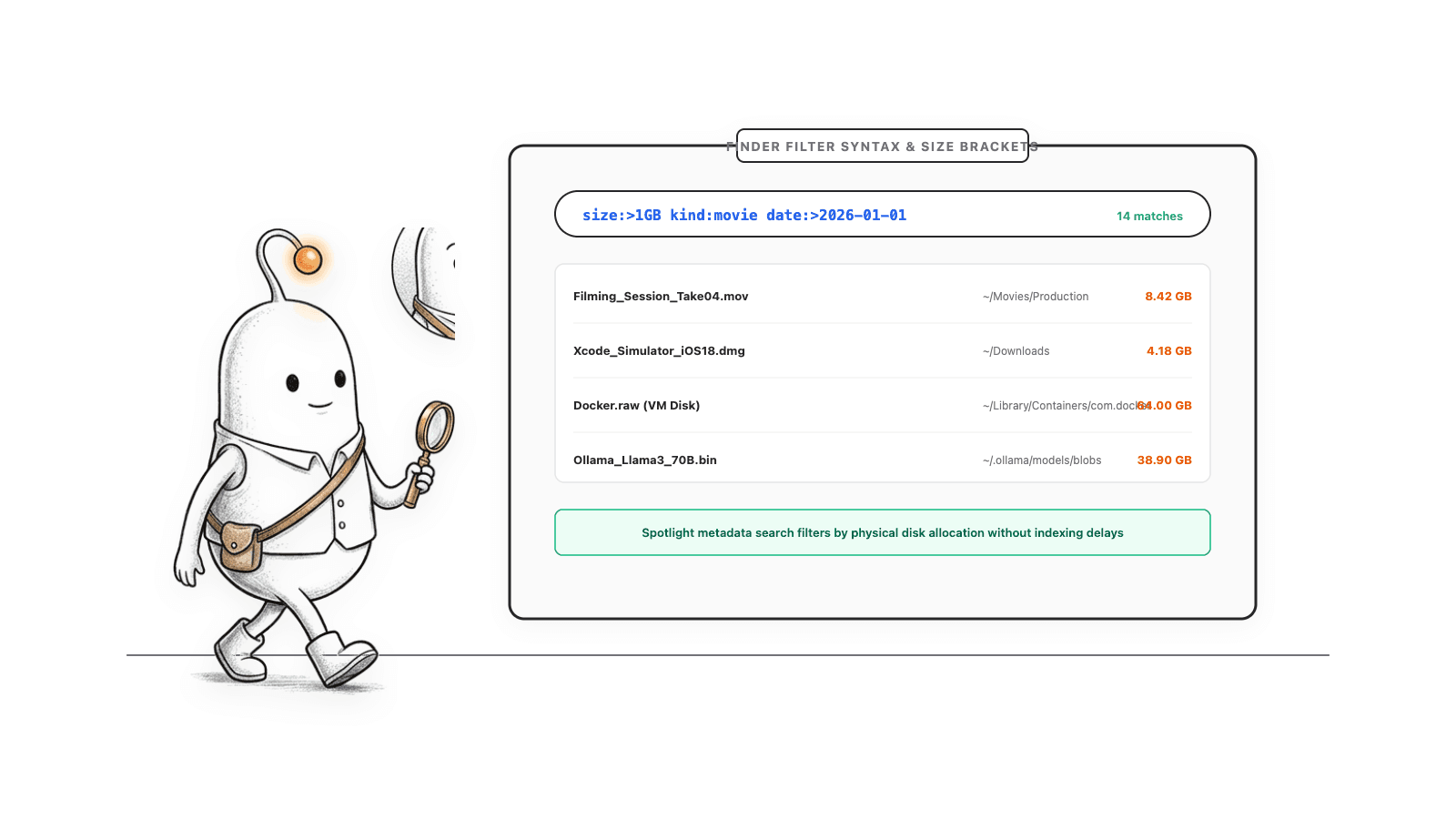
Size helps you choose what to inspect. It doesn’t tell you whether a file is disposable. An active project, photo library or virtual machine may be large for a good reason.
Read more: Apple: find and delete files on your Mac · Apple: narrow Finder results · More ways to find large files on Mac
Search Diskfern with the details you remember
If you remember “a big video from last week” more readily than its filename, Diskfern’s search can use that. Scan a location, click Search files and folders, or press Command + F or Command + K in Diskfern. Then describe the file using its type, size, modification date or location.
Recognized phrases become visible Smart filters. The remaining words match filenames. For example, my videos from last week larger than 500 mb combines personal content, video type, last week’s modification dates and a minimum size of 500 MB. Add birthday to also require that word in the name. Read the filters to check the interpretation, and remove one if it narrows the search too far.
| Type this | What Diskfern looks for |
|---|---|
largest files in downloads | Scanned files in Downloads, ordered by size. |
videos from last week | Video files modified during the previous calendar week. |
pdfs larger than 500 mb | PDFs with a scan-attributed size of at least 500 MB. |
photos without screenshots | Image files, excluding names containing screenshot. |
invoice or receipt pdf | PDFs with invoice or receipt in the filename. |
report -draft | Names containing report, excluding names containing draft. |
newest spreadsheets | Recognized spreadsheet formats, newest modification first. |
videos not mp4 | Recognized video files excluding the MP4 extension. |
You can also use a plain name such as xcode, an extension such as .dmg, or a quoted filename phrase such as "final cut". Ordinary text needs at least three non-space characters before searching; recognized filters can work sooner. The scope menu narrows the available scan to places such as Home, Documents or Downloads.
The search runs locally over the scan’s names and metadata. Its English phrases map to defined filters without needing an AI model or Apple Intelligence. It won’t recognize the subject of a photo or search text inside a PDF. Dates in these queries mean modification dates, and results cover only the accessible items included in the scan.
That combination is useful when you’re investigating storage: you can start with a description, see exactly how it was filtered, then inspect the matches without losing their folder context. Finder and Spotlight remain useful for opening files and searching supported document contents.
Read more: Diskfern’s natural-language file search
From a search result to a file you can identify
A matching name is only the start. Select a result in Diskfern to see its path, size and details. Use Quick Look to inspect it, or Reveal to select it in macOS Finder. Opening a regular folder from the results takes you into its storage map.
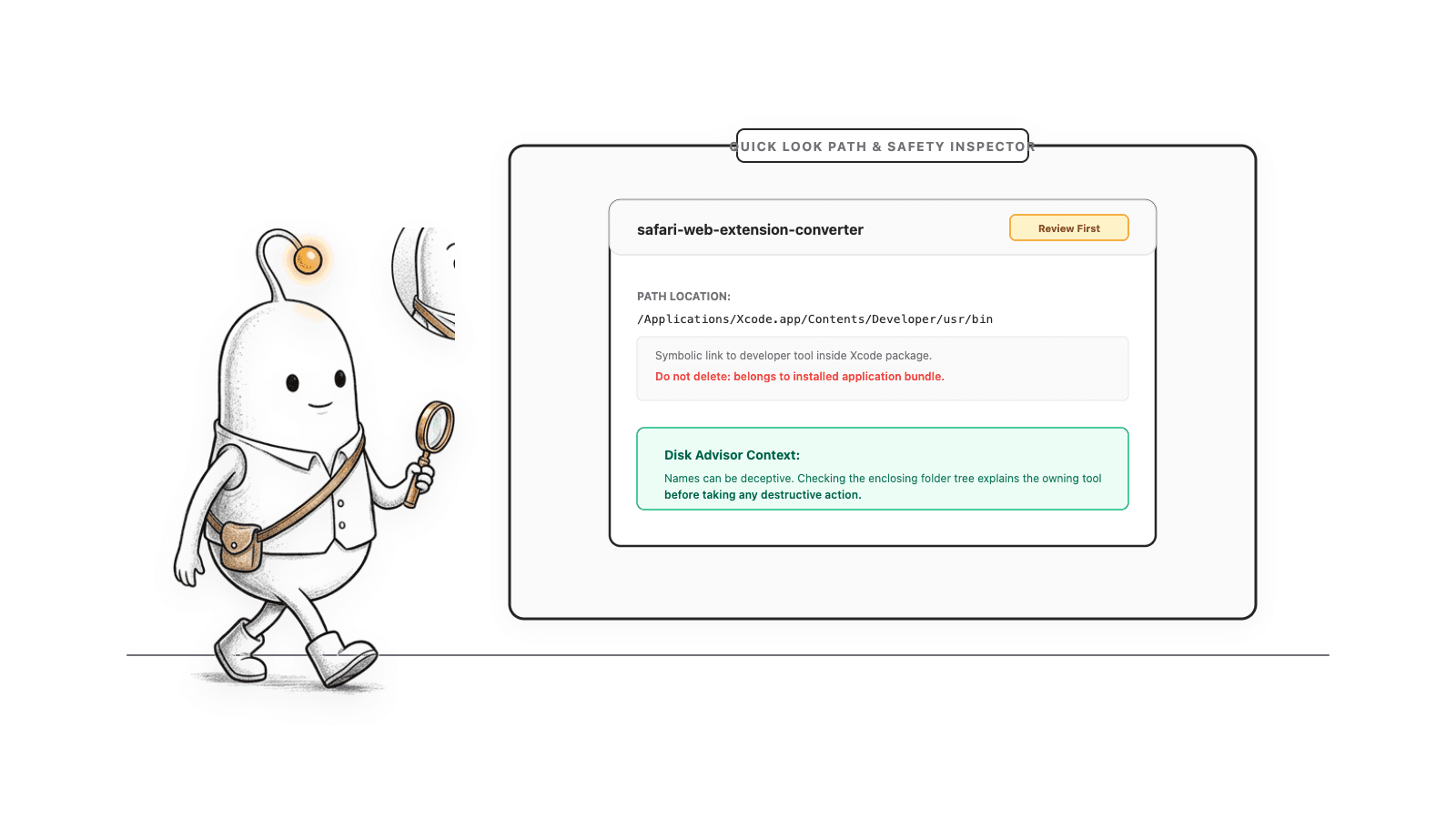
For example, search largest files in downloads, preview a video export you recognize, then reveal its folder to check for related project files. If you choose it for cleanup, add the eligible item to the Collector. You can review the collection before confirming any removal.
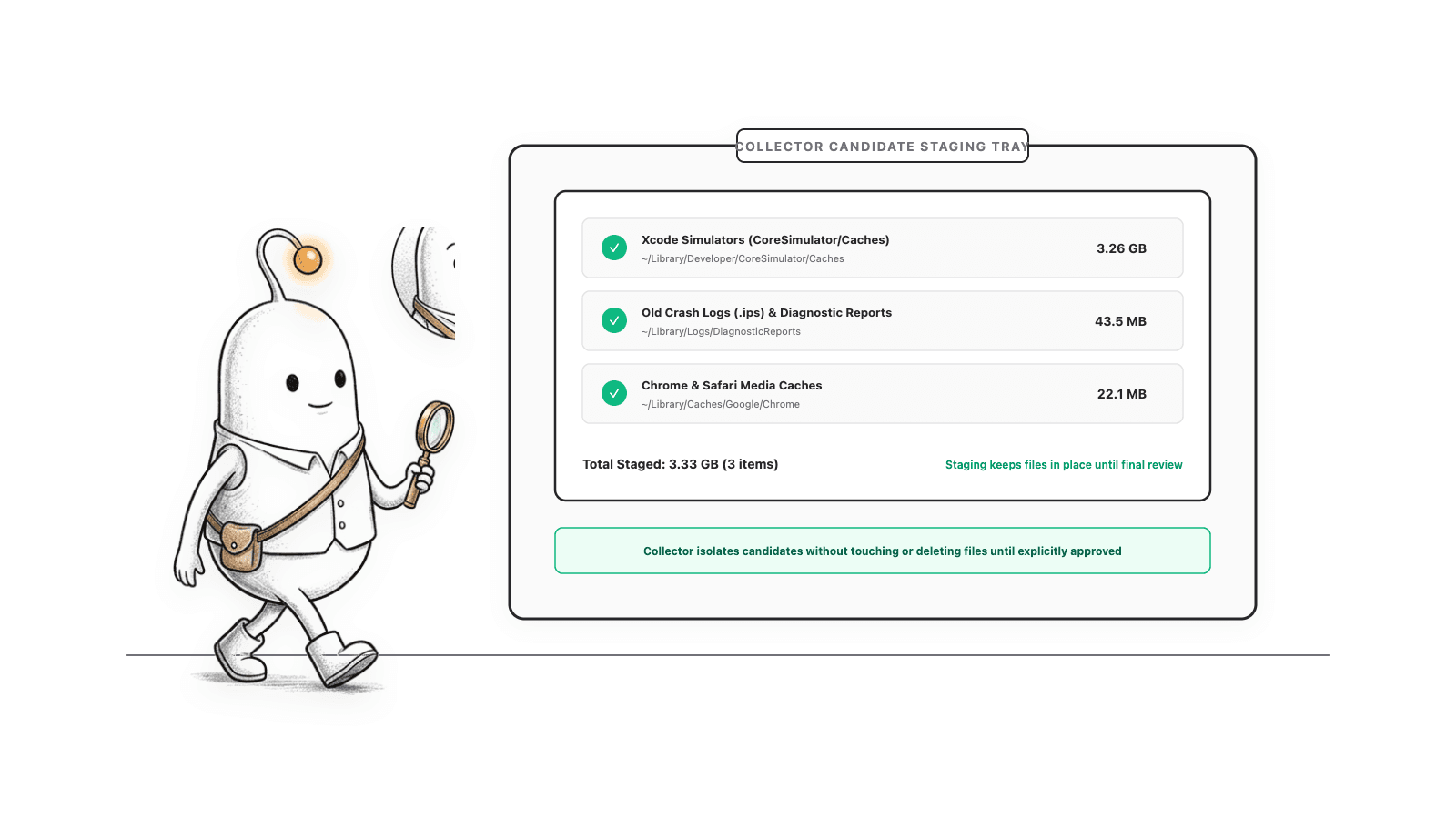
Search, Quick Look, inspection and basic Collector staging are included in Free. Executing Collector cleanup requires Pro. Check the removal mode when confirming: Trash is the default, while Direct Purge permanently removes items. A displayed file size is not a guarantee that deleting it will recover the same number of bytes.
Read video transcript
Your Mac says it's running out of storage. But finding out why shouldn't feel like detective work. Files, caches, old apps and System Data pile up. And the hard question isn't what's large. It's what you can actually remove. Diskfern maps your storage, so the biggest files and folders stop hiding. Search naturally, and find large videos or this month's PDFs without digging through folders. Size isn't everything. Diskfern separates obvious clutter from files that need a closer look. Disk Advisor explains what you're looking at, on your Mac, before you decide. See every app, its size, and when you last opened it. Then review what you've collected, and clean on your terms. Measured. Not guessed. Diskfern. Stop guessing what's taking up your Mac.
Read more: Preview files before deciding what to remove · Check whether a Mac file is safe to delete
Mac search not working? Check these first
Start by identifying which search is failing. A webpage with no text matches, a missing Spotlight result and an incomplete Diskfern scan need different fixes.
- Check the app and scope. Click the webpage before using Command + F, or switch Finder from the current folder to This Mac. Try a shorter, distinctive part of the name and remove extra filters.
- If Command + Space does nothing, check the Spotlight shortcut in System Settings > Keyboard > Keyboard Shortcuts. Another shortcut or an input-source setting may be using those keys.
- For missing Spotlight results, open System Settings > Spotlight, called Siri & Spotlight on some versions. Check the enabled result categories and the Search Privacy or Spotlight Privacy exclusions.
- Allow indexing to finish after a new setup, a macOS update or a large transfer. Results can be incomplete while the index is being built.
- If known files remain missing, follow Apple’s rebuild procedure for the affected folder or disk: add it to Spotlight’s privacy exclusions, wait a few seconds, then remove it. Spotlight reindexes that location; it may take time to finish.
For Diskfern, check the scanned location and any permission warnings. A scan that could not read a folder cannot return its missing entries. Let the scan finish, rescan after relevant file changes, and simplify the query. The panel shows up to 200 results, so a broader match count can be larger than the visible list.
If Command + F finds nothing in a document, try a word you can see and check whether its text is selectable. For a file stored elsewhere, confirm that the drive or location is available. Rebuilding Spotlight won’t fix a search that is looking in the wrong place.
Read more: Apple: Mac keyboard shortcuts · Apple: unexpected Spotlight results · Apple: rebuild the Spotlight index
The Diskfern way
How Diskfern helps
If you came here because your Mac is filling up, try one specific search after scanning. You can inspect the results in Free before deciding whether you need cleanup tools.
- Scan the location you want to investigate.
- Open search and try `largest files in downloads` or `videos from last week`.
- Check the recognized filters, then preview a result and inspect its path.
- Collect only the items you want to review. Confirm cleanup separately if you use Pro.
Finding and reviewing is free. Moving items to the Trash from Diskfern is part of Pro.
Try Diskfern’s free searchQuestions
How to word search on Mac without searching every file?
Open the webpage or document first, click inside it, then press Command + F. Enter your word or phrase in the Find field. In Finder, the same shortcut starts a file search instead, so the active app matters.
How to search keywords on a page Mac?
Press Command + F in Safari, Chrome or Firefox and type the keyword. Use the next and previous arrows to move between matches. If the words are inside an image or content the page has not loaded, a normal page search may not find them.
How to search keywords on Mac when I don’t know the filename?
Try Finder or Spotlight with a distinctive word from a supported, indexed document. Add a file type or date to narrow the results. If you remember properties such as video type, size or location, Diskfern can search those properties within its scan; it does not search document contents.
How to check search history on Mac for a website I visited yesterday?
In Safari, choose History > Show All History. In Chrome, press Command + Y. Search for the site name or a word from the page title, then check the date. For searches saved to a Google account, check My Activity as well.
Can I search for files on Mac without paying for an app?
Yes. Spotlight, Finder and the Storage section in System Settings are built into macOS. Diskfern also includes search, previews and inspection in its Free plan. Collector cleanup execution requires Pro.

Written by
Diskfern Team
We explain Mac storage using product behavior and the sources listed below. Review your app settings and backups before removing data.
Sources
- Apple: search with Spotlight · checked October 24, 2026
- Apple: narrow Spotlight results · checked October 24, 2026
- Apple: Mac keyboard shortcuts · checked October 24, 2026
- Apple: narrow Finder results · checked October 24, 2026
- Apple: create a Smart Folder · checked October 24, 2026
- Apple: search Safari history · checked October 24, 2026
- Apple: clear Safari history · checked October 24, 2026
- Google: view and delete Chrome history · checked October 24, 2026
- Google: Chrome keyboard shortcuts · checked October 24, 2026
- Google: find and control account activity · checked October 24, 2026
- Apple: find and delete files on your Mac · checked October 24, 2026
- Apple: unexpected Spotlight results · checked October 24, 2026
- Apple: rebuild the Spotlight index · checked October 24, 2026
Keep reading
Learn more about managing large media, cloud sync, and external drives on Mac.
Find large files on Mac
Finder's search can find large files, but it's slow and easy to misuse. Here's how to find them properly, plus faster methods for big drives.
Diskfern file search
Search with natural queries like 'videos > 1gb', 'pdf this month', or 'screenshots this week'. Words automatically convert into smart filter pills.
Inspect and Quick Look
Open a native preview, see its real path and permissions, and check why Diskfern marked it Safe, Review first, or Protected.
Is this Mac file safe to delete?
Found a huge file or folder on your Mac? Check who owns it, whether it can be rebuilt, and what deleting it affects before you reclaim space.

Get your space back. Start with a free scan.
Explore the files and folders Diskfern can read. Your files stay on your Mac, and nothing is removed until you say so.
macOS 14 Sonoma or later · Apple silicon and Intel