Developer storage
Claude Code & Codex Disk Space on Mac: Safe Cleanup
Claude Code and Codex can leave local session data, logs, caches, and project dependencies in different places. First find what is large, then identify who owns it before deciding whether it can go.
 Diskfern Team9 min readUpdated
Short answer
Claude Code and Codex can use space for session history, tool state, logs, caches, and project dependencies. Check Claude Code under `~/.claude` and Codex under `CODEX_HOME` (usually `~/.codex`), then inspect project folders separately. Do not delete either whole folder: transcripts, credentials, settings, memory, and project work may be inside.
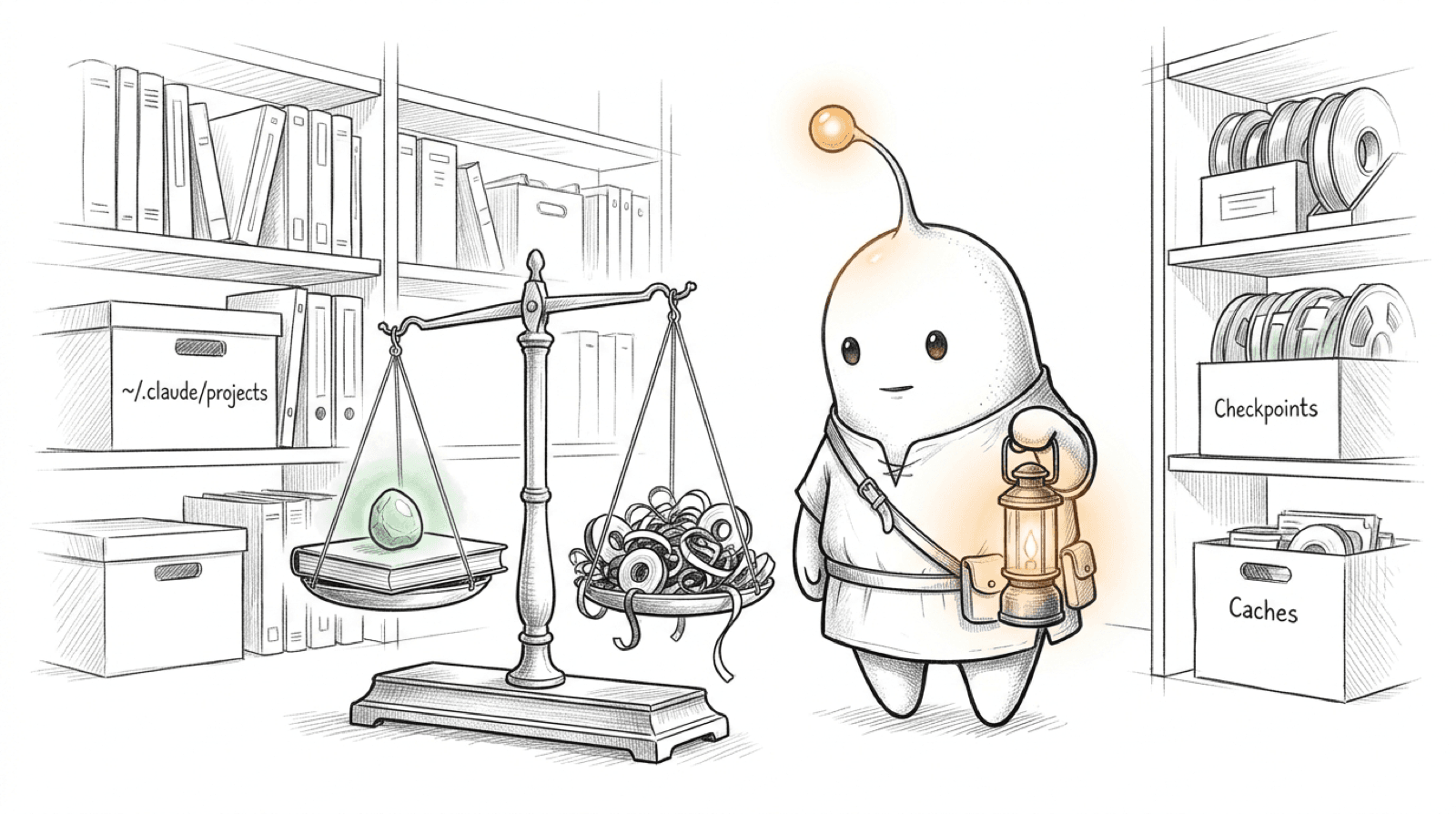
Claude Code taking up disk space on Mac? First identify the data
Coding agents save more than the app itself. When analyzing developer storage on Mac, a session may include prompts, tool output, file snapshots, logs, and attachments. The project can also accumulate dependencies, generated output, or a worktree. Those are separate kinds of storage, even when they all grew while you were using an AI tool.
The safe first question is not “Which folder can I delete?” It is “Which part is large, what created it, and what would I lose?” Session history can help you resume or review work. Build output may be reproducible. Credentials and configuration may be essential. A folder’s size alone cannot distinguish them.
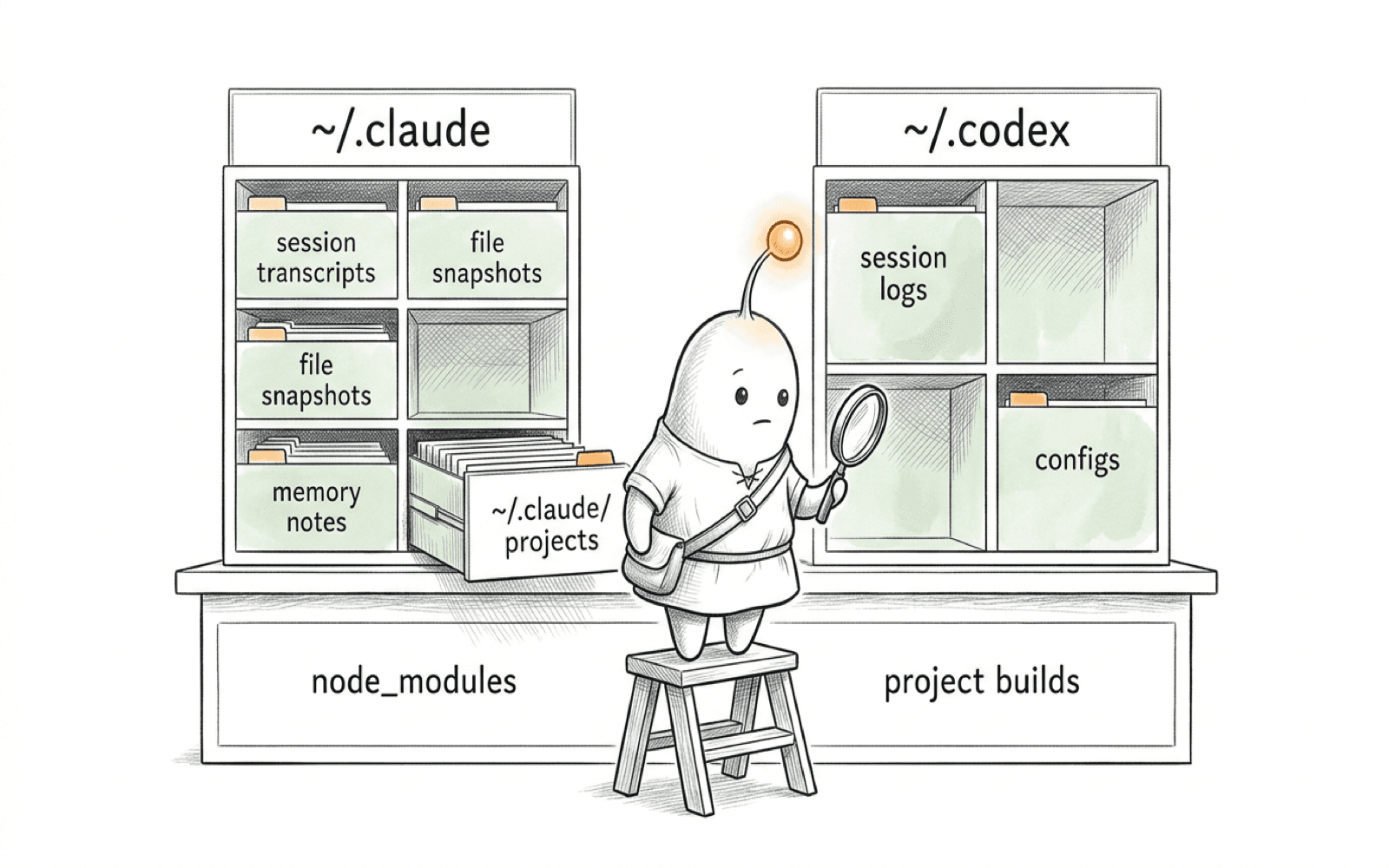
Claude Code taking up disk space on Mac: where do sessions live?
Claude Code's default user state is ~/.claude. Its project transcripts normally live under ~/.claude/projects/<project>/ as JSONL files. The directory name is derived from the project path, so it may not look like the repository name. You can change the location with CLAUDE_CONFIG_DIR.[1][2]
projects/can contain transcripts, tool results, subagent transcripts, and file snapshots used for checkpoint restore.history.jsonlkeeps prompt history; projectmemory/can hold Claude's saved notes.debug/,paste-cache/, and other session-related paths may hold logs or intermediate data, depending on features and settings.- Current session scratchpads and attached images can be under Claude Code's temporary directory, not
~/.claude. On macOS the documented default shape is/private/tmp/claude-<uid>/...;CLAUDE_CODE_TMPDIRcan change it.[1]
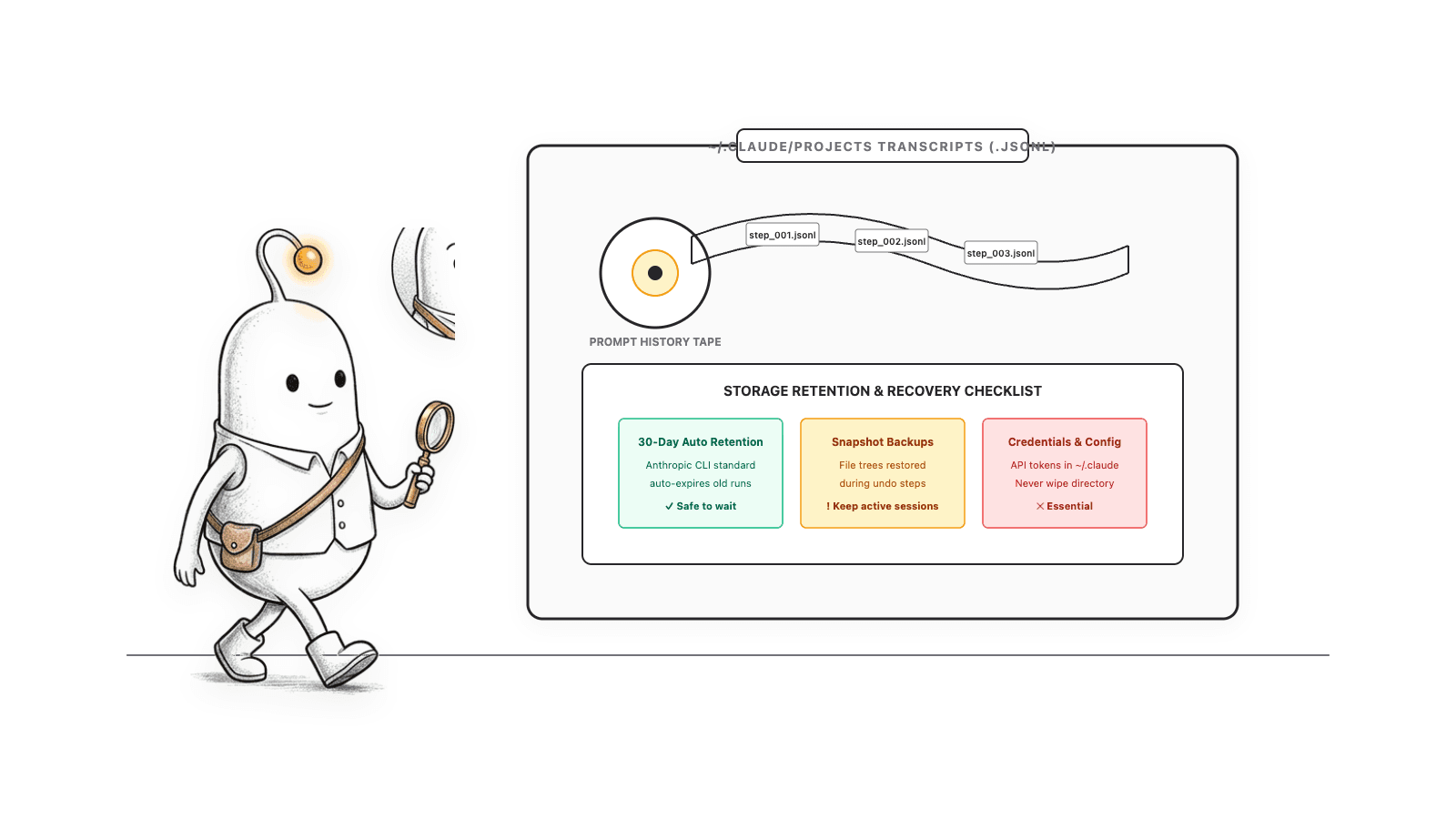
Anthropic documents a default 30-day retention period for specified Claude Code session data, controlled by cleanupPeriodDays. That does not mean every file under ~/.claude expires: the documentation lists state such as prompt history, memory, credentials, and background-session data with different retention behavior. Use Claude Code's own controls and inspect the current docs for your installed version before changing retention.[1]
Read more: Anthropic: Explore the .claude directory · Anthropic: Manage Claude Code sessions
Where does Codex store its local history and logs on Mac?
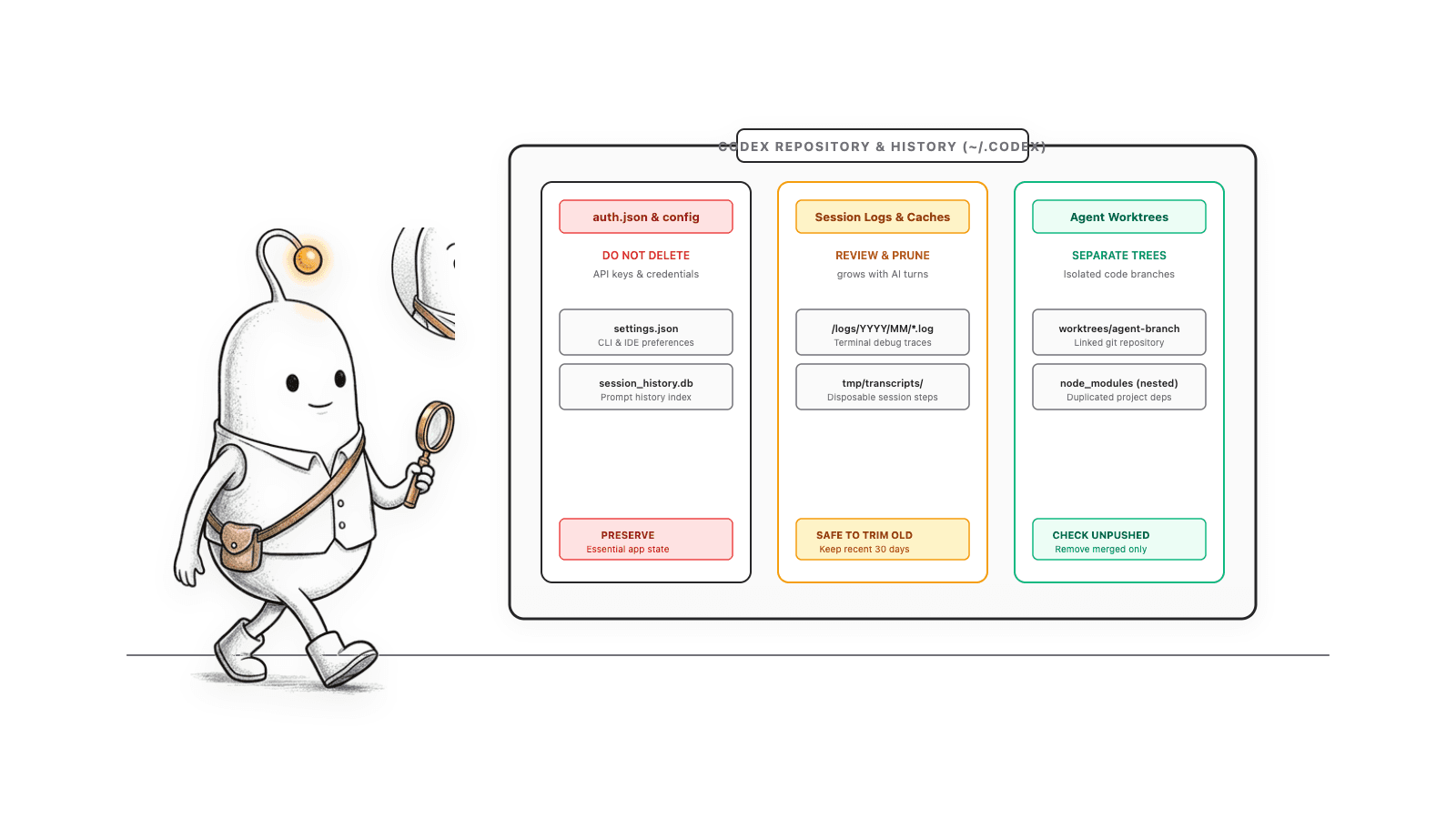
Codex stores local state under CODEX_HOME, which defaults to ~/.codex. OpenAI lists configuration, optional file-based authentication, optional history.jsonl, logs, and caches among the contents. Codex's desktop app also documents log files in ~/Library/Logs/com.openai.codex/YYYY/MM/DD, plus active and archived session folders under CODEX_HOME.[3][4]
Treat ~/.codex as an application state folder, not as one disposable cache. auth.json may contain credentials if file-based credential storage is enabled. Configuration can affect how Codex behaves, and transcripts may contain project context or work you want to keep. The app can use a custom CODEX_HOME, so the default path is only a starting point.[3]
OpenAI documents a Codex history setting that can disable local history persistence or cap the history file size. A cap drops older entries; it is a retention choice, not a cleanup command to run casually. Check whether your app, CLI, and IDE integration share the same configured home before assuming one folder represents every Codex component.[3]
Read more: OpenAI: Codex advanced configuration · OpenAI: Codex troubleshooting and log locations
Claude Code taking up disk space on Mac? Measure without deleting
Start with a read-only size check. du reports disk usage; it does not remove or change files. Run it in Terminal while the relevant tools are idle if you want a steadier snapshot, and remember that a missing path or permission error is not evidence that the folder uses zero space.
du -sh "$HOME/.claude" "$HOME/.codex" "$HOME/Library/Logs/com.openai.codex"This checks the default locations only. If you set CLAUDE_CONFIG_DIR or CODEX_HOME, measure those actual paths instead. For a one-level breakdown of one default folder, use du -h -d 1 "$HOME/.claude" | sort -h and repeat with the path you are investigating. macOS may deny access to some directories; do not add sudo just to force a number.
- In Finder, choose Go > Go to Folder, enter
~/.claudeor~/.codex, and inspect the names and contents. Press Command-Shift-Period to show hidden files in Finder windows. - Sort the results by size in a disk-usage tool, then open the path in Finder to identify whether it is a transcript, snapshot, cache, log, credential, or project folder.
- Check parent folders and modification dates. A large
node_modules, build directory, or worktree usually belongs to a project workflow, not to the agent's conversation cache. - Keep a note of the measured path and size before taking any action. If the tool is still running, close it normally before using its own cleanup controls.
Read more: Anthropic: Explore the .claude directory · OpenAI: Codex advanced configuration
Which Claude Code or Codex files are safe to remove?
There is no blanket-safe delete rule for either tool's home folder. Prefer each tool's documented retention or cleanup controls for session data. For a clearly identified cache, confirm the owning app's guidance and expected rebuild behavior first. Keep credentials, configuration, memory, transcripts, snapshots, and project files unless you have decided you no longer need them and have a recovery plan.
| What you found | What it may contain | Safer next step |
|---|---|---|
| Claude Code project transcripts | Conversation, tool output, and session context | Keep useful sessions; use documented retention or claude purge only after reviewing its deletion plan. |
Claude Code file-history/ | Pre-edit snapshots used for checkpoint restore | Keep if you may need to restore earlier edits; verify current tool documentation before cleanup. |
Codex history.jsonl or sessions/ | Local prompt or session history | Keep wanted history; use documented settings or app controls after checking the effect. |
auth.json, config, memory, or project data | Credentials, preferences, saved notes, or work | Do not treat as cache. Back up or leave in place unless you know the consequence. |
| Project build output or dependencies | Generated artifacts or packages used by a project | Identify the project and its lockfiles or build process; use that tool's cleanup workflow. |
Anthropic's claude purge can remove a project's transcripts and auto memory along with related state; its documented dry-run shows what it plans to remove. That is intentionally broader than clearing a cache. Read the plan, export anything you want to keep, and do not use a one-line bulk delete against ~/.claude or ~/.codex.[1][2]
Codex's troubleshooting page advises reviewing logs for sensitive information before sharing them. That is another reason not to upload or post a large log folder as a shortcut to diagnosis.[4]
Do not delete a whole agent folder to reclaim space
A session archive can be valuable, and these folders can also contain credentials or configuration. A folder name such as cache, temp, or logs does not prove every child is safe to remove.
Read more: Anthropic: Explore the .claude directory · Anthropic: Manage Claude Code sessions · OpenAI: Codex troubleshooting and log locations
Why is an application's cache different from session history or project data?
A cache is generally derived data an application can recreate. A transcript records work you may want to resume or review. Project data can include source files, dependencies, uncommitted changes, and local databases. Removing one category can have a very different result from removing another, even when the folders are beside each other.
- A cache may need to be downloaded or generated again, costing time or network data.
- A transcript or prompt history can contain the conversation and tool outputs that help you recover context.
- A file snapshot can be the only local copy of an earlier version that checkpoint restore can use.
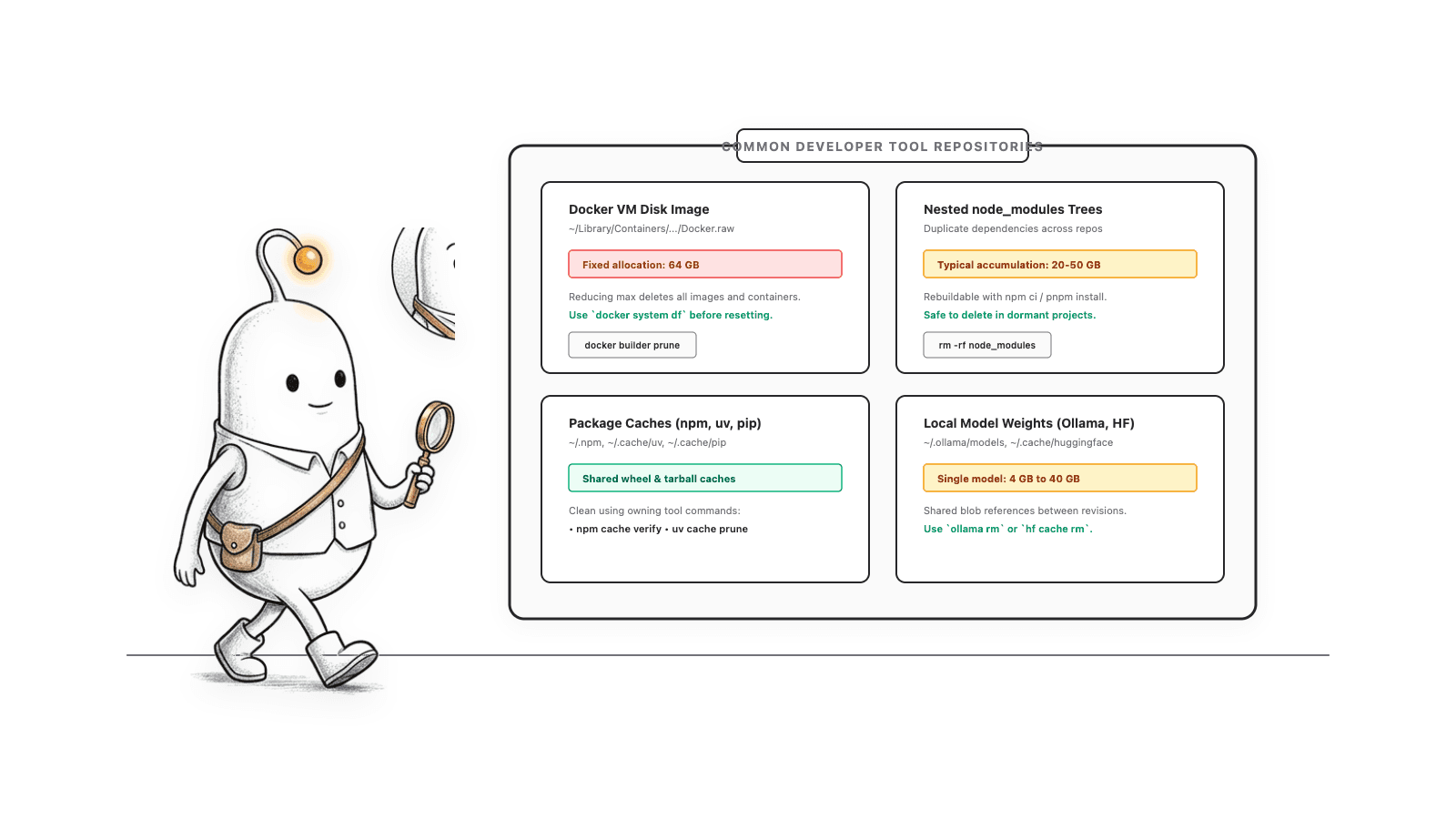
- A project dependency folder may be reproducible from a lockfile, but a dirty worktree or generated file may not be.
- A log can include paths, commands, prompts, or other sensitive details, even if it is not project source code.
Read more: Anthropic: Explore the .claude directory · OpenAI: Codex advanced configuration
How can I find unexpected storage from every developer tool?
After checking known Claude Code and Codex locations, scan the whole Mac or the relevant project root. Other tools, package managers, IDEs, simulators, virtual machines, and generated build trees can account for space that appears to be related to an agent simply because it grew during the same work session.
Compare the storage tool's displayed path with the folders you measured. Avoid adding together parent and child sizes, since that double-counts the same data. Also expect differences between logical size and disk allocation, especially for sparse files, shared data, and files you cannot read. If a scan marks a result unknown or incomplete, treat it as unknown rather than zero.
Diskfern can map storage across a selected Mac or folder, then let you inspect large paths in a treemap, list, or sunburst view. Finding and reviewing are separate from removal. Use the map to locate the candidate, then identify its owner and contents before deciding what to keep.
The Diskfern way
How Diskfern helps
When the largest item is not in a familiar agent folder, use Diskfern to trace its path through the rest of the Mac. The map helps you locate storage; ownership and recovery still guide the cleanup decision.
- Scan This Mac or the project folder containing the large item.
- Sort by size or open the Developer area, then inspect the full path in the Inspector.
- Review the item and its contents before staging anything for cleanup.
Finding and reviewing is free. Moving items to the Trash from Diskfern is part of Pro.
See how Diskfern finds large filesQuestions
Is it safe to delete the `~/.claude` folder?
Do not delete it wholesale. Claude Code documents transcripts, settings, memories, credentials, caches, logs, and session state under or around this location. Inspect what is large and use the tool's own documented controls for data you intend to remove.
Can I delete `~/.codex` to free space?
Avoid deleting the whole folder. Codex can store configuration, optional credentials, history, logs, and caches there. Check your actual CODEX_HOME and preserve any history or settings you want to keep.
Where are Claude Code session files stored on a Mac?
The documented default is `~/.claude/projects/<project>/<session-id>.jsonl`. The project directory is derived from the working-directory path, and CLAUDE_CONFIG_DIR can move the root.
Where are Codex logs stored on macOS?
OpenAI documents app logs at `~/Library/Logs/com.openai.codex/YYYY/MM/DD`. Codex also keeps local state under CODEX_HOME, which defaults to `~/.codex`; configured paths can differ.
Does clearing a cache delete my coding-agent conversations?
Not necessarily, but folder boundaries and cleanup behavior vary. Verify the exact path and the tool's documentation before removing anything. Session transcripts and caches are different kinds of data, even when both are local.

Written by
Diskfern Team
We explain Mac storage using product behavior and the sources listed below. Review your app settings and backups before removing data.
Sources
- Anthropic: Explore the .claude directory · checked October 28, 2026
- Anthropic: Manage Claude Code sessions · checked October 28, 2026
- OpenAI: Codex advanced configuration · checked October 28, 2026
- OpenAI: Codex troubleshooting and log locations · checked October 28, 2026
Keep reading
Explore more developer storage guides, cache management, and tools.
Find large files on Mac
Finder's search can find large files, but it's slow and easy to misuse. Here's how to find them properly, plus faster methods for big drives.
Is this Mac file safe to delete?
Found a huge file or folder on your Mac? Check who owns it, whether it can be rebuilt, and what deleting it affects before you reclaim space.
uv cache on Mac
Run uv cache clean to wipe it all or uv cache prune to drop unused entries. Find ~/.cache/uv, check its size and free up GBs on your Mac.
Search files and folders on Mac
Find the right Mac search shortcut, words on a page, browser history and large files. Fix missing results and try Diskfern’s plain-language file search.

Get your space back. Start with a free scan.
Explore the files and folders Diskfern can read. Your files stay on your Mac, and nothing is removed until you say so.
macOS 14 Sonoma or later · Apple silicon and Intel