Apps
Find and Delete Large Mail Attachments on Mac
Apple Mail storage can include synced messages, temporary attachment downloads, and separate files you saved. Find which one is growing before you remove anything.
 Diskfern Team8 min readUpdated
Short answer
Mail keeps your messages in its own managed database, separate from temporary Mail Downloads and any attachment copies you saved yourself. To reduce Mail storage safely, find large attachments and old downloads first, and don't delete Mail's database by hand.
Why is Mac Mail taking up storage?
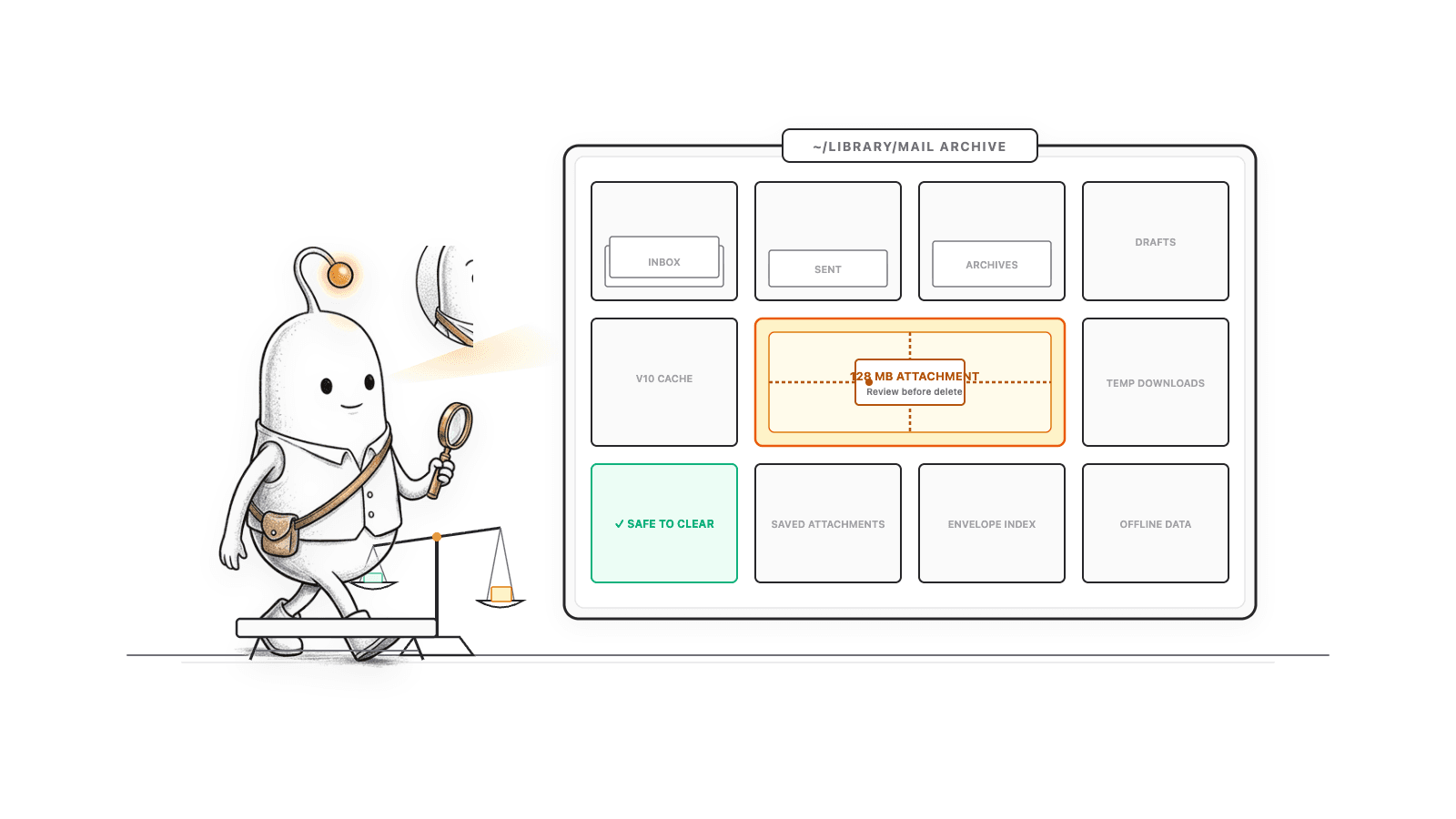
Mail keeps local data so messages and attachments are available to search and read. When inspecting storage with a disk space analyzer, the total can include downloaded messages, attachments managed by Mail, temporary Mail Downloads, and separate copies saved elsewhere. Account setup and download preferences affect what is kept on the Mac.
| Type | Where to review | First action |
|---|---|---|
| Messages and mailbox data | Mail and System Settings | Review large messages inside Mail. |
| Temporary downloads | Mail > Settings > General | Check Mail's removal setting. |
| Saved attachment copies | Configured Downloads folder | Preview each file before deleting. |
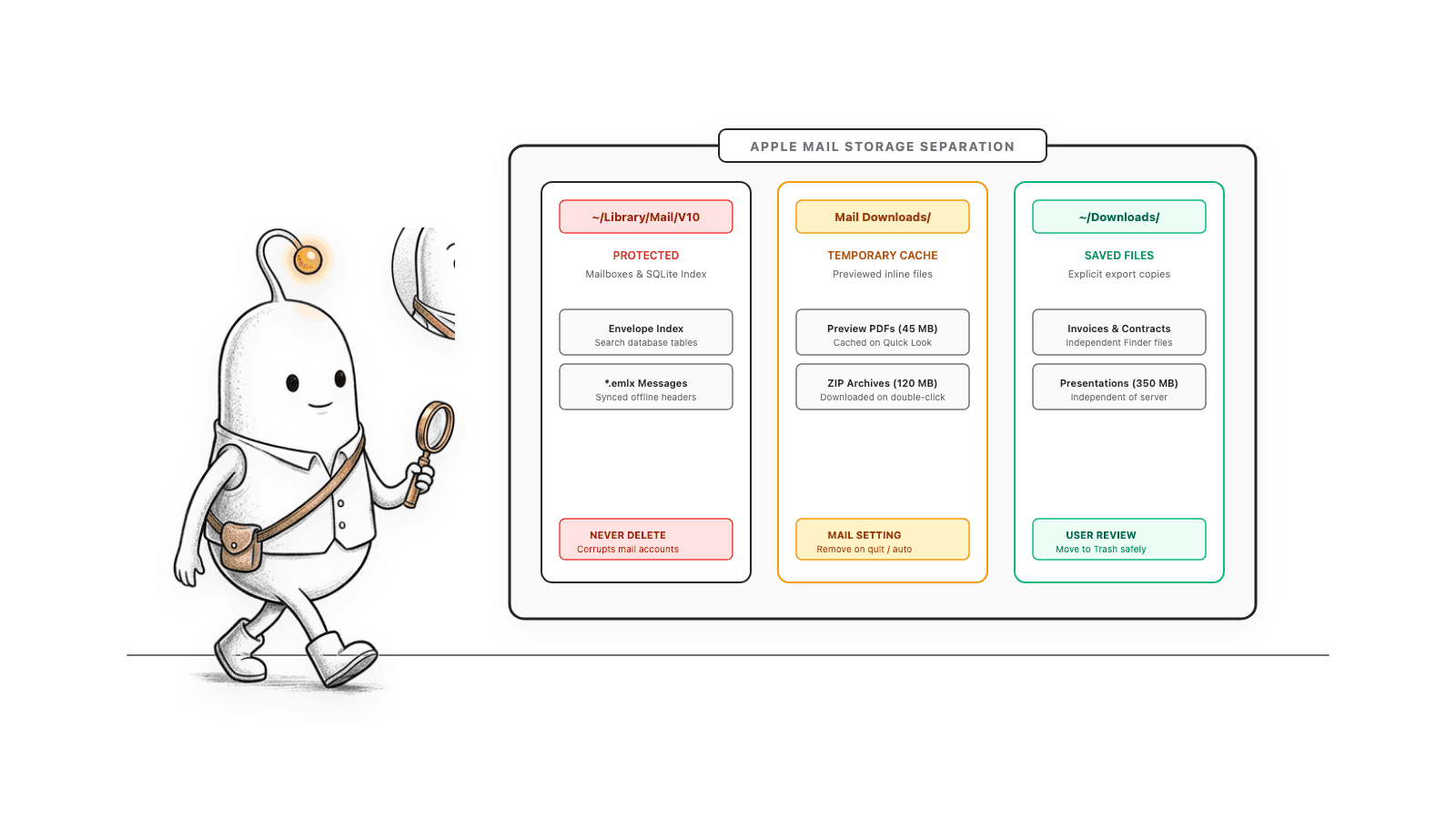
- Mail-managed message data belongs to the app. Treat its mailbox and database folders as app data, not cleanup targets.
- Temporary Mail Downloads are managed by Mail and follow its removal setting.
- Saved attachment copies are ordinary files in the destination configured in Mail. Removing one does not remove the attachment from the email.
Read more: Apple: Mail settings on Mac · Apple: Free up storage space on Mac
How do I check Apple Mail storage on a Mac?
Start with Apple menu > System Settings > General > Storage. Compare the Mail category with Mail's own account information, where your provider makes it available. An account's server usage is not necessarily the amount of local disk space it occupies.
- Note the Mail amount shown in System Settings and which disk is selected.
- In Mail, Control-click an account or mailbox and choose Get Account Info when available.
- Open Mail > Settings > General and check the configured Downloads folder.
- Let Mail finish syncing and give macOS time to refresh storage totals before comparing again.
Read more: Apple: Check email account storage in Mail · Apple: Free up storage space on Mac
Where does Apple Mail store attachments on Mac?
Mail uses a Mail Downloads folder under your user Library for temporary attachment downloads. Attachments you explicitly save go to the destination shown in Mail > Settings > General, which can be changed. Do not assume that destination is always ~/Downloads.
A saved attachment is a separate file you can review in Finder. Temporary downloads are managed by Mail. Their names or locations alone do not prove that a file is disposable, and Mail's internal mailbox directories can contain data and indexes the app needs.
Read more: Apple: Mail settings on Mac
How can I find large email attachments on Mac?
Use Mail's search and sorting instead of browsing its internal folders. Search for messages with attachments, then choose View > Sort By > Size. Review each message, sender, date, and attachment before deciding what to change.
For a saved copy, inspect the configured Downloads destination in Finder and sort by size. Use Quick Look or open the file to confirm what it is. If the attachment matters, save a copy to a backed-up location and verify that copy before removing anything from the message.
Read more: Apple: Search for emails in Mail on Mac · Apple: Mail settings on Mac
What happens when I delete an email or attachment?
Deleting a message removes it from that mailbox; account Trash settings determine how long it remains recoverable. For synced accounts, deletion may also sync to the server and other devices. Removing an attachment can have a different effect from deleting a separately saved copy.
Local On My Mac mailboxes may not have another server copy. Export or back up messages you need before changing them. A file saved to Downloads is separate: deleting that file does not remove the message attachment.
Check before removing an IMAP attachment
Apple warns that Message > Remove Attachments also removes the attachments from the mail server for IMAP accounts. Save and verify any attachment you need first.
Read more: Apple: Mail settings on Mac
How can I reduce Mail storage without breaking Mail?
Find the source first, save attachments you want to keep, and make changes through Mail. Review Download Attachments in Mail > Settings > Accounts > Account Information to change what Mail downloads in the future.
- Identify whether the space is in messages, temporary downloads, or saved copies.
- Save and open any attachment you need to keep.
- Delete only messages you no longer need, considering account sync and Trash behavior.
- Use Remove Attachments only after checking whether the account is IMAP and whether you have a verified copy.
- After syncing, recheck the same storage view. Changing download preferences does not authorize deleting existing Mail folders by hand.
Read more: Apple: Mail settings on Mac
What should I never delete manually?
Do not remove random files from ~/Library/Mail, Mail's container, or internal mailbox folders. Finder cannot determine whether Mail needs those files, whether a message is local-only, or whether an attachment deletion will sync.
- Do not delete a whole folder just because its name contains Mail.
- Do not assume a saved Downloads file is a duplicate until you confirm the original message and backup.
- Do not empty Mail or Finder Trash until you have reviewed its contents and checked your recovery options.
- Do not use recursive Terminal deletion commands copied from cleanup advice.
Read more: Apple: Mail settings on Mac
A safe check before cleanup
Use Mail and macOS to identify the source before removing anything.
- 1
Check System Settings > General > Storage.
Record the Mail category and selected disk.
- 2
Review account usage and large messages in Mail.
Search for messages with attachments and sort by size.
- 3
Check the Downloads folder configured in Mail settings.
Review saved copies separately from Mail-managed data.
- 4
Save and verify anything you want to keep.
Consider server sync and local-only mailboxes before deletion.
- 5
Make changes through Mail, then recheck storage.
Never remove internal Mail folders manually.
The Diskfern way
How Diskfern helps
See the surrounding storage before deciding what to inspect.
- Scan the relevant location and inspect readable folders in Treemap or List view.
- Check the path and owning app before interpreting a large Mail-related folder.
- Treat privacy-blocked folders as unknown and use Mail's own views for their contents.
- Use Mail's supported message and attachment actions for any cleanup decision.
Finding and reviewing is free. Moving items to the Trash from Diskfern is part of Pro.
Scan your Mac freeQuestions
Can I delete the Mail Downloads folder?
Do not delete it wholesale based only on its name. Check Mail's General settings and review the files first. Never confuse temporary downloads with internal mailbox data.
Does deleting an email delete a saved attachment?
A separately saved attachment is a separate file and remains in its chosen folder. Mail-managed temporary downloads follow Mail's settings.
Does Remove Attachments keep the email?
It keeps the message, but Apple warns that for IMAP accounts the attachments are also removed from the server. Save anything important first.
Why does Mail still look large after I delete messages?
Mail may still be syncing, the messages may remain in a Trash mailbox, or macOS storage totals may not have refreshed. Recheck after sync and do not delete internal folders to force an update.

Written by
Diskfern Team
We explain Mac storage using product behavior and the sources listed below. Review your app settings and backups before removing data.
Sources
- Apple: Mail settings on Mac · checked October 29, 2026
- Apple: Search for emails in Mail on Mac · checked October 29, 2026
- Apple: Check email account storage in Mail · checked October 29, 2026
- Apple: Free up storage space on Mac · checked October 29, 2026
Keep reading
Explore practical storage guides for Apple Mail and macOS applications.
Find large files on Mac
Finder's search can find large files, but it's slow and easy to misuse. Here's how to find them properly, plus faster methods for big drives.
How to search on Mac
Find the right Mac search shortcut, words on a page, browser history and large files. Fix missing results and try Diskfern’s plain-language file search.
Is this Mac file safe to delete?
Found a huge file or folder on your Mac? Check who owns it, whether it can be rebuilt, and what deleting it affects before you reclaim space.
Mac storage after deleting files
Deleted files but Mac storage is still full? Understand the Trash, APFS snapshots, purgeable space and shared volumes before deleting anything else.
Diskfern Help
Explore practical macOS storage guides and documentation.

Get your space back. Start with a free scan.
Explore the files and folders Diskfern can read. Your files stay on your Mac, and nothing is removed until you say so.
macOS 14 Sonoma or later · Apple silicon and Intel