Files & photos
Before You Buy a New Mac or an External SSD, Check This First
A full 256 GB Mac isn’t always a storage problem. Here’s how to tell whether you need more space or just less clutter.
 Diskfern Team6 min readUpdated
Short answer
Most people fall into one of three groups: cleaning rebuildable leftovers, moving data like photos and videos to an external SSD, or buying a larger internal drive. Spending 20 minutes sorting storage into these three piles reveals whether you need more space or just less clutter before spending $200 or more.
If Apple asks $200 to double your Mac’s storage, spend 20 minutes first finding out where your space has actually gone.
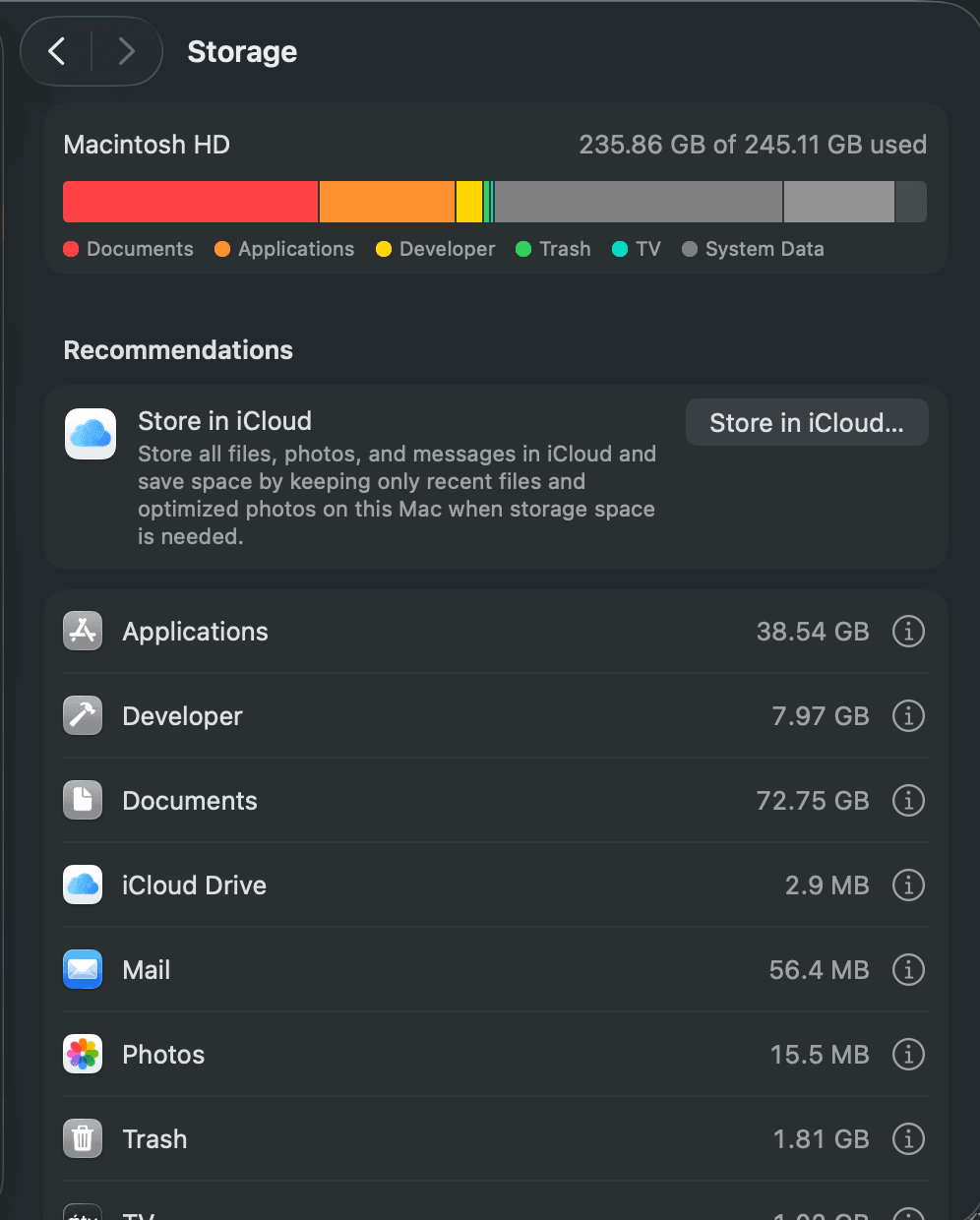
If your Mac says “Your disk is almost full,” this article is for you. It feels slow. An app won’t open. You already deleted a few things and the number didn’t move. And now you are looking at a new Mac, or a shiny external SSD, and wondering if you really have to spend money.
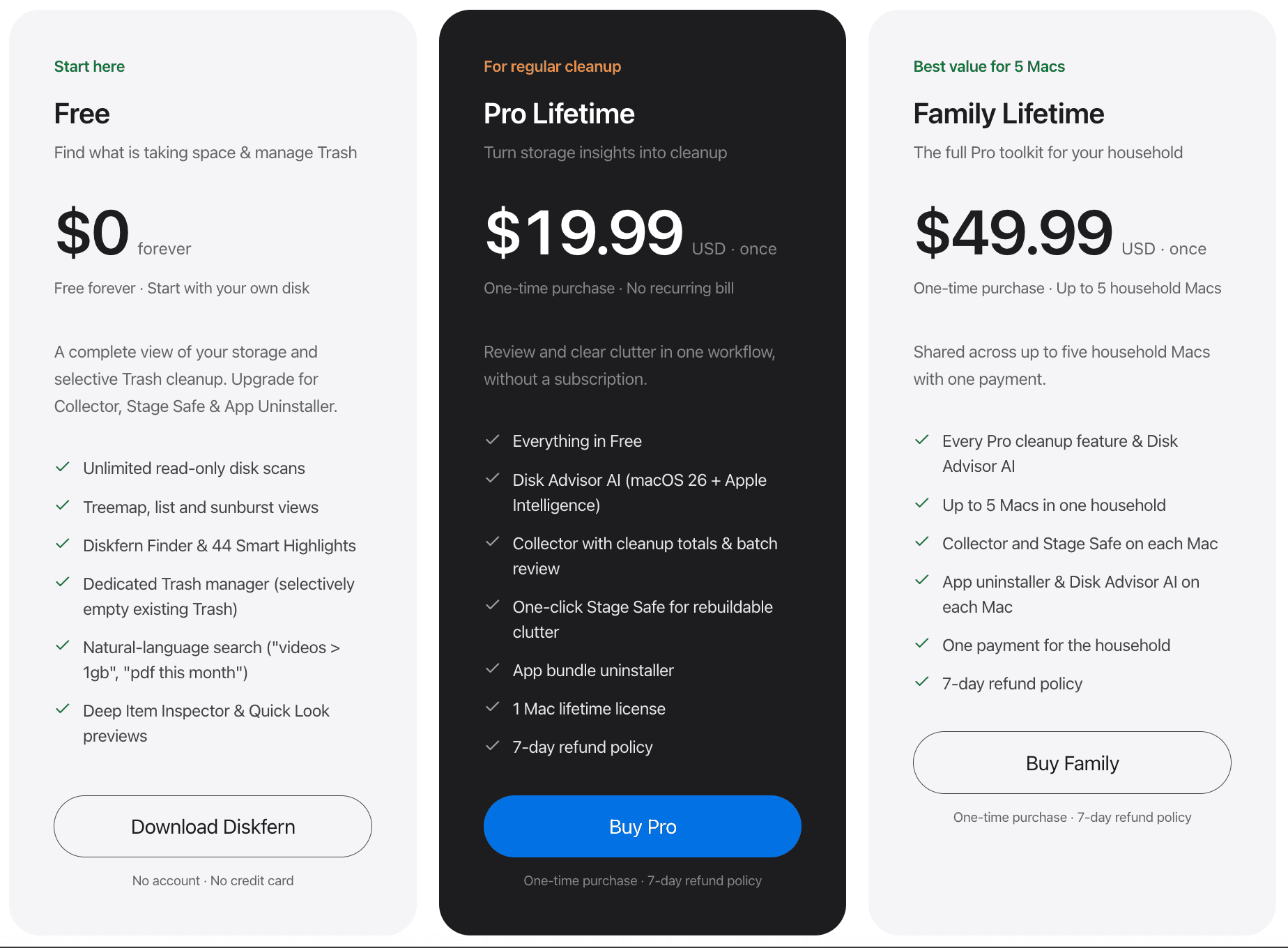
Quick note: I’m one of the people building Diskfern, a Mac app that shows you what is using your storage, so you can see it before you spend anything. Scanning is free. Cleanup is Pro, a one-time $19.99 (more on that below). The check in this article works by hand too.
The short answer
Most people fall into one of three groups:
- Cleaning is enough. A lot of your space is leftovers that your Mac can usually rebuild. You don’t need to buy anything.
- An external SSD is enough. Your big files are things like photos, videos and old projects. They can live on a drive.
- You really do need more internal storage. Your Mac is simply too small for how you work. Buying is the right call.
You can’t know which group you’re in by guessing. You find out by looking. That takes about 20 minutes, and it can save you $200 or more.
Why “I deleted stuff and nothing changed” happens
This is the most annoying part, so let’s start here.
You delete a few downloads. You empty the Trash. The storage bar barely moves. That’s because the files you can see are rarely the files that are filling your Mac.
The big space is usually hidden:
- System Data. This is a catch-all label in Mac storage settings. It can be 50 GB, 100 GB or much more, and it doesn’t tell you what is inside. Many people on Apple’s support forums ask what System Data is and why it is so big.
- App leftovers and caches. Browsers, chat apps and creative apps keep temporary files that can grow for months.
- Old backups and updates. Local snapshots, old installers, and device backups can sit there quietly.
- Developer files. If you ever installed Xcode or Docker, these can take tens of gigabytes on their own.

So it’s not that you’re bad at cleaning. Your Mac just doesn’t show you the real picture. And if you buy a bigger drive without seeing it, the same hidden stuff can slowly fill the new space too.
First, let’s look at the real price
You deserve to see what is at stake before you decide.
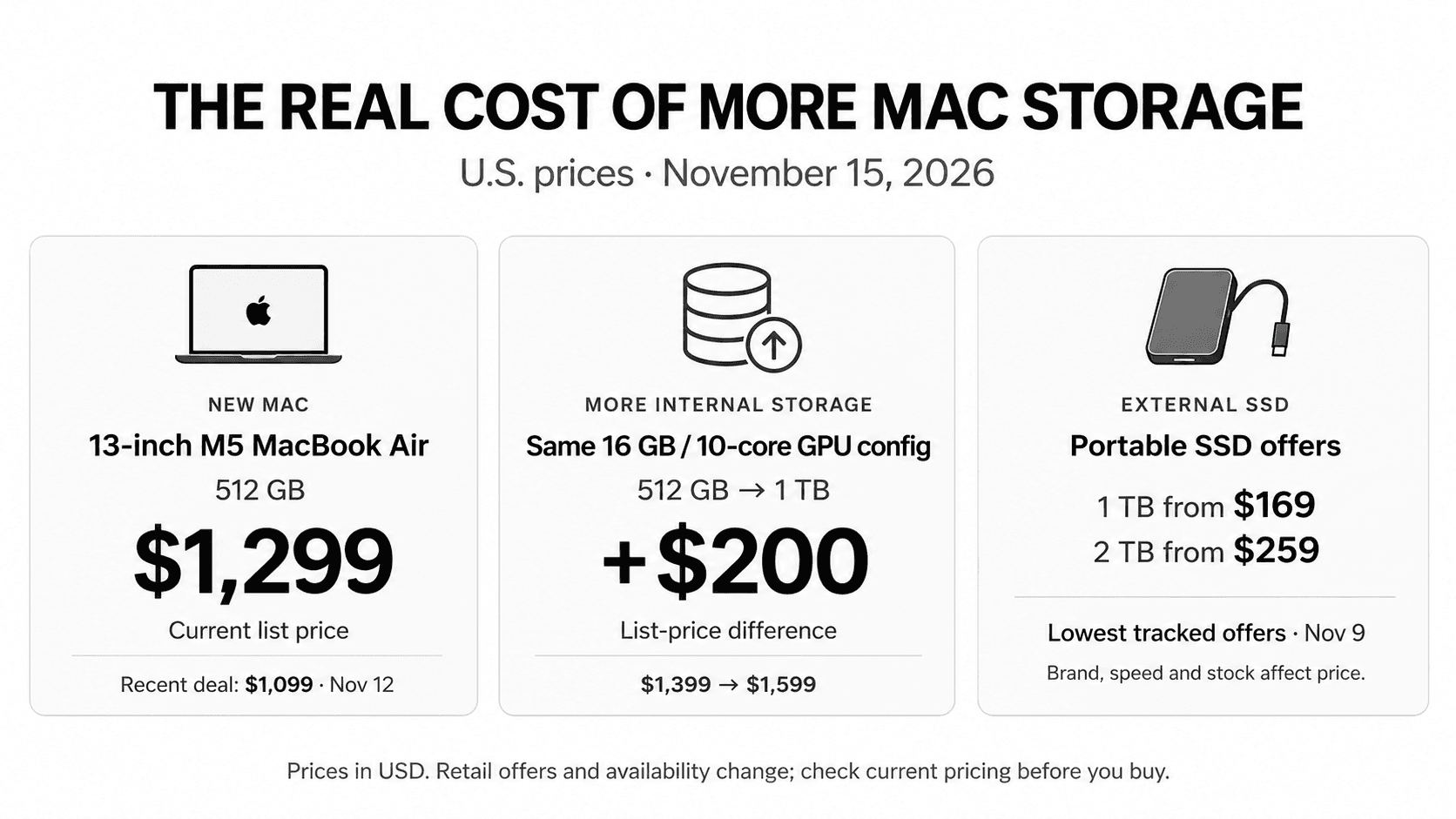
In March 2026, Apple released the M5 MacBook Air. It starts at $1,099 with 512 GB. The old M4 Air started at $999 with 256 GB, and its 512 GB version was $1,199. Going from 512 GB to 1 TB on the new Air is another $200 (a $1,299 laptop).
So if you are on a 256 GB Mac and thinking of a new one, you are looking at roughly $1,100 or more. If you want more storage on a new MacBook Air, Apple has charged about $200 per step. Other models are priced differently, so check the one you want.
These are launch prices from March 2026. Prices change, so check Apple’s website for today’s numbers (sources are listed at the end). The point is simple: this is real money, and it’s worth 20 minutes.
“But an external SSD is cheaper, right?”
It used to be a lot cheaper. In 2026, it’s more complicated.
SSD prices have jumped because of a global shortage of the memory chips inside them, driven by demand from AI data centers. In March 2026, Cult of Mac reported that a 2 TB Kingston portable SSD that listed at $139.99 last fall was selling for $235.99 on Amazon. Other reports show much bigger jumps for some drives. Cult of Mac, quoting Bloomberg, said a 1 TB SanDisk portable drive sold through Apple went from $120 to $360. Prices vary by brand and week, so plan on a 1 to 2 TB portable SSD costing roughly $200 to $500 or more, and check today’s price before you buy.
So an external drive is still usually cheaper than a new Mac. But it is not the free, easy answer it was a few years ago. That’s one more reason to check before you buy.
What an external SSD can and can’t do
This is the question that worries most people. “Can my apps live on it?”
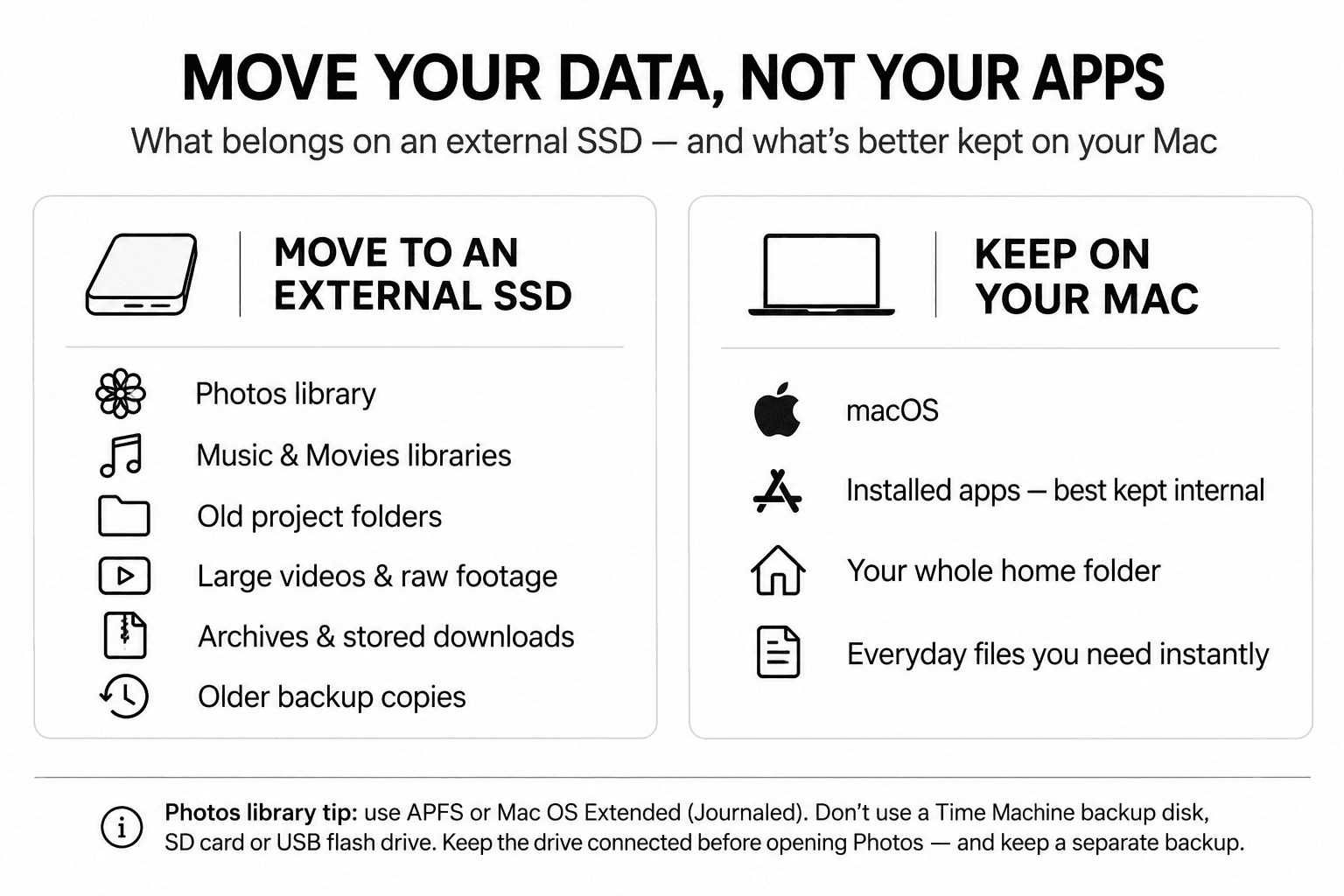
The honest answer, from people on Apple’s support forums: mostly no. Apps are meant to stay on your Mac’s internal drive. What you move is your data.
Good things to move to an external SSD:
- Your Photos library (Apple’s official steps are in the Sources at the end)
- Music and Movies libraries
- Old project files and folders
- Big videos and raw footage
- Downloads you want to keep
- Archives and old backups
Things to keep on your Mac:
- Your apps and macOS itself
- Your whole home folder. People on Apple’s forums warn against moving it.
- Anything you need to open instantly, every day
Rules that save you from pain:
- Format it for Mac. For a Photos library, Apple’s guide says to use APFS or Mac OS Extended (Journaled).
- Don’t use your Time Machine drive for it. Apple’s guide says a Photos library can’t live on a drive used for Time Machine backups.
- Don’t use an SD card or a USB stick for your library. Apple’s guide warns this can lead to data loss.
- Keep it plugged in. If your Photos library is on the drive, Apple says the drive must be on and connected before you open Photos, or Photos creates a new empty library.
- Expect it to be slower than your internal drive. For photos and documents you probably won’t notice. For heavy video editing, you might.
- An external drive is not a backup. If it holds the only copy of your photos, you need a second copy somewhere.
So an external SSD is a great extra closet. It is not a bigger apartment.
The 20-minute check
Grab a coffee. Here’s the whole method.
Step 1: Put everything in three piles (10 minutes)
Look at where your space is going and sort it:
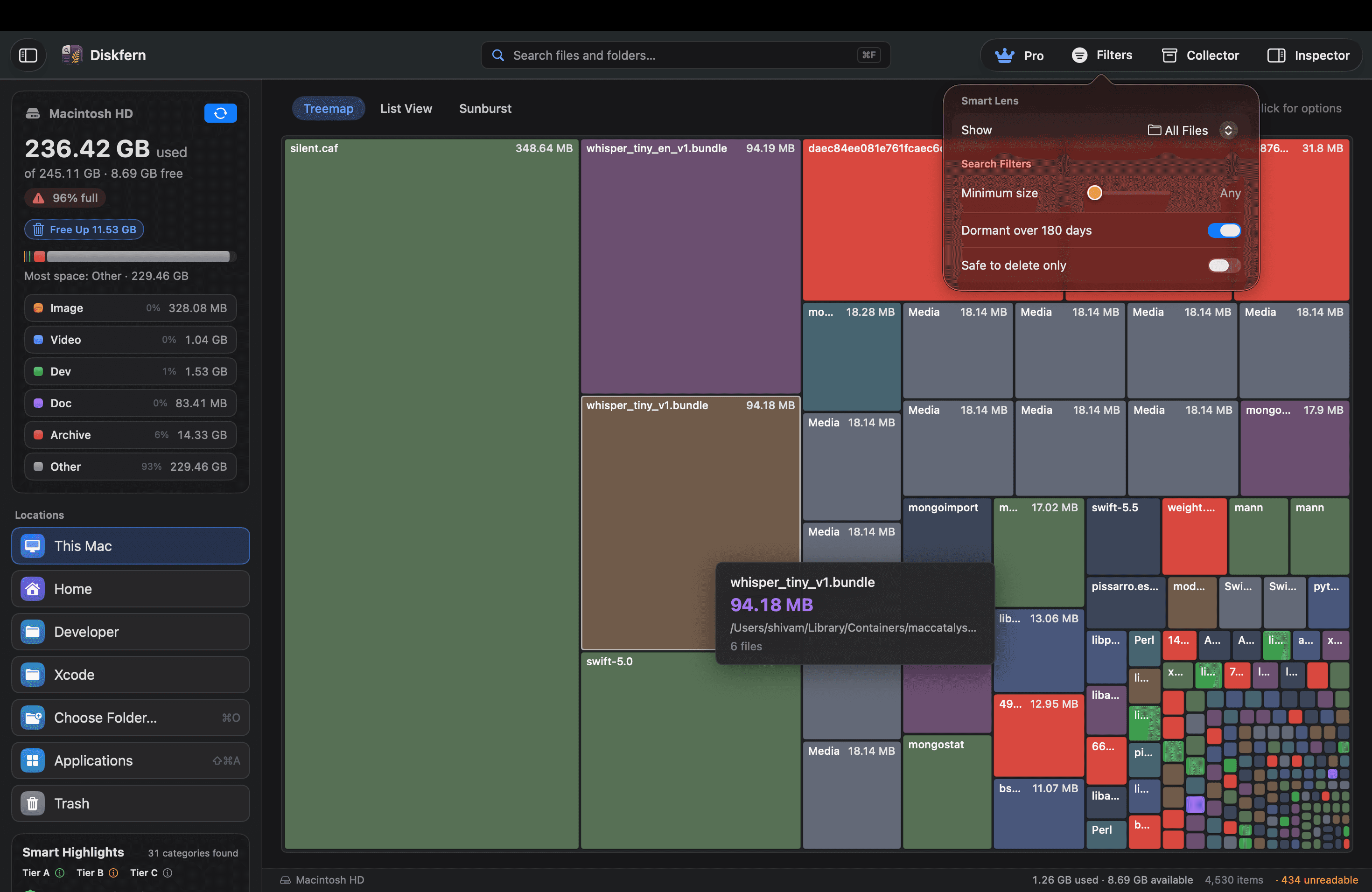
- Pile 1, what rebuilds itself. Caches, temporary files, old installers, developer leftovers. Your Mac or the app will usually make them again if needed. These are usually low-risk to clear, but back up anything you care about before deleting.
- Pile 2, what needs your decision. Big videos, old projects, photo libraries, downloads, files you forgot. Only you know if they matter. These are the files that can move to an external drive.
- Pile 3, what must stay. macOS, your apps, and your active work. Don’t touch it.
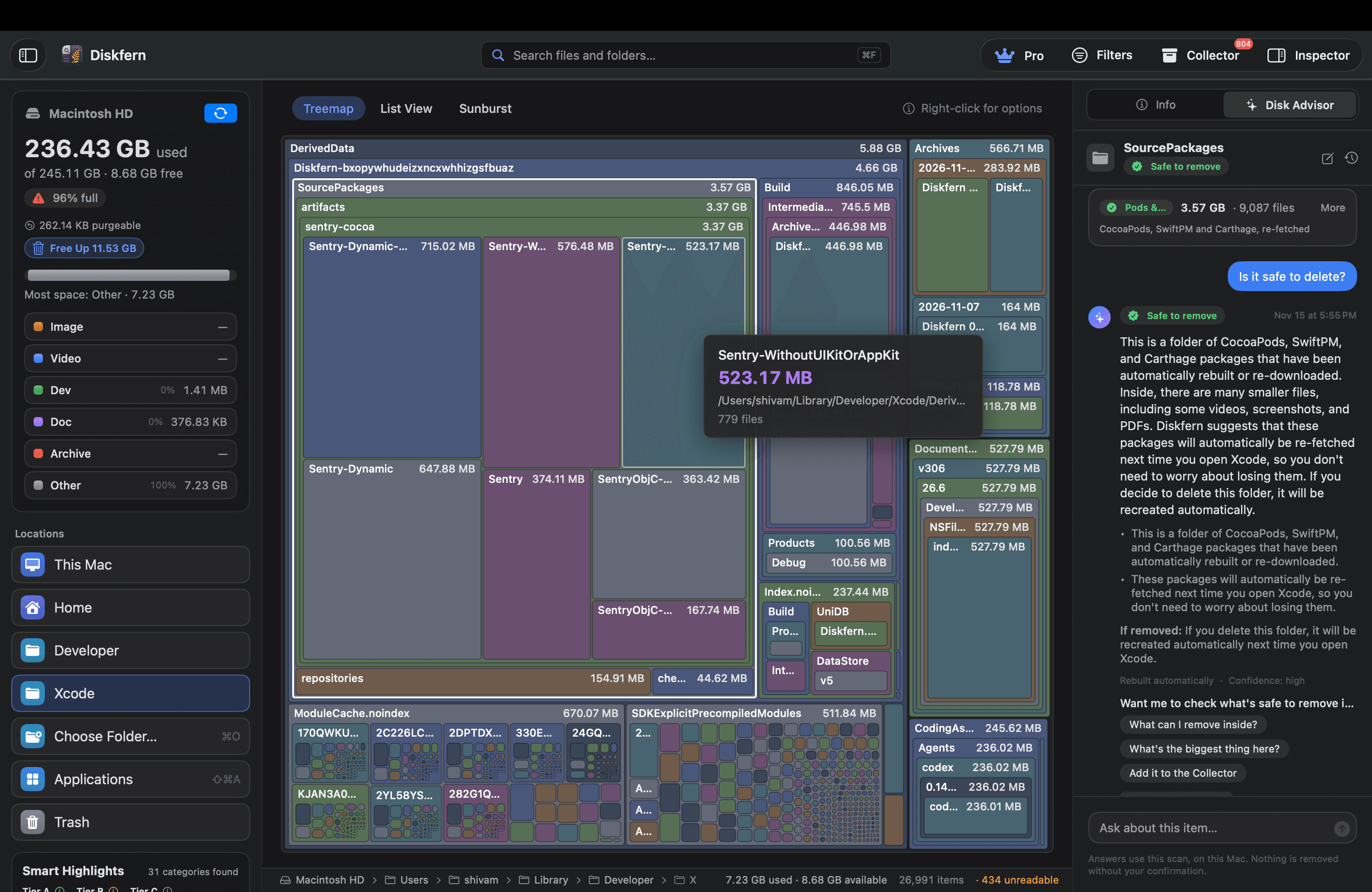
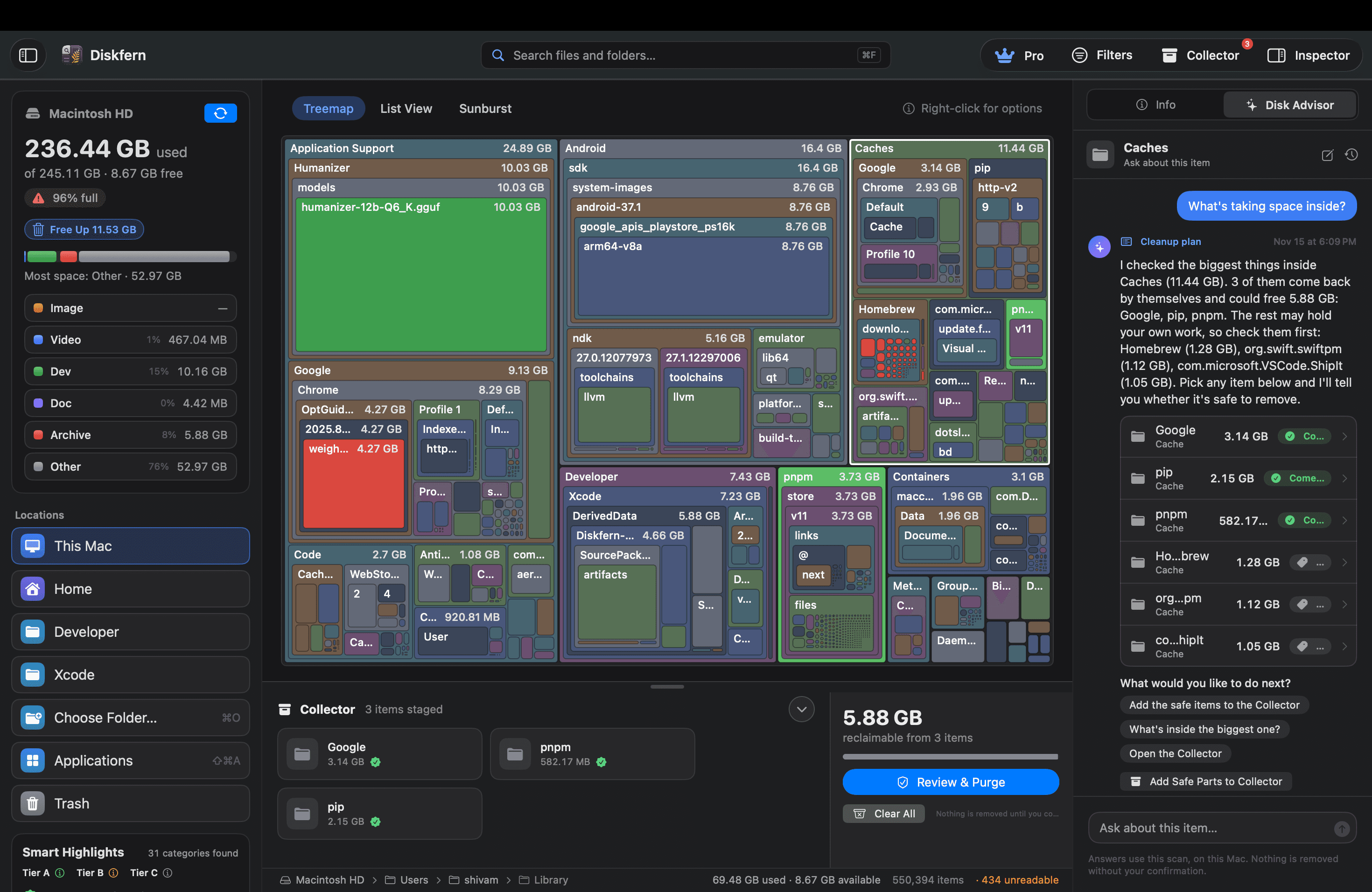
You can do this by hand in Finder with Get Info, or with the storage screen in System Settings. The tricky part is that System Settings shows you big categories and not what is really inside them. That’s the gap I built Diskfern to fill. It scans your Mac and shows what is using space, folder by folder, so you can sort things into the three piles without guessing. Your files and scan results stay on your Mac.
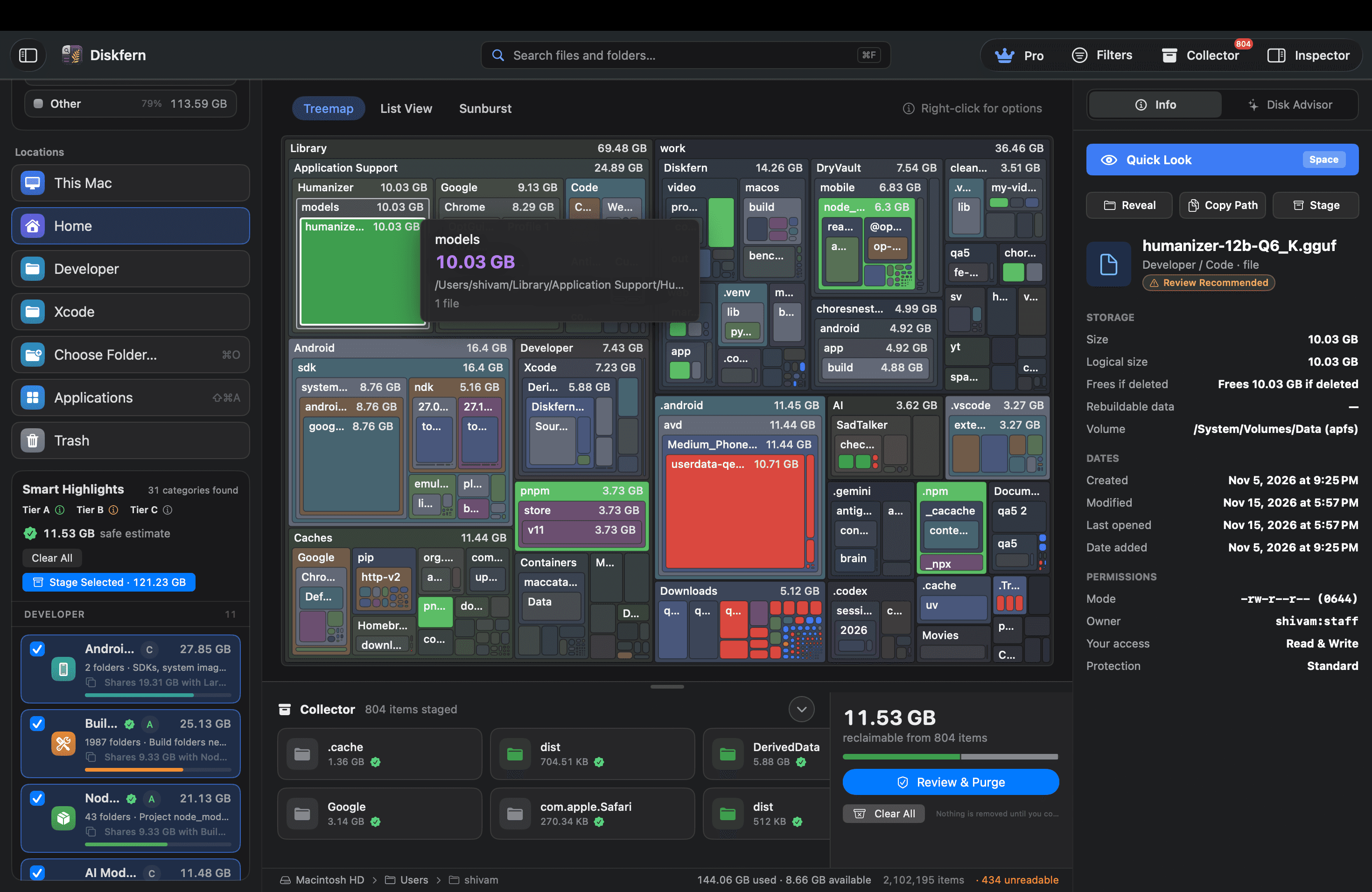
👉 See where your storage went with Diskfern (free to scan, macOS 14 or later)
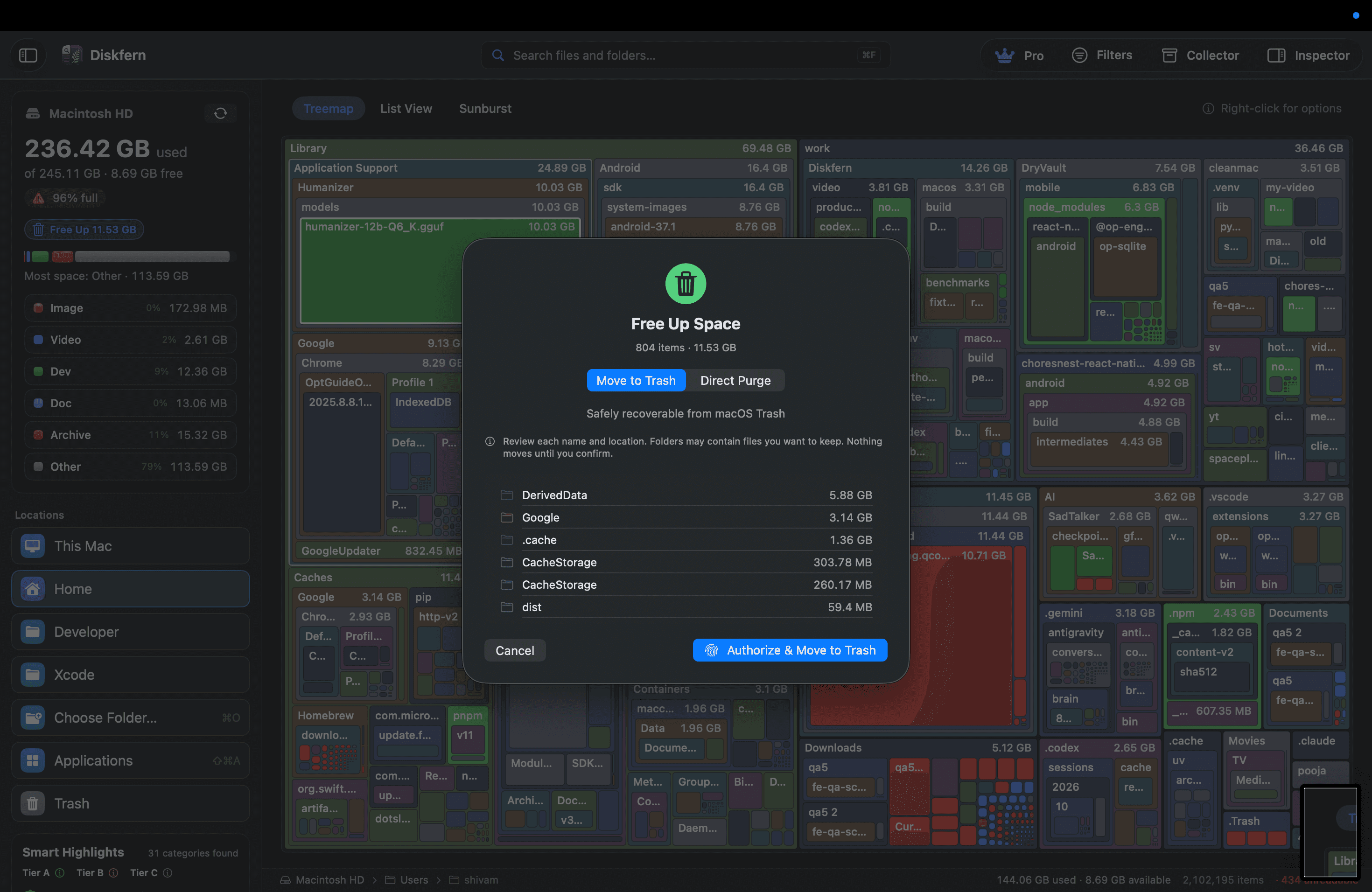
Step 2: Clear Pile 1 and look again (5 minutes)
Only clear what you understand. If you are not sure what a folder is, leave it and look it up first. When in doubt, don’t delete. And back up anything you care about first.
Then check your free space. Many people are shocked here. Gigabytes they didn’t know about are suddenly back.
Step 3: Add up Pile 2 (5 minutes)
How big is the stuff you could move? Be honest. Do you still need it on your Mac every day, or does it just need to exist somewhere?
Now the honest answer
A good rule of thumb is to keep roughly 10 to 15 percent of your drive free so your Mac has room to breathe. Now look at your numbers.
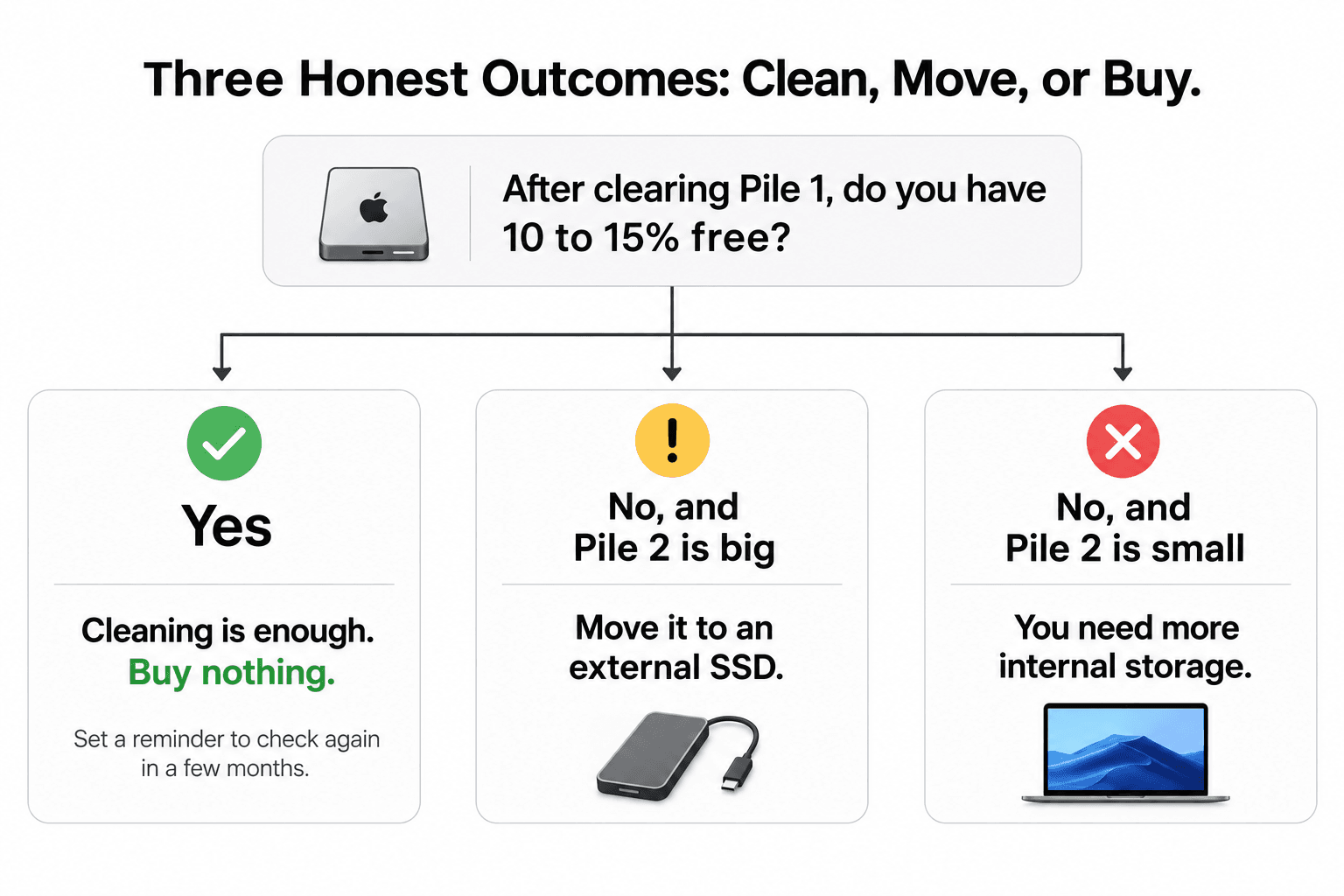
Outcome 1: Cleaning is enough
After Pile 1 is gone, you have comfortable free space. Don’t buy anything. Set a reminder to check again in a few months. You just saved $200 or more.
Outcome 2: An external SSD is enough
Your Mac is still tight, but Pile 2 is big. Move your Photos, videos and old projects to an external SSD, keep a second copy, and you are done. Buy the size you need today, not the biggest one you can afford.
Outcome 3: You really need more internal storage
Piles 1 and 2 are small, and your apps, your system and your active work already fill most of the drive. A 256 GB Mac can be too small for a person who works in big apps all day. If that’s you, buying is the right answer. Some Mac users say 256 GB is plenty if you manage it. Others, including Macworld, argue it is too small. Both can be true. It depends on how you work.
If you do buy, you can buy with confidence. You’ll know the drive isn’t full of junk, so you’re paying for storage you actually need.
The fears everyone has (and short answers)
“What if I buy a 2 TB SSD and the problem comes back in a month?” It can, if the hidden files are the real cause. That’s why you look before you buy. Clear the leftovers first, then move only what you decide to move.
“What if I delete something I need?” Stick to Pile 1 and only things you understand. Never touch Pile 3. Keep a backup of anything you care about before you clear Pile 2.
“Is System Data junk? Will I break my Mac if I delete it?” Don’t delete System Data as one block. It’s a label, not a folder. Look inside it first and clear only the pieces you can name.
“Will cleaning make my Mac faster?” A nearly full drive can feel slow, so freeing space often helps. But if your Mac is slow for other reasons, like very old hardware, storage won’t fix everything.
“Do I have to pay for Diskfern?” Here’s the plain version. Scanning is free. Cleaning up inside the app is Diskfern Pro, a one-time $19.99. There’s no subscription. You can run the free scan, see everything, and do the cleanup by hand if you like. It needs macOS 14 or later.
Your next 20 minutes
Don’t buy anything today. Look first.
- Check your storage and write down the number.
- Sort what’s using space into the three piles.
- Clear what rebuilds itself.
- Decide what can move.
- Then, and only then, decide if you need to buy.
If you want the fastest way to see your three piles, Download Diskfern and run the free scan. If it shows you that you do need more storage, that’s a good answer too. At least you’ll know.
I’m one of the people building Diskfern, so I’m not neutral here. But the method works with or without it. Prices in this article come from reports published in 2026 (listed in Sources below) and can change, so please confirm on Apple’s and the seller’s websites before you buy.
Apple, Mac, MacBook and macOS are trademarks of Apple Inc. Diskfern is not affiliated with Apple.
The Diskfern way
How Diskfern helps
Diskfern scans your Mac and shows what is using space, folder by folder, so you can sort things into the three piles without guessing.
- Scan your Mac to see where space went, down to the folder level.
- Review rebuildable clutter and developer caches labeled Safe or Review.
- Inspect large and dormant files that can move to an external drive.
Finding and reviewing is free. Moving items to the Trash from Diskfern is part of Pro.
Download DiskfernQuestions
What if I buy a 2 TB SSD and the problem comes back in a month?
It can, if the hidden files are the real cause. That’s why you look before you buy. Clear the leftovers first, then move only what you decide to move.
What if I delete something I need?
Stick to Pile 1 and only things you understand. Never touch Pile 3. Keep a backup of anything you care about before you clear Pile 2.
Is System Data junk? Will I break my Mac if I delete it?
Don’t delete System Data as one block. It’s a label, not a folder. Look inside it first and clear only the pieces you can name.
Will cleaning make my Mac faster?
A nearly full drive can feel slow, so freeing space often helps. But if your Mac is slow for other reasons, like very old hardware, storage won’t fix everything.
Do I have to pay for Diskfern?
Here’s the plain version. Scanning is free. Cleaning up inside the app is Diskfern Pro, a one-time $19.99. There’s no subscription. You can run the free scan, see everything, and do the cleanup by hand if you like. It needs macOS 14 or later.

Written by
Diskfern Team
We explain Mac storage using product behavior and the sources listed below. Review your app settings and backups before removing data.
Sources
- Apple Support: Move your Photos library to save space on your Mac · checked November 15, 2026
- Macworld: M5 MacBook Air pricing, March 2026 · checked November 15, 2026
- MacRumors: Prime Day MacBook Air deals, June 2026 · checked November 15, 2026
- Cult of Mac: Why now is the best time to buy a portable SSD, March 23, 2026 · checked November 15, 2026
Keep reading
Learn more about managing large media, cloud sync, and external drives on Mac.
Mac storage full? What to delete first
A practical, safety-first order for what to check when your Mac says storage is almost full, starting with the easiest wins and ending with what to leave alone.
What is System Data on Mac?
System Data is not one folder. See what it contains (caches, snapshots, logs, app data), why it grows, and which parts are safe to delete.
Is This Mac File Safe to Delete?
Found a huge file or folder on your Mac? Check who owns it, whether it can be rebuilt, and what deleting it affects before you reclaim space.
Mac Library Folders Explained
A folder-by-folder guide to ~/Library on Mac: Caches, Application Support, Group Containers and more. See what's safe to delete and what breaks apps.

Get your space back. Start with a free scan.
Explore the files and folders Diskfern can read. Your files stay on your Mac, and nothing is removed until you say so.
macOS 14 Sonoma or later · Apple silicon and Intel