Files & photos
Mac Storage After Leaving a Job: Clean Up Old Work Files Safely
A job change can leave project copies, downloads, meeting recordings, and developer data on a personal Mac. Measure first, but do not assume that an old file is yours to keep or delete. Follow offboarding instructions and ask the former employer about anything uncertain.
 Diskfern Team9 min readUpdated
Short answer
On a personal Mac, start by following your employer’s offboarding instructions and separating clearly personal files from anything that may belong to work. Do not copy, delete, or alter uncertain company data, managed profiles, or synced folders until you know what is required. Read-only size checks can help locate large folders without changing their contents.
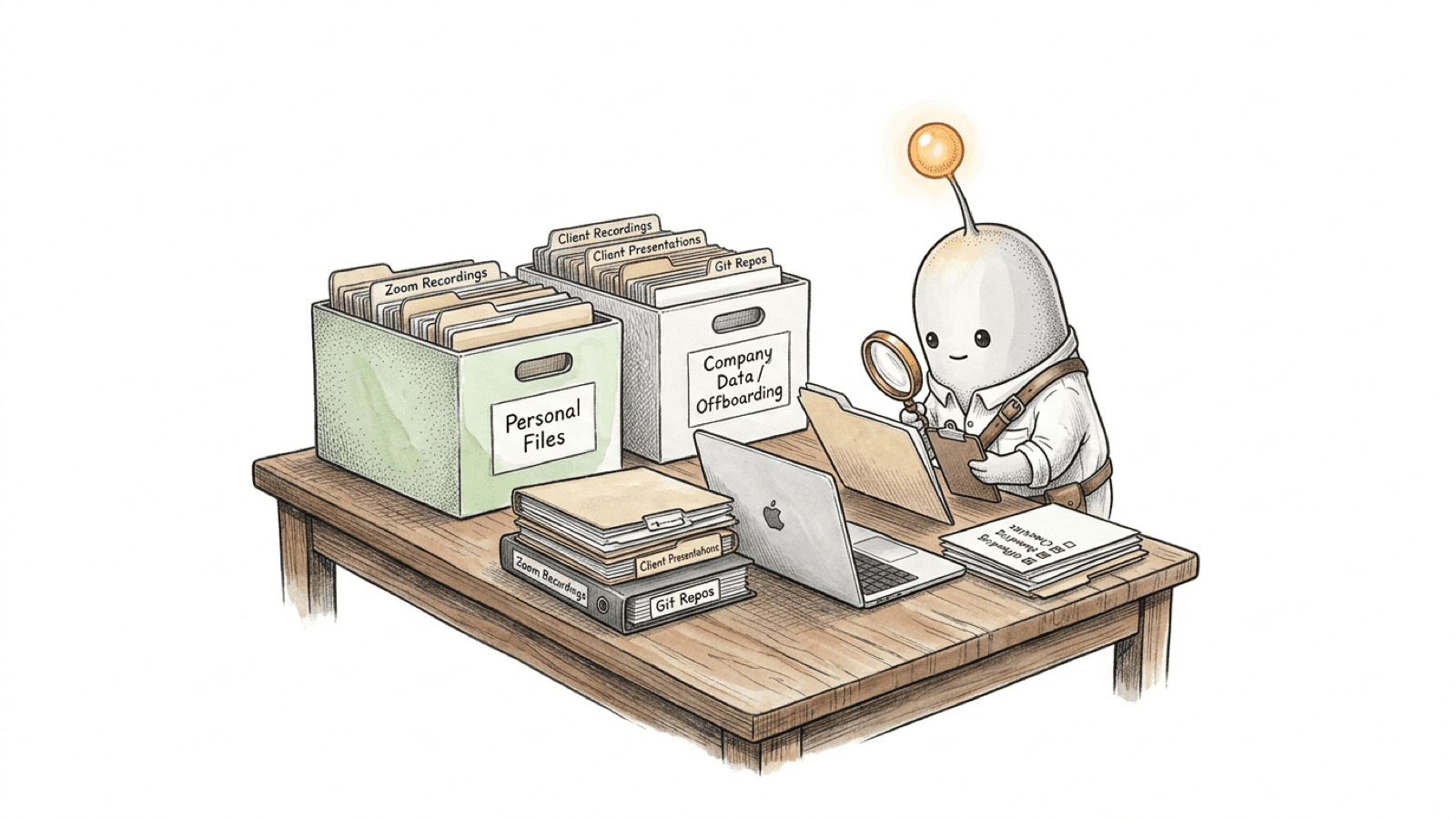
First, confirm which Mac and which files you are handling
This guide is for locating storage on a personal Mac. If the computer belongs to an employer, return it and leave its contents to the organization’s documented offboarding process. Do not wipe it, remove management, or attempt to bypass IT controls.
On macOS 13 or later, Apple lists configuration profiles under Apple menu > System Settings > General > Device Management. Older macOS versions use System Preferences > Profiles. Apple says to check with the system administrator before removing profiles or apps on a device that belongs to a business or school. Seeing no profile is not proof that a file is personal or that an employer has no other ownership or retention requirements.
If your employer allowed work on a personally owned Mac, follow the written offboarding instructions and applicable agreements. This guide cannot determine who owns a particular source file, recording, export, or account data. Ask the organization or a qualified adviser when the answer is unclear.
Read more: Apple Support: review and delete configuration profiles · Apple Platform Deployment: device enrollment and management
Check sizes without changing files
The following commands only report folder sizes or print matching file paths. Run them only on a personal Mac and within folders you are allowed to inspect. They do not tell you who owns a file or whether a retention rule applies.
Measure common personal folders:
du -sh "$HOME/Downloads" "$HOME/Documents" "$HOME/Desktop" 2>/dev/nullList the largest folders directly inside Documents. Replace the path with a folder you are allowed to inspect:
du -k -d 1 "$HOME/Documents" 2>/dev/null | sort -n | tail -15Find files larger than 500 MB whose modification time is more than 180 days ago. This is only a size-and-date filter; it does not establish that a file is abandoned or safe to remove:
find "$HOME/Downloads" "$HOME/Documents" "$HOME/Desktop" -type f -size +500M -mtime +180 -print 2>/dev/nullA missing folder may produce no output. File paths, access permissions, and results vary by Mac. These commands list paths and sizes only; do not add sudo, and do not paste company filenames or paths into a public forum or support request.
Read more: macOS 26.7 man page: du · macOS 26.7 man page: find · macOS 26.7 man page: sort
Before removing anything, use this offboarding checklist
Keep the steps conservative. If an item could be company data, pause and get instructions instead of trying to clean it up yourself.
- Read the written offboarding instructions and any preservation or retention notice you received.
- Confirm whether the Mac is employer-owned, personally owned, or managed under a bring-your-own-device arrangement. Ask IT if you are unsure.
- Do not copy work files to personal storage, share them in a portfolio, or move them to another account unless you have permission.
- Do not delete or alter uncertain work files, recordings, synced folders, or managed profiles. Ask HR or IT for written instructions about those items.
- Measure clearly personal folders first. Remove only files you have confirmed are yours to remove and no longer need.
- If the organization asks you to remove data from a personal Mac, follow its approved process and retain only the confirmation it authorizes you to keep.
Moving an item to Trash is still a change: on a synced folder, it may propagate to the cloud or other devices. Trash is not a safe holding area for uncertain company data. Confirm the account and deletion behavior before changing anything that syncs.
Read more: Google Drive Help: delete files and synced files · Apple Support: review and delete configuration profiles
Use a storage map to locate files, not to decide ownership
A disk-space analyzer can show which folders account for space and where they live. It cannot determine whether a file belongs to you, whether it contains confidential information, or whether you must preserve it.
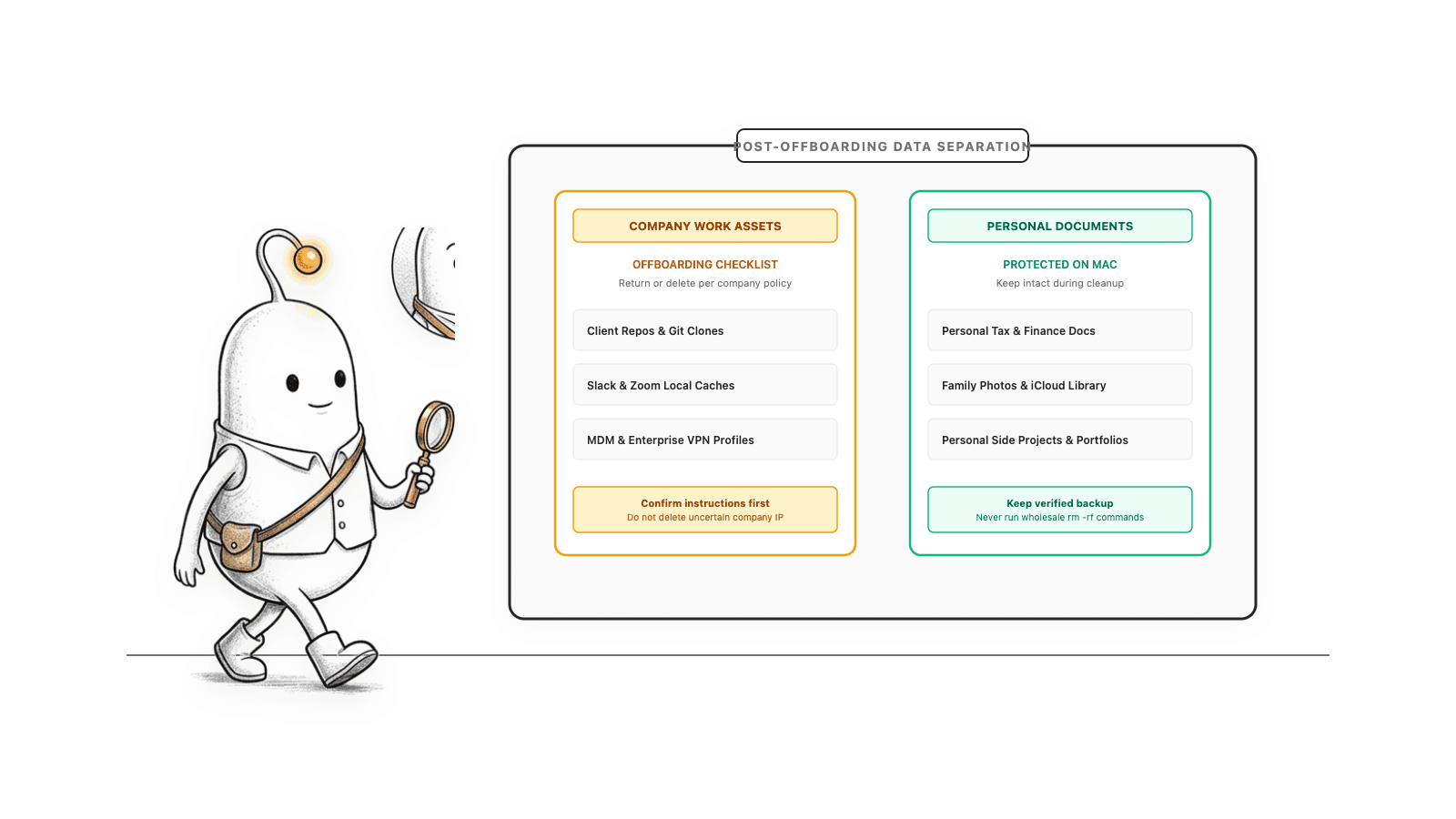
Diskfern can help locate large folders and inspect their paths. It does not classify employment ownership or decide whether an item can be retained. Review the path and contents, follow your offboarding instructions, and use the application’s review and confirmation flow only for files you have confirmed are yours to remove. See Find large files on Mac and Developer Storage.
Read more: Diskfern: find large files on Mac · Diskfern: Developer Storage
Why this topic appears alongside AI and work
The article’s connection to AI is context, not a claim that AI caused any particular person’s job change. Pew Research Center surveyed U.S. adults about their expectations for AI and employment; the survey measures views, not actual AI-caused job losses.
Pew reported that 71% of surveyed U.S. adults thought AI would lead to fewer U.S. jobs over the next 20 years, including 73% of adults under 30. That is a survey finding about expectations. It does not establish why a particular person left a job, and it is not evidence that a specific role has been eliminated.
Read more: Pew Research Center: U.S. adults’ views on AI and jobs
Do not clean up uncertain company data
Do not copy, delete, or alter files that may be employer-owned or subject to a preservation instruction until HR or IT tells you what to do. This article cannot determine your rights or obligations under a contract or local law.
A careful cleanup sequence
Locate storage first; change only clearly personal files after checking offboarding instructions.
- 1
Confirm the Mac’s ownership and read the offboarding instructions.
- 2
Ask IT or HR about work-related items whose ownership or retention status is unclear.
- 3
Use read-only size checks to locate large folders in areas you are allowed to inspect.
- 4
Check whether a folder syncs to a work or personal account before changing it.
- 5
Remove only personal files you are sure you no longer need; follow the employer’s approved process for company data.
The Diskfern way
How Diskfern helps
Find large folders while keeping ownership decisions with you
- Scan only a Mac or folder you are authorized to inspect.
- Use the map and list to locate large paths; do not infer ownership from size, name, or age.
- Review ownership, sync behavior, and offboarding requirements before any cleanup action.
Finding and reviewing is free. Moving items to the Trash from Diskfern is part of Pro.
Explore Developer StorageQuestions
How do I clean up my Mac after leaving a job?
Read your offboarding instructions and confirm whether the Mac is personal or employer-owned. Ask IT or HR about anything that could be company data, retention material, or synced to a work account. Measure and remove only personal files you are sure you may remove.
Can I delete work files from my personal Mac?
Do not assume that a file is yours to delete because it is stored on your personal Mac. Follow your offboarding instructions and ask the employer about uncertain work data, retention notices, recordings, or client files. Ownership and obligations depend on the relevant facts and rules.
Can I keep work files for my portfolio?
Do not copy or publish employer or client material unless you have permission. Ask the organization what, if anything, may be shared, and use approved public examples or materials instead when permission is unclear.
Will deleting a synced folder remove it from the cloud?
It can. Google says files put in Trash from mirrored or streamed Drive folders are put in Trash everywhere. Check the specific service, account, and sync behavior before changing files; leave work-account cleanup to the employer’s process.
Should I remove a work profile from my Mac?
Do not remove a business or school profile on your own. Apple advises checking with the system administrator before removing apps or profiles from an organization-owned device. Ask IT what to do with a personally owned Mac enrolled for work.

Written by
Diskfern Team
We explain Mac storage using product behavior and the sources listed below. Review your app settings and backups before removing data.
Sources
- Apple Support: review and delete configuration profiles · checked November 5, 2026
- Apple Platform Deployment: device enrollment and management · checked November 5, 2026
- Google Drive Help: delete files and synced files · checked November 5, 2026
- Docker Docs: Docker Desktop for Mac storage · checked November 5, 2026
- Zoom Support: manage computer recordings · checked November 5, 2026
- Pew Research Center: U.S. adults’ views on AI and jobs · checked November 5, 2026
- Diskfern: find large files on Mac · checked November 5, 2026
- Diskfern: Developer Storage · checked November 5, 2026
- macOS 26.7 man page: du · checked November 5, 2026
- macOS 26.7 man page: find · checked November 5, 2026
- macOS 26.7 man page: sort · checked November 5, 2026
Keep reading
Learn more about managing large media, cloud sync, and external drives on Mac.
Find large files on Mac
Finder's search can find large files, but it's slow and easy to misuse. Here's how to find them properly, plus faster methods for big drives.
Developer Storage
Bring Xcode, Android, Docker, package caches, and local AI models into one readable map.
Mac storage still full after deleting files?
Deleted files but Mac storage is still full? Understand the Trash, APFS snapshots, purgeable space and shared volumes before deleting anything else.

Get your space back. Start with a free scan.
Explore the files and folders Diskfern can read. Your files stay on your Mac, and nothing is removed until you say so.
macOS 14 Sonoma or later · Apple silicon and Intel